
No, NameDrop in iOS 17 Isn’t a Privacy Concern. Here’s How to Use It

One of the prominent new features in iOS 17.1 and watchOS 10.1 is NameDrop, which makes it easy to exchange contact information with someone merely by putting your iPhone or Apple Watch next to theirs. When you do that, you can share your contact card and receive theirs, or just receive theirs—nothing happens unless you initiate an action.

Unfortunately, some police departments have posted warnings about NameDrop on Facebook, insinuating that it’s a privacy concern. Nothing could be further from the truth. First, NameDrop requires the devices to be almost touching, so it’s implausible that it could be triggered inadvertently, and second, you must unlock your iPhone and tap a button to share your contact information with the other person. If you lock your iPhone or move it out of range, Apple says the transfer will be canceled.
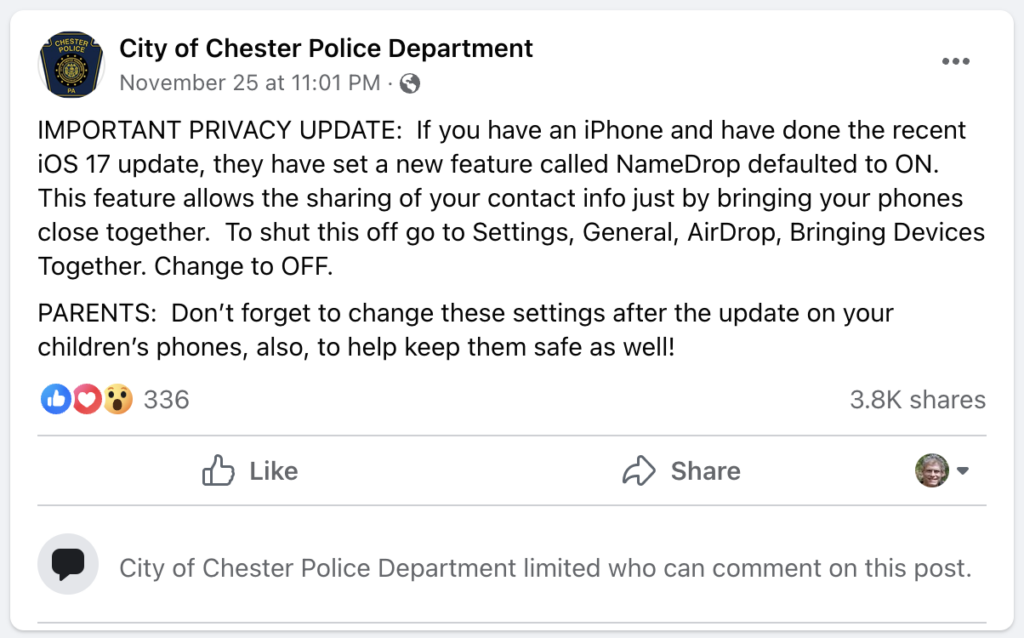
There’s no harm in turning NameDrop off by default other than losing access to the feature, but it’s a sufficient win that we encourage you to leave it enabled.

Imagine you meet someone new at a conference and want to share contact information. Previously, you would have had to find your contact card at the top of the Contacts app or Phone app, tap Share Contact, choose which fields to share, tap Done, and then share it via AirDrop (which may require them to enable their receive settings in Settings > General > AirDrop > Everyone for 10 Minutes), Messages (after entering their phone number), Mail (after typing their email address), or another method. It’s a pain.

Here’s how sharing contact information with someone new works in NameDrop. (It only supports sending new contact information, not updating an existing contact.) Both of you must have an iPhone running iOS 17.1 or an Apple Watch Ultra, Apple Watch Series 7 or later, or second-generation Apple Watch SE running watchOS 10.1. To get started, either:

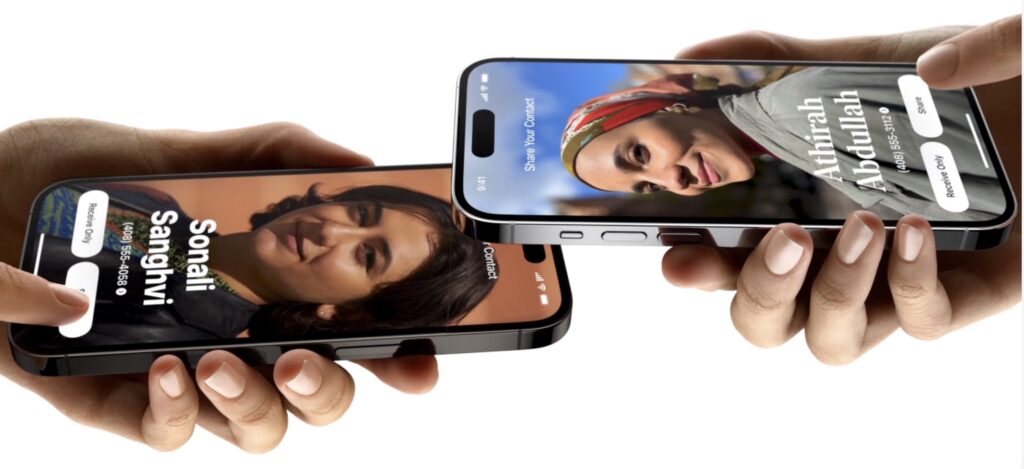
  • Share from an iPhone to another iPhone or an Apple Watch: Hold your unlocked iPhone close (almost touching) to the top of the other person’s iPhone or Apple Watch.
  • Share from an Apple Watch to another Apple Watch: Open the Contacts app on your Apple Watch, tap your picture in the upper-right corner, tap Share, and then put your watch close to the other person’s Apple Watch (Apple’s animation shows them being positioned face to face).
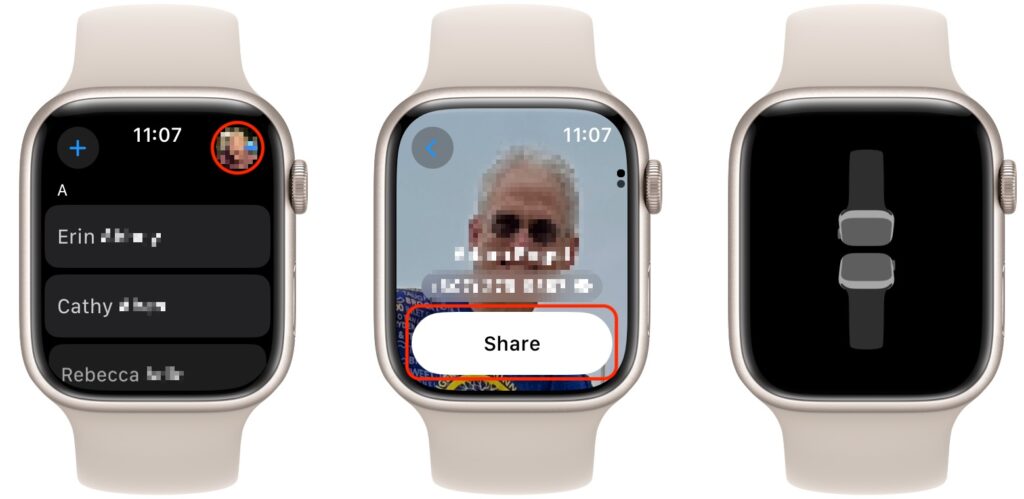
Keep the devices close together until NameDrop appears on both screens. On the iPhone, tap Share to exchange contact information or Receive Only to get theirs without sending yours. On the Apple Watch, you have only a Share button.

Next time you meet someone new and want to exchange contact information, give NameDrop a try. Alas, if they’re an Android user, you’ll have to fall back on the old, clumsy methods.

(Featured image based on an original by iStock.com/Caiaimage/Martin Barraud)


Social Media: Is iOS 17’s new NameDrop feature a privacy concern or a quick way to share contact info with a new friend? We think the privacy concerns are entirely overblown and explain how easy it is to use NameDrop.

Similar Posts

  • _Hello Friends,_

    The big winter storm called Jonas is heading for the east coast and Vermonters are hoping that it tracks north of the current projections but it looks like it might miss northern New England and hit the coastal areas. The lack of snow in Vermont and the unusually high temperatures have hit the Vermont ski areas and local merchants pretty hard. Here it is the end of January and no significant snow in Vermont. Well for all the skiers and especially for the businesses I hope that those areas that can’t really handle snow get bypassed and Vermont gets the big dump because Vermonters are ready.

    Down here in Key West it has been sort of cool meaning I have to wear long pants and shoes, although if it was this warm in Vermont everyone would be in shorts. Down here when it gets below 65 you see people with down coats. NOAA reported this week that 2015 was the warmest year in recorded history breaking the record from 2014 by far.

    Apple honored Dr. Martin Luther King, Jr. on its home page on the national holiday on Monday with Dr. King’s quotation “Life’s most persistent and urgent questions is, What are you doing for others”. Tim Cook tweeted his respects, too. I had the honor of marching with Dr. King and share this respect, he was truly one of the great Americans of all time

    We always advertise our “Celebrate Diversity” slogan during this time of the year. We strongly feel that you gain strength through diversity whether it is race, religion, national origin or sexual orientation. I remember a long time ago we had a series of Celebrate Diversity web banners that created a lot of controversy with some sites refusing to run them. Diversity is much more mainstream now despite some candidates for President attempting to divide us.

    This week’s Kibbles & Bytes Exclusive is weather related with $20 off the “**Tempus Pro Bluetooth Weather Stations.**”:http://www.smalldog.com/wag900002127/special-save-20-on-tempus-pro-bluetooth-weather-station This was one of the most popular gifts this holiday season and is a great way to keep track of the weather in your microclimate. This complete weather station includes indoor and outdoor sensors that measure temperature, humidity, rainfall, wind and barometric pressure. Complete with mounting hardware it is simple to install and once you download the App you can monitor the weather on your iPhone or iPad. Read a Small Dogger review of the Tempus Pro “**here.**”:http://blog.smalldog.com/article/fody-weather-station/ Normally, $159.99 this week Kibbles & Bytes readers can get the Tempus Pro Weather Station for only **$139.99**

  • Businesses, Don’t Overlook Email Backup

    Cloud-based email services such as Google Workspace and Microsoft 365 dominate the market for organizational email for good reason. Dealing with the constant…

  • Hey Siri, What Can You Do?

    So, I am a little embarrassed to admit it but I bought an Amazon Echo to check out how Alexa compares with Siri. I’m a gadget guy so we will see if we find it useful and if not, I am sure I can find it a home on eBay. I use Siri more and more these days. My most common uses are asking her to settle trivia disputes with Grace or setting the timer for 5 minutes. But there is a lot more that Siri can do!

    Make Relationships with Siri
    When you speak Siri commands, you can refer to people by relationship, rather than name. So, if you want to call your father, you can say “call my father” instead of saying “call Bruce Leibowitz.” But to do this, you need to introduce Siri to your family. First, make sure you have a “card” in the Contacts app for yourself, and then go into Settings > Mail, Contacts, Calendars, scroll down to find and tap My Info, and select your card. Next, make sure you have a contact card for your father, and then tell Siri, “Bruce Leibowitz is my father.” Or, if Siri doesn’t hear you correctly, open Contacts, edit your card (not your father’s!), scroll down, tap “add related name,” tap the default relationship to pick “father,” tap the info “i” icon, select your father’s card, and tap Done.

    You can even use Siri to remember other types of relationships. Artie used to bring manure from his uncle’s farm for my garden and ended up with the nickname, “the spreader”. If I tell Siri “Art Hendrickson is my spreader” I can now just say “text my spreader…” and Siri knows who I am talking about. This works for nicknames but also for lawyers, accountants, doctors or any nickname you want to tell Siri about.

    Take a Picture
    Instead of fumbling to launch the Camera app on your iPhone you can just say “take a picture” and Siri will automatically open the Camera app and you can snap away.

    Siri Converts
    Need to know how many millimeters are in 4 inches? Just ask Siri and you will find that there are 101.6 mm in 4 inches. This works for currency exchange rates, too. Ask Siri how many Euros are equal to $100US you will find that 87.73 Euros is the exchange rate today. Siri has some other strong calculation features too. You can ask Siri how many calories there are in that fish sandwich or to calculate a 20% tip on your restaurant bill. You can ask her to solve math problems involving fractions and other math functions that will be faster than opening the calculator app and punching in the numbers.

    Settling Up
    Okay you can use Siri to look up baseball stats or other information to settle a dispute but what if you are at loggerheads and just want to get a random answer and don’t have a coin to flip. You can ask Siri to “roll the dice”, “flip a coin” or pick a random number.

    Name that Tune
    Siri is integrated with Shazam to help you figure out what song is playing. Just ask her “what song is playing?” and she will listen and let you know and probably try to sell you the song, too!

    Find that Photo
    Siri can search your photo library for you. I know how frustrating it is if your are like me and have literally thousands of photos. You can say something like “find that photo from Daytona Beach from last March” and Siri will launch Photos and take you right to any photos taken at that place and time.

    Siri Takes You Out
    Siri can make your restaurant reservations for you, too! Tell Siri “make a restaurant reservation for four at 7PM” and she will respond with available restaurants nearby and if you have the Open Table app installed can make the reservation for you or give you the phone number to call.

    Are We There Yet?
    If you are using your iPhone for navigation you can just say “ETA” and Siri will let you know how much longer you are gonna be on the road.

    Leave Me Alone
    Siri can do a lot for you but sometimes you just want alone time. You can tell Siri to turn on “do not disturb” and you will not be bothered. Or tell her to “turn on airplane mode” and she will turn off Wi-Fi and cellular signals.