Did You Know Most Mac Apps Keep Versions of Your Documents as You Work?
We all make mistakes, which is why Undo exists. Immediately choose Edit > Undo or press Command-Z to undo your last change. Most Mac apps support multiple levels of Undo, so you can keep pressing Command-Z to revert change after change. However, suppose you delete a table in your Pages document, but 30 minutes and many changes later, you decide you want it back. Undo won’t help because you want to keep all the other interim changes, and Time Machine backups may not help because a backup may not have occurred at the right time.
Since OS X 10.7 Lion, Mac apps have been able to take advantage of a built-in Apple technology called versioning to save users from such situations. Apps that support versioning create a separate version of each document every time you save manually or the app auto-saves, at least once per hour. You can browse through all those versions in a Time Machine-like interface and copy data from a previous version or revert the current document to a previous state.
Some cross-platform apps, and those with a long history and legacy architecture, such as Microsoft Word, Excel, and PowerPoint, don’t support versioning, but most modern document-centric apps do. You can identify version-capable apps by the presence of a Revert To command in the File menu.
How Versioning Works
As you work, whenever a document is saved, either automatically by its app or because you chose File > Save or reflexively pressed Command-S, the previous version is added to a database of versions stored in a hidden folder on the same volume. When a file is deleted, all its versions are removed, too, so there’s no worry about wasting storage space on long-deleted files.
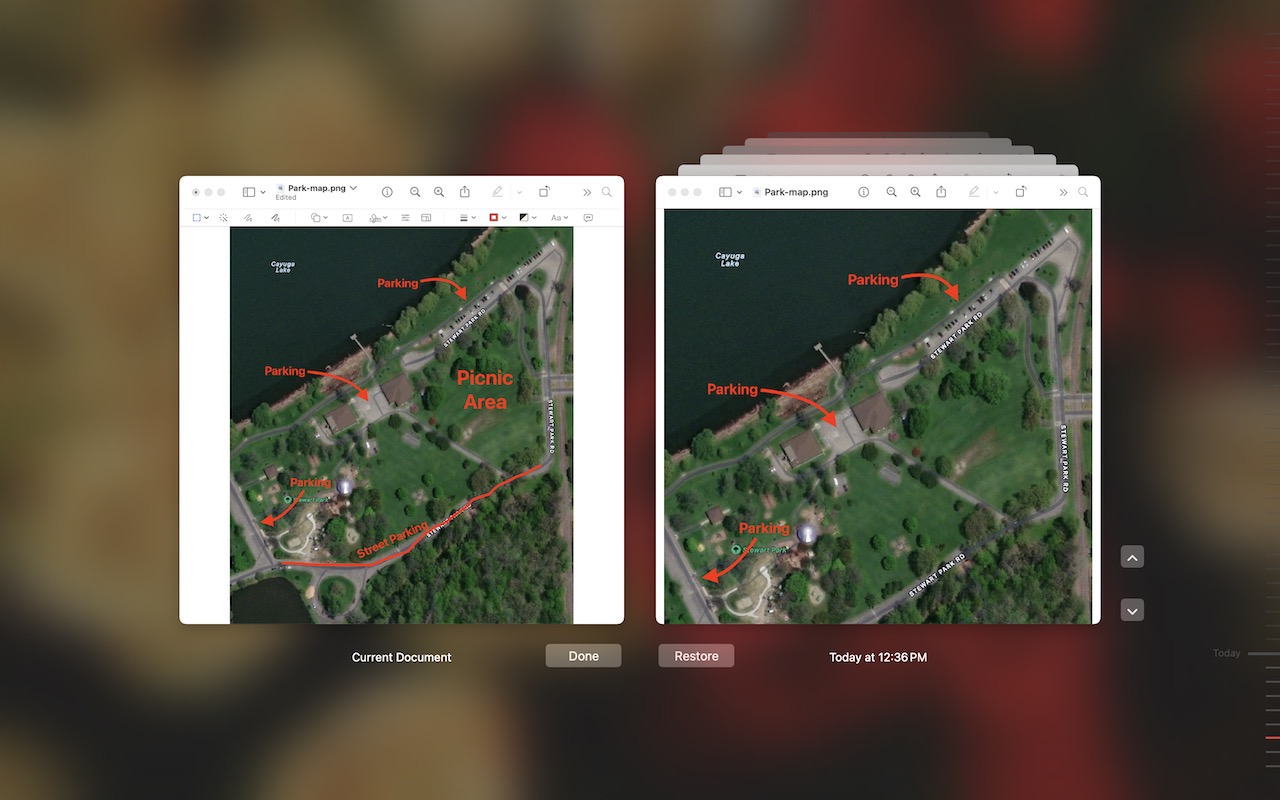
When you discover you need to recover some data from an older version of a file, you choose File > Revert To > Browse All Versions, which opens a Time Machine-like browser for exploring all the previous versions. On the right, you can click the arrows to scroll through previous versions, comparing them visually against the current one on the left. A few apps provide additional ways of comparing versions.

Once you’ve found the version you want, you can try copying the desired content and pasting it into the current version of your document on the left—depending on the app and type of document, you may not even have to leave the version browser.
If copying and pasting doesn’t work, you can instead click Restore to revert the document to that previous version. Unlike Time Machine, the version browser doesn’t ask if you want to overwrite the current version, so if you aren’t sure you want a wholesale reversion, press Option to change the button to Restore a Copy. That opens a separate copy of the document in the app so you can pick and choose what you want to move from the old version back into the current version.
More Versioning Details
Although versioning is easy to use, there’s quite a bit going on behind the scenes, which can generate some questions:
- What about copies of a document? Copies of a document, such as you would make using File > Duplicate, File > Save As, or in the Finder, are different files from the versioning perspective and lose access to the original file’s versions.
- Is iCloud Drive supported? iCloud Drive maintains its own version database, so although you may have to click a Load Version link to see a particular version when browsing past versions, they should all be accessible.
- Are files shared between my Macs versioned? Versions are stored at the top level of the document’s volume, so while it works with files stored on an external drive that moves between Macs, files shared between Macs over a network or using a file-sharing service like Dropbox will have different versions on each Mac, based on where the file was open when it was saved.
- Are there any privacy or security risks to versioning? The version database is completely locked down and better protected than regular documents on your Mac. Also, if you open a confidential file but close it without making any changes or saving, it won’t be added to the version database.
No one expects to make mistakes, but if you do, macOS’s versioning may save you from having to re-create work. Look for that File > Revert To menu in your favorite apps to see if they support versioning, and if they do, give it a try so you’ll know how to use it if you ever need it.
(Featured image by Adam Engst)
Social Media: If you ever regret making a change too long ago to revert using Undo, try the versioning capabilities in many macOS apps that let you view, copy data from, and revert to previous versions of a document.