How to Make Productive Use of Generative AI Chatbots and Artbots

Artificial intelligence dominates the tech news these days, but it’s hard to separate the hype from the reality. Every large company seems to have some major AI initiative in the works. Even Apple, which tends to stick to its own path, has started to tout features previously described as relying on “machine learning” as being “AI.” If you can get past the hype, AI has plenty of good uses now.

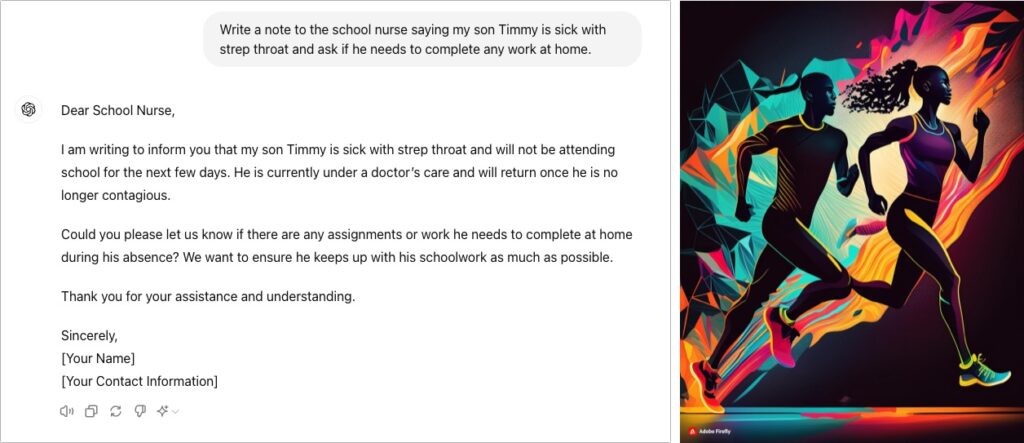
Despite Apple’s recent relabeling of features as using AI, when most people think about AI, they’re thinking of “generative AI” systems like OpenAI’s ChatGPT chatbot or Adobe’s Firefly artbot. These systems generate impressively good text and images from scratch based on user prompts. Ask ChatGPT to write an excuse for your sick kid, and you’ll get fluid, correct English. With Firefly, describe an image—“silhouettes of male and female runners with bright colors and black background”—and you’ll get images that match pretty well.
How do they accomplish this magic? Chatbots use statistical models to predict the next word based on training datasets that contain hundreds of billions of words—think autocomplete on radioactive steroids. Artbots work a little differently, but they also use statistical models to create images based on having been trained to identify numerous images.

Enough background. How can you make the most of today’s leading chatbots (ChatGPT, Claude, Copilot, Gemini, Meta AI, Pi, and Le Chat Mistral) and artbots (Adobe Firefly, Microsoft’s Copilot Designer, NightCafe, Meta AI, and Midjourney)?

Identify Good Uses of Generative AI

It’s essential to recognize that the effectiveness of generative AI for a particular task is highly individualized. What works for one person may not work for another due to varying skill levels, requirements, and preferences. With that in mind, here are three ways to evaluate tasks that might be a good fit for generative AI.

  • Skill levels: The less skillful or knowledgeable you are about a subject, the happier you’ll be with generative AI’s results. You can think of an AI chatbot as a C+ student—its work will get a passing grade, but it won’t fool an expert. But we’re all happy to do or receive C+ work in many parts of our lives—no one is above average in everything.
  • Requirements: Are you looking for something definitive—precisely what you have in mind—or would you be happy with an open-ended set of results? AI chatbots and artbots generate statistically likely results, so if you’re not caught up in things being just right, you’ll probably like what you get. Don’t expect them to read your mind, however.
  • Preferences: It’s best to think of an AI chatbot as an assistant, because you must be willing to go back and forth with it. And that means you have to be willing to work with an assistant who is dumber than they seem, entirely reactive, unpredictable, and inconsistent. (On the plus side, chatbots are also tireless, imperturbable, incredibly well-read, and non-judgemental.)

To sum up, the best tasks for generative AI are those where you know little or aren’t particularly skillful, don’t have specific expectations about what you’ll get, and are willing to interact with a potentially annoying helper.

Get Better Results from Generative AI

These recommendations will help you get better responses from AI chatbots:

  • Set the stage with detail and expectations: Unlike Web searches, chatbots work best when provided with more than essential keywords. Instead, tell the chatbot a little about yourself, provide background about the topic, and lay out your expectations. ChatGPT even lets you provide instructions to apply to all your chats. Additional detail helps the chatbot’s statistical model better predict what you want.
  • Iterate repeatedly and push harder: You don’t have to provide all that detail up front. Chatbots retain context—they know what has been said in the chat—so after your initial prompt, you can and should keep pushing the chatbot to refine and improve its answer. Don’t be shy to ask, “What’s missing from this?” or “How could this be improved?” While it’s always best to be polite, there’s no harm in asking a chatbot to do better. Pretend you’re a coach or therapist and keep asking probing questions.

Remember, unlike a search engine, where each search stands alone, working with an AI chatbot is a conversation. Right now, that’s less true of AI artbots, but we’re moving in that direction.

Good Uses for Generative AI

AI has innumerable possible uses, limited mostly by your imagination. Here are a few that have worked well for us:

  • Brainstorming: Have you ever needed to come up with a name for a program, product, or service and found your mind utterly blank? Or maybe you’re writing and can’t put your finger on precisely the word you want? Ask an AI chatbot! With a little direction, they’re great at coming up with a bunch of possible names or words. You may not get exactly what you want, but the chatbot’s suggestions will help you think in new directions.
  • Coding: An AI chatbot won’t turn you into a professional programmer, but it can help you write a small AppleScript to automate a task like adding sequentially numbered calendar events to every Monday for the rest of the year. Chatbots are also good at helping you use powerful but complex Unix tools for reformatting text like sed, awk, and grep. But perhaps our favorite real-world use is getting help with devilishly complicated spreadsheet formulas that do lookups as part of their calculations.
  • Talk to documents: Some AI chatbots (and services like ChatPDF) enable you to have conversations with long documents. That sounds weird, but it’s much easier to ask a few questions about how a hundred-page report affects your business, for instance, than to slog through the entire thing. Such systems provide page references to support their answers, so you can (and should) verify what you’re told.
  • Drafting difficult email: Some email messages are hard—no one likes having to reprimand an employee, express condolences to a business associate, or announce layoffs. But such messages are essentially genres—if you’ve seen one corporate merger announcement, you’ve seen them all. If you seed your prompt with plenty of appropriate details, an AI chatbot can generate a credible first draft that you can tweak to improve accuracy and make it sound like you instead of an overeager college student. Never send an AI-generated email without taking an edit pass.
  • Evaluating ideas: It’s always a good idea to talk through ideas and decisions, and conversations with AI chatbots can help you think about them. Should you ask for a raise or try for a promotion? What are the pros and cons of moving to a new location? Does it make more sense to rent or buy? An advantage of AI chatbots is that you can tell them to respond like a particular type of professional, such as a lawyer, financial advisor, or life coach. Of course, all chatbot responses are just statistically probable, so they won’t compete with those from actual professionals, but they’re a good start.

AI-Powered Searching

Finally, let’s look at AI-powered search engines like Perplexity and Arc Search (on the iPhone), and increasingly prominent AI-generated summaries in Google, Bing, and Brave Search. They blur the distinction between search engines and chatbots. Search engines focus on providing answers to questions, either link to or summarize their sources, and include the most recent information. In contrast, chatbots focus on conversation, generate answers from scratch, and always have some date after which their knowledge stops.

When might an AI-powered search engine be more effective than a traditional search engine’s list of links? Try one in situations like these:

  • Searches for easy but non-obvious answers: If you want to know who held the mile world record before Hicham El Guerrouj, for instance, an AI search engine will just tell you, rather than make you read a Wikipedia page about the world record progression. It could even tell you who has come the closest to his world record in the last decade, which would be difficult to determine otherwise.
  • Searches for answers to idle questions: If you don’t want to spend a long time reading source materials and don’t care much about the answer, an AI-powered summary will be efficient.
  • Searches that require assembling information from multiple sources: Imagine that you want to know how many people live in New York City, Boston, and Chicago. With a traditional search engine, you’d need to find each city’s population independently (or a list of major US city populations) and add them manually. An AI-powered search engine could find them all and add them for you.
  • Searches where you don’t quite know what you’re looking for: When you’re starting to explore a topic, an AI-powered search engine can suggest additional searches as you home in on aspects of the topic that especially interest you.

Google’s recent addition of AI-driven summaries quickly drew mockery for suggesting the addition of glue to pizza and encouraging the ingesting of rocks. But remember, humans say incorrect things all the time, often intentionally. In fact, both of those examples were triggered by jokes and could have come up in traditional searches as well, but in contexts that were clearly silly.

Regardless of whether information comes from an AI chatbot, an AI-powered search engine, a Facebook post, or the woman next to you on a plane, you have to discern whether it’s likely to be right. AI can be helpful in many ways, but it won’t do your thinking for you.

None of the text of this article was generated by AI.

(Featured image by iStock.com/Blue Planet Studio)


Social Media: Generative AI is all the rage, but what if you want to use it to create more than bad essays and surreal images? We explain how to make the most of AI chatbots and artbots, and how to benefit from AI-powered search engines.

Similar Posts

  • _Dear Friends,_

    I had a great trip up to Jasper, GA to pick up the 2003 Victory motorcycle. I took almost all two-lane roads and the weather cooperated although it was a bit chilly in the mornings. It got busier as I headed south in Florida but all in all it was a great way to spend the weekend.

    Small Dog Electronics is finishing up our 20th year in business and we are going to be changing out the 20-year anniversary banners and signs. Now that we are going to be 21 we are renewing our commitment to walking the walk as a socially responsible business. We feel that how we treat people, customers, employees, vendors or strangers is an equal measure of our success as to how we treat the planet and the profit we hope to make. Did you know that 100% of the electrical power for our S. Burlington store and about 85% of the power for our Waitsfield headquarters is generated from solar energy?

    When you form a “corporation”, if you tear down the word to its Latin base, it means to “form a body”. My high school latin teacher would be proud. As a body in society, a business has a bigger footprint than any individual. We have buildings, we consume resources, we generate waste and we have a huge impact on peoples lives. With that larger footprint comes a larger responsibility and that is the basis for our commitment to always measure our success by the triple bottom line of People, Planet and Profit.

    This week’s Kibbles & Bytes exclusive features the iPad mini 4. This model in Space Gray includes 64GB of storage and cellular capability. With the Retina display and Touch ID this incredibly thin and light iPad could be a complete solution. Because this model has cellular capability (cell contract required) you can use it anywhere where there is Wi-Fi or Cellular coverage. The iPad Mini 4 is my iPad of choice. I like the way it fits in one hand and is perfect for reading. It feels like you are holding a paperback book. This week, exclusively for Kibbles & Bytes readers we are offering the “iPad Mini 4 in Space Gray with AppleCare Plus”:http://www.smalldog.com/wag900002167 for a special price. AppleCare Plus for the iPad extends the 1-year warranty to 2-years and also provides for coverage for accidental damage (i.e. broken screen, etc.) for up to two incidents for a $49 deductible. It also extends the 90-days of free Apple technical support to 2-years. Normally, this bundle is $729.98 but we are giving Kibbles & Bytes readers the opportunity to save $40 on this bundle. You get the iPad mini 4 64GB Cellular model with AppleCare Plus for only “**$689.98!**”:http://www.smalldog.com/wag900002167

  • Expand your mind…er..text

    Speed Up Your Fingers with Text Expansion

    With all the advances in computing and communications, it’s amazing that–after nearly 150 years!–we still use the keyboard layout from the world’s first practical typewriter for entering text into our Macs, iPhones, and iPads. Sure there are some improving dictation solutions out there but typing is by far how we input text. But we have not gotten that much better as typists, nor do we enjoy typing more–if anything, we increasingly abbreviate to avoid typing, hence “LOL, BRB, etc.” Text messaging aside, wouldn’t it be nice to be able to type less without compromising meaning or making your text look like it was composed by a trained monkey? Thanks to text expansion features built into OS X and iOS, and extended with third-party utilities, you can.

    For basic text expansion capabilities in OS X, look in System Preferences > Keyboard > Text, and in iOS 9, go to Settings > General > Keyboard > Text Replacement. For both, you can enter a phrase, and a shortcut that expands into that phrase when typed and followed by a space or punctuation character. (Tip: If text expansion doesn’t work in a Mac app like Mail or Safari, make sure Edit > Substitutions > Text Replacement is selected.)

    If you’re signed into the same iCloud account on both your Mac and your iPhone, for instance, the text expansions sync between them automatically. So, you can type “smh” and tap the Space bar to get “Shaking my head!” typed out for you, regardless of what device you’re using. (Another tip: don’t create abbreviations that you will also want to type normally. It might seem like a good idea to use “np” for “No Problem,” but that will get in the way of talking about Nurse Practitioners.)

    With such a useful feature built into OS X and iOS, why would you want to spend money on a third-party utility, like “**TextExpander**”:https://smilesoftware.com/textexpander (Mac and iOS), “**Typinator**”:http://www.ergonis.com/products/typinator/ (Mac), or “**TypeIt4Me**”:http://www.ettoresoftware.com/products/typeit4me/. Unfortunately, OS X’s text expansion feature doesn’t work in all apps (it likely won’t work if the app lacks the Edit > Substitutions > Text Replacement menu command). The interface for creating new substitutions is cramped and hard to work with, you can’t configure the trigger characters that cause abbreviations to expand, and you can’t include text with styles, variable text like the date, or even graphics.

    That’s where text expansion utilities shine. They can include styled text and graphics in expansions, insert the current date and time, respect case when expanding abbreviations, include the contents of the clipboard in expanded text, automatically fix common typos, create fill-in-the-blanks snippets that you customize on each expansion, and much more.

    Here are some ideas for the kinds of things you might want to turn over to your computer for typing:
    Long or complex words or phrases, such as scientific names. Aedes aegypti, anyone?

    *Your address, phone number, and email address. One of my favorites is “@d” which inserts my email address. I get real tired of typing email address, phone numbers, etc. Text expansion speeds that up!

    *Boilerplate text for common email replies.

    *The current date and/or time.

    *Special characters, so blb could expand to the British pound symbol £.

    *Unix commands for Terminal, such as using ssh to log in to a remote computer.

    I am sure you can come up with dozens that might work for you and speed up your typing. So think about what bit of text you might want expand automatically and give text expansion a try today!

  • Ick, it is tax time and while I love Turbo Tax, I hate doing taxes. It is not that I have a problem paying taxes, especially when I see my tax dollars doing things for the public good but it always alarms me to see how much I am paying for unnecessary wars and an ineffective congress. Grace stays far away as I work on the taxes as I grumble and fret.

    It looks like it might be a rainy weekend here in Key West so I can work on that and do some much-needed motorcycle maintenance. I can’t wait to get my hands on one of the new iPad Pros to compare with its big brother. I don’t know if it will turn around the decline in Apple’s iPad sales but it does represent a new powerful digital tool.

    Thank you for reading this issue of Kibbles & Bytes!

    Your Kibbles & Bytes Team,

    _Don, Emily & Hadley_

  • _Dear Friends_,

    Well I didn’t win the Powerball so I guess I have to stick with my day job a bit longer. Vermont finally got some winter weather and more snow is in the forecast. It has even gotten a bit cooler down here in the Keys where when it dips below 70° F the down coats and shoes come out.

    I am still struggling a bit with tropical gardening. A large caterpillar ate the leaves off one of my tomato plants overnight and for some reason I cannot get my citrus trees to blossom. I keep feeding and watering them in the hopes that my Key Limes, Myers lemon and Naval oranges will blossom but they seem to just make greenery. We did discover that bananas love coffee grounds and since Grace and I produce a lot of coffee grounds those plants are doing well.

    I upgraded myself from the original iPad mini to the iPad mini 4 before I went to Las Vegas and the differences are remarkable. Not only is it thinner and lighter but the screen is much better, the speed is a lot faster and I simply love the Touch ID. I had been trying to activate my old iPad mini with my finger after being used to that with my iPhone so it is a welcome addition for my primary reading device. I prefer the iPad mini to the full-size iPad or the iPad Pro because of the size. It feels like a paperback book in my hand and even on a crowded airplane it is comfortable to use.

    Do you know about tethering? I don’t know how many people I have talked out of buying a cellular iPad by explaining tethering. I guess that is a bit against my interests as you pay an extra $130 for cellular versions of the iPad. If you buy that cellular version you also need a cell contract which might be another $30 a month. Tethering is a much better idea. Tethering is where you share the cellular connection from your iPhone with your iPad. You activate Personal Hot Spot and boom you have your own private wireless network over cellular. The other day Comcast had an outage here in the Keys and I used tethering with my Mac to work all day. Most carriers will charge you a little more for tethering but it is less than the $30. With my iPad, I simply choose “donphone” from the wireless setup and I am connected with the same speed as if I had the cellular version of the iPad.

    This week’s Kibbles & Bytes exclusive is a “**fully configured 13-inch MacBook Air.**”:http://www.smalldog.com/wag900002125/special-save-50-on-apple-refurbished-macbook-air-and-free-hammerhead-case This Apple factory reconditioned MacBook Air carries the same 1-year Apple warranty as new Macs and we are bundling it with AppleCare so you actually get 3-years of warranty protection and 3-years of free Apple technical support instead of the normal 90-days. This MacBook Air is the same as the one I use and love. It features a 1.7GHz i7 processor, 8GB of ram and a big 512GB SSD drive. I am going to take $50 off and include a free Hammerhead neoprene case for this MacBook Air. Regular price is $1639.97 but for Kibbles & Bytes readers this week only (while supplies last) the price for this bundle is “**$1559.98.**”:http://www.smalldog.com/wag900002125/special-save-50-on-apple-refurbished-macbook-air-and-free-hammerhead-case

  • Back up for the Holidays

    The Holidays are here and I am sure many of your are busy making memories, thinking about others and capturing as many picture-perfect moments that you can. While you’re busy bustling around, are you taking the time to think about these memories? What would happen if you couldn’t go back and look up those moments? Perhaps now is the time to think about a gift for yourself and taking the time to ensure that all of the perfect moments you are capturing on video and in pictures are being safely stored on your computer.

    I know we talk about this all the time, but it’s surprising how many of us out there keep putting this important step of backing up to the side! The Holidays are the time with some of the best memories, and so many of us are capturing once in a lifetime moments. The last thing anyone wants is to have something happen to those photos. There are so many options for backing up your computer and your important files it can be a little overwhelming. There is iCloud, cloud-based storage solutions from countless companies, traditional external hard drives for back up and more! My preferred backup solutions are a combination of cloud backup and physical hard drives. It might seem a little redundant, but better to be safe than sorry when it comes to important documents and memories.

    For me, iCloud and an external hard drive are my preferred options for backing up. I use my iCloud account to keep my daily life in order, contacts and calendars most importantly. I also use iCloud for storing some of my most important memories and files, select baby photos of my kids and some important documents. The kind of things that should the worst case happen and I lost my computer or drives due to theft or fire I still have copies in the cloud. My preference for my backups is using Time Machine and my “**Seagate**”:http://www.smalldog.com/product/85305/seagate-backup-plus-slim-portable-drive-usb-3-0-2tb-blue hard drives. I keep a different drive for each of my computers and perform fairly regular backups, I am not perfect, so sometimes they are not as regular as I would like. But utilizing these drives allows me to ensure that I have entire backups of my files and data readily available. Before I started to use iCloud I would also have back ups drives of my Time Machine back up, yes, I was and am that paranoid about loosing photos of my kids. I still have a small 20gb drive that contains my oldest daughter’s first year of photos, even though I know all the photos are on my computer and backed up I still won’t delete that drive.

    In the last year we have seen a rise in alternative cloud storage and mobile storage solutions. Many companies like “*Seagate*”:http://www.smalldog.com/category/?mmfg%5B0%5D=Seagate and “*LaCie*”:http://www.smalldog.com/category/?mmfg%5B0%5D=LaCie have portable drives that allow users to access information wirelessly while on the go. This is a great solution for families with large media libraries for movies. The “**Lacie Fuel**”:http://www.smalldog.com/product/85520/lacie-fuel-wireless-battery-powered-mobile-hd-wifi-usb-3-0-1tb is great for just this. Have a long road trip? Load up the drive and the family can access the files from their iPhones or iPads quickly and easily without taking up storage on their devices. Another and perhaps more practical solution is the “**Seagate Personal Cloud**”:http://www.smalldog.com/wag900002041/mac-the-halls-save-20-on-seagate-personal-cloud-home-media-storage-3tb. This drive allows you to back up everything on your computer and access it from anywhere! No need to carry that back up drive along with you, and with tons of storage options little worry about not having enough space. So this holiday season remember, backing up is just as important as capturing those memories.