Keep Your Browsing Organized with Browser Profiles
As more of our lives shift online, it becomes increasingly important to establish boundaries between different aspects of our digital activities. Many people maintain separate work and personal email addresses for this reason. But you don’t have to stop there.
Modern Web browsers offer profiles, a powerful but often overlooked feature. Whether you’re juggling work and personal browsing or managing multiple projects, browser profiles can make your digital life more organized and efficient.
Why Use Browser Profiles?
The overarching reason to use browser profiles is to make it easier to focus on one thing at a time. Imagine you’re working on a bathroom remodel at home while negotiating a new contract with an important client at work. You probably don’t want to be distracted by tabs showcasing countertop surfaces when you should be estimating client deliverable dates. That’s especially true if you use the same Web apps—Gmail, Google Docs, Slack, Trello—to manage both personal and professional projects.
By setting up separate browser profiles, you can keep your work and personal browsing completely separate. That includes different bookmarks, sets of tabs, and account logins for the same websites. When you open Google Docs in your personal profile, you will find sheets that track the timeline for your bathroom remodel in your personal account; switch to your work profile to view only documents in your work account.
Other common uses for browser profiles include separating clients—particularly when managing accounts for them—keeping research projects or hobbies distinct, and maintaining a clean browser environment for testing.
What’s Stored in a Browser Profile?
Each browser profile maintains its own distinct set of browsing data and settings. While specifics may vary slightly among browsers, options include:
- Bookmarks/favorites: Saved websites, possibly in hierarchical folders
- Browsing history: The chronological list of websites you have visited
- Saved passwords: Login credentials for websites if you rely on the browser rather than an independent password manager
- Extensions and their settings: Which browser extensions are installed and how they’re configured
- Cookies and site data: These store website preferences, login status, and site-specific information
- Stored forms and autofill data: Saved addresses, payment methods, and other form data
- Browser settings and preferences: Search engine preferences, home page and startup settings, theme and appearance options, and privacy and security settings
- Open tabs and windows: Including tab groups and recently closed tabs
When you switch between profiles, you get a completely fresh browser environment with its own set of everything listed above. You can log in to the same website using different accounts in various profiles, and your activity in one profile won’t impact or be visible in another.
Setting Up and Switching Between Profiles
Getting started with profiles is simple. Here’s how to create and switch between them in Safari (in macOS 14 Sonoma and later), Google Chrome, and Firefox. Before you get started, though, a few tips:
- Give profiles descriptive names and distinct colors so they’re easy to identify.
- Keep the number of profiles manageable because too many can become confusing.
- If you create profiles for clients or projects, periodically review and tidy up unused ones.
- Keep in mind that profiles are intended for organization and efficiency, not security—anyone with access to your Mac can switch to any profile.
- Chrome and Firefox profiles are stored on a particular computer—they won’t sync with another copy of those browsers on another computer.
Safari
Safari profiles share more data than those in Google Chrome and Firefox, and unlike the other two, Safari profiles automatically sync between devices. All bookmarks and saved passwords are accessible to all profiles, although you can choose a separate primary bookmark folder for each profile. Note that Safari stores its current settings in a permanent Personal profile that becomes visible only after you create a new one. To create a new profile in Safari:
- Choose Safari > Settings > Profiles.
- If this is your first new profile, click Start Using Profiles. Otherwise, click + to create a new profile.
- Enter a name, and choose a symbol and color.
- Select a folder within your bookmarks to hold the profile’s primary bookmarks.
- Click Create Profile.

- Choose how new windows and tabs open.
- Click the Extensions tab, and select the extensions you want to use with the profile.
Every window in Safari is associated with a profile, so switching between them can be as simple as clicking another window or using the Window menu. At most, you have to open a new window for the desired profile:
- Choose File > New Profile Window. If you have three or more profiles, the command becomes File > New Window > New Profile Window.
- With the sidebar closed, click the profile button and choose New Profile Window to create a new window. When viewing the Start page, you can choose Switch to Profile Window to change the profile for the current window.

Google Chrome
Google Chrome has had browser profile support for many years. Like Safari, you start with a default profile. To create a new profile in Chrome:
- Choose Profiles > Add Profile. Click to continue without an account or sign in with a different Google account.
- Enter a name and pick an icon for the profile.

- If desired, choose Chrome > Settings to adjust settings and active extensions for the new profile.
Every window is associated with a profile, so switching is often just a matter of clicking the desired window or choosing it from the Window menu. To open a window for a different profile:
- Choose Profiles > MyProfile.
- Click the profile icon in the toolbar and choose the profile you want.
Once you have multiple Chrome profiles, the app will ask you which to open on each launch. From this screen, you can also remove a profile by clicking the vertical dot menu and choosing Delete. If you deselect “Show on startup,” Chrome will open the last used profile at startup. You can always access this screen by clicking the profile icon in the toolbar and choosing Manage Chrome Profiles.

Firefox
Although Firefox was the first browser to support profiles, they remain poorly integrated into its interface and can be confusing because each opens in another instance of Firefox— a new Firefox icon appears in the Dock for each. To create a new profile in Firefox:
- Type
about:profilesin the address bar to open the About Profiles page. - Click Create a New Profile.
- Name your profile and optionally select a custom location for profile storage.
- On the About Profiles page, in the listing for your new profile, click “Launch profile in new browser” to open a new instance of Firefox with it.

- Configure this new instance of Firefox as desired.
Opening a new profile instance can be tricky since it’s essentially like opening another app, but there’s only one Firefox icon in your Applications folder. While there are command-line tricks to make switching easier, this is the simplest approach:
- Type
about:profilesin the address bar to open the About Profiles page. - In the listing for the profile, click “Launch profile in new browser.”
To simplify this process, open the About Profiles page in each profile and drag its proxy icon to the Bookmarks toolbar. That way, you can click the bookmark in the toolbar for quick access to About Profiles.
Once multiple profile instances are open, you can switch between them by clicking their windows or Dock icons.
Be Careful with External Links
Browser profiles struggle with one scenario: opening links from other apps. Imagine you’re busy in your Work profile but take a quick break to check your personal email. You receive a link from your bathroom designer with possible lighting options, so you click it. Since your browser is using your Work profile, the link opens there, and you have to transfer it manually to your Personal profile or risk muddying your organization.
However, this is a minor obstacle, given how beneficial browser profiles can be for organizing your online activities, whether you’re juggling multiple projects or simply keeping your work and personal browsing distinct.
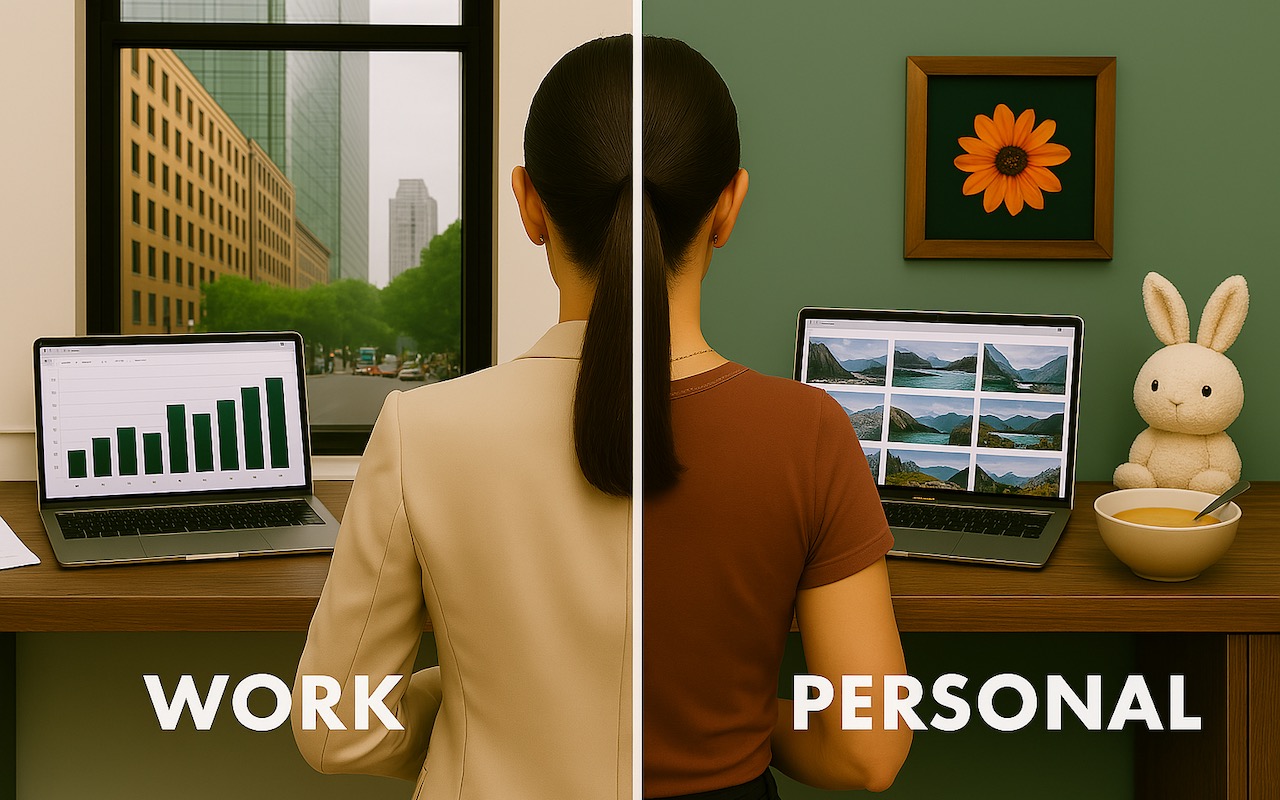
(Featured image generated by ChatGPT)
Social Media: Tired of juggling work and personal tabs in one browser? Learn how browser profiles can keep your online life organized and distraction-free, plus get step-by-step tips for setting them up in Safari, Chrome, and Firefox.