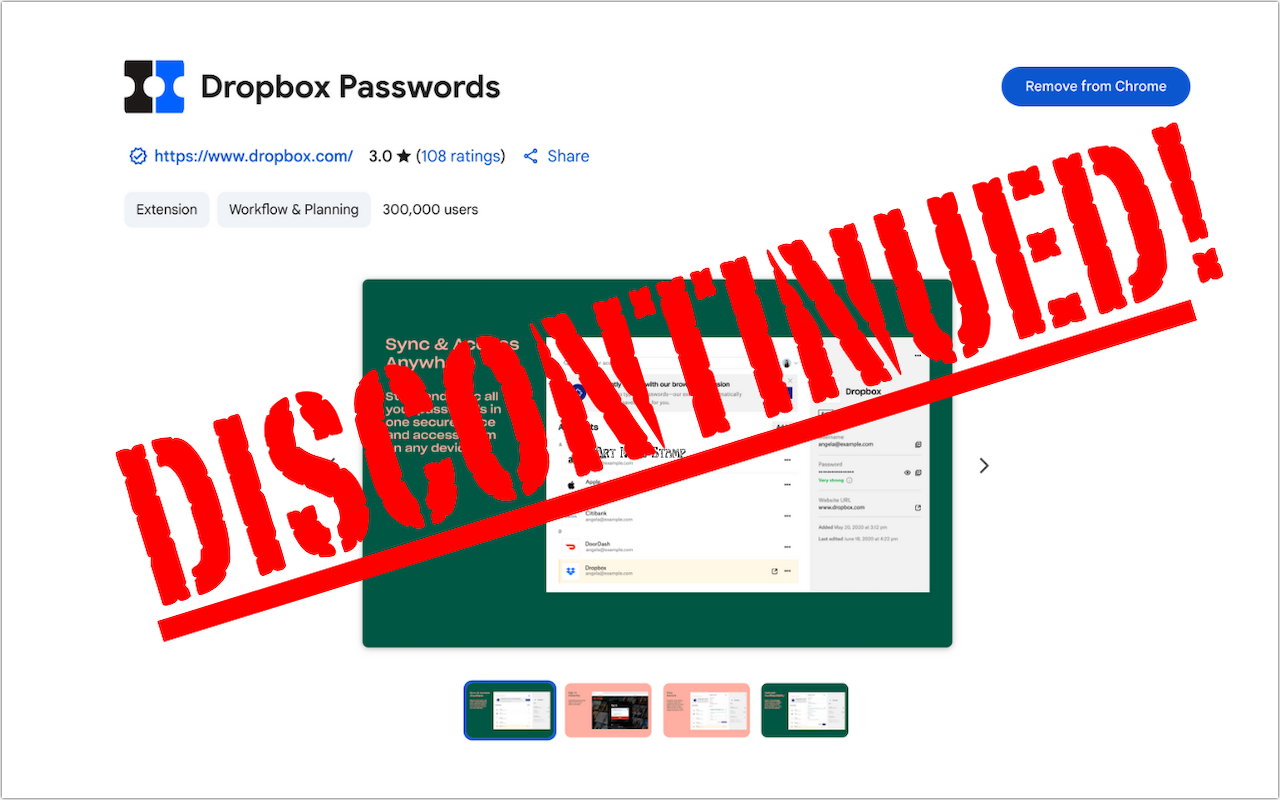
Dropbox Passwords Ending: Switch to 1Password Now

If you use Dropbox Passwords, it’s time to switch to a new password manager. Dropbox has announced it will discontinue the service on October 28, 2025, with key features being disabled in phases starting August 28. After the final shutdown date, all stored passwords will be permanently deleted. Dropbox recommends users switch to 1Password and has made that super easy. Simply click the Dropbox Password extension in your browser and choose Migrate to 1Password. Create a new 1Password account or sign in to an existing one, and then follow the remaining instructions to import your passwords. If you want to use a different password manager, you can probably import a CSV file exported from Dropbox Passwords, possibly after some adjustments to the CSV file’s column headers and order to match your chosen password manager’s expected format. No matter which option you choose, don’t delay!

(Featured image based on an original by Dropbox)


Social Media: Dropbox Passwords will shut down on October 28, 2025. Switch to 1Password or another password manager now to avoid losing your stored credentials.

Similar Posts

  • Errata

    Last week a typo slipped by our proofers. Command+M is not open a new document but that command is Command+N. Sorry about that. To make up for it here are a couple more keyboard combinations you might find handy:

    **Command-Option-Esc** – If an app stops responding, you might need to force it to quit. You can do that with a right click on the app icon in the dock, but it’s even easier if you hit this keyboard shortcut. This will bring up the Force Quit dialog, which you can then use to make that non-responsive app quit. You might need to Command-Tab you way out of an active frozen app first, though, or use **Command+Shift+Option+Esc** to quit the currently active app.

    **Command-Option-P and R** – Here’s one that might challenge your fingers dexterity. Fortunately, you will hardly ever have to use it but it is used to reset your non-volatile random access memory (NVRAM). Information stored in NVRAM can include speaker volume, screen resolution, start-up disk selection and recent kernel panic information. If you are asked to reset your P-Ram or NVRAM here’s how you do it.

    1) Shut down your Mac
    2) Turn on your Mac
    3) Immediately after you hear the start up sound, hold down the command, option, P and R keys
    4) Hold those keys down until you hear the start up sound again and then release them.

  • _Dear Friends,_

    It is raining today here in Key West but as with most tropical showers it will likely pass over soon and the sun will come back. My neighbor, Glenn Thomas, posted a picture of the first daffodil at our Prickly Mountain location so I guess it is safe for me to head back north. Grace and I will be packing up and driving up I-95 next week.

    Apple quietly made some changes to the 12-inch Macbooks and 13-inch Macbook Airs this week that I will review below and as promised we will talk some more about dictation. Apple did not hold a big event for these laptop upgrades but they are welcome changes that should be a precursor to updates to the rest of the laptops in Apple’s lineup. We will have these new Macbooks and Macbook Airs in stock this week and have some great deals on the newly discontinued models with up to $200 off.

    This week’s Kibbles & Bytes exclusive features the Hammerhead Jacket case for the iPhone 5, 5s or the new 5se. This case offers exceptional corner protection with a double injection molded design featuring strong polycarbonate and flexible TPU. Anti-slip sides keep the phone securely in your hand when in use. Of course, all the ports and buttons are easily accessible through this protective case. We have ten designs for this case: Watermelon Red, Hubcap, Pride, Snake Skin, Helmet, Hammerhead Purple, Lemon Yellow, Black, Sky Blue and Hammerhead Orange. I know you can decide which to use so for this week we are offering a 10-pack featuring one of each case. Change as your mood sees fit or give one to a friend. Normally, these cases are $14.99 each but “**exclusively for Kibbles & Bytes readers you can get all ten for only $49.95!**”:http://www.smalldog.com/wag900002206

  • Who cares about QR Codes?

    By now you’ve probably seen one of those odd-looking white squares with a bunch of smaller square dots that make up a random pattern inside–that’s a QR code. QR stands for “Quick Response,” and a QR code is a form of barcode, just like on the packaging of nearly everything you buy.

    Usually QR codes are used to store Web links–URLs–so an ad can display just the QR code instead an unwieldy and hard-to-type web address. But QR codes aren’t just for ads. They’ve appeared on business cards, in magazines and books, on coins and bills, and even on tombstones–any place it would be nice to help someone load a Web link into a smartphone but where there isn’t enough room for a URL or in situations where viewers won’t remember the URL later. And the links? They can display anything that can appear on the Web: text, photos, videos, games, and more.

    Only one built-in iPhone app can scan QR codes–the Wallet app in iOS 9–but it can scan only QR codes that are associated with Wallet passes, things like airline boarding passes, concert tickets, and iTunes gift cards. For QR codes that encode any other sort of data, Wallet shows an error. It would be nice if Apple would add general QR scanning capabilities to Wallet or the Camera app, but until that happens, you’ll need another app.
    There are numerous QR code scanning apps in the App Store, but if you need a recommendation, give TapMedia’s QR Reader for iPhone a try. It’s free with ads (remove them with a $1.99 in-app purchase), scans both QR codes and traditional barcodes on most commercial products, and displays the associated information within the app. It can even help you create your own QR codes.

    To use a QR code scanner, launch the app, allow it to access the camera when it asks, and then point it at the QR code. Good apps will scan nearly instantly, but if not, move the camera so the QR code is centered between the guides. If even that doesn’t work, move forward or back so the camera can focus on the centered code.

    Once the code has been scanned, the app will usually bring up an in-app Web browser to display whatever was encoded. For certain kinds of data, like books or grocery items, the app may go right to Amazon or a price comparison site. Good apps will also keep a record of sites you’ve scanned, so you can go back to them later, even if you can no longer scan the QR code.

    So download a QR code scanning app and keep an eye out for QR codes. Once you start looking, you’ll find them everywhere–it’s a modern-day treasure hunt!

  • Be Very Careful with AI Agents!

    AI agents—software that can take actions on your behalf using artificial intelligence—are having a moment. The appeal is obvious: imagine a robot butler…