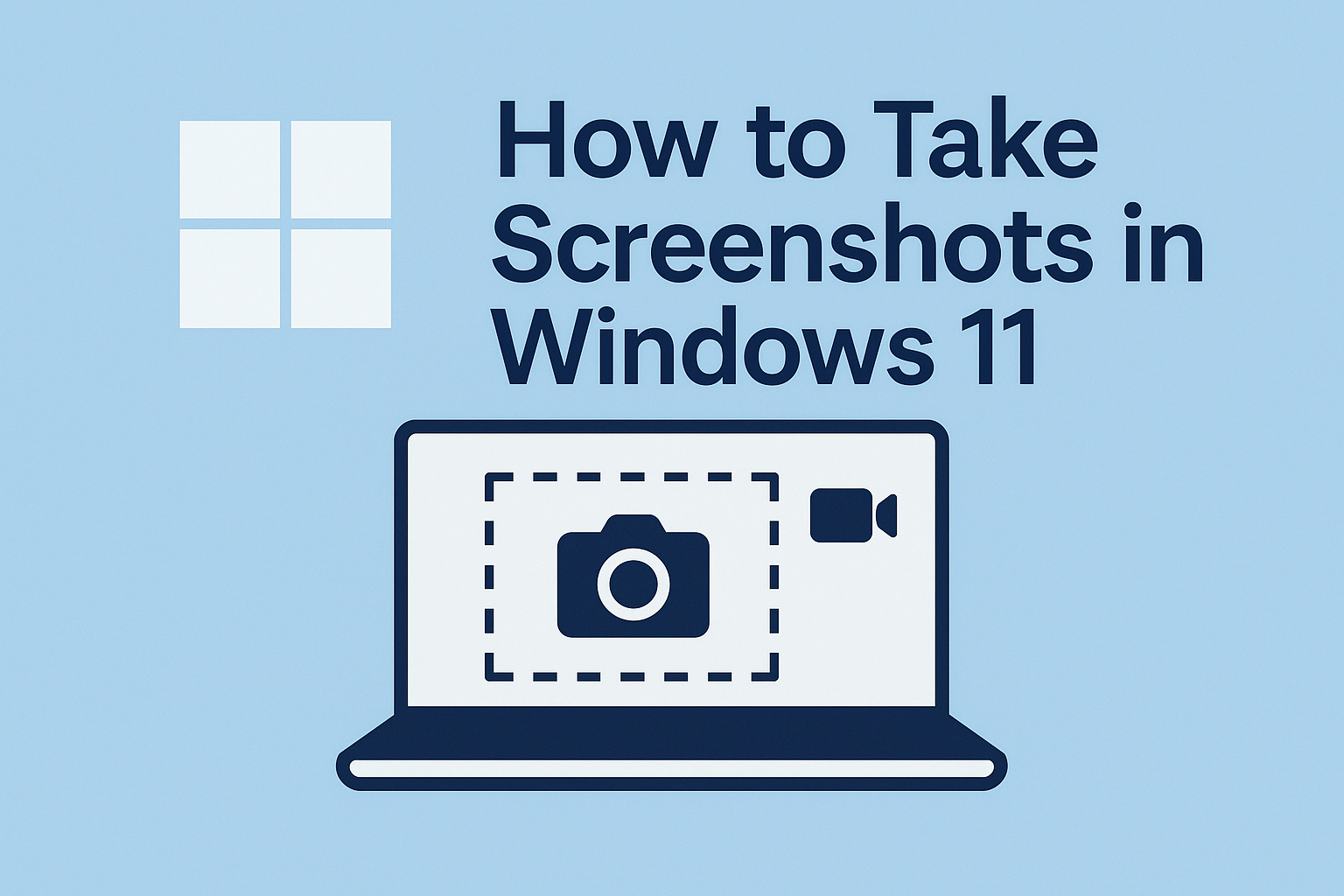
How to Take Screenshots and Screen Recordings in Windows 11
Ever wanted to capture what’s on your computer screen — a funny meme, an error message, or a recipe you don’t want to lose? Taking screenshots (or even recording your screen) in Windows 11 is quick and simple once you know how! Here’s how to do it step by step:
Take a Screenshot of the Whole Screen
- Press PrtScn (Print Screen) on your keyboard.
- This copies the image of your entire screen.
- Open a program like Paint, Word, or Email, then press Ctrl + V to paste.
- Save the image by going to File → Save As, then choose where you’d like to keep it.
📝 Tip: On some laptops, you may need to press Fn + PrtScn instead.
Save Screenshots Automatically
- Press Windows + PrtScn at the same time.
- Your screen will dim for a moment — that means the screenshot was taken.
- Find it later in Pictures → Screenshots on your computer.
Capture Part of Your Screen
- Press Windows + Shift + S.
- Your screen will dim, and your mouse will turn into a crosshair.
- Click and drag to select the area you want to capture.
- When you release the mouse, your screenshot will copy to the clipboard.
- Open Paint, Word, or an email, and press Ctrl + V to paste it in.
📝 Tip: You can also click the small preview in the corner after you take it to edit or save directly.
Record a Video of Your Screen
Need to show someone how to do something on your PC? Windows 11 makes that easy too!
Option 1: Xbox Game Bar (built-in tool)
- Press Windows + G to open the Game Bar.
- Click the Record (●) button under “Capture.”
- Do what you need to record — it will capture your actions and audio.
- Click Stop when you’re done.
- Find your video in Videos → Captures.
Option 2: Snipping Tool (new in Windows 11)
- Press Windows + Shift + S → choose the small video camera icon.
- Select the area you want to record.
- Press Start to begin and Stop when finished.
- Save your recording from the preview window.
🐾 Small Dog Tip
Whether you’re helping a coworker troubleshoot an issue or saving something for later, screenshots and screen recordings are a simple way to share what’s on your screen.
If you need help finding your files or setting up shortcuts, stop by our Burlington store — our friendly techs can walk you through it in person.