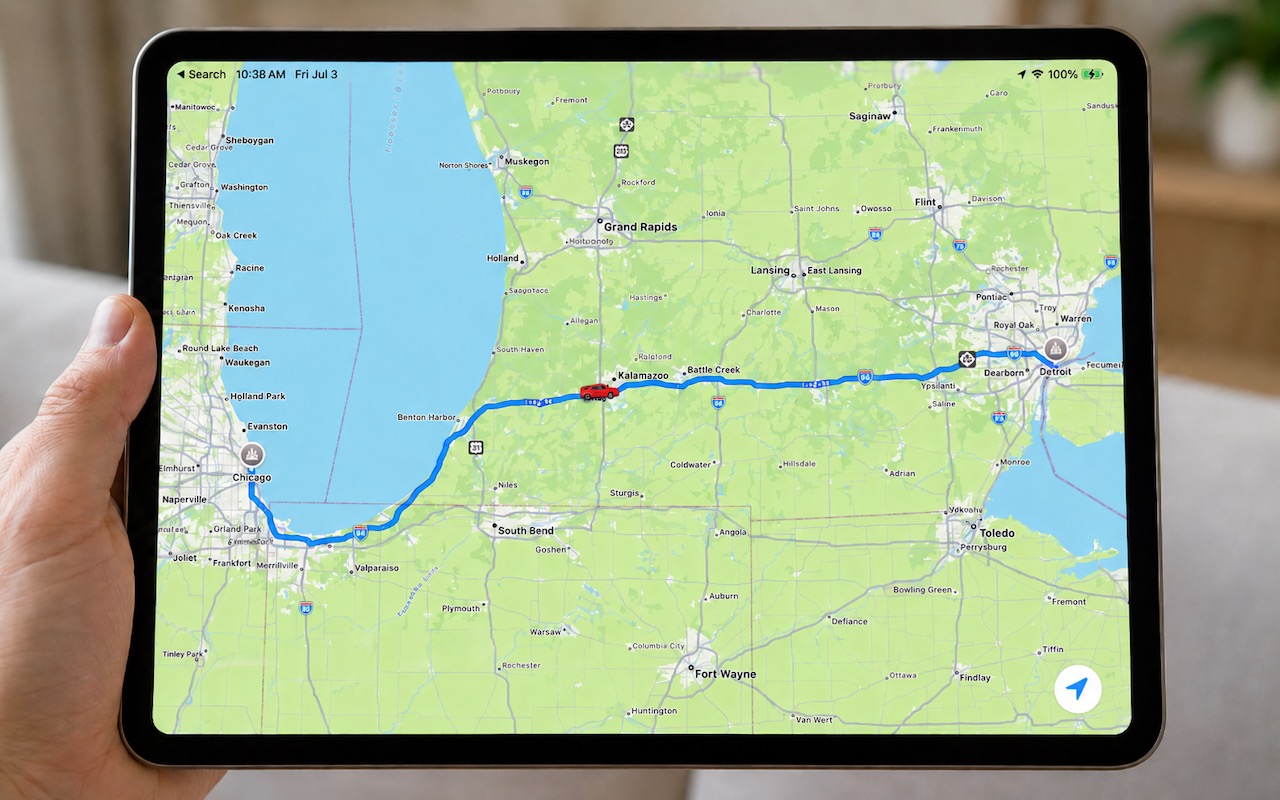
Share Your Location Temporarily While Traveling
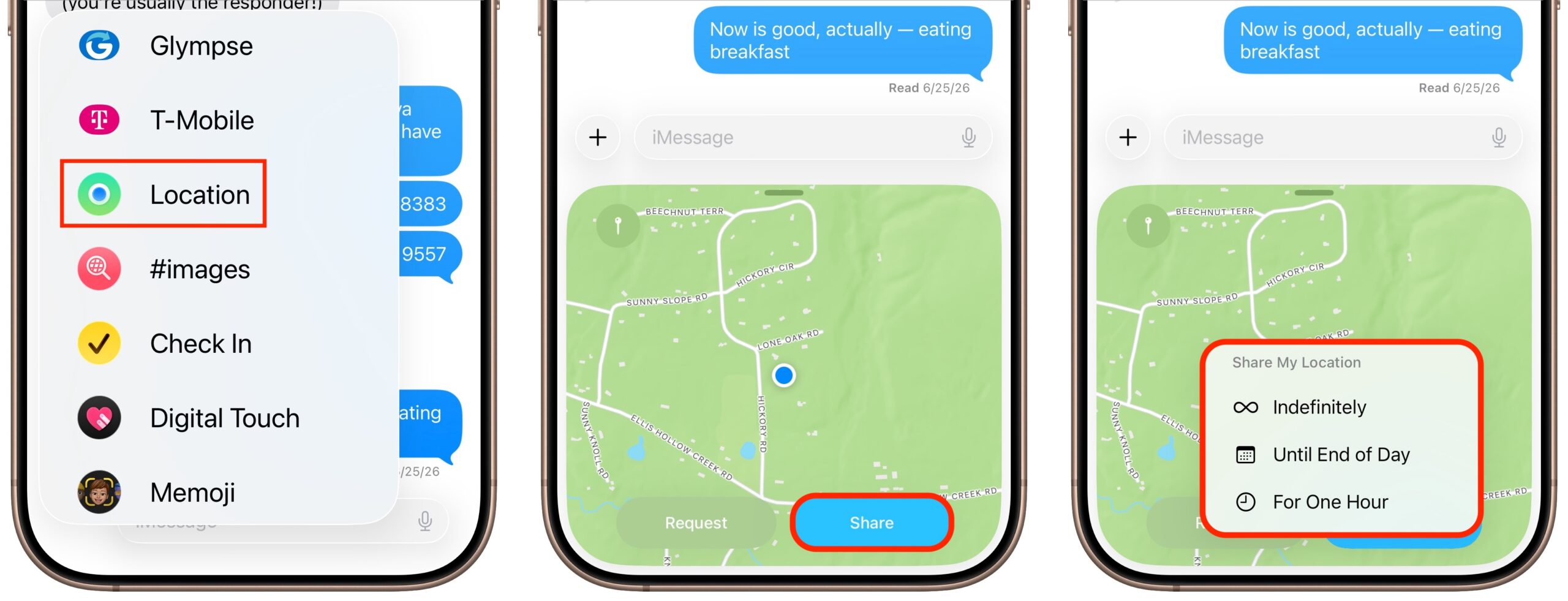
The next time you’re flying, driving, or biking to visit an iPhone-using friend or relative, try sharing your location temporarily so they can check in on your progress without constant “where are you now?” texts. In iOS 17 and later, open a Messages conversation with that person, tap the ⊕ button to the left of the message entry field, and tap Location. In the location-sharing control that appears, tap the Share button, then choose Until End of Day or For One Hour. You can also tap the Request button to ask the recipient to share their location with you. If you pick Indefinitely for the sharing duration and later wish to revoke it, open the Find My app, tap the People list, select the person, and tap Stop Sharing My Location.
(Featured image generated by Adam Engst with ChatGPT)
Social Media: Put an end to the “where are you now?” texts. iOS lets you temporarily share your location with friends and family while traveling—here’s how to set it up in Messages.