Customize your iOS Control Center
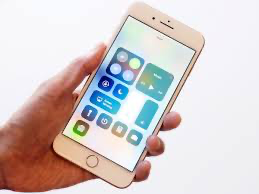
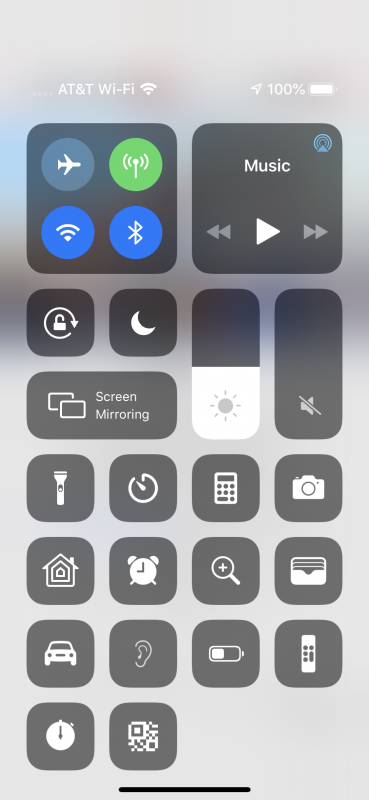
Your iPhone or iPad has a control center that can quickly give you access to some of your most frequently used features. My control center screen is almost full as I have the usual stuff there like Airplane mode, Bluetooth, Music control but I have added things like hearing aid control, magnifier, QR code reader, wallet and Do Not Disturb While Driving.
You can easily customize your control center:
- Open Settings on your iPhone or iPad
- Tap on Control Center
- Now tap on “Customize Controls” where you will be able to add or remove options from Control Center
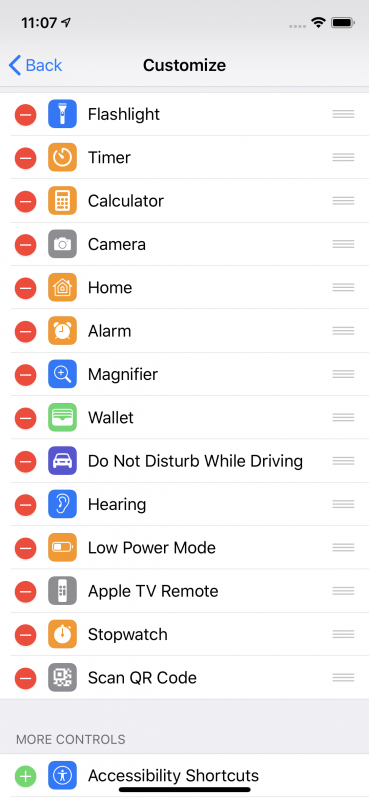
Once you are there you will see a list of all the features you can add or subtract from the control center simply by pressing on the + or – next to the feature. Here’s a list of all of them:
- Flashlight
- TImer
- Calculator
- Camera
- Home
- Alarm
- Magnifier
- Wallet
- Do Not Disturb While Driving
- Hearing
- Low Power Mode
- Apple TV Remote
- Stopwatch
- Scan QR Code
- Accessibility Shortcuts
- Guided access
- Notes
- Screen recording
- Text Size
- Voice Memos