
Choosing the Best Mac for a College-Bound Student in 2023

Do you have a child starting college soon? It’s likely that your kid has been relying heavily on a computer throughout high school, but if it was a school-provided laptop or shared family computer, now’s the time to get them something of their own. Even if they had their own laptop throughout high school, if it’s old or unreliable, college is a good excuse to bring them up to date. If you haven’t been paying close attention to Apple’s Mac lineup, you might wonder which model makes the most sense.

First, don’t buy anything without first checking with the college. Many college departments have specific requirements based on the software students use in their classes. Generally, these revolve around processor type, amount of RAM, and storage space. Current Macs should meet or exceed all those requirements. Second, see if the college provides access to education pricing—most will—to save a few hundred dollars off the prices listed below. Regardless, Apple often has a Back to School offer.

Colleges often specify—and students usually prefer—laptops instead of desktop machines. Although the M1 24-inch iMac is an excellent machine with a gorgeous screen, it’s too big and unwieldy for the nomadic lifestyle of the typical college student. The same applies to an M2 Mac mini or Mac Studio with an external display. Students can take a laptop to class daily, and bringing it home on breaks is a lot easier. A student accustomed to taking notes on an iPad with a keyboard and Apple Pencil might be able to use that along with a desktop Mac, but most students should focus on laptops.

In the past, deciding which model was best for a given student was more challenging, but Apple’s move to the speedy and power-efficient M1 and M2 chips makes the decision easier. We see three primary scenarios:

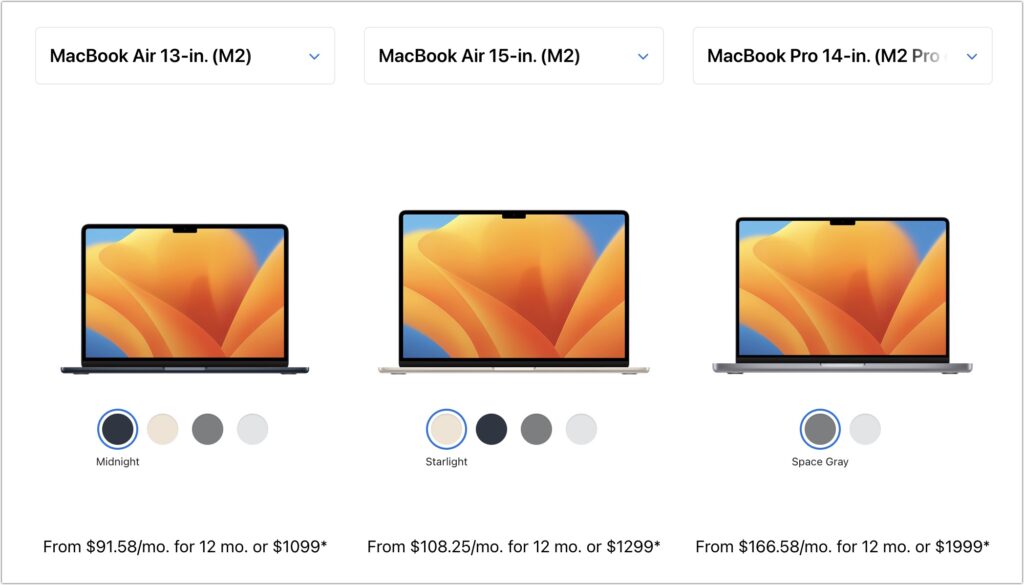
  • Most students: Buy Apple’s MacBook Air. It’s Apple’s lightest and least expensive laptop. Within the MacBook Air line, you have three choices. The least expensive is the 13-inch M1 MacBook Air from 2020, which starts at $999, but the 13-inch M2 MacBook Air is a better choice for most people, thanks to its bigger-brighter-better 13.6-inch screen, faster performance, 24 GB memory ceiling, and higher-resolution webcam. It now starts at $1099. Those who want a larger screen should look at the just-released 15-inch M2 MacBook Air, which starts at $1299. Apart from the 15.3-inch screen, the only difference from the 13-inch model is a six-speaker system, up from four speakers.
  • Better specs: If performance is more important than cost—especially if your student will be working with processor-intensive tasks like video editing—look to the 14-inch MacBook Pro. It features a powerful M2 Pro chip or an even faster M2 Max chip, and it can be configured with more memory. Although its 14.2-inch screen is physically a little smaller than that of the 15-inch MacBook Air, it has a somewhat higher resolution. Its price starts at $1999.
  • Windows compatibility: The only downside of the transition to Apple silicon is that it’s somewhat more difficult to run Windows using virtualization software like Parallels Desktop (half-price for students and officially supported by Microsoft) or VMware Fusion (free for students but much harder to set up and not officially supported by Microsoft). If Windows compatibility is a bonus but not essential, Parallels Desktop and Windows 11 on Arm should work. However, if Windows compatibility is paramount, your choices are a used Intel-based MacBook Pro or—much as we hate to say it—a PC laptop that runs Windows natively.
Regardless of which laptop you decide on, you’ll have to pick a processor, amount of memory, and storage capacity:

  • Processor: With the 13-inch M1 MacBook Air, you’re limited to the M1 chip with an 8-core CPU and 7-core GPU. With the 13-inch M2 MacBook Air, the M2 chip always has an 8-core CPU, but you can pay $100 to upgrade from an 8-core GPU to a 10-core GPU. The 15-inch M2 MacBook Air always comes with a 10-core GPU. The performance difference isn’t likely noticeable with everyday apps, but for $100, it might be worth upgrading, just in case. The 14-inch MacBook Pro has two M2 Pro options and two more M2 Max options, and choosing between them is probably best done by weighing likely performance needs against the (significantly) increased cost.
  • Memory: The 13-inch M1 MacBook Air offers the choice of 8 GB or 16 GB. 8 GB is acceptable for most college students, but we’d encourage 16 GB to reduce the chance that memory becomes a limiting factor in performance. The M2 MacBook Air lets you choose from 8 GB, 16 GB, or 24 GB, and again, we’d default to 16 GB unless there’s some particularly memory-hungry software in play. With the 14-inch MacBook Pro, the amount of memory goes with the chip. The M2 Pro comes with 16 GB standard, but you can opt for 32 GB. With the M2 Max, 32 GB is standard, with options to upgrade to 64 GB or 96 GB.
  • Storage: For all the MacBook Air models, 256 GB is the lowest storage level, and you can upgrade to 2 TB. The 14-inch MacBook Pro starts at 512 GB and offers upgrades up to a whopping 8 TB. Choose the amount of storage based on two considerations: budget (it gets expensive fast) and anticipated usage (audio and especially video can consume a lot of space, as can large numbers of photos, but most other uses don’t). Remember that it’s easy to connect an external Thunderbolt SSD or hard drive to offload large files that don’t have to be kept available at all times. Large files can also be kept in cloud-based storage.

To our thinking, the most obvious choice for a Mac that’s likely to last for four years of college would be either the 13-inch or 15-inch M2 MacBook Air with a 10-core GPU, 16 GB of memory, and 512 GB of storage. Be sure to budget for AppleCare+, too; it’s almost guaranteed that some mishap will befall a student laptop, and AppleCare+ covers up to two incidents of accidental damage every year.

You’ll need to have some conversations with your child to find out what they think they’ll need—and be sure to double-check that against the college’s recommendations—but if you have any questions after that, don’t hesitate to contact us.

(Featured image by Apple)


Social Media: Which Mac is best for a college student in 2023? Our short answer: either the 13-inch or 15-inch M2 MacBook Air, although students with significant processing needs (like audio or video editing) might look at the 14-inch MacBook Pro.


Similar Posts

  • Black History Month – Thurgood Marshall

    Way before Barack Obama broke the color barrier to become president of the USA, Thurgood Marshall broke that barrier for another of the most powerful and important positions in the country, that of Supreme Court Justice. After graduating from high school with honors he applied to the University of Maryland law school where he was not accepted because he was black. Instead, he went to Howard University and received his law degree in 1933.

    Before being appointed Supreme Court Justice, he had a stellar career from 1934 to 1961 as a lawyer for the NAACP where he won landmark civil rights cases. Beginning in 1940, Marshall won 29 of 323 US Supreme Court cases. One of his first big cases was Smith vs. Allwrite in 1944 which overthrew the South’s “White Primary”. The White Primary was a practice of excluding African Americans from the Democratic Party. It was most common in a state where that party controlled the state government.

    In 1954 Marshall achieved a landmark victory with the case of Brown vs. Board of Education of Topeka. This Supreme Court decision demolished the legal basis for segregation in the USA. It also made state-enforced racial segregation in public schools invalid.

    In 1961 he was appointed the the US Court of Appeals by President Kennedy. He was the first African American on the Court of Appeals and went on to be appointed to the Second Court of Appeals. President Johnson made him the Solicitor General in 1965 and later in 1967 President Johnson nominated him for the Supreme Court.

    On the Supreme Court he was a steadfast supporter of positive gender and racial action policies and in his 24 years on the court he became a vocal liberal on a conservative-dominated court. He was an ardent supporter of Constitutional protection of individual rights, in particular the rights of criminal suspect versus the government. Marshall’s backing of Affirmative Action led to his strong dissent in the Regents of the University of California vs. Blake in 1978. Justice William Brennan was Marshall’s most reliable confederate who voted with him against the death penalty.

    Citing poor health, Thurgood Marshall stepped down from the court in 1991 and remained a vocal critic of the court until his death in 1993 at the age of 84.

  • 20 Years of Service.

    !http://blog.smalldog.com/images/4613.jpg!

    Small Dog Electronics has been your local Apple Specialist for 20 years! Not only do we sell the latest Apple products and have some of the most knowledgeable staff around, we offer some of the best *one on one training* and *consulting* services around. Should Santa put something under the tree this year that your just not sure about how you can use it, do not worry, we have got your back and it doesn’t matter where the product came from. Stop into any of our retail stores or give us a call and we will get you getting the most out of your Apple products.

    “!http://blog.smalldog.com/images/4612.jpg!”:http://www.smalldog.com/macthehalls

    Not only do we have great services to help you get the most out of your Apple product, but we have some great deals going on in all of our retail stores *December 9th through the 15th*! Visit any of our retail stores in Rutland, Waitsfield or South Burlington or visit “www.smalldog.com/macthehalls”:http://www.smalldog.com/macthehalls for these deals or more information about what Small Dog services might benefit you.

  • New Urbanears Active Headphones

    So by now, it might be clear that I am a bit of a headphone junkie. I’ve come to the conclusion that I can collect and use headphones like I do bags and purses! In my world I can never have enough, so I jumped on the opportunity this week to test our the new “**Hellas**”:http://www.smalldog.com/wag900002177 and “**Reimers**”:http://www.smalldog.com/wag900002181 from Urbanears.

    The Hellas are an over the ear bluetooth headphone. It took a few minutes to get them paired with my computer. My only complaint about these headphones is that I found the touch-less buttons to be a bit clunky to use. The sleek design means you can’t physically see the buttons, so it take some practice and time to learn where the buttons are. However, there are a ton of other features with these headphones that make them extremely appealing. They are incredibly lightweight, comfortable to wear and they have good sound to them. I think my favorite feature about these is that the fabric on the headband and the earpieces are machine washable. You can actually wash the fabric and return your headphones to new condition. As I just started to use these the other day I have not actually tried to wash the fabric, but as more and more people are working out with over the ear headphones this is a huge selling point. Another hidden feature is that there is a built in microphone, so if you are using these with your iPhone, you can take calls without having to remove your headphones.

    Also part of the active line are the Reimers. They deliver on fit and comfort while providing some great sound! I am impressed with how far ear buds have come over the years. What’s interesting about these headphones is that while they are in the active category, they are actually a wired set of headphones. However, Urbanears added several great features to ensure these headphones can stand up to the intensity of any workout. They have two clips for securing them to your clothing and they feature reflective cabling to light up during early morning or late evening runs. They use a new earlock technology that ensures they stay in during your workout, so no more fears of them falling out during sit-ups, push-ups and the like. I admit I am just a runner, so some of the more intense workouts I’ve not tried these, but judging by how well they stayed in for runs I am confident in saying they will stay put! Last but not least, they feature standard iOS controls we have all grown to expect out of headphones.

  • Watch Out for PayPal Invoice Phishing Scams

    We’ve seen an uptick in fake invoices from scammers using PayPal. Because they’re being sent through PayPal itself, spam filters won’t catch them,…

  • Hey Siri, What Can You Do?

    So, I am a little embarrassed to admit it but I bought an Amazon Echo to check out how Alexa compares with Siri. I’m a gadget guy so we will see if we find it useful and if not, I am sure I can find it a home on eBay. I use Siri more and more these days. My most common uses are asking her to settle trivia disputes with Grace or setting the timer for 5 minutes. But there is a lot more that Siri can do!

    Make Relationships with Siri
    When you speak Siri commands, you can refer to people by relationship, rather than name. So, if you want to call your father, you can say “call my father” instead of saying “call Bruce Leibowitz.” But to do this, you need to introduce Siri to your family. First, make sure you have a “card” in the Contacts app for yourself, and then go into Settings > Mail, Contacts, Calendars, scroll down to find and tap My Info, and select your card. Next, make sure you have a contact card for your father, and then tell Siri, “Bruce Leibowitz is my father.” Or, if Siri doesn’t hear you correctly, open Contacts, edit your card (not your father’s!), scroll down, tap “add related name,” tap the default relationship to pick “father,” tap the info “i” icon, select your father’s card, and tap Done.

    You can even use Siri to remember other types of relationships. Artie used to bring manure from his uncle’s farm for my garden and ended up with the nickname, “the spreader”. If I tell Siri “Art Hendrickson is my spreader” I can now just say “text my spreader…” and Siri knows who I am talking about. This works for nicknames but also for lawyers, accountants, doctors or any nickname you want to tell Siri about.

    Take a Picture
    Instead of fumbling to launch the Camera app on your iPhone you can just say “take a picture” and Siri will automatically open the Camera app and you can snap away.

    Siri Converts
    Need to know how many millimeters are in 4 inches? Just ask Siri and you will find that there are 101.6 mm in 4 inches. This works for currency exchange rates, too. Ask Siri how many Euros are equal to $100US you will find that 87.73 Euros is the exchange rate today. Siri has some other strong calculation features too. You can ask Siri how many calories there are in that fish sandwich or to calculate a 20% tip on your restaurant bill. You can ask her to solve math problems involving fractions and other math functions that will be faster than opening the calculator app and punching in the numbers.

    Settling Up
    Okay you can use Siri to look up baseball stats or other information to settle a dispute but what if you are at loggerheads and just want to get a random answer and don’t have a coin to flip. You can ask Siri to “roll the dice”, “flip a coin” or pick a random number.

    Name that Tune
    Siri is integrated with Shazam to help you figure out what song is playing. Just ask her “what song is playing?” and she will listen and let you know and probably try to sell you the song, too!

    Find that Photo
    Siri can search your photo library for you. I know how frustrating it is if your are like me and have literally thousands of photos. You can say something like “find that photo from Daytona Beach from last March” and Siri will launch Photos and take you right to any photos taken at that place and time.

    Siri Takes You Out
    Siri can make your restaurant reservations for you, too! Tell Siri “make a restaurant reservation for four at 7PM” and she will respond with available restaurants nearby and if you have the Open Table app installed can make the reservation for you or give you the phone number to call.

    Are We There Yet?
    If you are using your iPhone for navigation you can just say “ETA” and Siri will let you know how much longer you are gonna be on the road.

    Leave Me Alone
    Siri can do a lot for you but sometimes you just want alone time. You can tell Siri to turn on “do not disturb” and you will not be bothered. Or tell her to “turn on airplane mode” and she will turn off Wi-Fi and cellular signals.