Set macOS to Require a Password after Screen Saver Start or Display Sleep

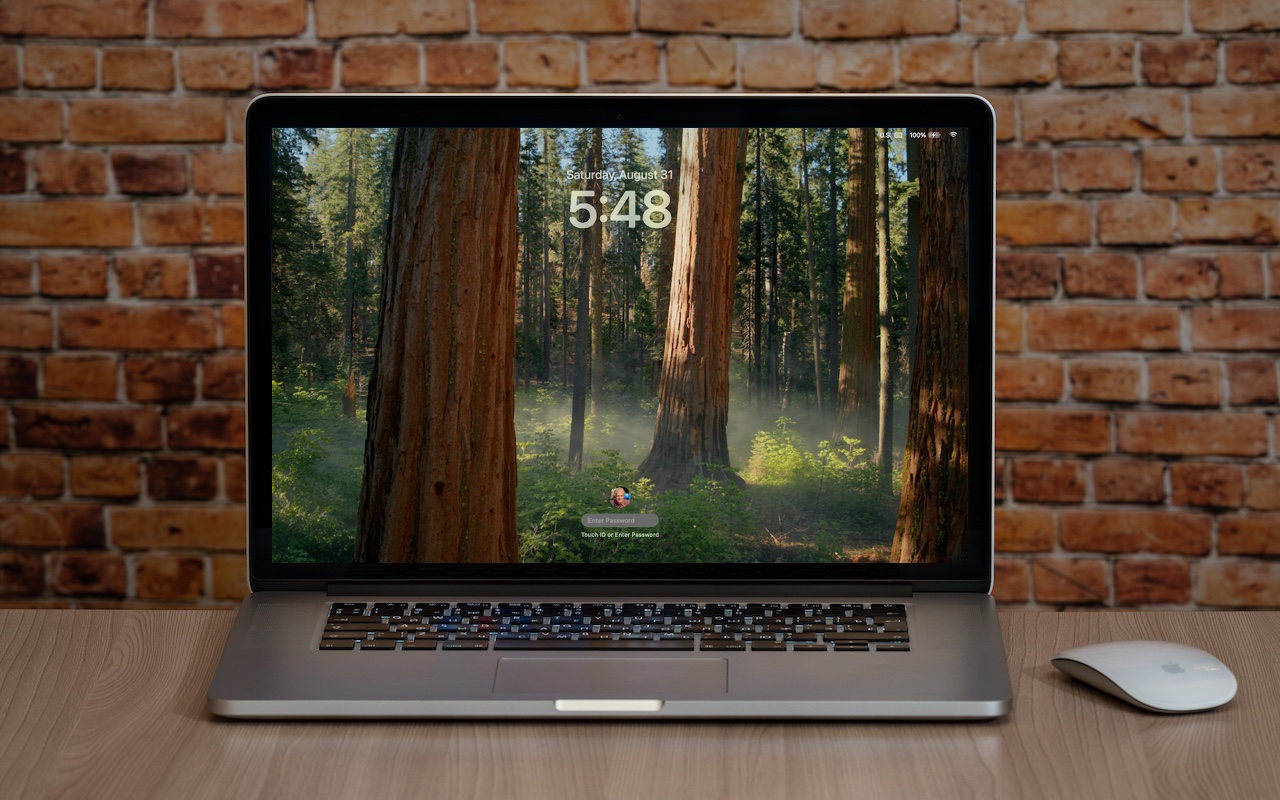
Although paying attention to online security is of primary importance, don’t forget local security. You don’t want to go out for lunch and let someone wandering by your office poke through your email, messages, photos, and private files. To ensure this doesn’t happen, set your Mac to start the screen saver or sleep the display after a few minutes (on a laptop, just close the lid), and then set “Require password after screen saver begins or display is turned off” to a short duration. We recommend 1 or 5 minutes, though you can adjust to balance inconvenience against security. To eliminate the fuss almost entirely, use Touch ID or an Apple Watch to unlock your Mac without having to type your password.

(Featured image based on an original by iStock.com/Armastas)


Social Media: Don’t forget about local security on your Mac. Make sure to require a password shortly after the screen saver starts or the display sleeps to prevent people from riffling through your email, photos, messages, and more.


Similar Posts

  • Ick, it is tax time and while I love Turbo Tax, I hate doing taxes. It is not that I have a problem paying taxes, especially when I see my tax dollars doing things for the public good but it always alarms me to see how much I am paying for unnecessary wars and an ineffective congress. Grace stays far away as I work on the taxes as I grumble and fret.

    It looks like it might be a rainy weekend here in Key West so I can work on that and do some much-needed motorcycle maintenance. I can’t wait to get my hands on one of the new iPad Pros to compare with its big brother. I don’t know if it will turn around the decline in Apple’s iPad sales but it does represent a new powerful digital tool.

    Thank you for reading this issue of Kibbles & Bytes!

    Your Kibbles & Bytes Team,

    _Don, Emily & Hadley_

  • It is definitely feeling like spring here in Key West as the flowers are blooming and we wake up each morning to the birds singing (okay and the roosters crowing, too). I get the morning snow (or lack thereof) report from Emily every day and spring hadn’t quite arrived up in Georgia when I was there, either.

    Grace and I are heading up to the 75th Annual Daytona Bike Week for a couple days and then hitting a Cirque du Soleil show in Miami on the way back. Somewhere in there I will be writing Kibbles, perhaps on my iPad mini 4.

    Thank you for reading this issue of Kibbles & Bytes!

    Your Kibbles & Bytes Team,

    _Don, Emily & Hadley_

  • Keyboard Shortcuts

    I got my start in using computers with CPM operating system and keyboard shortcuts were present there. I used them all the time so they come as second nature to me. But as I go out and talk with customers and help them with their Macs, I am surprised by the number of people that do not know that most of the things you can do with your mouse by clicking on a menu item can be done faster with keyboard shortcuts.

    The first thing to learn about shortcuts are the symbols that are used to show these keys.

    Command ⌘
    Shift ⇧
    Option ⌥
    Control ⌃
    Caps Lock ⇪
    Fn

    These work for your Mac Keyboard but if you are using a keyboard made for a Windows machine you need to substitute the Windows logo for the Command key and the Alt key for the option key. When you look at a menu in almost any application you will find the common commands for all these symbols next to them to indicate the keyboard shortcut. Here are some common ones:

    Command-X **Cut** Remove the selected item
    Command-C **Copy** the selected item
    Command-V **Paste** the contents
    Command-Z **Undo** the previous command
    Command-A **Select all** items
    Command-F **Find** open a Find window
    Command-G **Find Again** Find the next occurrence of the item previously found
    Command-H **Hide** the windows of the front app.
    Command-M **Minimize** the front window to the dock
    Command-M **New** Open a new document or window
    Command-P **Print** the current document

    Command-Space bar **Spotlight** show or hide the spotlight search field
    Command-Tab **Switch apps** switch to the next most recently used app
    Command-shift-3 **Screenshot** take a screenshot of the entire screen

    As you can see, there are endless keyboard shortcuts to use, and these are only a small fraction of what you can do with “**keyboard shortcuts.**”:https://support.apple.com/en-us/HT201236 So the next time you find yourself wondering what you can do if your mouse suddenly stops working or if your just looking for a more efficient way to do something, keyboard shortcuts might just be what your looking for!

  • Why Every Business Needs an AI Policy

    Are employees at your company surreptitiously using artificial intelligence tools like ChatGPT, Claude, Copilot, and Gemini for everyday business tasks? It’s likely. An…

  • The airshow returns to Key West this weekend after a few years absence. It should be fun to go see the planes, the Blue Angels and other stunt pilots.

    We have gotten stock of the new 9.7-inch iPad Pro so stop into one of our stores if you want to get a hands-on look at the latest from Apple!

    Thank you for reading this issue of Kibbles & Bytes!

    Your Kibbles & Bytes Team,

    _Don, Emily & Hadley_