Mountain Lion, Creative Suite and Java 6

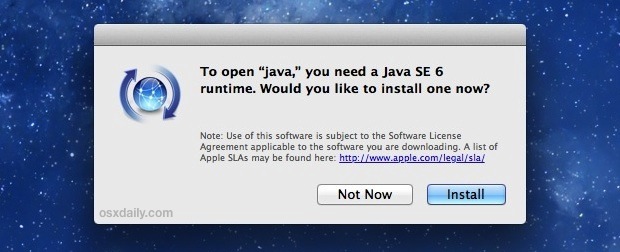
I updated to Mountain Lion this week and things seemed going smoothly. That was until I tried to launch Adobe Dreamweaver from CS6. Each time that I try to launch it, I get this error message:

I run the installer, it runs for about 20 seconds and then returns an error message that the software can’t be found. The Dreamweaver would close.

Then I googled to find a solution and found out problem AND the correct software to download. The info can be found on this Knowledge Base article and the software can be downloaded here.

Now, I am back to happily using CS6 and enjoying Mountain Lion. Especially the speed of Safari 6.

Similar Posts

  • Seven Siri Tricks

    Siri is great for resolving trivia disputes, setting reminders and even texting or sending email but Siri is also a talented assistant. Here’s a few of the more non-intuitive tasks Siri can accomplish:

    1) Split up that restaurant bill and add a tip

    Ask Siri “What’s a 20% tip on a $105 bill split among 3 people and Siri will not only tell you what the total tip would be but also how much each of the 3 owes.

    2) Flip a coin

    Siri will bail you out if you do not have a coin to flip if you ask her to flip a coin. Or if you are killing time and want to play dice, ask Siri to “throw the dice”.

    3) Counting Calories

    Siri can help! Ask Siri how many calories are in that Big Mac and Siri will tell you that you are consuming 520 calories.

    4) Take a Selfie

    Ready to take that selfie and find yourself looking for the camera app? Just tell Siri to take a selfie and boom!, the camera app will open. Siri isn’t smart enough, yet, to ensure you have the front facing camera active so you might have to click that first.

    5) Name that Tune

    Siri integrates with Shazam to listen to the music. Ask Siri “What is this song?” and with some help from Shazam, Siri will let you know and if you click on the result it will play that song if you are a subscriber to Apple Music.

    6) Find your Friends

    If you use the Find My Friends app you can ask Siri to find them by asking “Where’s my wife?” and assuming that your wife has agreed to share her location in the Find My Friends app, Siri will let you know where she is.

    7) Convert Currency

    If you are traveling out of the country you can use Siri to make those currency conversions. Asking Siri “What is 100 euros worth?” today reveals it is worth $112.49.

  • Zoom and Voiceover in iOS

    Working at the Service Check-in Counter, I often have customers asking me how to get out of Zoom and/or Voiceover on their iOS devices. While most people have Zoom and Voiceover disabled, it still shows up now and again.

    If you have used Zoom, the image to the right may seem familiar. If this happens, you can try to enter your passcode and navigate to Settings to turn off Zoom but this can be difficult. An easier way out is a simple 3 finger tap twice which will Zoom you back out.

    If you have seen the image above, then you also must have experienced Voiceover. Instead of using your finger to select individual apps, the screen is sectioned into rectangles, and you select that shape as whole. It is very hard to navigate, and the whole time a voice is instructing your movement. Voiceover is helpful for the visually impaired, but can be a hinderance if turned on. You must navigate back to Settings > Accessibility and turn Voiceover off if you do not wish to use it. If you have the shortcut enabled, you can try triple clicking the home button. This will turn off Voiceover. I would recommend turning off both Zoom and Voiceover, unless of course you need them and are familiar with their commands.

  • Bouncing Lions

    I love Lion. So far it is my favorite iteration of Mac OS X, but it does have some annoying features. In my internet wanderings yesterday I came across an article with instructions on how to get rid of the rubber-band effect which occurs when you scroll to the very bottom or top of a page. This effect will make the page scroll a little bit past the end point then bounce back. It’s a nice little bit of eye-candy, but not really necessary.

    You can easily turn this effect off by entering a simple Terminal command (which I’ll list below) and then press “enter”. As always, do this at your own risk. Mucking about in Terminal can cause irreparable harm to your OS if you do something you shouldn’t. Make sure you have a good backup before you make any changes like this to your system. Here’s the text you need to enter:

    defaults write -g NSScrollViewRubberbanding -int 0

    You can revert to the original setting by entering the following and then press enter:

    defaults delete -g NSScrollViewRubberbanding

    You’ll need to relaunch any applications that display the rubber-banding in order for this to take effect. Unfortunately, it will not affect Safari. Should I find a way to get rid of the rubber-band in Safari, I’ll update this article.

    You can read the original article here.

  • Electronic Signing Made Easy

    I was at a customer’s office the other day helping to set up their new Mac system. It was a busy construction company and they needed help getting wireless scanning operational. I noticed that they were using Adobe Reader for their PDF files, so I introduced them to “*Preview*”:https://support.apple.com/en-us/HT201740. Once I set the Finder to open PDF files with Preview instead of Reader, I showed them how to access the scanner to scan documents right from Preview.

    As I had them practice this, I noticed that much of their scanning needs were for documents that they would print out, sign, scan and then email to clients. When I showed them how to use the “signature” function in Preview they immediately saw the value and time saved. So, I know many of you already know how to use this tool, but I thought I would go over it so you too can use your electronic signature.

    Preview is used to view and edit PDFs and images, import images from a camera, import documents and images from a scanner, add pages to a PDF and also to take screen shots. When you have a PDF that needs your signature, the old way of doing this would be to print out the PDF, sign it, scan it and send it back. With Preview you can skip some of that work. You can capture your signature using your trackpad or better yet, using your camera on your Mac.

    ! Annotate > Signature > Manage Signatures*. When you select *Create Signature* you have a choice of trackpad or camera. While signing on your trackpad is okay, I prefer the camera method. Here you take a white piece of paper and sign it. Then click on *Camera* as the means of capturing your signature and hold up that piece of paper to the camera on your Mac. Once you align the signature on the blue line you can hit *Done* and your signature is stored. If you don’t like the first try, click *Clear* and do over.

    To add your signature to a PDF document click on the *Sign* button !http://blog.smalldog.com/images/4295.png! or use the path *Tools > Annotate > Signature* to select the signature. Once it has been placed on the document you can drag it to where you want it, then use the handles to adjust its size. Save the document and you can include it in an email with your signature. Remember that the *Save As* command is sort of hidden now but to get to it simply hold down the *Option key* when you select *File.*

  • Keyboard Shortcuts

    I got my start in using computers with CPM operating system and keyboard shortcuts were present there. I used them all the time…