
Tips for Setting Up a Comfortable and Effective Home Work Space

Vast numbers of people who previously reported for work at an office every day are now working from home due to the COVID-19 pandemic. That’s sensible, and if you’re included in that group, there was probably even a little thrill of “I get to work from home!” at first. But as those who have telecommuted for years know, it’s not as simple as settling down on the couch with your laptop. Here are a few tips.

Make a Dedicated Work Space, If Possible

Particularly if you’re not home alone, you’ll want to create a space that’s dedicated to working. Otherwise, it’s difficult to focus on work instead of what’s happening in your home. A spare bedroom with a door is ideal, of course, because it lets you avoid the fridge, the TV, and your family, who may also be trying to work or do schoolwork at home.

But if you don’t have an extra room, or if you need to share it with your spouse and kids, think about ways you can create individual spaces, perhaps with bookcases or makeshift curtains.

Either way, your goal is to avoid seeing and hearing others. Your partner’s activities can be distracting, and listening to your kids discussing a school project will make focusing on your work all the harder. Sound isolation can be difficult to achieve in an open room, but that’s what earbuds are for. Those with noise-canceling capabilities, like the AirPods Pro, would be best.

Pay attention to lighting as well. Putting your monitor against a window probably won’t work well during the day, and overhead lighting can cause glare.

Set Up an Ergonomic Working Environment
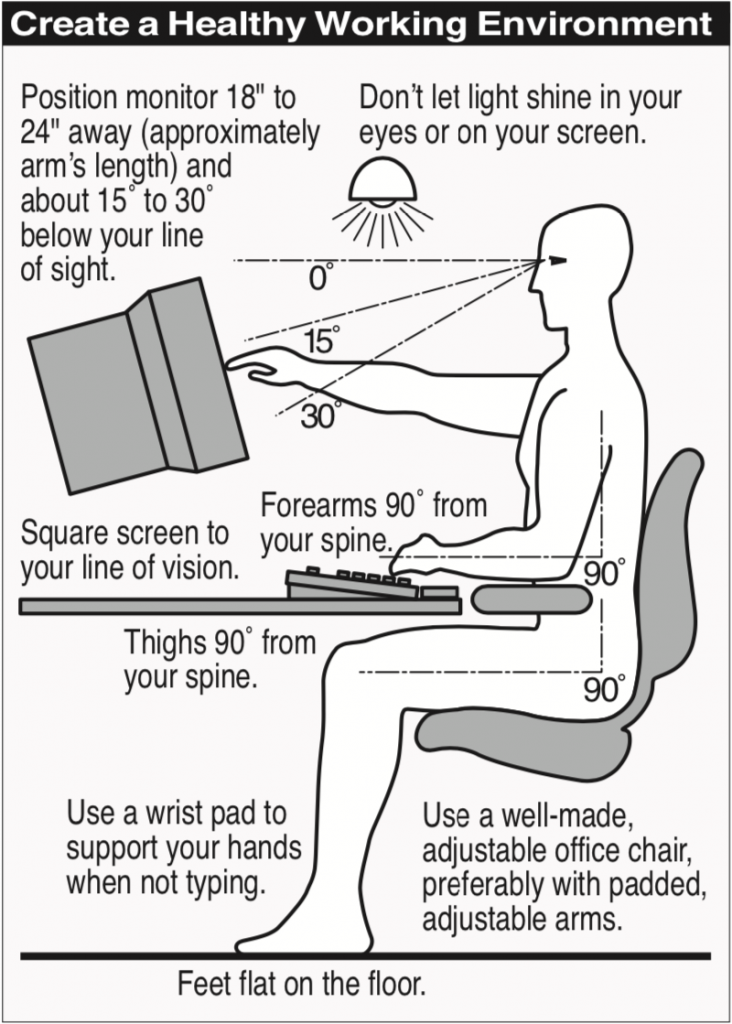
It’s unlikely that your home office furniture is equivalent to what you have at work, but if you’re going to be putting in full workdays at home, you need to pay attention to ergonomics.

Many tables are slightly too high to sit at comfortably with your feet flat, your hips at a 90-degree angle, and your hands floating comfortably above the keyboard, with your elbows at a 90-degree angle. Do what you can to achieve that position; if necessary, raise the chair and add a footstool.

Good, inexpensive chairs with height adjustments can be hard to find, though the IKEA Flintan is well-reviewed and only about $80. A small pillow can provide lumbar support if necessary. Try to make sure the arms, if present, are low—you should use them only when not typing.

It’s difficult to achieve good ergonomics while working on a laptop, or, even worse, an iPad because you’re almost always looking down too far. With a MacBook, you can achieve the ideal sightline either by attaching a large monitor that you can position at the right height or by raising the MacBook and using a separate keyboard and mouse or trackpad at the proper typing height.

Potentially Upgrade Your Internet Connection

Even beyond whatever apps you need to do your work, it’s likely that you’ll end up doing a fair amount of videoconferencing. You may need to increase the throughput of your Internet connection, and it’s important to remember that upload and download speeds are separate. You usually have much higher download speeds, so focus on the upload speed when evaluating your plan.

Apps vary in their bandwidth requirements, but you can consider a 1 megabit per second (Mbps) upload speed a safe minimum, with 3 Mbps being sufficient for nearly any video calls you’ll need to make. The download speed should be at least equivalent to the upload speed, but that will almost always be true.

If your current connection isn’t fast enough, contact your Internet service provider. More throughput will usually cost more, but ideally, your ISP can just change some settings to upgrade you. In some cases, a new cable modem or similar network hardware may be necessary, and in the worst case, you may need a new cable from the street. Whatever you do, try to avoid any plan that comes with a bandwidth cap!

Don’t be afraid to compare prices if you have multiple providers, and even if you have sufficient bandwidth now, it may be worth calling to see if plan prices have dropped since you subscribed.

Upgrade Wi-Fi Hardware

Finally, if the only place in your home that you can work isn’t well served by your current Wi-Fi router, it might be time to upgrade. That’s particularly true if you’re working on old AirPort base stations from Apple.

For creating a Wi-Fi network that has the most coverage, look into mesh networking gear like Velop. The beauty of mesh networking is that you can add another router or beacon to extend the network without complicated setup.

That said, contact us before ripping your network apart, because on-site visits to fix problems may be difficult or impossible for a while.

(Featured image by Gabriel Beaudry on Unsplash)


Social Media: Working from home like the rest of us? Here’s our advice on setting up a comfortable and effective workspace.

Similar Posts

  • Apple Explains Its Approach to Device Longevity

    We Apple users tend to believe that our devices usually last longer—both physically and functionally—than Windows PCs and Android smartphones. For instance, Apple’s…

  • Hey Siri, What Can You Do?

    So, I am a little embarrassed to admit it but I bought an Amazon Echo to check out how Alexa compares with Siri. I’m a gadget guy so we will see if we find it useful and if not, I am sure I can find it a home on eBay. I use Siri more and more these days. My most common uses are asking her to settle trivia disputes with Grace or setting the timer for 5 minutes. But there is a lot more that Siri can do!

    Make Relationships with Siri
    When you speak Siri commands, you can refer to people by relationship, rather than name. So, if you want to call your father, you can say “call my father” instead of saying “call Bruce Leibowitz.” But to do this, you need to introduce Siri to your family. First, make sure you have a “card” in the Contacts app for yourself, and then go into Settings > Mail, Contacts, Calendars, scroll down to find and tap My Info, and select your card. Next, make sure you have a contact card for your father, and then tell Siri, “Bruce Leibowitz is my father.” Or, if Siri doesn’t hear you correctly, open Contacts, edit your card (not your father’s!), scroll down, tap “add related name,” tap the default relationship to pick “father,” tap the info “i” icon, select your father’s card, and tap Done.

    You can even use Siri to remember other types of relationships. Artie used to bring manure from his uncle’s farm for my garden and ended up with the nickname, “the spreader”. If I tell Siri “Art Hendrickson is my spreader” I can now just say “text my spreader…” and Siri knows who I am talking about. This works for nicknames but also for lawyers, accountants, doctors or any nickname you want to tell Siri about.

    Take a Picture
    Instead of fumbling to launch the Camera app on your iPhone you can just say “take a picture” and Siri will automatically open the Camera app and you can snap away.

    Siri Converts
    Need to know how many millimeters are in 4 inches? Just ask Siri and you will find that there are 101.6 mm in 4 inches. This works for currency exchange rates, too. Ask Siri how many Euros are equal to $100US you will find that 87.73 Euros is the exchange rate today. Siri has some other strong calculation features too. You can ask Siri how many calories there are in that fish sandwich or to calculate a 20% tip on your restaurant bill. You can ask her to solve math problems involving fractions and other math functions that will be faster than opening the calculator app and punching in the numbers.

    Settling Up
    Okay you can use Siri to look up baseball stats or other information to settle a dispute but what if you are at loggerheads and just want to get a random answer and don’t have a coin to flip. You can ask Siri to “roll the dice”, “flip a coin” or pick a random number.

    Name that Tune
    Siri is integrated with Shazam to help you figure out what song is playing. Just ask her “what song is playing?” and she will listen and let you know and probably try to sell you the song, too!

    Find that Photo
    Siri can search your photo library for you. I know how frustrating it is if your are like me and have literally thousands of photos. You can say something like “find that photo from Daytona Beach from last March” and Siri will launch Photos and take you right to any photos taken at that place and time.

    Siri Takes You Out
    Siri can make your restaurant reservations for you, too! Tell Siri “make a restaurant reservation for four at 7PM” and she will respond with available restaurants nearby and if you have the Open Table app installed can make the reservation for you or give you the phone number to call.

    Are We There Yet?
    If you are using your iPhone for navigation you can just say “ETA” and Siri will let you know how much longer you are gonna be on the road.

    Leave Me Alone
    Siri can do a lot for you but sometimes you just want alone time. You can tell Siri to turn on “do not disturb” and you will not be bothered. Or tell her to “turn on airplane mode” and she will turn off Wi-Fi and cellular signals.

  • Macbooks and Macbook Air Upgraded

    Apple announced some changes to the 12-inch MacBook and 13-inch MacBook Air this week. Let’s talk about the MacBook Air first. Apple discontinued the 13-inch MacBook Air models that had 4GB of RAM and made them sport 8GB. There were no other changes to this model but the additional RAM comes at no additional cost as Apple doubled the RAM but kept the price the same at $999 for the 128GB SSD unit and $1299 for the 256GB SSD.

    With just this minor update to the MacBook Air we can speculate that perhaps this unit is on its way out within the next year. The MacBook Air does not have the Retina display nor does it support the latest in Intel mobile processors. On the other hand, it is Apple’s best selling laptop.

    The changes to the MacBook were more significant. They added a Rose Gold (er…pink) color which might actually be a nice option for some. More importantly, Apple went to the new sixth-generation dual-core Intel Core M processors which run at clock speeds up to 1.3 gigahertz, with Turbo Boost up to 3.1 gigahertz. The revamped notebooks also feature faster 1866 megahertz memory.

    This new processor yields increases in performance from 15-20% in initial testing. With the Intel HD Graphics 515, the new MacBook has about 25 percent faster graphics performance. Speed has also been enhance with new, faster PCIe-based flash storage.

    The lower power requirements and a slightly larger battery has also improved battery life, with the Apple claiming the new MacBook offers up to 10 hours of wireless surfing and up to 11 hours of movie watching.

    While some were expecting additional ports or an improved FaceTime camera, these features did not make the cut.

    We should have all the models in stock next week as well as some great deals on the newly discontinued models.

  • Mac Trash Talk (OS X Trash Tips)

    Trash was one of the Mac’s original killer apps. Here are a few tips to help you get more out of – and…