Insert Emoji More Easily with Text Replacements

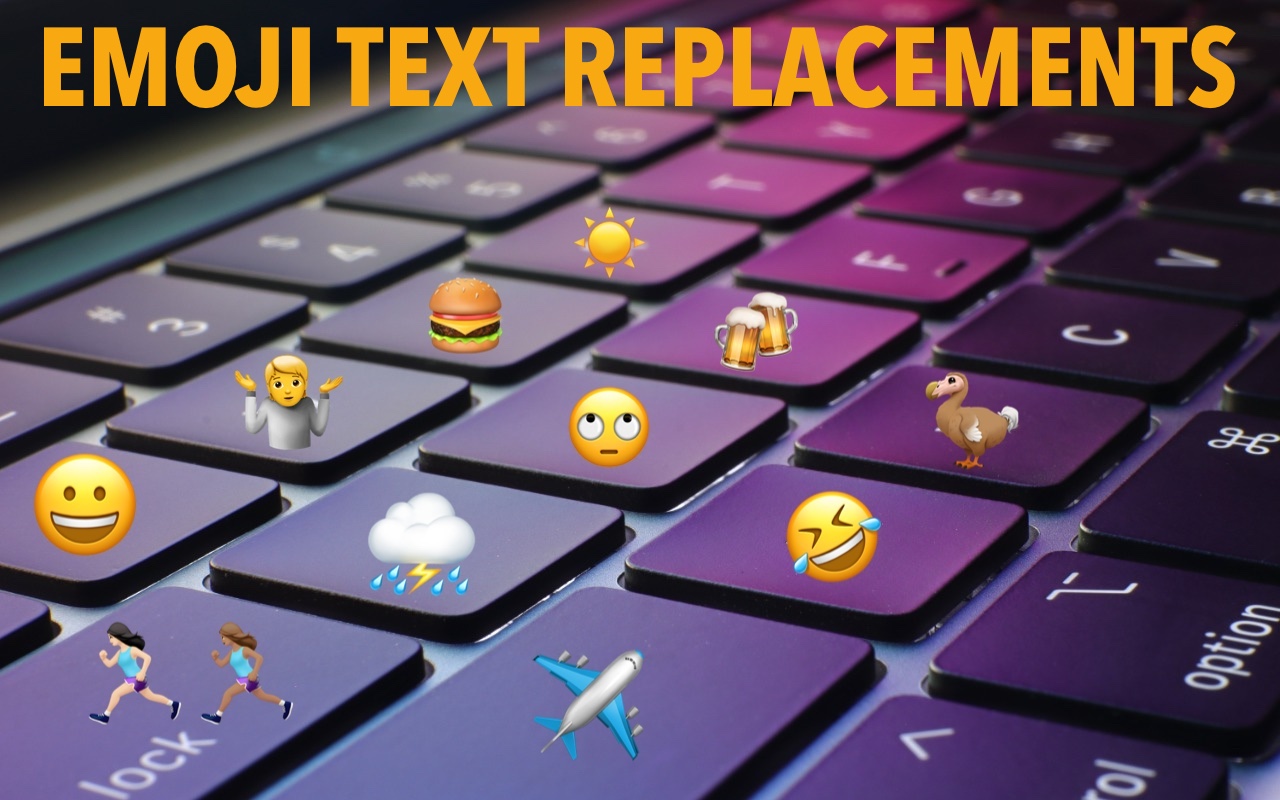
For many of us, emoji are fun, but we don’t want to choose Edit > Emoji & Symbols whenever we want to insert one. A faster, better technique is to set up text replacements for emoji you insert often. Open System Settings > Keyboard > Text Replacements, click the + button at the bottom, and enter the “trigger” text you want to type and the emoji you want entered. You can set the trigger to anything you like, but we prefer the Slack convention of a colon and a few characters from the emoji name, such as :roll for 🙄. Bonus: these replacements sync between your Mac, iPhone, and iPad!

(Featured image based on an original by iStock.com/Yosi Azwan)


Social Media: Finding and entering a desired emoji can be tedious. For those you like to use regularly, creating a text replacement lets you type a few characters to get a particular emoji quickly and easily.

Similar Posts

  • Macbooks and Macbook Air Upgraded

    Apple announced some changes to the 12-inch MacBook and 13-inch MacBook Air this week. Let’s talk about the MacBook Air first. Apple discontinued the 13-inch MacBook Air models that had 4GB of RAM and made them sport 8GB. There were no other changes to this model but the additional RAM comes at no additional cost as Apple doubled the RAM but kept the price the same at $999 for the 128GB SSD unit and $1299 for the 256GB SSD.

    With just this minor update to the MacBook Air we can speculate that perhaps this unit is on its way out within the next year. The MacBook Air does not have the Retina display nor does it support the latest in Intel mobile processors. On the other hand, it is Apple’s best selling laptop.

    The changes to the MacBook were more significant. They added a Rose Gold (er…pink) color which might actually be a nice option for some. More importantly, Apple went to the new sixth-generation dual-core Intel Core M processors which run at clock speeds up to 1.3 gigahertz, with Turbo Boost up to 3.1 gigahertz. The revamped notebooks also feature faster 1866 megahertz memory.

    This new processor yields increases in performance from 15-20% in initial testing. With the Intel HD Graphics 515, the new MacBook has about 25 percent faster graphics performance. Speed has also been enhance with new, faster PCIe-based flash storage.

    The lower power requirements and a slightly larger battery has also improved battery life, with the Apple claiming the new MacBook offers up to 10 hours of wireless surfing and up to 11 hours of movie watching.

    While some were expecting additional ports or an improved FaceTime camera, these features did not make the cut.

    We should have all the models in stock next week as well as some great deals on the newly discontinued models.

  • Who cares about QR Codes?

    By now you’ve probably seen one of those odd-looking white squares with a bunch of smaller square dots that make up a random pattern inside–that’s a QR code. QR stands for “Quick Response,” and a QR code is a form of barcode, just like on the packaging of nearly everything you buy.

    Usually QR codes are used to store Web links–URLs–so an ad can display just the QR code instead an unwieldy and hard-to-type web address. But QR codes aren’t just for ads. They’ve appeared on business cards, in magazines and books, on coins and bills, and even on tombstones–any place it would be nice to help someone load a Web link into a smartphone but where there isn’t enough room for a URL or in situations where viewers won’t remember the URL later. And the links? They can display anything that can appear on the Web: text, photos, videos, games, and more.

    Only one built-in iPhone app can scan QR codes–the Wallet app in iOS 9–but it can scan only QR codes that are associated with Wallet passes, things like airline boarding passes, concert tickets, and iTunes gift cards. For QR codes that encode any other sort of data, Wallet shows an error. It would be nice if Apple would add general QR scanning capabilities to Wallet or the Camera app, but until that happens, you’ll need another app.
    There are numerous QR code scanning apps in the App Store, but if you need a recommendation, give TapMedia’s QR Reader for iPhone a try. It’s free with ads (remove them with a $1.99 in-app purchase), scans both QR codes and traditional barcodes on most commercial products, and displays the associated information within the app. It can even help you create your own QR codes.

    To use a QR code scanner, launch the app, allow it to access the camera when it asks, and then point it at the QR code. Good apps will scan nearly instantly, but if not, move the camera so the QR code is centered between the guides. If even that doesn’t work, move forward or back so the camera can focus on the centered code.

    Once the code has been scanned, the app will usually bring up an in-app Web browser to display whatever was encoded. For certain kinds of data, like books or grocery items, the app may go right to Amazon or a price comparison site. Good apps will also keep a record of sites you’ve scanned, so you can go back to them later, even if you can no longer scan the QR code.

    So download a QR code scanning app and keep an eye out for QR codes. Once you start looking, you’ll find them everywhere–it’s a modern-day treasure hunt!