“Juice Jacking” Returns to the News but Still Hasn’t Happened

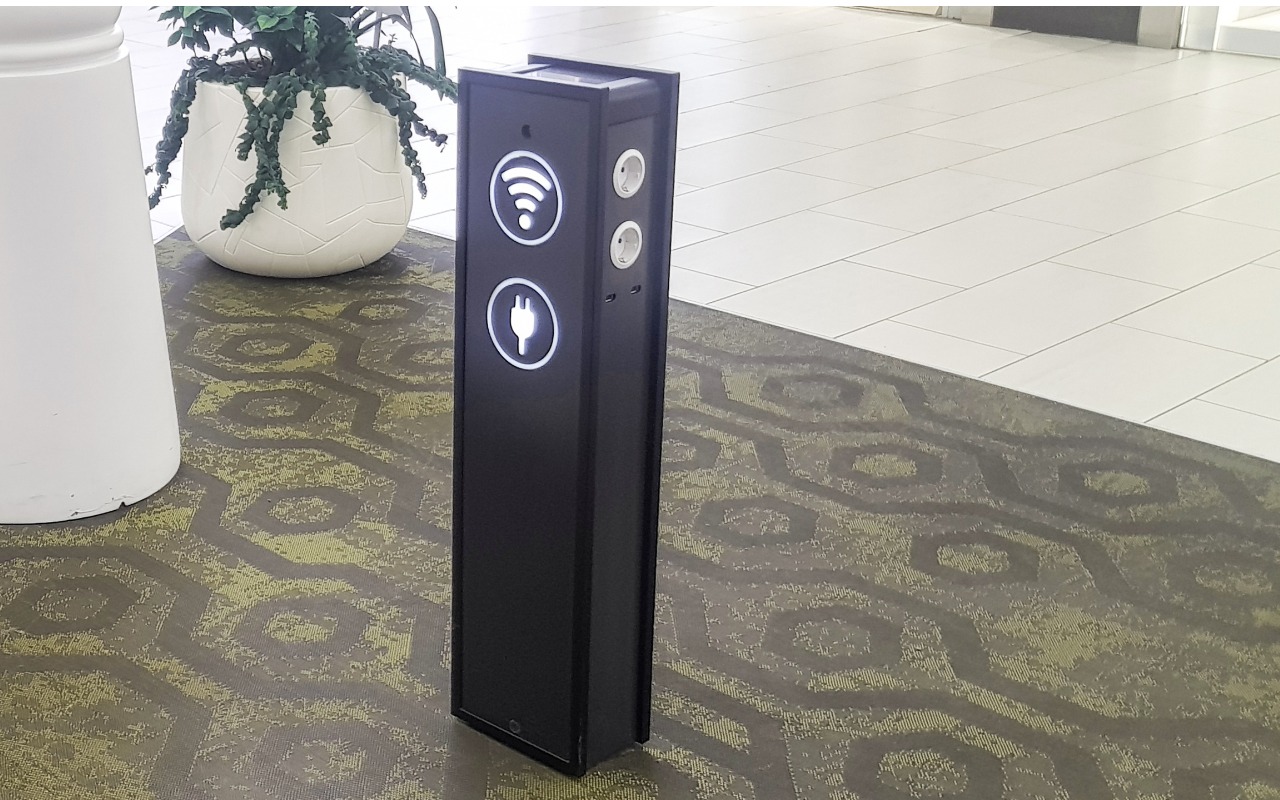
Much has been made in the media about a recent FBI warning about “juice jacking,” the theoretical act of installing malware on or stealing data from an iPhone connected to a public charging station. Researchers first demonstrated juice jacking in 2011 at the Defcon security conference.
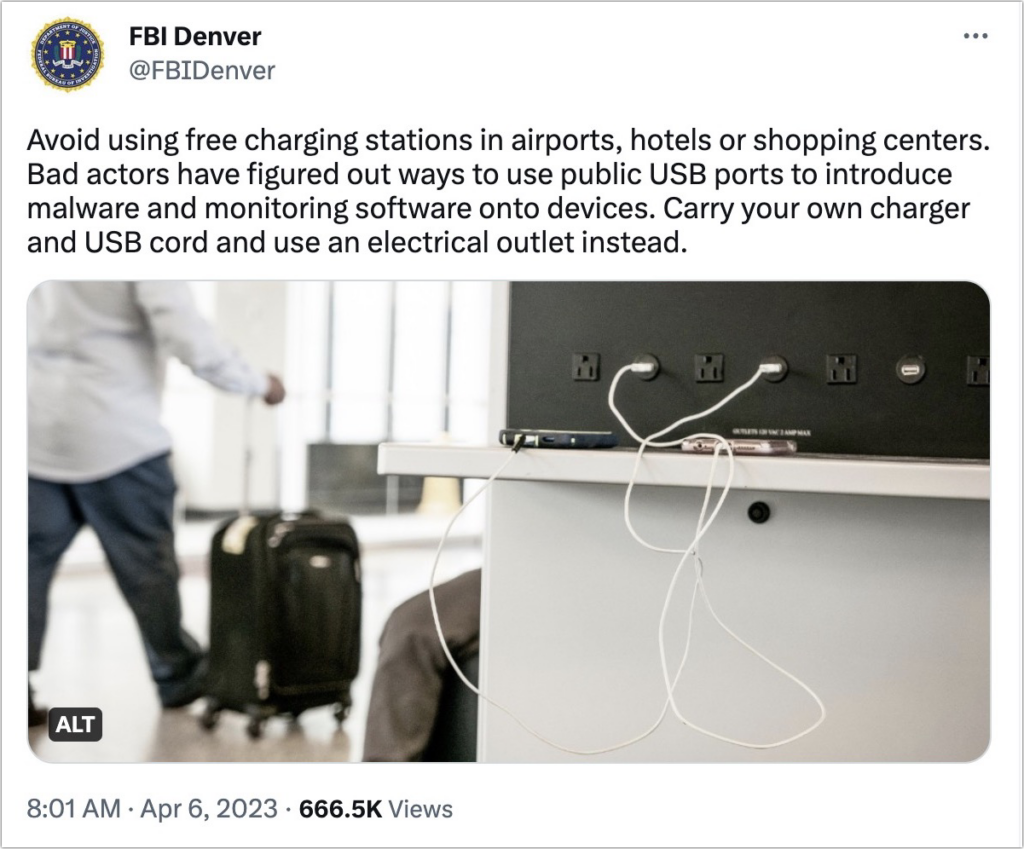
There’s no harm in following the FBI’s advice, but why raise the topic now? When questioned by the fact-checking site Snopes, the Denver office of the FBI said it was a standard public-service announcement tweet.

More importantly, there’s no indication that there’s any reason to worry. The security site Krebs On Security quoted one of the original juice jacking researchers as saying that he isn’t aware of any public accounts of a juice jacking kiosk existing in a public place outside of a security conference.

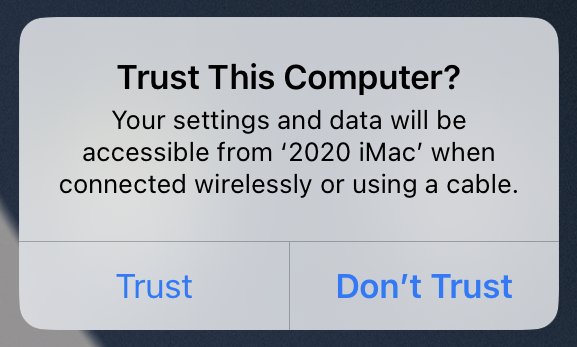
Making the risk of juice jacking even less concerning are security changes that Apple has made to iOS and iPadOS. Now, when you connect a device to a USB charger or device that does anything beyond providing power, you’ll see a prompt asking if you trust it. Given that there are no documented instances of juice jacking outside of a demonstration, it’s highly improbable that you’d get such a prompt when connecting to a public charging station, but if that were to happen, tap Don’t Trust and unplug your device immediately.
To block all possibility of juice jacking, you could:

  • Bring your own USB charger and plug it into a standard wall outlet.
  • Charge your iPhone from a battery pack and recharge the battery from a public charger.
  • Use a public wireless Qi charger. No cables, no worries.
  • Connect a USB data blocker to the end of your charging cable when using a public charger.
  • Rely on a special USB cable that can only charge, not carry data.

But honestly, just as with warnings about poisoned Halloween candy, these juice-jacking warnings don’t seem to be based on any documented instances. Our take? It’s sensible to bring a USB charger when traveling and carry a battery pack as a backup, but there’s no reason to worry about security when using a public charger. Amusingly, while we were editing this article, Ars Technica published a lengthy piece expanding on everything we’ve just said.

(Featured image by iStock.com/ClaireLucia)


Social Media: Juice jacking—malware installation or data theft after you plug a phone into a public charger—is in the news again. While the recommended precautions aren’t onerous, there are no documented instances of juice jacking happening in the wild.

Similar Posts

  • Hey Dora…

    So we have Siri and I’ve been playing around with Alexa (don’t tell Grace!) but now I have Dora, too. Dora is the computer from Robert Heinlein’s Time Enough for Love, The Number of the Beast, The Cat Who Walks Through Walls which were some of my favorite Sci-Fi as a kid.

    I was helping a customer that has pretty bad arthritis and struggled to use the keyboard. I was straightening out her email and getting her off of AOL (something we do often!) and noticed how difficult it was to type a simple email. So, I showed her dictation on the Mac and wow, it was like a light just got switched on. Dictation has come a long way and if your are on Mavericks, Yosemite or El Capitan, Apple’s enhanced dictation works wonderfully.

    Dictation will not be a satisfying experience for you if you have a lot of noise in the room, i.e. other people talking, music, etc, but if you are working alone in a relatively quiet environment it can be a great tool not only for dictating that email but you can also use spoken commands to direct your Mac to take action.

    Setting up Enhanced Dictation

    * Open System Preferences, then click on Dictation & Speech. Turn on Dictation and set up your options.

    * Click *Use Enhanced Dictation*. This will download a 1.2GB file so that you can dictate without internet connection.

    * Choose your language and dialect. Some languages, such as English, have multiple dialects.

    * Choose the keyboard shortcut you will use to signal that you’re ready to start dictating. The default is pressing the function Fn key twice, which I find convenient but you can customize it.

    * Choose your preferred microphone from the pop-up menu below the microphone icon. Normally, you use the internal microphone but if you are using a headset or external microphone you can choose that.

    Using Dictation

    * Go to a document or other text field and place the insertion point where you want your dictated text to appear.

    * Press the keyboard shortcut for starting dictation. The default shortcut is Fn Fn (press the Fn key twice). Or choose Edit > Start Dictation. When your Mac is listening, it displays a microphone with an input meter that rises and falls as you speak.

    * Speak the words that you want your Mac to type. Use dictation commands to add punctuation, formatting, and more.

    * To stop dictating, click Done below the microphone icon, or press Fn, or switch to another window.

    The more you use Dictation, the better it understands you. Dictation learns the characteristics of your voice and adapts to your accent.

    I will go into some of the more enhanced features like Dictation Commands in next week’s Kibbles & Bytes but I can tell Dora to Open an App, select text, move up or down and much more. I think you will like dictation on the Mac, give it a try!