Learn to Identify and Eliminate Phishing Notifications

Email may be the most common form of phishing, but it’s not the only one. Modern Web browsers support a technology that enables websites to display system-level notifications just like regular apps. These push notifications have good uses, such as letting frequently updated websites inform users of new headlines, changed discussion threads, and more.

Unfortunately, push notifications can be subverted for malicious purposes, notably phishing. Here’s what happens. You visit a website that asks you if you’d like to receive notifications.
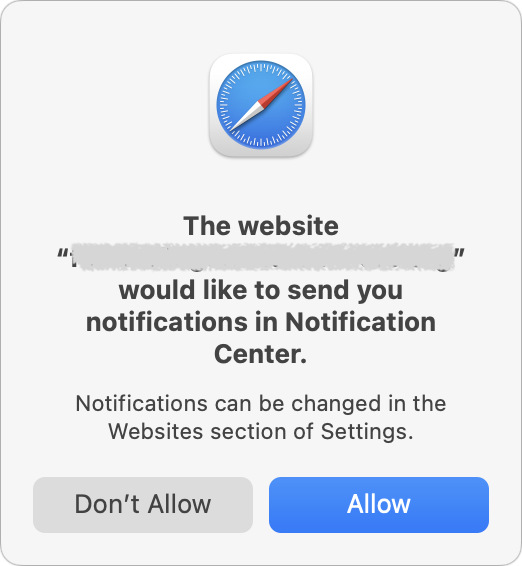
That request may be introduced with language that implies you must agree in order to get desired content, or it may be a bald-faced request to show notifications. If you agree, the website will be able to display alarming or deceptive phishing notifications even when it’s not open.
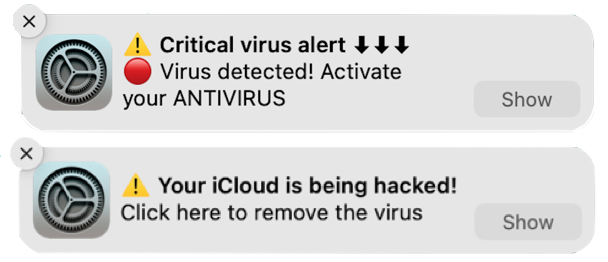
The goal is to trick you into clicking the notification, which will load a fake site that attempts to get you to enter login credentials or credit card information to facilitate identity theft.

The danger of phishing notifications is that they come from the system, so they may seem more legitimate than email messages trying to sucker you into revealing personal information. Nevertheless, as you can see in the examples above, they may still look sketchy in ways reminiscent of phishing emails:

  • No legitimate website would use emoji or symbols in a notification, much less multiple ones.
  • Although there are no glaring spelling or grammar mistakes, the use of all caps in the top notification is a giveaway. Similarly, standard notifications wouldn’t use exclamation points.
  • The use of “Click here” is poor information design that’s unlikely to come from a professional programmer or Web designer.

Phishing notifications, although problematic, aren’t a malware infection, and anti-malware packages won’t detect or remove them. Luckily, they’re easy to control and block in Safari and other Web browsers.

Prevent Phishing Notifications

The easy way to ensure you don’t see phishing notifications is to allow only trusted websites to send notifications. In general, we recommend keeping that list small so you’re not frequently interrupted by unnecessary notifications.

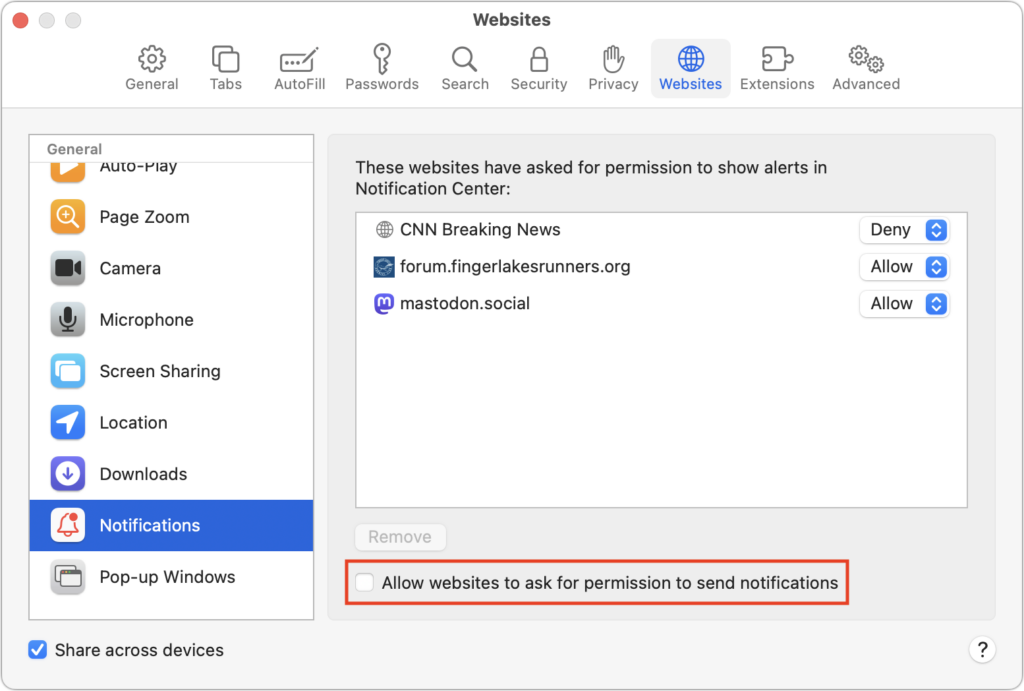
If you’re unsure that you’ll be able to identify malicious websites, you can enable a browser setting that prohibits all websites from asking for permission to send notifications. In Safari, choose Safari > Settings > Websites > Notifications, and deselect “Allow websites to ask for permission to send notifications” at the bottom.
Other browsers have similar options, and most will look like Google Chrome, as shown below:

  • Arc: Choose Arc > Settings > General > Notifications and select “Don’t allow sites to send notifications.”
  • Brave: Navigate to Brave > Settings > Privacy and Security > Site and Shield Settings > Notifications and select “Don’t allow sites to send notifications.”
  • Firefox: Go to Firefox > Settings > Privacy & Security > Notifications and select “Block new requests asking to allow notifications.”
  • Google Chrome: Navigate to Chrome > Settings > Privacy and Security > Site Settings > Notifications and select “Don’t allow sites to send notifications.”
  • Microsoft Edge: Choose Microsoft Edge > Settings > Cookies and Site Permissions > Notifications and turn off “Ask before sending.”
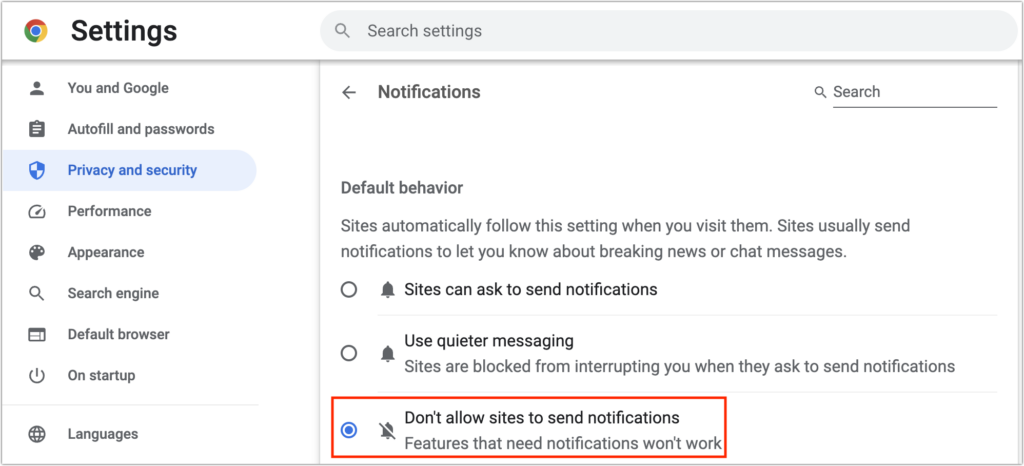
Browsers based on Chrome (everything except Firefox in the list above) offer a “Use quieter messaging” option that replaces the permission dialog with a bell icon next to the site name in the address bar—click it to allow notifications from that site.

Eliminating Phishing Notifications

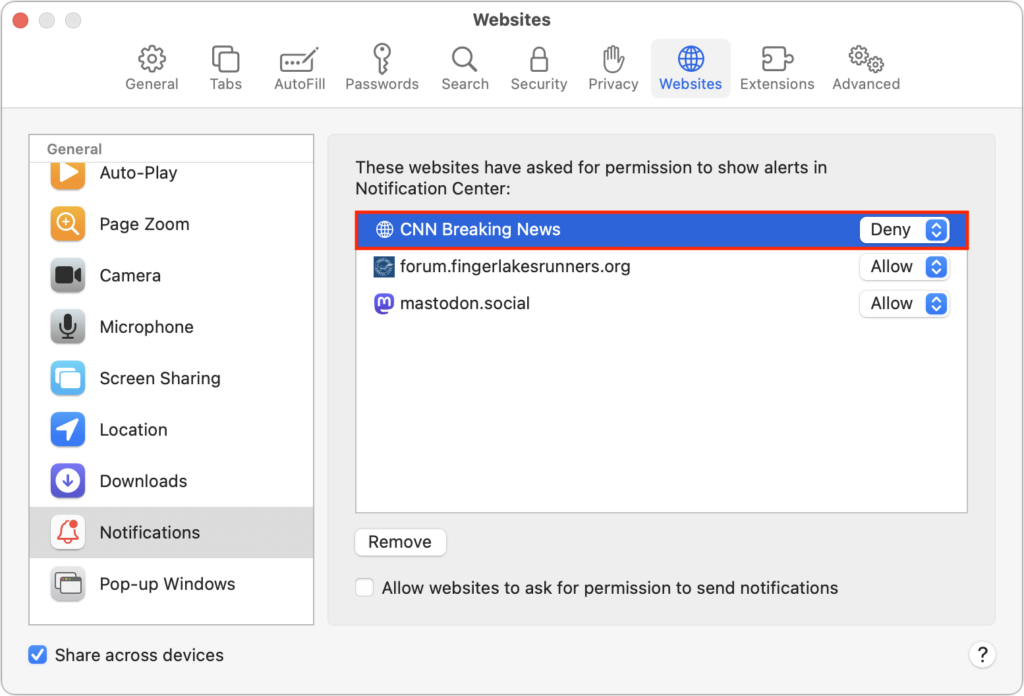
Now you know how to prevent new sites from requesting permission to display notifications. What about sites that already have permission? It’s easy to block them in Safari’s Notifications settings screen. If you have any undesirable sites with Allow in the pop-up menu to the right of their name in the Notifications screen, choose Deny from that menu. You could remove the site instead, but that would allow it to ask for permission again.
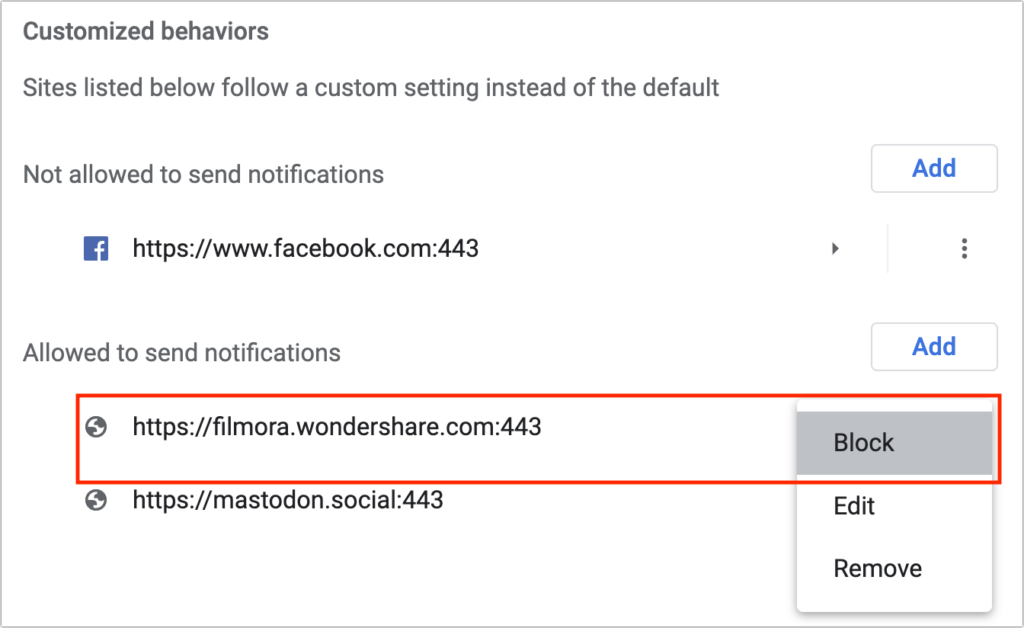
Firefox’s interface is similar to Safari’s, but Chrome-based browsers have a different interface that separates the blocked and allowed sites. To block a website whose notifications you no longer want to receive, click the button to the right and choose Block. Again, you could remove undesirable sites if you prefer, but remember that if your notification settings ever change, doing so could allow the site to ask for permission once more.
Ultimately, it’s easy to avoid phishing notifications by paying attention as you browse the Web. Steer clear of websites that make an unexpected request to display notifications. Notifications aren’t necessary on hardly any websites, so there’s no harm in denying such requests unless you’re sure they’re legitimate.

(Featured image based on an original by iStock.com/tadamichi)


Social Media: Did you know that a phishing website can send you a notification right on your Mac? Learn how this could happen and how to prevent it in your favorite Web browser.

Similar Posts

  • Get Organized!

    I have tried a lot of apps over the years for keeping ideas organized, assigning tasks or just keeping track of my goals. The problem I’ve found with many of the organizational applications is that I don’t find them easy to access. If you’re not on your phone or at your computer, often these applications can’t be utilized easily or have widely varied interfaces depending on which device your using.

    “**Trello**”:https://trello.com/ has become my new favorite go-to app for keeping ideas and tasks organized. Trello is a free app with the ability to also pay for upgraded features for minimal fees. Why do I love Trello so much? It’s simple, I can easily use it on my computer, my iPhone or my iPad. There is an app for all three of my devices, and each version works seamlessly with the others. Working with several staff members in different departments here at Small Dog can make keeping track of tasks and to-do lists a bit of a challenge, but this simple application has really helped to streamline things.

    I easily and quickly create what they call “boards”, each board then allows you to create individual categories to which you can then add individual tasks. Within my lists I can upload photos, files, web links, assign due dates and add notes. Once I have created a board, I can also easily share that board with co-workers or whomever I choose to share them with. Anyone I have shared a board with can also be granted access to update and add to the boards, add notes or more files.

    A feature many of us have come to really rely on are the updates that you get from Trello notifying you that someone has made a change. I have found just one complaint thus far about the application. There appears to be no feature to mark a task as completed while still leaving it on your board. You can easily archive tasks and even entire boards, but I prefer to still be able to see those tasks while clearly seeming them marked as completed. However, all in all, I find this to be an invaluable app and one that I utilize all of the time. I have tried and do use google docs and google drive, and I’ve installed those on my devices as well, but for me nothing beats the ease and convenience of Trello.

  • Be Alert for Deepfake Phishing Scams

    Phishing scams have entered a new, AI-powered phase and can now convincingly mimic real people. Attackers can generate fake voice or video deepfakes…

  • A Swinging Hot Spot in Paradise

    You are visiting Key West, accompanied by your trusty iPhone and MacBook Air. Suddenly there’s an emergency at work, and you need to get online with your Mac. You can pick up a cell signal with the iPhone, but there’s no Wi-Fi that isn’t locked up. Well, my first thought might be “oh well, I’m on vacation!” but you are dedicated and need to be online.

    Don’t worry! You can use your iPhone’s cellular data plan to create a personal Wi-Fi hotspot that lets your Mac access the Internet through your iPhone. Also called “tethering,” it’s fast, easy, and can be a life-saver when you just have to get online with a Mac or your Wi-Fi-only iPad. It supports up to 5 users, too, which means you can get your team online, too!

    Before we explain how to do set up a personal hotspot, note that most but not all cellular carriers allow tethering on existing plans. For some, you might have to pay more for tethering. Keep in mind that any data consumed by your Mac while tethered will count against your data allowance and may generate overage fees. Carriers with “unlimited” data, like T-Mobile and Sprint, generally throttle your bandwidth to slower speeds if you use too much data.

    Along those lines, if you use a file sharing service like Dropbox or Google Drive, or an Internet backup service like CrashPlan or Backblaze, turn them off before connecting. Particularly if they haven’t connected in a while, those services can transfer a lot of data quickly, which could result in a hefty overage charge or awkward data throttling for the rest of the month.

    With those warnings out of the way, follow these steps in iOS 9 to turn on Personal Hotspot:

    1. On your iPhone, if you’ve never enabled the feature before, go to Settings > Cellular > Personal Hotspot. Once you’ve turned Personal Hotspot on once, it moves up a level, so you can access it from Settings > Personal Hotspot.
    1. Tap on Wi-Fi Password and enter a password that’s at least 8 characters long and easy to type. It doesn’t need to be super secure because you can keep Personal Hotspot turned off unless you’re using it. But you do want a password so random people nearby can’t connect and use your data.
    1. Once you’ve entered a password, slide the Personal Hotspot switch.

    That’s it! The Personal Hotspot screen provides basic instructions for connecting to the iPhone via Wi-Fi, Bluetooth, and USB. Stick with Wi-Fi, since it’s the easiest and most reliable in most cases.

    • To connect to your new Personal Hot Spot on your Mac, click the Wi-Fi icon in the menu bar and choose your iPhone’s name.
    • On your iPad, go to Settings > Wi-Fi and choose your iPhone.
    • Enter your password when prompted, making sure to select Remember This Network. That way, you won’t even have to enter your password the next time.
    • The Mac or iPad then connects to your iPhone, showing a hotspot icon instead of the usual wave icon for the Wi-Fi menu.

    Could it get any simpler? When you’re done, the safest thing to do, to ensure you don’t accidentally end up using too much of your data allowance, is to turn off the Personal Hotspot switch in Settings > Personal Hotspot. Your Mac or iPad will automatically disconnect.

    Actually, it CAN be simpler! Your Mac can automatically use the personal hotspot on your iPhone to connect to the Internet when they’re within range of each other.

    Use Instant Hotspot on your iPhone (with iOS 8 or later) to provide internet access to your Mac computers and other iOS devices (with OS X Yosemite or iOS 8) that are in range and signed into iCloud using the same Apple ID. Instant Hotspot uses your iPhone — you don’t have to enter a password or even turn on Personal Hotspot.

    Make sure your iOS device and your Mac are signed into iCloud with the same Apple ID.

    On your Mac, click the Wi-Fi status icon in the menu bar, then choose your iPhone or iPad.

    After you connect to the iPhone or iPad Personal Hotspot, you can check the cellular signal strength and the battery status of the iPhone or iPad in the Wi-Fi status menu.

    When you’re not using using the hotspot, your devices automatically disconnect to save battery life.

    One more big advantage of Personal Hot Spots. When you are shopping for that new iPad, perhaps you don’t need the cellular model if you nearly always have your iPhone handy. That’s what I do. If I need internet access on my Wi-Fi iPad, I simply connect to my Hot Spot! Saves me the added cost of a cellular-enabled iPad and the monthly fees from the cell carrier!

  • Keep Your IT Budget Working During a Slowdown

    When business slows down, it’s tempting to reduce IT spending. But that approach often backfires, creating bigger problems—and larger bills—down the road. Beyond…

  • _Dear Friends,_

    I have become super aware of mosquitos with all the news about the Zika virus. For some reason biting insects just love me whether they are super tiny no-see-ums here in the Keys or slightly larger ones in Vermont they seem to be attracted to me. The first thing that I noticed about the mosquitos down here is that they are tiny compared to the ones that come out every year in Vermont. Seriously though, this Zika virus seems like a very serious health epidemic with the World Health Organization calling it a crisis. They have a pretty serious mosquito control program down here with guys that go door to door to look for standing water and spraying year around.

    Apple announced their holiday quarter financials and they beat the estimates on the street and posted the most revenue and profit ever for Apple and in a truly remarkable factoid, the most profit generated in a quarter by any public corporation, EVER. I will talk about the financial results below but let’s just say if Apple has reached a plateau it sure is a lofty one! Just to contrast that a bit against the other guys, Samsung reported a 40% decline in profits. They posted about a $15.8 billion profit for the entire year which Apple crushed in a single three month period!

    This week’s Kibbles & Bytes exclusive features the “**Apple Certified Reconditioned 21 inch iMac**.”:http://www.smalldog.com/wag900002135/special-apple-certified-reconditioned-21-5in-imac-2-7ghz-w-applecare-for-1099 This iMac is configured with a 2.7GHZ i5 processor 8GB of ram and a 1 TB hard drive. This model has the latest 802.11ac wireless protocol and comes with the same 1 year warranty as new iMacs. We are bundling it with Applecare so instead of a 1 year warranty you get 3 years and instead of 90 day days of free Apple technical support you get 3 years too. Kibbles & Bytes readers can purchase this special bundle for “**$1099!**”:http://www.smalldog.com/wag900002135/special-apple-certified-reconditioned-21-5in-imac-2-7ghz-w-applecare-for-1099 That’s the lowest price ever for a warrantied iMac with Applecare!