Improve Your Hearing with the AirPods Pro 2 and iOS 18
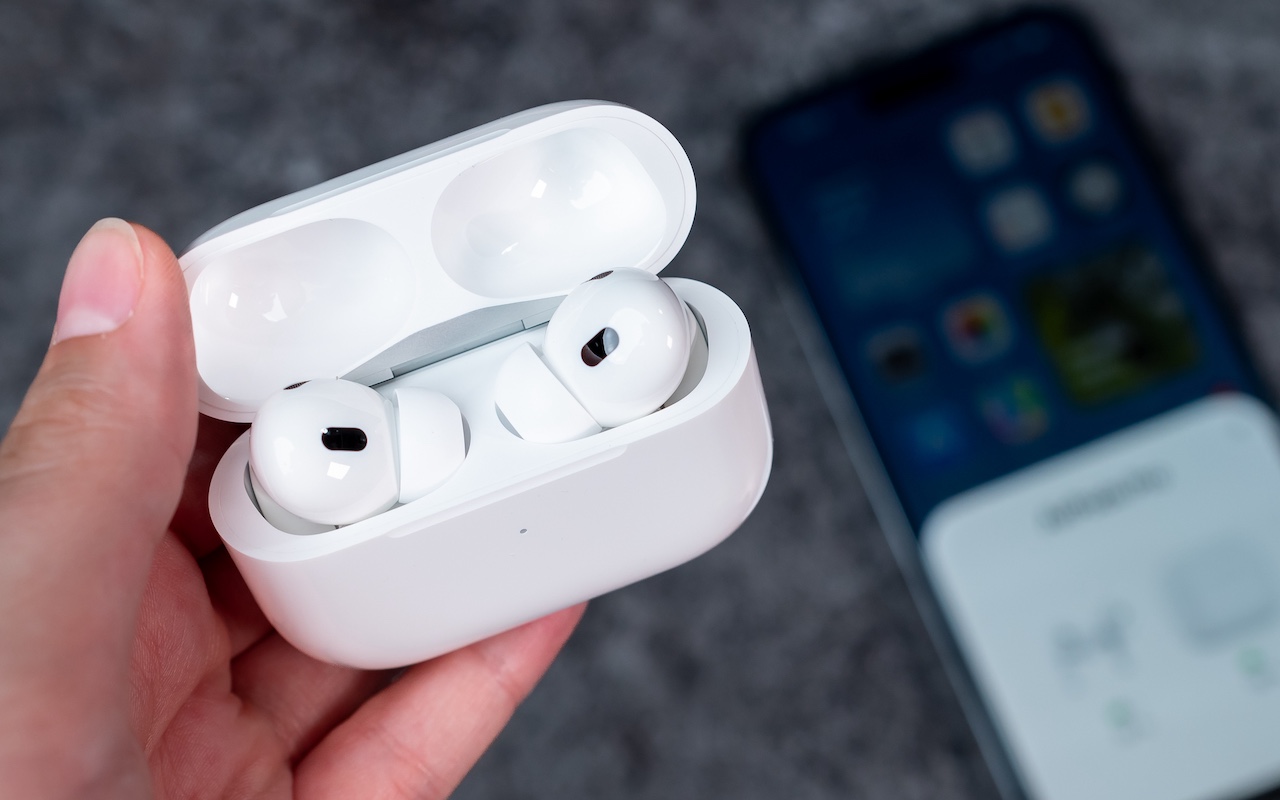
For many, Apple’s AirPods are just another pair of earbuds: a convenient way to listen to media. But with the latest versions of iOS and automatically applied firmware updates, the AirPods Pro 2 have become significantly more interesting.
They have long had noise cancellation features, which we find helpful in open office environments and for turning down the volume on everything from airplanes to vacuum cleaners. The more recent addition of Adaptive mode, which bridges between Transparency and Noise Cancellation modes and changes with your surroundings, makes them useful in dynamic urban environments. The Loud Sound Reduction feature can be a godsend at concerts where the music would otherwise be painfully loud. Personalized Volume adjusts the volume of media in response to your environment, and although it can be a bit disconcerting, Conversation Awareness drops the media volume and reduces background noise when you start speaking to others.
However, the newest and most important feature of the AirPods Pro 2 comes with iOS 18.1: Hearing Health. Many people don’t realize they have hearing loss, so Apple now provides a clinically validated Hearing Test and a clinical-grade Hearing Aid feature that can compensate for mild to moderate hearing loss. Even if you don’t think you have any hearing problems, we recommend taking Apple’s hearing test so you have a baseline to compare against future tests.
Here’s how to check your hearing and get started with the hearing assistance and protection features. Before you start, make sure you’ve paired your AirPods Pro with your iPhone and haven’t been exposed to loud noises for at least 24 hours. (It can take that long for your hearing to return to normal.)
Take a Hearing Test
The Hearing Test has three parts: setup, the actual test, and presenting the results. In the setup phase, the iPhone guides you through finding a quiet place to take the test, inserting your AirPods Pro correctly, and testing the fit.
The fit test is important because the AirPods Pro silicone ear tips help block outside noise, allowing the earbuds to boost or lower the volume of particular sounds or frequencies to improve audio clarity. The AirPods Pro come with four sizes of ear tips, from extra small to large (medium is the default), and the fit test helps you determine which ear tip best combines efficacy and comfort.
To start the test, open the iPhone’s Settings app and tap the name of your AirPods Pro—that option appears only when the case is open or they’re in your ears. In the AirPods screen, tap Take a Hearing Test. The test involves tapping the screen every time you hear a pulse of three tones. As a game, it’s boring but not easy—most people will probably be able to hear the first few tones, but subsequent ones become significantly more difficult to discern. Don’t worry if you miss a tone because you’ll have multiple chances to hear each one. The test focuses first on one ear and then the other.

At the end, the test presents your results. dBHL stands for decibels Hearing Level and indicates the softest sounds you can hear at various frequencies. If you have little to no hearing loss—dBHL under 20—there’s no need to do anything more. dBHL numbers between 20 and 40 suggest mild hearing loss and indicate that you may have difficulty hearing soft or distant sounds, such as whispers or quiet conversations. Numbers from 41 to 55 indicate moderate hearing loss, which can make it difficult to understand normal speech, particularly in loud environments. For higher levels of hearing loss, or if you’re experiencing noticeable problems, consult an audiologist.
Turn On Hearing Assistance
If your hearing test suggests mild to moderate hearing loss, the AirPods Pro Hearing Aid feature can help. It uses the hearing test results to adjust what you hear to improve voice and audio clarity. You can turn it on at the end of the hearing test if indicated, or at any time in Settings > AirPods Pro > Hearing Assistance. (If your results indicate little to no hearing loss, the trick to turning on the Hearing Aid feature is to tap “Learn About Hearing Aid” at the end of the test or by selecting a hearing test result and then tapping Next.)
Apple has created a particularly flexible solution here. In the Hearing Aid section, you can control whether the AirPods Pro adjust external sounds for greater clarity. To tweak the specifics, tap Adjustments and use the amplification, balance, tone, and ambient noise reduction sliders. The Conversation Boost switch enhances face-to-face conversations by focusing on the person in front of you.

Also helpful is Media Assist, which uses your hearing test results to improve music, podcasts, and other audio played through the AirPods Pro. Separate switches let you apply it to Music and Video along with Calls and FaceTime.
Improve and Protect Your Hearing
If you own a pair of AirPods Pro 2, we highly recommend that you take a hearing test and try the Hearing Aid feature. Even if you have little or no hearing loss, you may find that the Media Assist option makes your music sound better. It’s easy to test—just play a song you love (turn it on from Control Center) and toggle Media Assist on and off while it plays.
Also, we’ve started wearing the AirPods Pro in situations where we might not have thought to in the past. It’s obvious that the Noise Cancellation mode would be helpful on an airplane, but we also use it to block unwanted noises to aid our concentration at work. We’ve also found that Transparency and Adaptive modes can be helpful on city streets and in loud restaurants. Plus, because Loud Sound Protection is automatically enabled in Transparency and Adaptive modes, it lets us enjoy front row seats at a concert without worrying about our hearing or suffering from ringing ears the next day.
We know that AirPods Pro aren’t for everyone. Many people prefer the AirPods 4, which provide some noise cancellation without blocking the ear canal with silicone ear tips. But they can’t compete with the AirPods Pro for noise cancellation and lack the new Hearing Health features. Between the Hearing Test and Hearing Aid features and how the AirPods Pro can protect and enhance hearing, we think they will become a more common sight among older adults who otherwise wouldn’t consider wearing earbuds in public. If you have questions or concerns about your hearing, give them a try.
(Featured image by iStock.com/Julija Matuka)
Social Media: Apple’s AirPods Pro 2 can help you hear more—or less. We examine both possibilities and explain how easy it is to use the AirPods Pro to take a clinically validated hearing test and enjoy the new clinical-grade Hearing Aid feature.