What Should You Do about an Authentication Code You DIDN’T Request?
We strongly encourage using two-factor authentication (2FA) or two-step verification (2SV) with online accounts whenever possible. The details vary slightly, but with either one, after you enter your password, you must enter an authentication code to complete the login. Although it’s always best to get such codes from an authentication app like 1Password (which enters codes for you), Authy, or Google Authenticator, many websites still send codes by the less secure SMS text message or email. They’re better than nothing.
But what if you receive a 2FA code that you didn’t request?
- Don’t panic. Although receiving the code means that someone is trying to log in to your account and has your password, the extra authentication step has done its job and protected your account from being compromised.
- Never share an authentication code with anyone! A hacker could attempt to break into your account, be foiled by two-factor authentication, and then email or text you with a trumped-up story about why you should send them the code. Authentication codes are short-lived, so if this is going to happen, it will happen right away.
- Independently from the message with the code, go to the account website, log in, and change the password. As always, make sure the password is strong, unique, and stored in your password manager. If the account used an old password that was shared with other accounts, change passwords on those accounts as well.
There are a handful of scenarios that could generate such an authentication code:
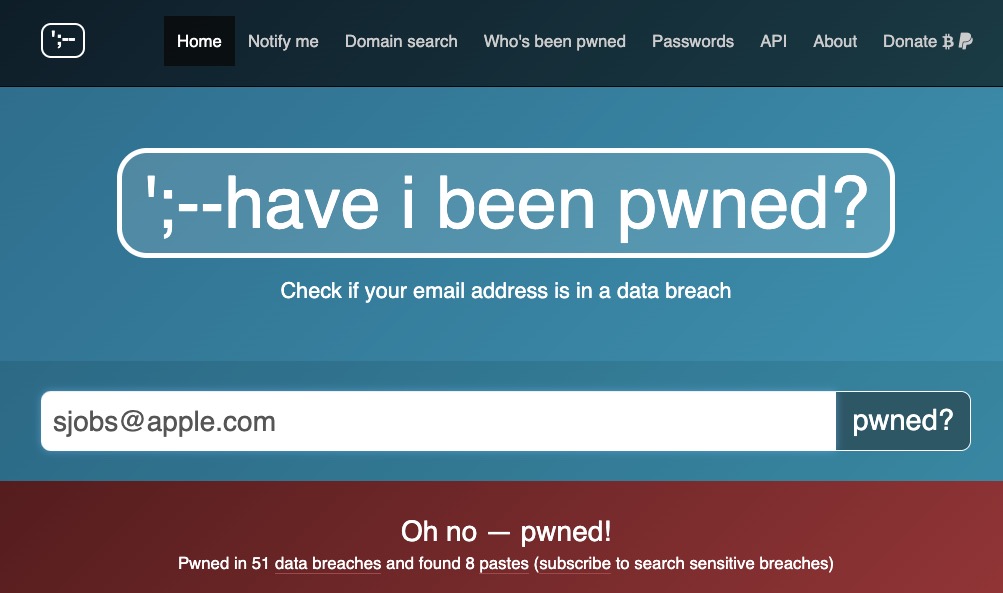
- Stolen credentials: The most likely scenario, which the advice above addresses, is when your email address and password have been stolen, probably in a significant site breach. You can check the Have I Been Pwned site to see if your account is floating around on the “dark Web.” Password managers often perform similar checks. Changing the password on any breached sites is essential.
- Identity theft: You started receiving authentication codes from TikTok, but you don’t remember creating a TikTok account. Someone might be trying to create an account to impersonate you but cannot complete the account creation without the authentication code. There isn’t much you can do to stop such attempts, although if an account has been created, you should be able to change the password (since it’s using your email address or phone number), log in, and either just let the account sit in your password manager or try to delete it.
- Accidental or random triggering: If you have a common email address or phone number, someone could have accidentally entered your address or number instead of theirs while trying to create an account. It’s easy to type marsha32@example.com instead of marsha23@example.com or mistake the Boston 617 area code for the upstate New York 607 area code. If you’re sure you don’t have an account at the site in question and you only get one authentication code, you can probably ignore it.
Regardless of the cause, don’t ignore 2FA codes you didn’t request for sites where you have an account. It’s not hard to change a password, particularly if you use a password manager, and the extra piece of mind is worth the few minutes of work.
(Featured image based on an original by iStock.com/Kateryna Onyshchuk)
Social Media: Receiving a two-factor authentication code you didn’t request shows that your security is working, but it’s also an indication that someone may have your password and be trying to break into your account.