Erase Image Content in Preview with Copied Color Blocks

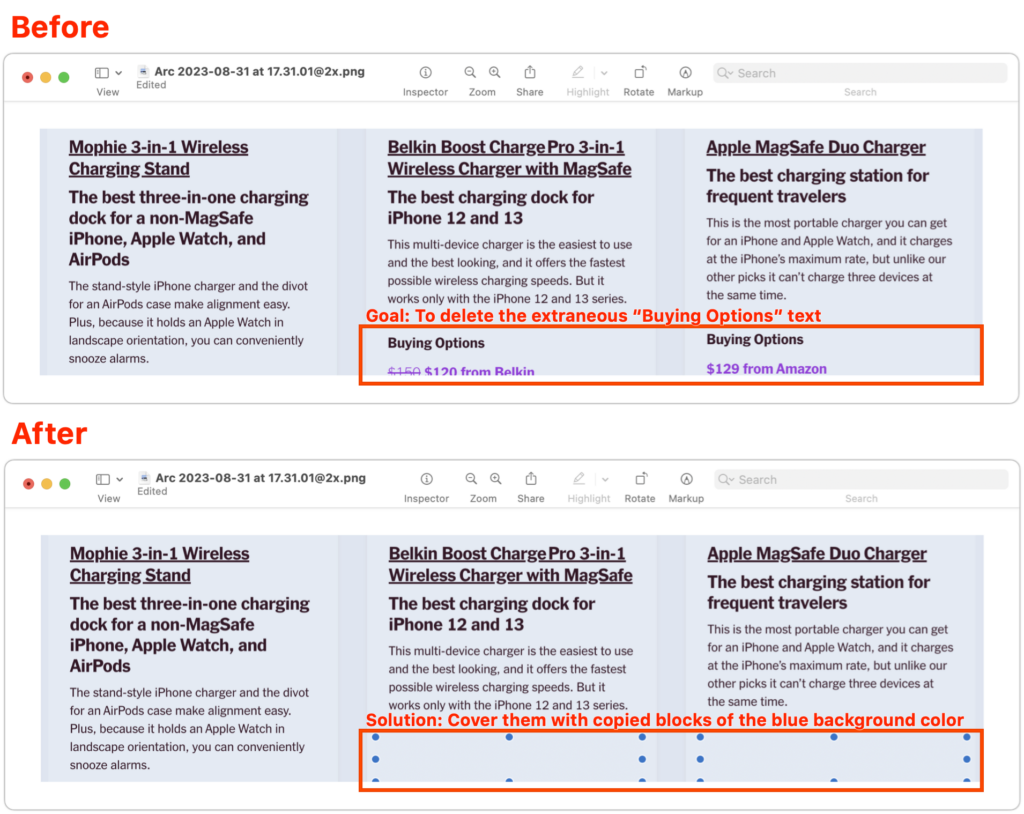
Apple’s Preview is a surprisingly capable graphics editor for making quick changes to screenshots and other illustrations, but it lacks a built-in way to delete content while leaving the background. Here’s the workaround—select a rectangle of the background color, copy it, paste it, and then move it over the undesirable content—as shown in the After screenshot below, where blue selection dots denote the pasted box. As you resize the box, press Shift to prevent it from resizing proportionally, which helps you make it the shape you want. If you need a second box of the same color, Option-drag the first box to copy it. When you save and close, your boxes will be merged into the image, permanently removing the content underneath, so make sure they’re in the right spot before moving on.
(Featured image based on an original by iStock.com/Seetwo)


Social Media: Have you ever needed to remove some content from a screenshot or other illustration? There’s no need for a fancy graphics app—you can do it quickly in Preview with this little-known trick.


Similar Posts

  • Apple's Not The Only Game In Town

    I have the pleasure of being able to not only work behind the scenes here at Small Dog, but also on the front line with our customers. This past week while working in our “**Rutland, VT store**”:http://www.smalldog.com/rutland I had two customer interactions that brought an interesting subject light when talking about iPads. We have seen over the last two years or so there has been a slight drop in the number of iPads sales in comparison to when they first hit the market back in in April of 2010 and a lot has changed since then. There are more tablets out there than ever before including ones that run Android, Windows, Kindle and more.

    The draw away from Apple for some customers is that in many cases the same Apps and functions you can do on an iPad can be done on a another device and for less money. It’s easy to be persuaded by these draws and overlook some some other key aspects. What makes Apple stand apart is often pushed aside temporarily when comparing these products. With Apple everything is designed to work together. iCloud can sync all your information across multiples devices, from your iPad to iPhone to your computer. “**Handoff**”:https://support.apple.com/kb/PH18754?locale=en_US allows you to start a project on your iPad and then with a quick tab, pick up that project on your computer. Wanting to show your friends the pictures from your weekend trip to the mountains? With photo stream it doesn’t matter what Apple device you’ve picked up, your photos will be there. Have a great home video of your child or grandchild and just have to show everyone who came to Friday night dinner? No problem. With the Apple TV you can airplay that video and save yourself from passing your phone around the room for everyone to see. Another benefit? Apple devices last a long time! I have been using the original iPad mini for four years now and each week I interact with customers who are also using iPads that are two or three years old with no issues.

    In addition to all the integration, we’ve seen price drops for the iPads over the last several years as well. No longer do you need to spend $500 or more for an iPad. You can get an “**iPad Mini 2**”:http://www.smalldog.com/product/84491/ipad-mini-2-16gb-space-gray starting at **$269** and “**iPad Air**”:http://www.smalldog.com/product/86240/ipad-air-16gb-wi-fi-silver for **$399**. So the next time your considering tablet options, take a few moments to consider that while Apple isn’t the only game in town anymore, it’s still the leader of the pack!

  • Backups: Trust but Verify

    It’s easy to assume your backup app—whether it’s Time Machine, Carbon Copy Cloner, Backblaze, Retrospect, or something else—is quietly doing its job. But…