Setting Up and Managing iCloud+ Storage
Apple’s online iCloud storage underpins many of the company’s services, including iCloud Photos, iCloud Drive, iCloud Backup (for iPhones and iPads), iCloud Mail, and Messages in iCloud. Numerous independent apps also rely on iCloud storage to sync data between devices.
Apple gives everyone 5 GB of storage for free, which is enough for core services, like iCloud Keychain, and to try the other services. However, those who wish to take full advantage of iCloud Photos and iCloud Drive, in particular, must subscribe to iCloud+. Along with extra storage, iCloud+ subscribers can use:
- iCloud Private Relay, which blocks tracking of Safari traffic, DNS queries, and most non-HTTP Web traffic
- Hide My Email, which creates random, unique email addresses that automatically forward to your inbox
- Custom Email Domains, which lets you register your own custom email domain and use it in a personalized email address
For now, though, we’ll focus on storage. Apple’s iCloud+ rates are similar to those for storage at Google Drive and Microsoft OneDrive, though the specifics vary slightly by service. Apple charges:
- 50 GB: $0.99 per month
- 200 GB: $2.99 per month
- 2 TB: $9.99 per month
- 6 TB: $29.99 per month
- 12 TB: $59.99 per month
Audit Your Storage Needs
How much you should get depends on how much data you wish to upload to start and how quickly you expect that amount to grow. For most people, iCloud Photos consumes more storage space than anything else, although syncing your Desktop and Documents folders between Macs using iCloud can also chew up space.
If you’re not currently using iCloud, use File > Get Info to determine the size of your Photos Library (located in your Pictures folder), and do the same for your Desktop and Documents folders if you want to sync them. You can also anticipate iPhone and iPad backups consuming up to 20 gigabytes or more.
Remember that you can share iCloud+ storage space with people in your Family Sharing group. Checking how much space others in your family would also like to use is worthwhile.
Get Started with iCloud+
Subscribe to iCloud+ in Settings/System Settings > Your Name > iCloud > Upgrade to iCloud+. (In pre-2024 versions of Apple’s operating system, tap Manage Account Storage and Change Storage Plan.)
Then, you can turn on iCloud Photos in Photos > Settings > iCloud on the Mac or Settings > Apps > Photos on the iPhone and iPad. (We recommend having one Mac use “Download Originals to this Mac” so you have a local copy of everything.) If it’s compelling for you, turn on Desktop and Documents folder syncing in System Settings > Your Name > iCloud > iCloud Drive on each of the Macs you want to participate—you don’t need to do anything on iPhones or iPads because everything from your Macs automatically appears in the iOS Files app. The initial sync, which uploads and deduplicates everything, can take days, depending on the upstream bandwidth of your Internet connection.

Once you’re set up, you can see and manage all the apps and services using iCloud. Go to Settings/System Settings > Your Name > iCloud, and next to Saved to iCloud, tap See All. Tap any app to see more information and change its settings.

Running Low on Storage Space
Like a physical drive, your iCloud account can run out of space. When that happens, you can delete data or pay for more space. To see how much you’re using and how that breaks down across different apps, open Settings/System Settings > Your Name > iCloud and, at the top, tap Storage or click Manage. You can then drill down to see more details about each app. For Photos, iCloud Drive, Backups, and Messages, Apple provides suggestions for removing large files to save significant amounts of space quickly. Most other apps offer only an option to delete all your data. Generally speaking, you should delete an app’s data only if you don’t anticipate ever using the app again.

As you get close to your space limit, your devices will prompt you to upgrade so you don’t encounter failures caused by a lack of space. Unsurprisingly, Apple makes it easy to upgrade to a larger tier.
Although there’s nothing exciting about online cloud storage, having more iCloud+ storage significantly improves the experience for those with multiple Apple devices who would appreciate a seamless photo experience with iCloud Photos, accessing their files anywhere, and backing up their iPhones and iPads without needing to connect to a Mac. iCloud storage works well and is reasonably economical for what you get.
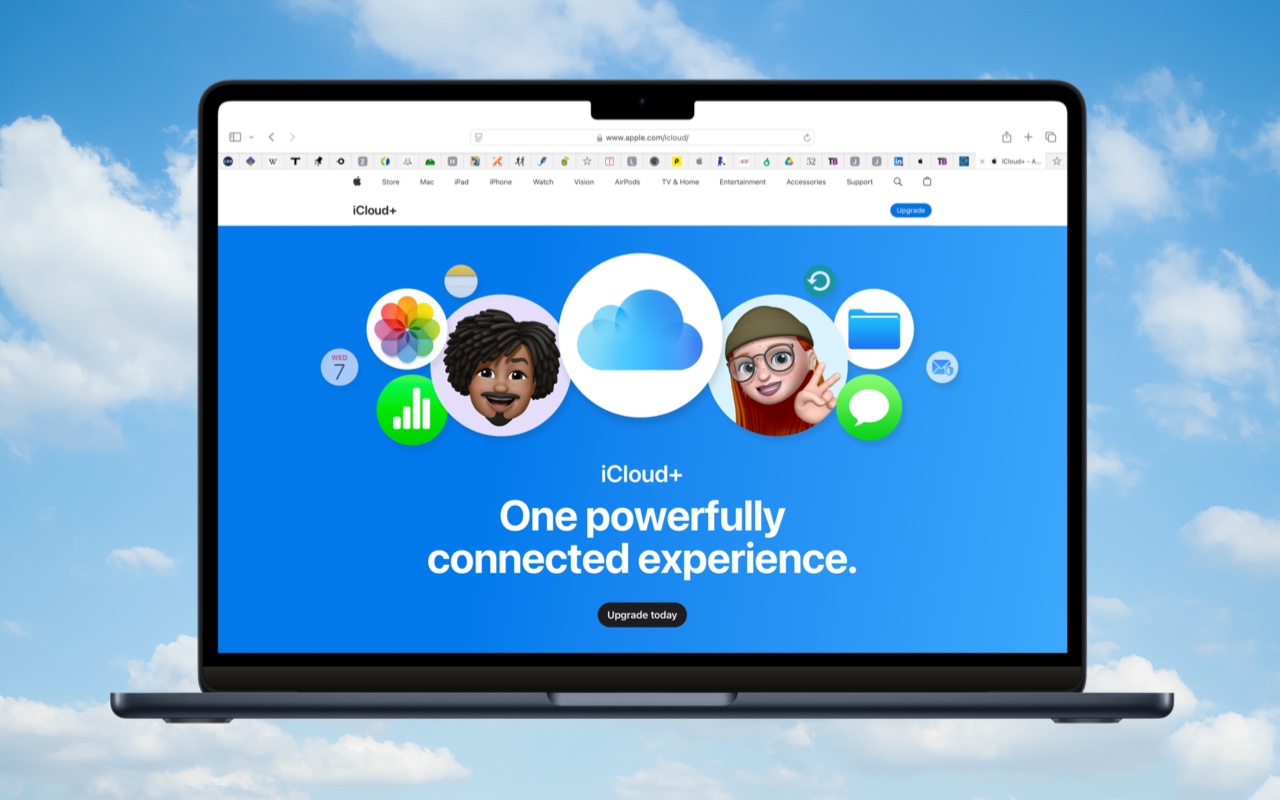
(Featured image with background by iStock.com/wing-wing)
Social Media: Although it may not be exciting, having more iCloud+ storage significantly improves the experience for those with multiple Apple devices. We explain what iCloud+ provides, how much you should get, and how to get started.