Upgrade Your Mac Experience with the Powerful New macOS Sequoia
The Mac experience gets better than ever with iPhone Mirroring, big updates to Safari, and Apple Intelligence to deliver all-new capabilities
macOS Sequoia is full of exciting new capabilities, including iPhone Mirroring, which expands Continuity by enabling full access to and control of iPhone directly from macOS. Safari gets another big update with the new Highlights feature for effortless information discovery on webpages while browsing. The new Passwords app makes it even easier to access passwords and securely organize credentials all in one place.
macOS Sequoia also introduces Apple Intelligence, the personal intelligence system for Mac, iPhone, and iPad that combines the power of generative models with personal context to deliver intelligence that’s incredibly useful and relevant. Built with privacy from the ground up, Apple Intelligence is deeply integrated into macOS Sequoia, iOS 18, and iPadOS 18. Taking full advantage of the power of Apple silicon, Apple Intelligence is supported by every Mac with an M-series chip.1
Wirelessly Use iPhone Right from Mac with iPhone Mirroring
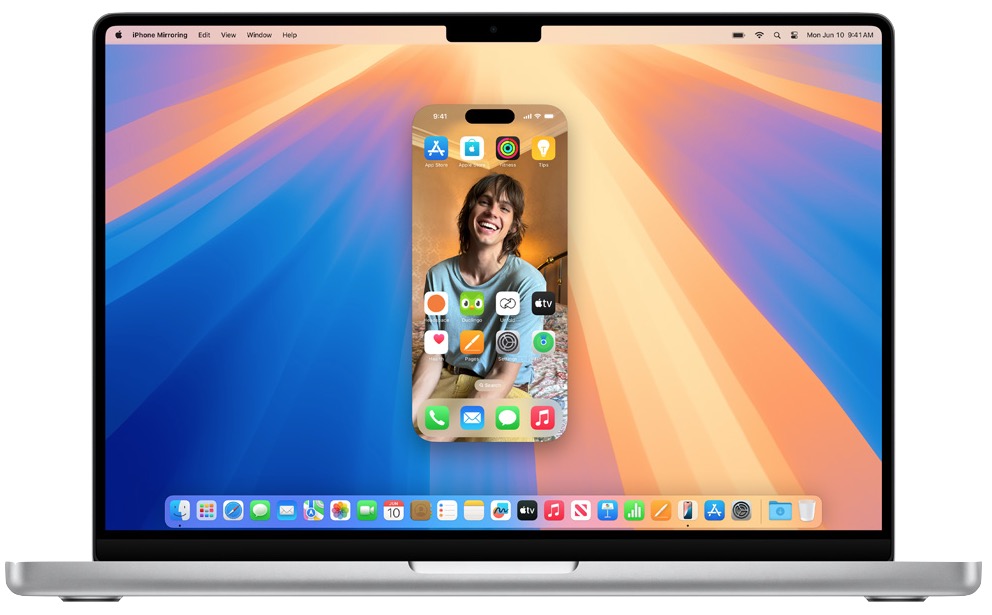
Apple is expanding how its cross-platform Continuity features work, introducing an iPhone Mirroring option in macOS Sequoia and iOS 18. As the name suggests, iPhone Mirroring lets you control your iPhone with your Mac by mirroring your iPhone’s display to your Mac’s display. You can manage your iPhone from your Mac with iPhone Mirroring, using your mouse, keyboard, and trackpad with iPhone apps, notifications, and more.
Your custom wallpaper and icons appear on your Mac just like on your iPhone, and you can swipe between pages on the Home Screen, or launch and browse any of your favorite apps. Audio even comes through. You can seamlessly drag and drop between iPhone and Mac, and your iPhone remains locked, so nobody else can access or see what you’re doing. It also works great with StandBy, which stays visible, so you can get information at a glance. Additionally, you can review and respond to iPhone notifications directly from your Mac.
Big Updates Come to Safari
Safari now offers Highlights, an even easier way to discover information on the web, such as directions, summaries, or quick links to learn more about people, music, movies, and TV shows. A redesigned Reader includes even more ways to enjoy articles without distractions, featuring a streamlined view of an article you’re reading, a summary, and a table of contents for longer articles. And when Safari detects a video on the page, Viewer helps put it front and center, while still giving full access to system playback controls, including Picture in Picture.
Window Tiling Is Easier and Faster Than Ever
You can stay organized with new ways to arrange windows into a layout that works best for you. When you drag a window to the edge of the screen, macOS Sequoia automatically suggests a tiled position on your desktop. You can release the window right into place, quickly arrange tiles side by side, or place them in corners to keep even more apps in view. And new keyboard and menu shortcuts help organize tiles even faster.
Video Conferencing Gets More Updates
The new presenter preview makes it easier to present, letting you see what you’re about to share before you share it, and works with apps like FaceTime and Zoom. You can also apply built-in backgrounds, including a variety of color gradients and system wallpapers, or upload your own photos. Background replacements can be applied during a video call in FaceTime or in third-party apps like Webex.
The New Passwords App Keeps Credentials Secure and Organized
Built on the foundation of Keychain, macOS Sequoia brings Passwords, a new app that makes it even easier to access passwords, passkeys, Wi-Fi passwords, and other credentials all in one place. iCloud syncing is backed by secure end-to-end encryption. Passwords works great with Safari, and seamlessly syncs between your Apple devices and Windows with the iCloud for Windows app.
Apple Intelligence Ushers in the Next Chapter of AI on Mac
Deeply integrated into macOS Sequoia and built with privacy from the ground up, Apple Intelligence unlocks new ways to enhance writing and communicate more effectively. With brand-new systemwide Writing Tools built into macOS Sequoia, you can rewrite, proofread, and summarize text nearly everywhere they write, including Mail, Notes, Pages, and third-party apps.
New image capabilities make communication and self-expression even more fun. With Image Playground, you can create playful images in seconds, choosing from three styles: Animation, Illustration, or Sketch. Image Playground is easy to use, built right into apps like Messages, and as a dedicated app.
Memories in Photos lets you create the stories you want to see just by typing a description. Apple Intelligence will pick out the best photos and videos based on the description, craft a storyline with chapters based on themes identified from the photos and arrange them into a movie with its own narrative arc. In addition, a new Clean Up tool can identify and remove distracting objects in the background of a photo — without accidentally altering the subject.
With the power of Apple Intelligence, Siri takes a major step forward, becoming even more natural, contextually relevant, and personal. Additionally, you can type to Siri, and switch between text and voice to communicate with Siri in whatever way feels right for the moment — making the Siri experience on Mac incredibly easy and seamless.
With Private Cloud Compute, Apple sets a new standard for privacy in AI, with the ability to flex and scale computational capacity between on-device processing and larger, server-based models that run on dedicated Apple silicon servers. When requests are routed to Private Cloud Compute, data is not stored or made accessible to Apple, and is only used to fulfill the requests, and independent experts can verify this privacy promise.
Additionally, access to ChatGPT is integrated into Siri and systemwide Writing Tools across Apple’s platforms, allowing access its expertise — as well as its image- and document-understanding capabilities — without needing to jump between tools.
Additional features in macOS Sequoia include:
- Messages has big updates to the ways you express youself and stay connected, including all-new text effects, emoji and sticker Tapbacks, and the ability to schedule a message to send later.
- Apple Maps is introducing even more ways to explore the world, including curated hikes and custom walking routes. You can browse thousands of hikes across all 63 national parks in the United States, filtered by length, elevation, and route type, and save them to use while offline.
- Photos now includes Collections, which automatically organizes your library by helpful themes, and includes a big update to search, so you can get results quickly.
- Note taking in Notes is getting smarter, making it easier than ever to take detailed and well-written notes. New audio transcription and summarization features with Apple Intelligence enable a device to take notes, letting you stay present in a situation where you need to capture details about what’s happening. And if you need to quickly crunch a number, you can just type in an equation to have it solved automatically in the note body.
- An updated Calculator app lets you see previous calculations with history, and gives the ability to see their expressions as you type.
- Calendar shows events and tasks from Reminders, making it easy to see, edit, or complete tasks throughout the day. An updated Month View makes it easier to see events and reminders for an entire month at a glance.
How to Update Your Mac
You’ll need one of the following devices to be able to install the new macOS Sequoia.
- iMac from 2019 or later
- iMac Pro from 2017 or later
- Mac Studio from 2022 or later
- Mac mini from 2018 or later
- Mac Pro from 2019 or later
- MacBook Air from 2020 or later
- MacBook Pro from 2018 or later
To update your Mac, you need a good internet connection and may need up to 40 GB of disk space. If updating a Mac laptop, We suggest that your laptop remains connected to a power source throughout the installation to ensure nothing goes wrong. The time it takes to update your software will depend on your internet connection speed.
- In System Settings, go to Software Update. Click Upgrade Now to begin the macOS 15 installation.
- Your Mac will download and install macOS 15 Sequoia, and restart to complete the process. When that’s done, you’re all set.
If you’re upgrading to macOS Sequoia from an older version of macOS and you aren’t able to update via the Software Update setting, open the App Store and click Updates. This will prompt your device to check for available updates, and if your device meets the requirements to install the update, macOS Sequoia should show up.
If you need help updating your computer or making space to install the update, consider making an appointment with Nate in consulting. https://smalldog.com/pages/consulting-services
1 Macs with Intel chip sets will not be able to take full advantage of macOS Sequoia features. Apple Intelligence, a deeply integrated, personalized AI feature set for Apple devices that uses cutting-edge generative artificial intelligence to enhance the user experience, won’t be available on Intel Macs. Apple says the advanced features require its M1 chip or later, so if your Mac was released before November 2020, we suggest you consider purchasing a new, more powerful, Mac.