Keep a USB Keyboard and Mouse for Troubleshooting

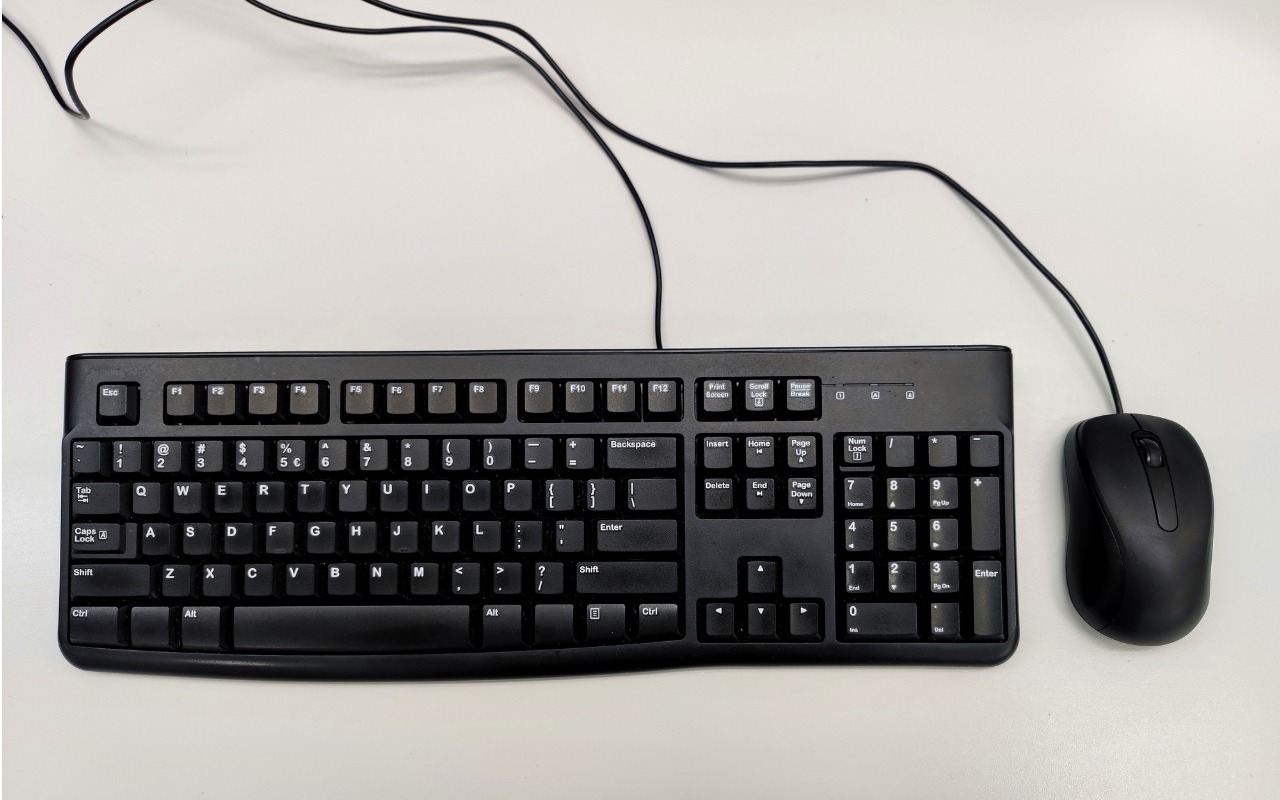
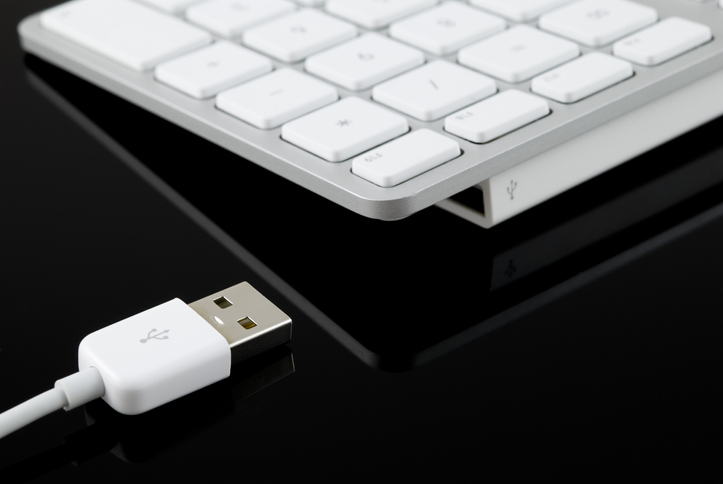
Steve Jobs famously railed against cable clutter, and it’s now easy to use a desktop Mac with a wireless keyboard and mouse, either from Apple or another manufacturer. That’s fine for regular usage, but Bluetooth keyboards and mice aren’t always sufficient. Batteries wear out, pairing can fail, and wireless interference can cause lags or spurious inputs. Plus, if you need to boot into macOS Recovery, wireless input devices may not work. We recommend keeping an extra USB keyboard and mouse—preferably from Apple, but any brand will work—to use in case you have problems with your wireless versions. If you don’t have a keyboard and mouse left over from an old Mac, a friend or family member may be happy to give you theirs, or you can probably find them for next to nothing at a local reuse store.

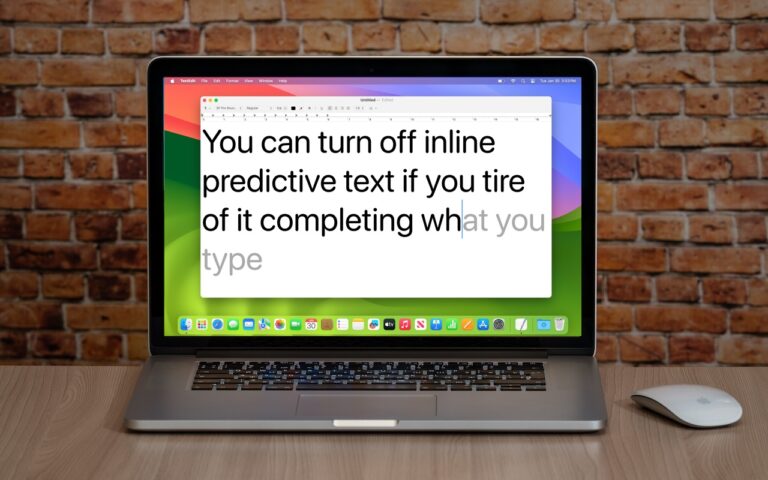
(Images by iStock.com/Jeffrey Glas and RafalStachura)


Social Media: The minimalist approach with a wireless keyboard and mouse is good most of the time, but if things go wrong, it can be handy to have a wired USB keyboard and mouse available for troubleshooting.

Similar Posts

  • Get yourself some Dux

    What is a Dux you ask? Dux is a really great product line from STM and one that we are really excited to begin carrying here at Small Dog. This product line up has cases for your iPad and your computer and for the last week or so I have been testing out the Dux case for Macbook Air.

    My first impression is that it gives my computer a sharp new look. I feel as though my computer is highlighted more in this case. It features a primarily clear case and then a border that comes in an assortment of colors. The one I am using is black and it really looks sharp and sleek on the computer.

    I will be the first to admit that I am not a huge fan of hardshell cases for computers. They do add weight to your computer and they can be hard to put on and take off. However, this case did stand out to me as soon as I saw it and I immediately asked for a sample so that I could test it out. It’s the reinforced border that caught my eye. The plastic is slightly different from that of the clear case and really gives you a feeling of protection for your computer.

    Customers ask me all the time why someone might want a hard shell case, it’s a combination of accessorizing and protection. Hard shell cases are great for those who might like to sticker their computers. You can sticker all you want on a removable case and not damage your computer. For people who bring their computers everywhere it’s a great way to protect them from the dings and scratches that can happen just by pulling your computer in and out, especially those whom might fly a lot. One piece of advice I will give users of hardshell cases is that you still need to remove them! The idea and concept of hard shell cases is to provide added protection to your computer, to keep it looking like new under the case. However, if you don’t remove the case from time to time and clean the case and computer from dust and debris your computer will still get scratches. I have seen countless computers get just as scratched up with these kinds of cases than those without and the cause is always the same: dirt build up. This particular case comes on and off much easier than some others on the market making my recommended occasional cleanings much easier to perform. After all you’ve probably purchased a hard shell case to keep your computer looking new.

    Overall I am very happy with this case, but the biggest test is yet to come. I am flying to Arizona next week for an event with one of our vendors, and I’ll be keeping this case on my computer for my travels. The real test will be if I notice the added weight while making my way through airports, so far I haven’t really noticed the increased weight in my daily travels.

    P.S. Hadley, even if it means burpees and laps in an airport terminal I plan to maintain my lead in our competition. It’s ON!

  • Expand your mind…er..text

    Speed Up Your Fingers with Text Expansion

    With all the advances in computing and communications, it’s amazing that–after nearly 150 years!–we still use the keyboard layout from the world’s first practical typewriter for entering text into our Macs, iPhones, and iPads. Sure there are some improving dictation solutions out there but typing is by far how we input text. But we have not gotten that much better as typists, nor do we enjoy typing more–if anything, we increasingly abbreviate to avoid typing, hence “LOL, BRB, etc.” Text messaging aside, wouldn’t it be nice to be able to type less without compromising meaning or making your text look like it was composed by a trained monkey? Thanks to text expansion features built into OS X and iOS, and extended with third-party utilities, you can.

    For basic text expansion capabilities in OS X, look in System Preferences > Keyboard > Text, and in iOS 9, go to Settings > General > Keyboard > Text Replacement. For both, you can enter a phrase, and a shortcut that expands into that phrase when typed and followed by a space or punctuation character. (Tip: If text expansion doesn’t work in a Mac app like Mail or Safari, make sure Edit > Substitutions > Text Replacement is selected.)

    If you’re signed into the same iCloud account on both your Mac and your iPhone, for instance, the text expansions sync between them automatically. So, you can type “smh” and tap the Space bar to get “Shaking my head!” typed out for you, regardless of what device you’re using. (Another tip: don’t create abbreviations that you will also want to type normally. It might seem like a good idea to use “np” for “No Problem,” but that will get in the way of talking about Nurse Practitioners.)

    With such a useful feature built into OS X and iOS, why would you want to spend money on a third-party utility, like “**TextExpander**”:https://smilesoftware.com/textexpander (Mac and iOS), “**Typinator**”:http://www.ergonis.com/products/typinator/ (Mac), or “**TypeIt4Me**”:http://www.ettoresoftware.com/products/typeit4me/. Unfortunately, OS X’s text expansion feature doesn’t work in all apps (it likely won’t work if the app lacks the Edit > Substitutions > Text Replacement menu command). The interface for creating new substitutions is cramped and hard to work with, you can’t configure the trigger characters that cause abbreviations to expand, and you can’t include text with styles, variable text like the date, or even graphics.

    That’s where text expansion utilities shine. They can include styled text and graphics in expansions, insert the current date and time, respect case when expanding abbreviations, include the contents of the clipboard in expanded text, automatically fix common typos, create fill-in-the-blanks snippets that you customize on each expansion, and much more.

    Here are some ideas for the kinds of things you might want to turn over to your computer for typing:
    Long or complex words or phrases, such as scientific names. Aedes aegypti, anyone?

    *Your address, phone number, and email address. One of my favorites is “@d” which inserts my email address. I get real tired of typing email address, phone numbers, etc. Text expansion speeds that up!

    *Boilerplate text for common email replies.

    *The current date and/or time.

    *Special characters, so blb could expand to the British pound symbol £.

    *Unix commands for Terminal, such as using ssh to log in to a remote computer.

    I am sure you can come up with dozens that might work for you and speed up your typing. So think about what bit of text you might want expand automatically and give text expansion a try today!