Run a Business? Sign Up with Apple Business Connect
Every company today conducts business online, by sending email, if nothing else. That’s true even if your firm operates primarily in the physical world—customers undoubtedly find you by browsing in Apple Maps, searching in Spotlight, and asking Siri for directions. If you sell products, you probably take Apple Pay.
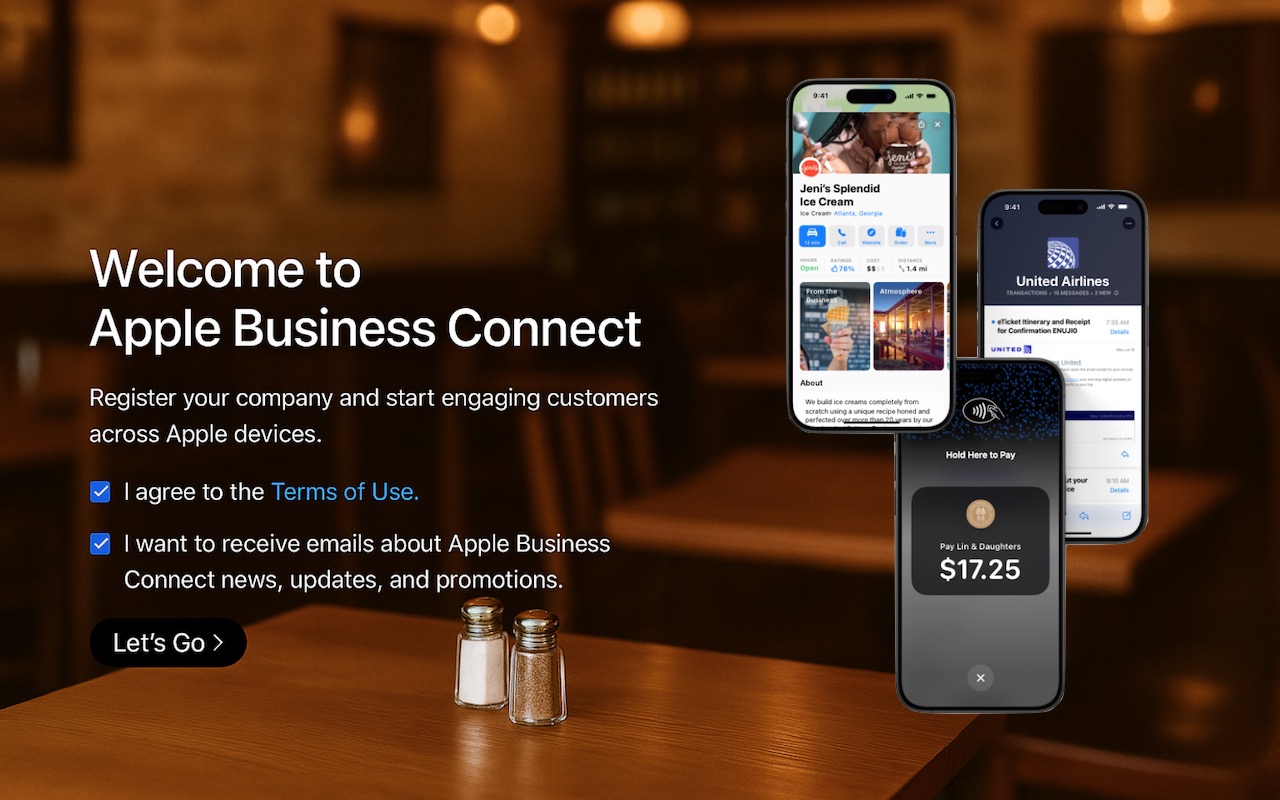
Apple Business Connect is a free program designed to help businesses enhance their brands everywhere they appear on Apple devices, including Maps, Wallet, Siri, Calendar, Messages, Spotlight searches, and more. Once you sign up for Apple Business Connect (we’ll resist the temptation to say it’s as easy as ABC) and are verified by Apple, you can:
- Set up Branded Mail: With Branded Mail, email sent from specific addresses or your entire domain will be branded with your logo in the Mail app on Apple devices, helping users identify your brand.

- Configure location information: Simple addresses don’t always connect with store entrances, so you can precisely specify the entrance to each of your locations.
- Customize Place Cards: When customers find you in Maps, add your address to Calendar, or ask for your location from Siri, Apple displays a Place Card. With Apple Business Connect, you can customize the Place Card.
- Add custom action links: Your Place Card can contain custom action links that point to your website or other Web-accessible platforms. For instance, a restaurant might add custom action links for Menu, Reservations, Takeout, etc.
- Create Showcases: A Showcase is a module on the Place Card that lets you highlight sales, deals, new items, or other promotional content. If someone is looking for you, why not promote your latest offerings?
- Get Insights: Apple records valuable information about customer search behavior, including search locations, discovery methods, and actions customers take after finding your business.
- Add Tap to Pay on iPhone: For those who don’t already have a point-of-sale system, Tap to Pay on iPhone lets you accept contactless payments on an iPhone without an extra terminal or hardware.

Apple has also announced Business Caller ID, slated to ship in 2025, which will display your brand’s name, logo, and even a specific department when you call someone using an iPhone. That should help people realize that a call from your company is legitimate and not some telemarketer, making them more likely to pick up.
Getting started with Apple Business Connect is simple, but verification can take up to a week. It’s best to work through Apple’s clear documentation for registering your business, but the basics are:
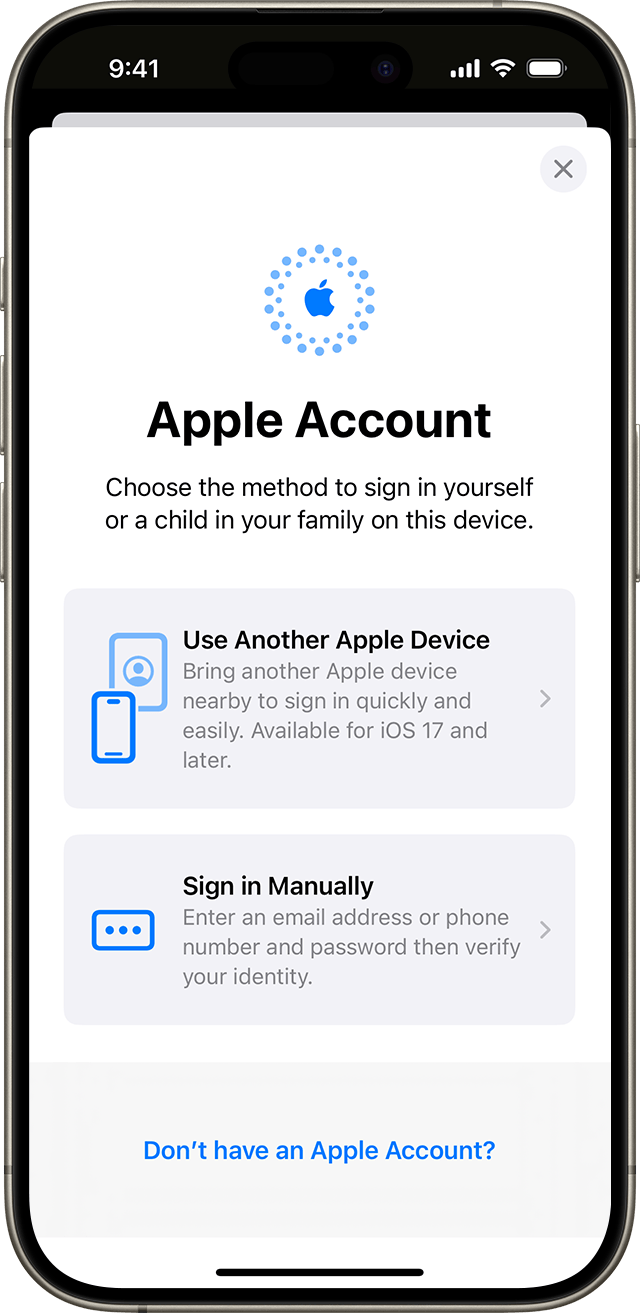
- Sign in with your Apple Account (use your Apple Business Manager account if you have one).
- Enter your company details.
- Set up a brand by giving its name, category, geographic location, and logo.
- Turn on Branded Mail by adding a domain or email address, and verifying your company.
- Add a location by specifying its address and hours.
- Create a Place Card, add a Showcase, and create custom actions.
Needless to say, Apple Business Connect only impacts how you appear to people using Apple devices and apps. For everyone else, we recommend setting up a Google Business Profile, which provides similar features, though primarily for businesses with physical locations and upsells for advertising on Google.
However, it’s absolutely worth working with Apple Business Connect to enhance how you and your brand appear to customers. If you need help setting it up, contact us.
(Featured image based on an original by Apple)
Social Media: Discover how Apple Business Connect helps businesses stand out in apps like Maps, Spotlight, Calendar, and Wallet. From custom Place Cards to branded email, Apple Business Connect can enhance your brand and help you reach your audience more effectively.