Heat Wave Survival Guide for Your Apple Devices
A massive heat dome earlier this summer exposed large swaths of the United States to heat index values approaching or exceeding 120ºF, underscoring the importance of protecting our devices from heat damage. Overheating can degrade performance, interrupt charging, disable features, and cause general device instability.
When Temperature Becomes a Problem
You might be surprised by how sensitive electronic devices are to high temperatures. Apple says that most Apple devices—whether we’re talking about an iPhone or iPad, AirPods, Apple Watch, or Mac—work best in ambient temperatures under 95ºF (35ºC). The Apple Watch Ultra is a notable exception, capable of operating in temperatures up to 130ºF (55ºC), but even then, Apple recommends charging at a lower temperature.
These temperature limits are frequently surpassed in everyday situations. A parked car in direct sunlight can reach 130ºF (54ºC) within an hour, even with windows cracked open, and continue climbing from there. Just as you’d never leave children or pets in a parked car, your iPhone, iPad, or MacBook shouldn’t be left behind during a trip to the beach. Even when powered off, Apple devices shouldn’t be stored in temperatures above 113ºF (45ºC).
The risk isn’t limited to vehicles. Poorly ventilated homes and offices without air conditioning can become surprisingly hot, particularly affecting computers that run continuously and lack proper airflow. If you have a second-generation HomePod or HomePod mini—both of which have temperature and humidity sensors—you can ask Siri, “What’s the temperature in here?”
How Heat Hurts Your Devices
An often overlooked point is that electronic devices generate significant heat during operation, and high ambient temperatures make it harder for them to shed that heat effectively, increasing the risk of thermal throttling or shutdown. Under heavy workloads, internal components like an iMac’s CPU can reach temperatures as high as 212ºF (100ºC)—literally the boiling point of water.
Temperatures that exceed component design specs can have the following detrimental effects:
- Chip instability: As heat rises, electrons vibrate more intensely (thermal noise), leading to increased error rates and timing issues in chips. This can result in unpredictable behavior or system crashes.
- Battery degradation: While lithium-ion batteries actually perform well in high temperatures, the accelerated chemical reactions inside them can reduce their long-term lifespan.
- Physical damage: Repeated heating and cooling cycles can create microscopic stress fractures as different materials expand and contract at varying rates, potentially leading to component failure.
While some heat-related issues resolve themselves once devices cool down, others can cause permanent damage. Prevention is crucial.
Your Mac will typically warn you of dangerous temperatures by ramping up its cooling fans. (The fanless MacBook Air can’t provide this warning.) If you notice your Mac’s fans running at a high speed for several minutes:
- Close unnecessary apps, especially those that heavily tax the CPU.
- If the fans continue at full speed, restart to eliminate problematic background processes.
- If restarting doesn’t quiet the fans, shut down your Mac and let it cool off.
An overheated Mac may exhibit erratic behavior or shut down unexpectedly. Be particularly cognizant of potential heat-related issues during initial device setup, restoring from backup, using graphics-intensive apps or games, and streaming high-quality video, all of which can drive up internal temperatures on their own.

Without cooling fans, iPhones and iPads rely on other methods to manage high temperatures. When these devices detect dangerous heat levels, they’ll display a warning and automatically protect themselves through various measures. Apple says you might notice some of the following behaviors with an overheating iPhone or iPad:
- Slowed or interrupted charging (including wireless charging)
- Automatic display dimming—it might even go entirely dark
- Weakened cellular signals as radios enter a low-power state
- Disabled camera flash and other features
- Reduced performance, especially in graphics-heavy apps
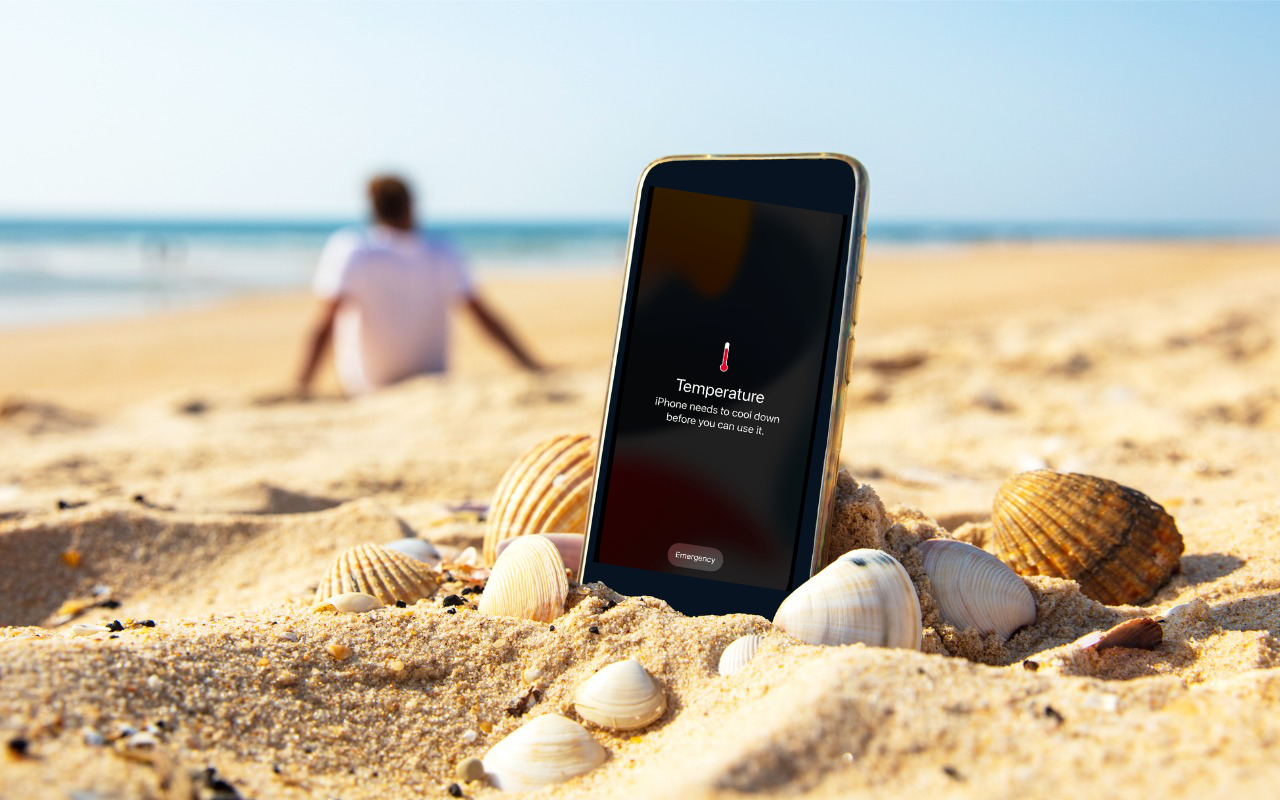
Navigation deserves special mention: if your iPhone overheats during GPS navigation, it may display a “Temperature: iPhone needs to cool down” alert instead of the map view. Don’t worry—you’ll still receive voice guidance, and the screen will briefly activate to show important turns.
Apple Watches will also display a special warning screen if they get too hot.

Preventing Heat Damage
Protecting your Apple devices from heat damage mostly comes down to following these common-sense guidelines:
- Limit high-temperature use: When ambient temperatures exceed 95ºF (35ºC), as happens outside in Phoenix from May through September, minimize device usage or, ideally, avoid it entirely.
- Never leave devices in parked cars: The greenhouse effect can quickly create dangerous temperatures. If it happens accidentally, allow the device to cool completely before use.
- Ensure proper ventilation:
- Keep Mac ventilation ports unobstructed.
- Avoid using laptops on soft surfaces like beds or pillows.
- Periodically clean ventilation ports with compressed air.
- Never cover an open laptop’s keyboard.
- Don’t stack items on top of a Mac mini or Mac Studio.
- Watch server areas: Monitor temperatures in server closets and ensure adequate cooling through ventilation, fans, or air conditioning.
Remember: if you’re feeling uncomfortably hot, your devices probably are too. The temperatures that stress electronics tend to be similarly stressful for humans, making your comfort a good gauge of potential risk to your devices.
(Featured image based on an original by iStock.com/margouillatphotos)
Social Media: Think your Apple devices can handle the summer heat? Think again. Discover how high temperatures can damage your iPhone, iPad, and Mac—and what you can do to keep them safe.