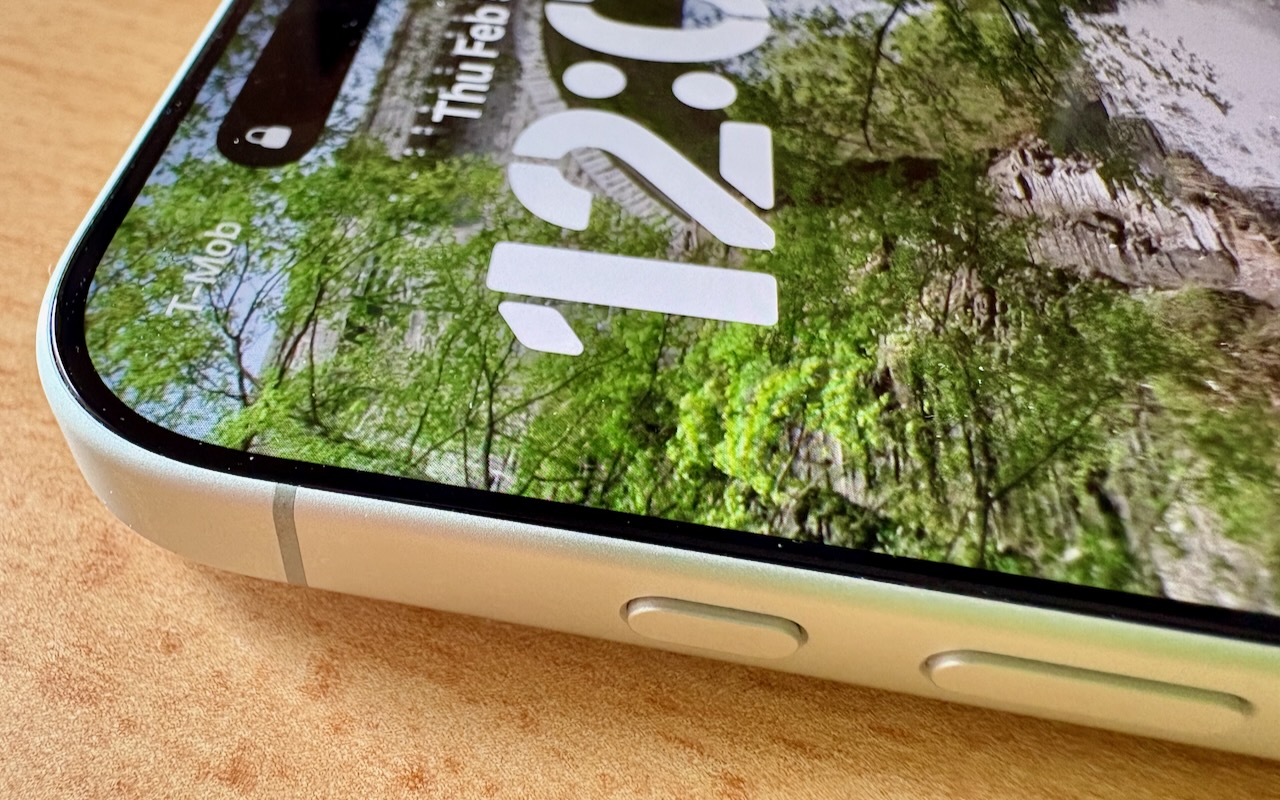
What Can You Do With the iPhone’s Action Button? Nearly Anything!

Starting with the iPhone 15 Pro and Pro Max, Apple replaced the Ring/Silent switch on the top-left edge of the iPhone with the Action button, making the new button standard across the iPhone 16 and iPhone 17 lineups in subsequent years. The Action button is a dedicated hardware button you can configure to perform one of many different tasks. Although Apple prompts everyone setting up a new iPhone to configure the Action button, our experience is that many people haven’t integrated it into their everyday usage.

Taking advantage of the Action button isn’t hard, but there are obstacles. The Ring/Silent switch had only one function, whereas the Action button offers so many options that it’s easy to fall prey to decision paralysis. Also, because the Action button is configurable, it behaves differently even if you leave it set to Silent Mode. The Ring/Silent switch was a physical switch that also showed its state with an orange indicator. With the Action button, you can’t tell at a glance if Silent Mode is on, and activating it requires a relatively long press-and-hold. Finally, the Action button’s ultimate power lies in its Controls and Shortcuts options, but many users are unaware of the wide-ranging possibilities these unlock.

So let’s look at how to make the most of the Action button. To configure the Action button, go to Settings > Action Button and swipe through the choices. The choice on screen when you exit Settings will be active. Although there are no bad choices here, many of the options Apple provides can be activated just as easily through Control Center or Siri, so you might not want to dedicate the Action button to them.

  • Silent Mode: Toggle call and alert sounds on and off. This is the default setting, but unless you regularly need to toggle the ringer, it’s not worth dedicating the Action button to such a seldom-used option. You can toggle Silent Mode in Control Center just as easily.
  • Focus: Activate or switch Focus modes such as Do Not Disturb. We recommend using Focus sparingly because it can block desired notifications, but if you’re a fan, the Action button might be a good way to switch between them. Focus modes are also easy to select in Control Center and turn on with “Siri, turn on Do Not Disturb.”
  • Camera: Launch the Camera app. If your iPhone has the Camera Control (as do all Action button-equipped models except the iPhone 15 Pro/Pro Max and iPhone 16e), the Camera Control is the best way to open the Camera, but the Action button might still be helpful for opening the Camera app to a specific mode: Photo, Selfie, Video, Portrait, or Portrait Selfie.
  • Visual Intelligence: Launch Apple’s AI-powered object recognition feature. Again, pressing and holding the Camera Control (if available) is a better way to access Visual Intelligence.
  • Flashlight: Turn the flashlight on or off. This may be a good choice if you use the flashlight regularly, but if so, you’re probably already accustomed to tapping its icon on the iPhone’s Lock Screen. If your hands are too full, try “Siri, turn on the flashlight.”
  • Voice Memo: Start recording audio in the Voice Memos app. If you use Voice Memos heavily, you may like this use of the Action button. Alternatively, just say, “Siri, record a voice memo.”
  • Recognize Music: Use Shazam to identify music that’s playing nearby or on your iPhone. Another way to invoke Shazam quickly is to ask, “Siri, what’s playing?”
  • Translate: Starts listening to translate between the default languages you set up in the Translate app. This use of the Action button is a great shortcut if you’re traveling in another country and need quick translations, but most people don’t need it every day.
  • Magnifier: Launch the Magnifier app to make it easier to see tiny text and small objects. Those with low vision may particularly appreciate this use of the Action button, but the Magnifier app is also easily accessed from a Control Center button or by saying, “Siri, open Magnifier.”
  • Controls: Invoke any Control Center control. Here’s where things get interesting! Starting with iOS 18, iPhone apps can create controls in Control Center. With the Controls option, you can choose any available control, so you could have the Action button start a ChatGPT conversation, add a task to TickTick, create a new event in BusyCal, or myriad other options. We strongly encourage you to scroll through the available controls to see if any catch your interest.
  • Shortcut: Activate any custom Shortcut for personalized actions. The previous Controls choice is brilliant, but what if you want even more options? With Shortcuts, you can create custom actions that can even leverage multiple apps to do exactly what you want. For instance, you could create a shortcut that takes a photo of an expense receipt and sends it to a specific email address, all triggered by a long press on the Action button. The sky is the limit here.
  • Accessibility: Quick access to accessibility features like VoiceOver, Zoom, Speak Screen, Apple Watch Mirroring, Live Captions, Conversation Boost, and more. Don’t assume these options are only for people with disabilities; many have broader utility.
  • No Action: The final option is No Action, which is useful only if you accidentally press the Action button frequently and don’t want it to do anything.

So there you have it! If you’re not currently using the Action button, take a spin through the available options to see which can make a difference in your everyday iPhone experience.

(Featured image by Adam Engst)


Social Media: Your iPhone’s Action button can do much more than toggle Silent Mode. Try it for quick translations or voice memos—or explore the many options in Controls and Shortcuts to trigger nearly any action with a long press.

Similar Posts

  • Keep Your IT Budget Working During a Slowdown

    When business slows down, it’s tempting to reduce IT spending. But that approach often backfires, creating bigger problems—and larger bills—down the road. Beyond…

  • Expand your mind…er..text

    Speed Up Your Fingers with Text Expansion

    With all the advances in computing and communications, it’s amazing that–after nearly 150 years!–we still use the keyboard layout from the world’s first practical typewriter for entering text into our Macs, iPhones, and iPads. Sure there are some improving dictation solutions out there but typing is by far how we input text. But we have not gotten that much better as typists, nor do we enjoy typing more–if anything, we increasingly abbreviate to avoid typing, hence “LOL, BRB, etc.” Text messaging aside, wouldn’t it be nice to be able to type less without compromising meaning or making your text look like it was composed by a trained monkey? Thanks to text expansion features built into OS X and iOS, and extended with third-party utilities, you can.

    For basic text expansion capabilities in OS X, look in System Preferences > Keyboard > Text, and in iOS 9, go to Settings > General > Keyboard > Text Replacement. For both, you can enter a phrase, and a shortcut that expands into that phrase when typed and followed by a space or punctuation character. (Tip: If text expansion doesn’t work in a Mac app like Mail or Safari, make sure Edit > Substitutions > Text Replacement is selected.)

    If you’re signed into the same iCloud account on both your Mac and your iPhone, for instance, the text expansions sync between them automatically. So, you can type “smh” and tap the Space bar to get “Shaking my head!” typed out for you, regardless of what device you’re using. (Another tip: don’t create abbreviations that you will also want to type normally. It might seem like a good idea to use “np” for “No Problem,” but that will get in the way of talking about Nurse Practitioners.)

    With such a useful feature built into OS X and iOS, why would you want to spend money on a third-party utility, like “**TextExpander**”:https://smilesoftware.com/textexpander (Mac and iOS), “**Typinator**”:http://www.ergonis.com/products/typinator/ (Mac), or “**TypeIt4Me**”:http://www.ettoresoftware.com/products/typeit4me/. Unfortunately, OS X’s text expansion feature doesn’t work in all apps (it likely won’t work if the app lacks the Edit > Substitutions > Text Replacement menu command). The interface for creating new substitutions is cramped and hard to work with, you can’t configure the trigger characters that cause abbreviations to expand, and you can’t include text with styles, variable text like the date, or even graphics.

    That’s where text expansion utilities shine. They can include styled text and graphics in expansions, insert the current date and time, respect case when expanding abbreviations, include the contents of the clipboard in expanded text, automatically fix common typos, create fill-in-the-blanks snippets that you customize on each expansion, and much more.

    Here are some ideas for the kinds of things you might want to turn over to your computer for typing:
    Long or complex words or phrases, such as scientific names. Aedes aegypti, anyone?

    *Your address, phone number, and email address. One of my favorites is “@d” which inserts my email address. I get real tired of typing email address, phone numbers, etc. Text expansion speeds that up!

    *Boilerplate text for common email replies.

    *The current date and/or time.

    *Special characters, so blb could expand to the British pound symbol £.

    *Unix commands for Terminal, such as using ssh to log in to a remote computer.

    I am sure you can come up with dozens that might work for you and speed up your typing. So think about what bit of text you might want expand automatically and give text expansion a try today!

  • _Dear Friends,_

    The trip up the the Everglades was pretty uneventful although we did see alligators and eagles as we were watching nature go by. Grace wants to go back up for an airboat ride so we will have to put that on the list.

    I am very happy to report that Small Dog Electronics now offers Go-Pro cameras and accessories. It took us many tries but I was able to meet with someone that could make a decision at CES in Las Vegas so we are now all set and Go-Pro should be in all of our stores. We’ll feature skiing and motorcycling kits up in the Green Mountains and some surf-oriented bundles down in Key West.

    I guess this should be in a soapbox but I just want to make a quick statement that I feel that Tim Cook and Apple are 100% correct in resisting the government’s attempt to force them to create software to defeat the encryption inherent in the iPhone. One of Apple’s most valuable commodities is safety. You know when you buy an Apple product that your data is safe. Safe from most viruses, malware, ransomware and also that your private data remains just that…private. While I certainly sympathize with those investigating the horrible San Bernadino terrorist actions, I do not feel that we should pay an even higher price and sacrifice our liberty and privacy as a result. Bravo to Tim Cook and Apple.

    This week’s Kibbles & Bytes exclusive is the “**Tempus Pro Weather Station.**”:http://www.smalldog.com/wag900002092 This complete wireless weather station has been one of out best selling devices. It combines an indoor monitoring station with an outdoor instrument and an iPhone or iPad App to give you complete weather information. It includes sensors for indoor and outdoor temperature, humidity, barometric pressure, rainfall and wind speed. It is simple to install and works by Bluetooth between the outdoor and indoor sensor and Wi-Fi to your iPhone. This is normally $159.99 but for this week for Kibbles & Bytes readers it is “**$25 off at $134.99!**”:http://www.smalldog.com/wag900002092