Still Using Legacy Outlook for Mac? Plan Your Switch Now
If you’ve kept Outlook for Mac in its older, familiar interface, you may need to switch soon to keep receiving email. Microsoft says legacy Outlook for Mac will stop connecting to Exchange Online mailboxes starting in October 2026. Those are the mailboxes commonly used for business email through Microsoft 365.
Before switching to the current Outlook for Mac, back up any data stored only on your Mac and check whether the features you rely on will still be available.
What Is Changing?
Legacy Outlook connects to Exchange Online through Exchange Web Services, usually abbreviated EWS. Microsoft is retiring that connection method. The current Outlook for Mac remains supported.
Microsoft’s updated EWS retirement plan describes a phased process beginning in October 2026. Your IT administrator may be able to keep legacy Outlook connected temporarily after October 2026, but Microsoft will shut down that connection method completely on April 1, 2027. (Yes, April Fools’ Day.)
If your administrator extends access, agree on a firm date to finish the move.
Check Whether You’re Using Legacy Outlook
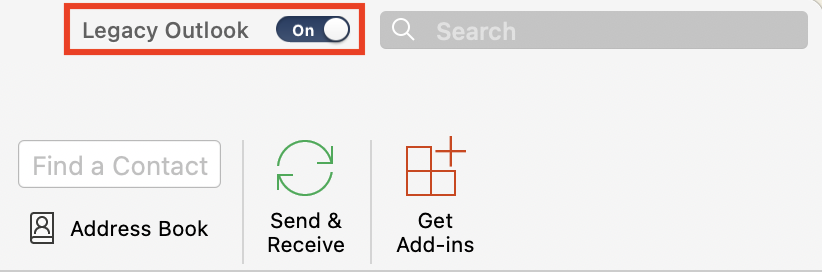
Updating Outlook doesn’t always move you out of the legacy experience. Look for an enabled Legacy Outlook switch in the Outlook window. Microsoft’s instructions for the current experience say to turn that switch off to move to the redesigned Outlook.
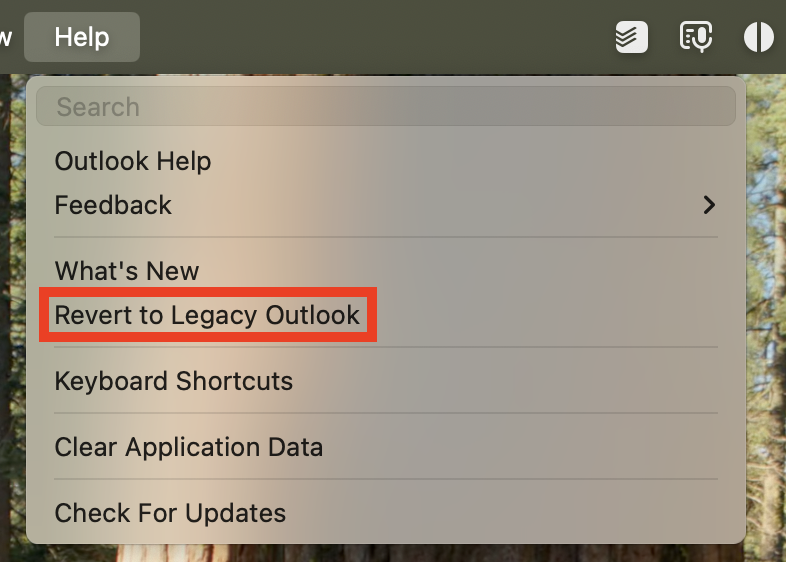
You can also check the Help menu. If it includes Revert to Legacy Outlook, you’re already using the newer interface. If neither control appears, ask IT which version and mode you’re using.
Does the Deadline Apply to You?
Microsoft lists different deadlines depending on your Outlook license and where your email is hosted:
- Microsoft 365 business email: Legacy Outlook users with Exchange Online mailboxes need to move to the current Outlook.
- Microsoft 365 Personal or Family: Legacy Outlook support ends in October 2026. The Exchange Online cutoff doesn’t set a disconnection date for third-party accounts such as Gmail or iCloud.
- Exchange Subscription Edition on your organization’s servers: Microsoft lists legacy support through October 9, 2029, with security updates and technical assistance on a best-effort basis.
- Office LTSC 2024: Microsoft lists the same limited support through October 9, 2029. Even with that license, legacy Outlook will lose access to Exchange Online as EWS shuts down.
For the complete license-by-license breakdown, see Microsoft’s support timeline table. If you’re unsure where your work email is hosted, ask your IT provider.
Protect Your Local Data
Start with a current backup of your Mac. Then look for anything stored only in Outlook on that computer, particularly folders under On My Computer. Pay special attention to local calendars, contacts, and previously imported archives. Signing in to the same account elsewhere won’t recover locally stored information.
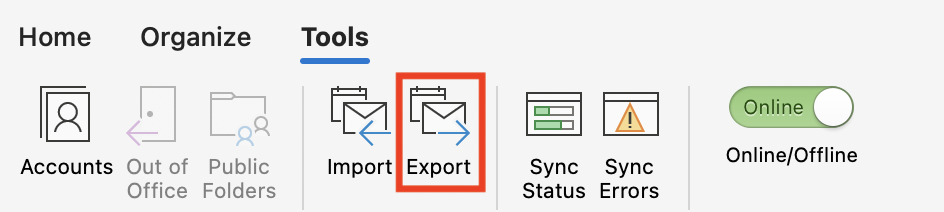
For an additional safety copy, legacy Outlook can export messages, contacts, and other items to an .olm archive. Microsoft’s instructions start with Export on the Tools tab; some versions offer it in the File menu. Save the completed archive somewhere included in your backups.
The migration announcement says local tasks and notes aren’t transferred. Microsoft’s current feature comparison also lists the in-app Notes and Tasks modules as upcoming and Public Folders as unavailable. If you rely on those features, arrange another way to access the information before switching.
Switch and Test Your Usual Tasks
Once you’ve backed up your data and checked the features you need, turn off the Legacy Outlook switch. If it’s missing, check for an update with Help > Check for Updates. On a company-managed Mac, contact IT if the switch or update is unavailable.
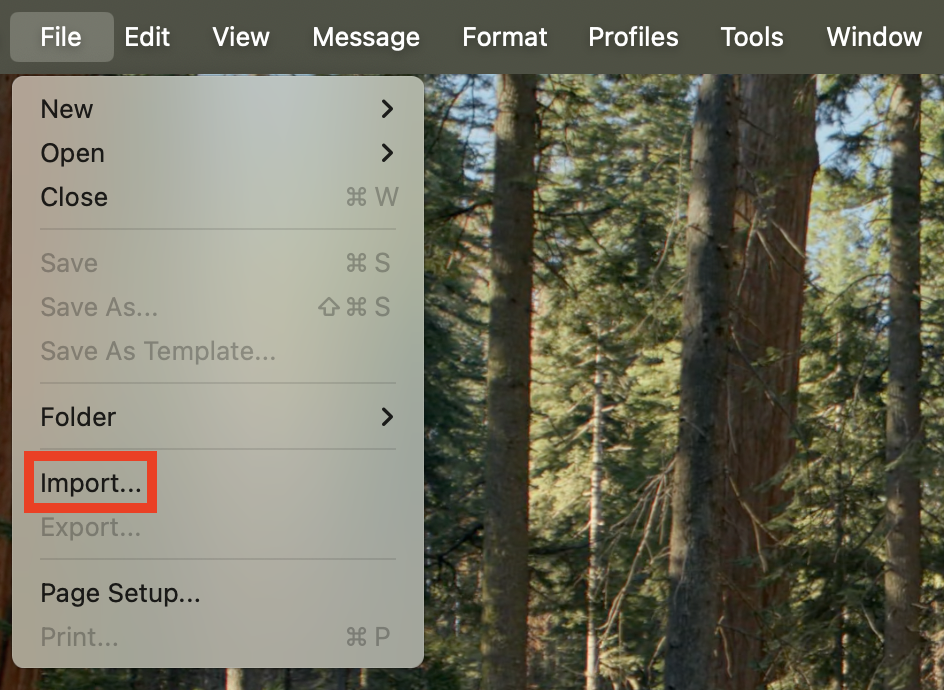
If your local folders haven’t appeared, look for Import On My Computer Data in the File menu, or an Import Now button under On My Computer. Microsoft documents both ways to start the import. Follow the prompts, then check the imported contents. Menu wording can vary by version; if neither option appears, get help before deleting or recreating your Outlook profile.
After switching and completing any local import, work through these steps:
- Accounts: Confirm that expected folders and recent messages appear. Send a test message and verify that you receive a reply.
- Calendars and contacts: Review upcoming appointments and confirm access to shared calendars and important contacts.
- Local archives: Find several older messages and open their attachments. Keep your original data and backups until you’ve verified the migration.
- Features you use: Check your signatures, important rules, shared mailbox access, and essential add-ins.
If something fails, tell your help desk or IT provider what you were trying to do and what happened. For example, name the shared mailbox you can’t open and include any error message. Microsoft directs personal-account users to Help > Contact Support.
If your organization offers Outlook on the Web, confirm that you can sign in and use it as a fallback if the desktop app has problems. However, note that it won’t replace access to information stored locally on your Mac.
Contact us if you need help moving local archives or setting up shared accounts.
(Featured image by iStock.com/Rawf8)
Social Media: Microsoft says legacy Outlook for Mac will stop connecting to Exchange Online mailboxes starting in October 2026. Check which Outlook experience you’re using, protect local archives, and test essential features when you switch.