The Best Apple-Related Gifts for 2021
It may seem early to start thinking about the holiday shopping season, but with the global supply chain suffering pandemic-related slowdowns, there’s no telling how long it will take to get something you order today. Apple has generally done a good job of managing its supply chain issues, but even still, if you want to make sure you have an Apple something for that special someone, we recommend buying it soon. Here are our recommendations.
AirTag
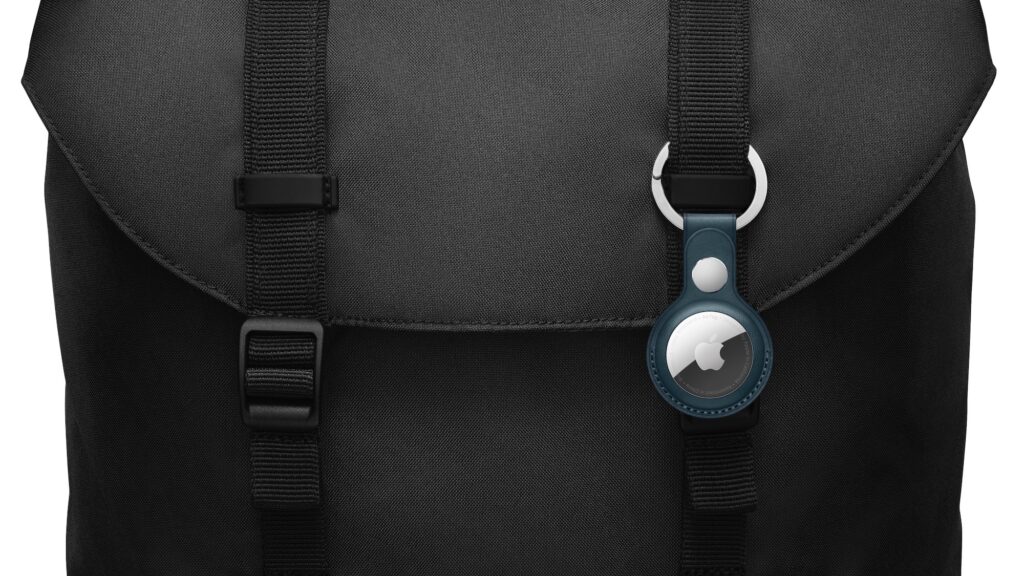
Do you know someone who’s always misplacing their keys, purse, or backpack? Apple’s new AirTag tracker is the perfect gift for such a person. Attach one to a keyring (with a separate $29 AirTag Loop or $39 AirTag Leather Loop) or drop it in a bag, and from then on, the person can use the Find My app to see where they left their stuff. Support for ultra-wideband enables precision finding with an iPhone 11 or later—with earlier iPhones, the detected location won’t be quite so precise. AirTag uses the Find My network, so even if the item is far away, passing Apple devices that detect it can securely share its location with you. One AirTag costs $29, or you can get a pack of four for $99. You can even have Apple personalize each AirTag with custom text and emoji.
I have AirTags on Jezebel and on both of our bicycles. We had one on Java but no matter what holder I was using he would manage to knock it off. That gave us some interesting adventures using Find My to locate the AirTag and I was amazed how well that worked even in the woods in Vermont.
AirPods and AirPods Pro
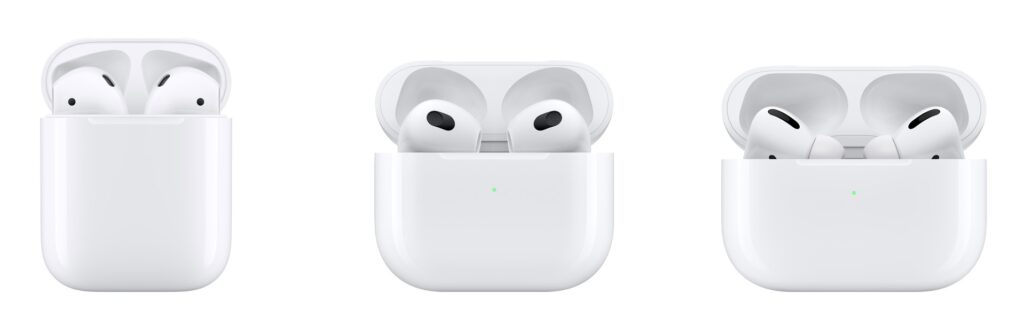
Apple’s wireless earbuds remain popular, and the company just released the third-generation AirPods to supplement the second-generation AirPods and the AirPods Pro. All three make excellent gifts. The second-generation AirPods cost $129, have a relatively long stalk, and boast up to 5 hours of listening on one charge. The $179 third-generation AirPods shrink the stalk, switch to a force sensor for controls, add support for spatial audio with dynamic head tracking, feature sweat and water resistance, have a MagSafe wireless charging case, and last up to 6 hours on a single charge. For $249, the AirPods Pro include the features of the third-generation AirPods and add silicone ear tips and active noise cancellation with optional transparency mode, but they have only 4.5 hours of listening time. All three have charging cases, support Hey Siri commands, and automatically switch between Apple devices.
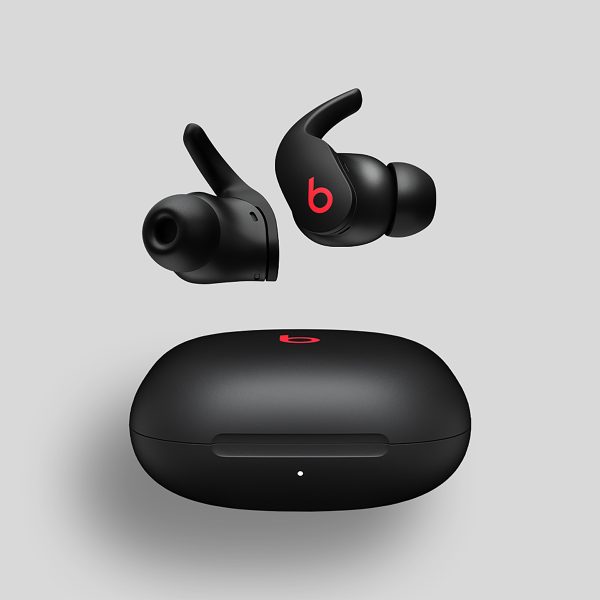
You can also look at the Beats Fit Pro which shares much of the same technology!
HomePod mini
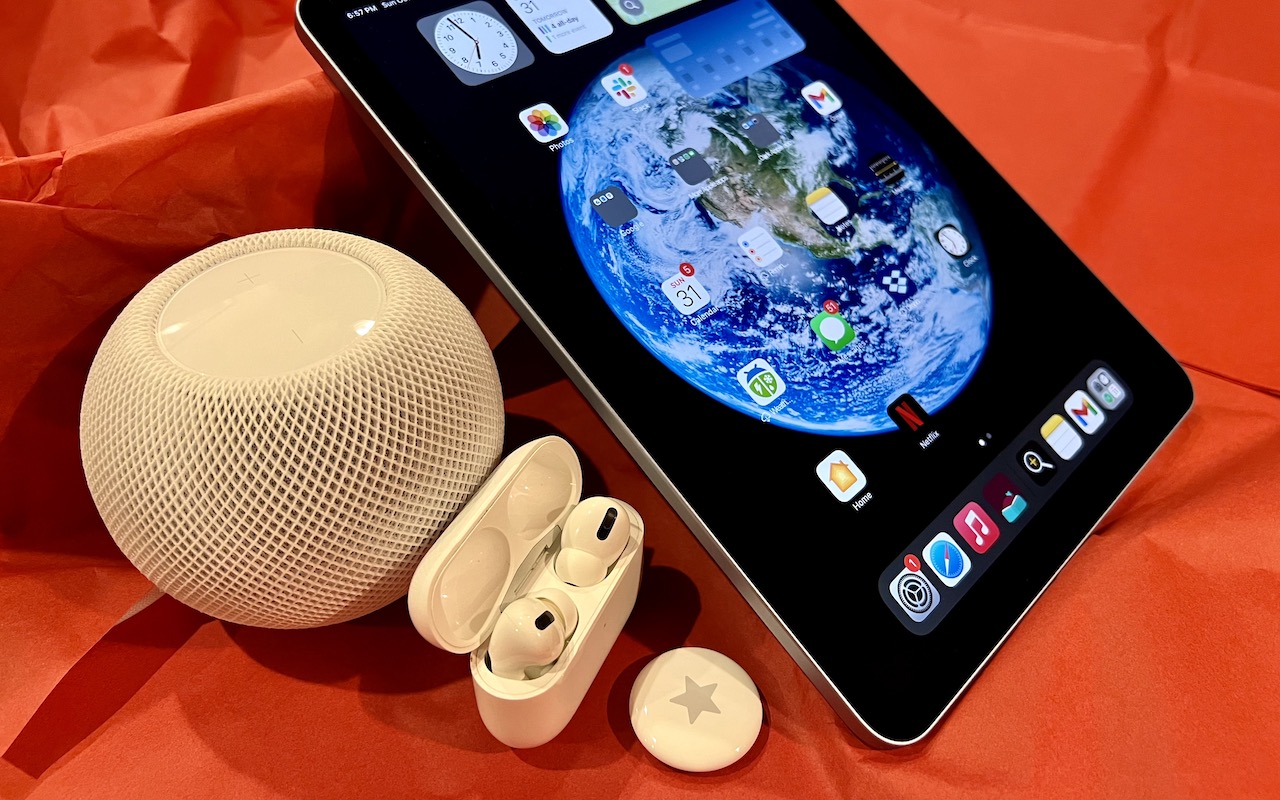
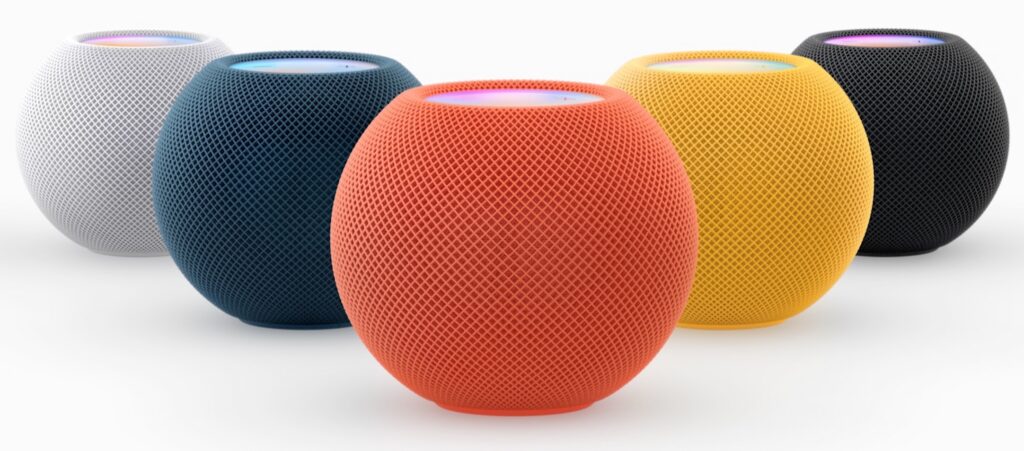
Earlier this year, Apple discontinued the full-size HomePod, which wasn’t a big hit at its relatively high price of $299 (although now that it is discontinued HomePods are selling for much more – sort of reminisence of the Apple HiFi). However, the $99 HomePod mini remains available, and Apple is now selling it in five colors, with blue, orange, and yellow joining white and black. (The new colors will become available at some point in November.) The grapefruit-sized HomePod mini may be small, but it produces great sound for its size, and it can do pretty much everything the larger HomePod could do. You can control it entirely via Siri, pair two for stereo sound, use it as a hub for your HomeKit home automation accessories, and even have it play the sound from your Apple TV. Put a HomePod mini in different rooms in the house, and you can use Intercom to communicate with family members using your voice. If you’re giving it as a gift, remember that it’s best when paired with an Apple Music subscription.
iPad and iPad mini
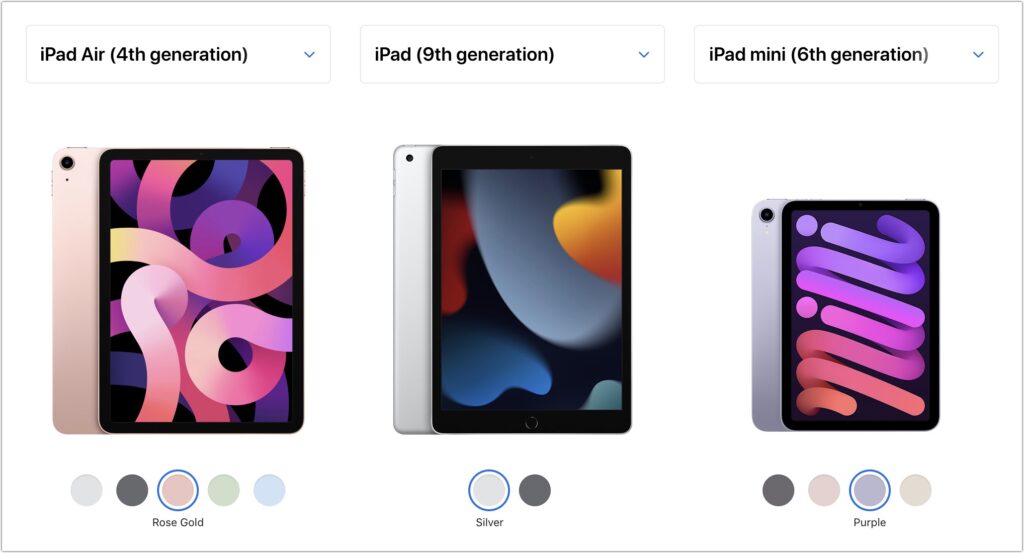
If you’re looking to give an iPad as a gift, you have a lot of choice. The top-of-the-line iPad Pro may be overkill for most given its power and price—$799 for the 11-inch model and $1099 for the 12.9-inch model. But the fourth-generation iPad Air, which starts at $599, provides sufficient power for even the most intensive tasks, especially when coupled with a second-generation Apple Pencil ($129) and either a Magic Keyboard ($299) or Smart Keyboard Folio ($179).
If those possibilities seem pricey for an iPad that’s destined for a kid or an adult with basic needs, look no further than the new ninth-generation iPad, which remains a bargain at $329. It works with the first-generation Apple Pencil ($99), and those who need to write can add the $159 Smart Keyboard. Finally, don’t forget the sixth-generation iPad mini, which benefited from a major redesign back in September. It’s now more like a diminutive version of the iPad Air, with more colors and a squared-off industrial design compatible with the second-generation Apple Pencil. It’s $499, and if you need a keyboard, you’ll have to look to a third-party manufacturer or use a standard Bluetooth wireless keyboard.
Apple Watch Gift Certificate
Last but far from least, we love the Apple Watch, and it would seem to make a great gift. However, we urge caution. Apple provides a dizzying number of options for case size, material, and color, plus the band and color, making it difficult to know what would be most appreciated. So we’d encourage giving a certificate that’s good for a conversation about what to purchase. Then sit down with the recipient to run through all the decisions in the Apple Watch Studio.
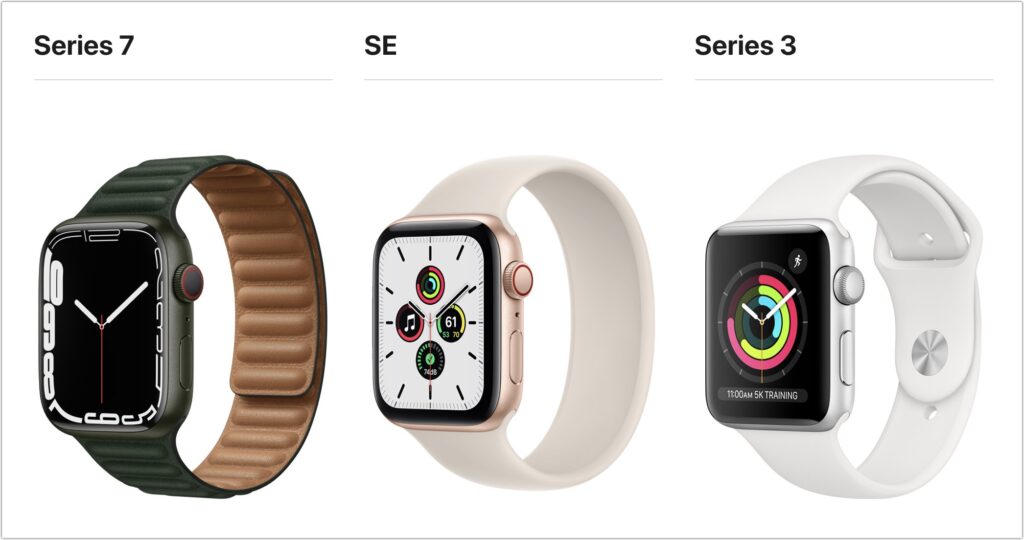
There are three options this year: the new Apple Watch Series 7 (starting at $399), last year’s less expensive Apple Watch SE (starting at $279), or the much older Apple Watch Series 3 (starting at $199). Get the Series 7 if you want an Always-On Display, blood oxygen sensor, and ECG capabilities—it also boasts a larger screen than last year’s Series 6 while remaining compatible with all the bands. The Apple Watch SE lacks the Series 7’s advanced sensors and has a slightly smaller screen size, but it still provides the compass, altimeter, and fall detection features. The screen on the Series 3 is smaller yet, and it lacks a number of key features. Unless keeping the cost to a minimum is essential, we have a hard time recommending the Series 3—it’s getting too old. Apple has a helpful comparison tool.
You may have noticed that we didn’t include any Macs in this article. They are worthy gifts, but they’re quite a bit more expensive and more difficult to select without extensive discussion of the recipient’s needs. Let us know if you need help choosing the right Mac for someone on your list.