Make Sure to Back Up iPhone Photos on Your Mac
If your iPhone were to be stolen or suffer an unfortunate accident, would you lose all your precious photos? Those using iCloud Photos are probably shaking their heads smugly, thinking that all those baby and vacation photos are backed up securely in iCloud. iCloud Photos does indeed store a copy of all your photos, but you shouldn’t assume that everything in it is completely protected. Although it’s extremely unlikely that Apple’s systems would fail so that you’d lose anything, the contents of your iCloud account aren’t as safe as would be ideal.
An Aside to Explain Why iCloud Isn’t Perfectly Secure
Recently, Wall Street Journal reporters Joanna Stern and Nicole Nguyen covered a troubling form of crime aimed at iPhone users in an article (paywalled) and accompanying video. Thieves hang out in bars, looking for users who tap in their passcodes instead of using Face ID or Touch ID. Once they’ve learned someone’s passcode with surreptitious shoulder surfing, they grab the iPhone and run. As soon as they’re clear, they use the passcode to change the user’s Apple ID password and enable or reset a recovery key, which prevents the user from employing Find My to locate and lock the iPhone. Worse, with the passcode, they can make purchases with Apple Pay, access all passwords in iCloud Keychain, and use other information on the iPhone to facilitate identity theft. It’s a disaster.
But it gets worse, as the reporters detail in a new Wall Street Journal article (paywalled) and video. By enabling a recovery key, the thief disables Apple’s normal account recovery process for resetting the Apple ID password. In other words, if this were to happen to you, along with all the financial losses and headaches, you would lose access to your iCloud account, possibly forever, and with it, all your photos in iCloud. With luck, Apple will block this attack soon.
For now, follow this commonsense advice to reduce the chances of being victimized:
- Pay attention to your iPhone’s physical security in public.
- Always use Face ID or Touch ID in public.
- If you must enter your passcode in public, conceal it from anyone nearby.
- Never share your passcode beyond highly trusted family members.
Backing Up Your iPhone Photos
As with so many other modern ills, good backups go a long way toward minimizing the pain of problems. They won’t prevent someone from stealing your iPhone or locking you out of your account, but if that were to happen, at least you won’t lose all your photos!
There are two possible backup scenarios. Using iCloud Photos and downloading originals to your Mac is easiest but requires that you pay Apple for more storage if you have more than a handful of photos. If you don’t use iCloud Photos, you can just back up your iPhone to your Mac or, better yet, import images into Photos on the Mac and then sync them back. It’s more work and fussier, but doesn’t cost anything.
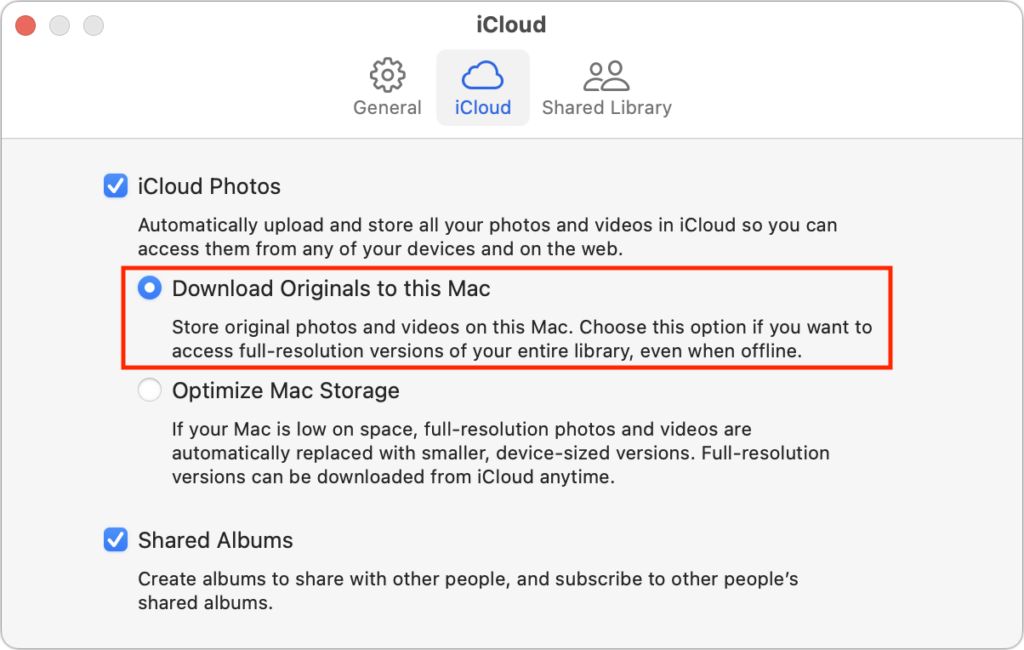
- iCloud Photos: When using iCloud Photos, the trick to protecting your pictures is to sync the originals with your Mac. In Photos > Settings/Preferences > iCloud, select Download Originals to this Mac. The only downside of this approach is that you need enough disk space on your Mac to hold them all; if that’s not the case, you may need to move your system Photos Library to an external hard drive.
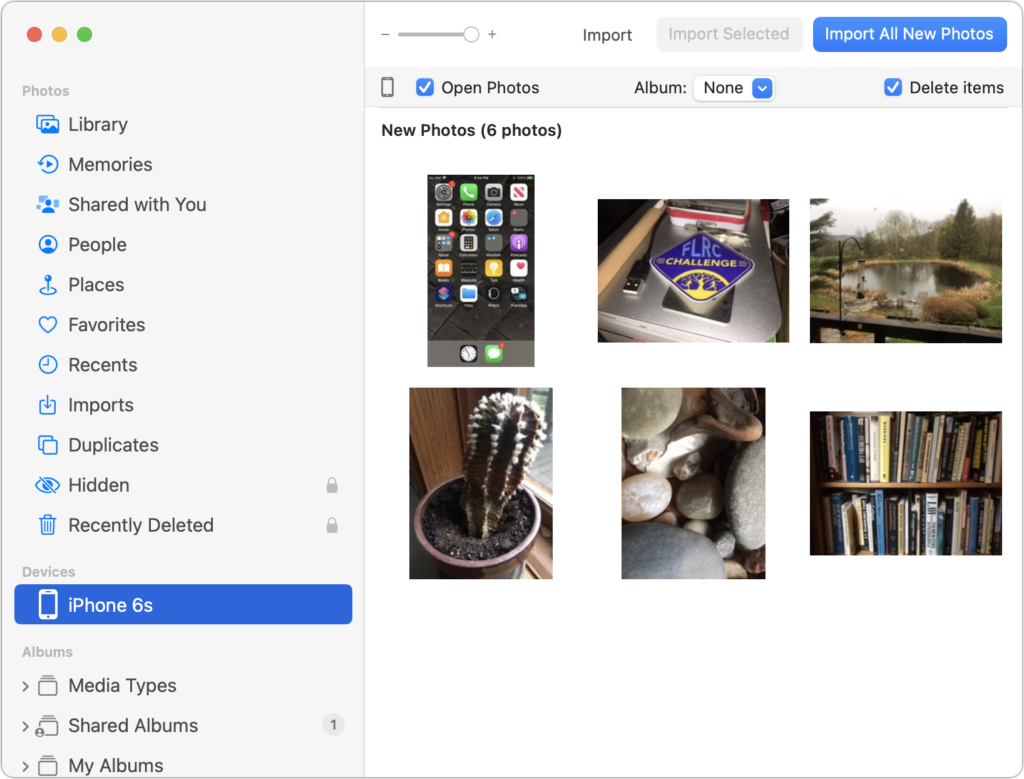
- iPhone-only photos: If you aren’t using iCloud Photos, the best approach is to connect your iPhone to your Mac using a USB-to-Lightning cable or Wi-Fi and then import new snapshots into Photos on your Mac manually (select the iPhone in the Photos sidebar). It’s helpful to remove the original photos from the iPhone with the Delete Items checkbox after importing so you can manage them solely on the Mac.
Then you can sync all the photos (or just desired ones, if your iPhone is low on space) back to your iPhone using the Finder. First, select the iPhone in a Finder window’s sidebar. Then click Photos in the button bar at the top, and select “Sync photos to your device from Photos” along with “All photos and albums” and “Include videos” in the options below. Finally, click Apply or Sync.
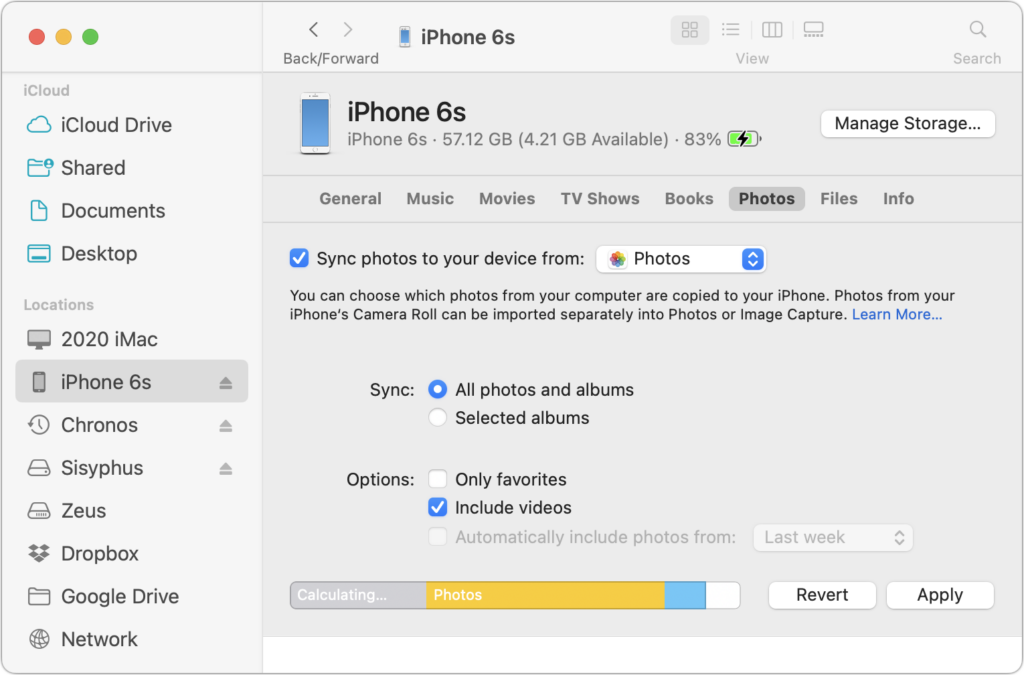
Technically speaking, backing up your iPhone to your Mac without syncing to Photos also backs up your photos, but the only way to get them back is to restore a backup onto an iPhone. It’s much better to have all the photos accessible in Photos too.
Either way, once the photos are on your Mac, you should back up all your data using Time Machine, an Internet service like Backblaze, or a third-party app like Carbon Copy Cloner or SuperDuper. If you’re concerned about the quality of your backups for preserving photos, contact us for advice.
(Featured image by iStock.com/metamorworks)
Social Media: With new reports of iPhone theft victims being locked out of their iCloud accounts, it’s all the more important that you copy your iPhone photos to a Mac and then back up that Mac.