Where Can You Control Automatic Smart Quotes and Dashes in macOS?

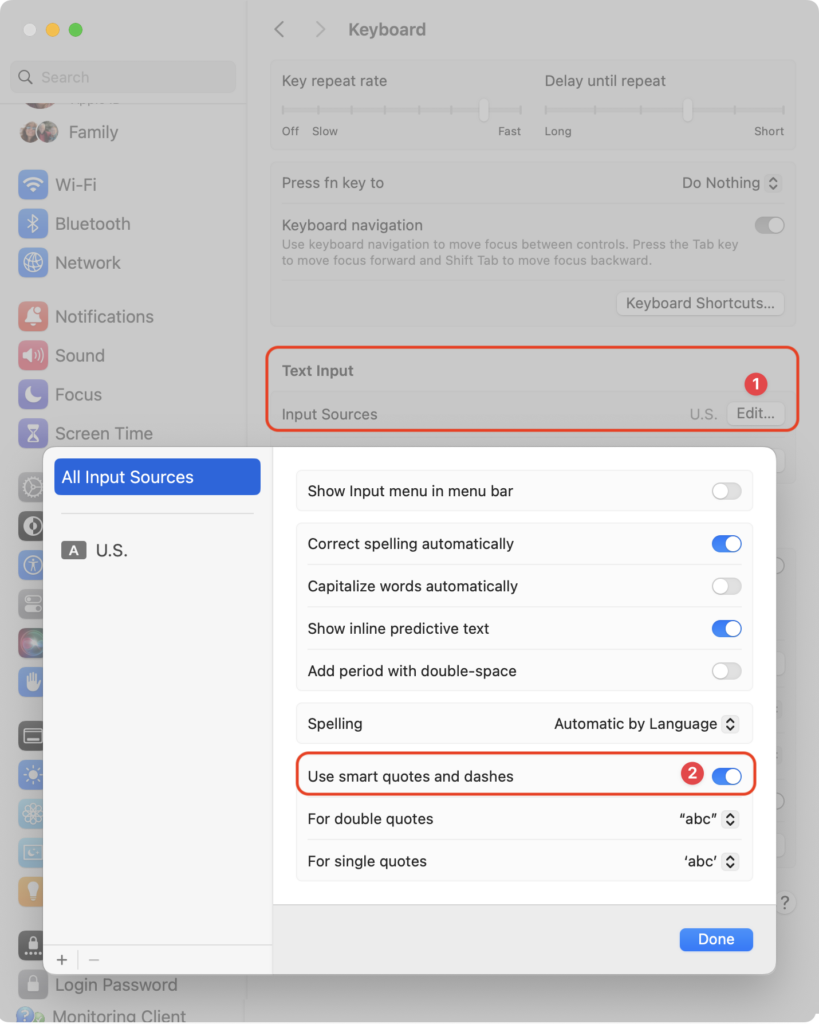
Most people like smart quotes and dashes, at least most of the time. Your Mac is probably set up to turn the single (‘) and double (“) hash marks and double hyphens (–) that you type into the apostrophes (’) and single smart quotes (‘’), double smart quotes (“”), and em dashes (—) used in professional publications. However, in some situations, like programming, smart quotes and dashes are problematic. To prevent macOS from automatically inserting them, open System Settings > Keyboard and click the Edit button next to Input Sources. In the dialog that appears, turn off “Use smart quotes and dashes.” As a bonus tip, if you occasionally want single or double hash marks, such as to indicate feet and inches, instead of turning the entire feature off, immediately press Command-Z after typing a single or double hash mark to undo the change from straight to curly.
(Featured image by iStock.com/Wirestock)


Social Media: Smart quotes and dashes usually make your text look more professional. But if they’re problematic, you can turn off the feature that inserts them automatically or revert them on a one-off basis.
Similar Posts

  • Errata

    Last week a typo slipped by our proofers. Command+M is not open a new document but that command is Command+N. Sorry about that. To make up for it here are a couple more keyboard combinations you might find handy:

    **Command-Option-Esc** – If an app stops responding, you might need to force it to quit. You can do that with a right click on the app icon in the dock, but it’s even easier if you hit this keyboard shortcut. This will bring up the Force Quit dialog, which you can then use to make that non-responsive app quit. You might need to Command-Tab you way out of an active frozen app first, though, or use **Command+Shift+Option+Esc** to quit the currently active app.

    **Command-Option-P and R** – Here’s one that might challenge your fingers dexterity. Fortunately, you will hardly ever have to use it but it is used to reset your non-volatile random access memory (NVRAM). Information stored in NVRAM can include speaker volume, screen resolution, start-up disk selection and recent kernel panic information. If you are asked to reset your P-Ram or NVRAM here’s how you do it.

    1) Shut down your Mac
    2) Turn on your Mac
    3) Immediately after you hear the start up sound, hold down the command, option, P and R keys
    4) Hold those keys down until you hear the start up sound again and then release them.

  • My daughter Autumn and her husband Ismael are coming to visit next week which should be fun. Then we pack up and head back to Vermont. Hopefully the weather will cooperate but it seems like warmer weather is in the forecast for the Green Mountains.

    Thank you so much for reading this issue of Kibbles & Bytes!

    Your Kibbles & Bytes Team,

    _Don, Emily, Hadley & Amy_