Keep Your Browsing Organized with Browser Profiles

As more of our lives shift online, it becomes increasingly important to establish boundaries between different aspects of our digital activities. Many people maintain separate work and personal email addresses for this reason. But you don’t have to stop there.

Modern Web browsers offer profiles, a powerful but often overlooked feature. Whether you’re juggling work and personal browsing or managing multiple projects, browser profiles can make your digital life more organized and efficient.

Why Use Browser Profiles?

The overarching reason to use browser profiles is to make it easier to focus on one thing at a time. Imagine you’re working on a bathroom remodel at home while negotiating a new contract with an important client at work. You probably don’t want to be distracted by tabs showcasing countertop surfaces when you should be estimating client deliverable dates. That’s especially true if you use the same Web apps—Gmail, Google Docs, Slack, Trello—to manage both personal and professional projects.

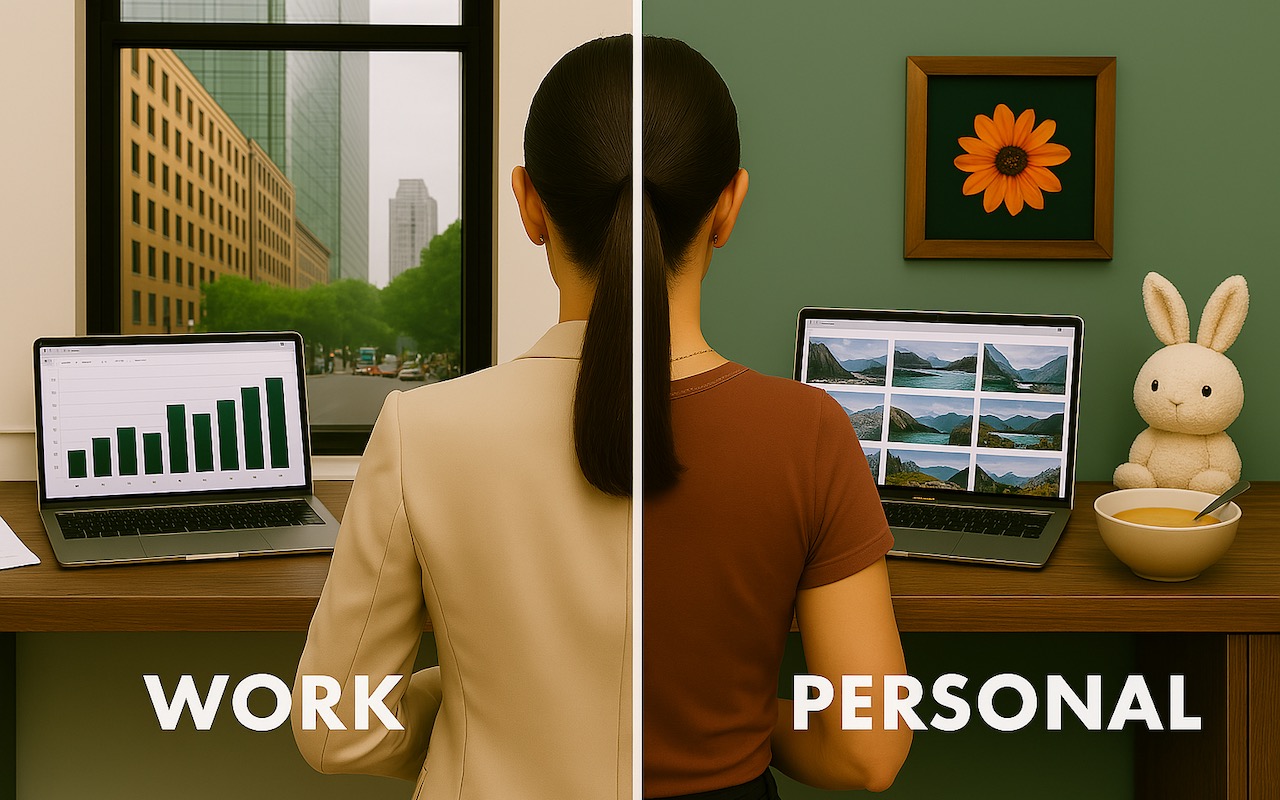
By setting up separate browser profiles, you can keep your work and personal browsing completely separate. That includes different bookmarks, sets of tabs, and account logins for the same websites. When you open Google Docs in your personal profile, you will find sheets that track the timeline for your bathroom remodel in your personal account; switch to your work profile to view only documents in your work account.

Other common uses for browser profiles include separating clients—particularly when managing accounts for them—keeping research projects or hobbies distinct, and maintaining a clean browser environment for testing.

What’s Stored in a Browser Profile?

Each browser profile maintains its own distinct set of browsing data and settings. While specifics may vary slightly among browsers, options include:

  • Bookmarks/favorites: Saved websites, possibly in hierarchical folders
  • Browsing history: The chronological list of websites you have visited
  • Saved passwords: Login credentials for websites if you rely on the browser rather than an independent password manager
  • Extensions and their settings: Which browser extensions are installed and how they’re configured
  • Cookies and site data: These store website preferences, login status, and site-specific information
  • Stored forms and autofill data: Saved addresses, payment methods, and other form data
  • Browser settings and preferences: Search engine preferences, home page and startup settings, theme and appearance options, and privacy and security settings
  • Open tabs and windows: Including tab groups and recently closed tabs

When you switch between profiles, you get a completely fresh browser environment with its own set of everything listed above. You can log in to the same website using different accounts in various profiles, and your activity in one profile won’t impact or be visible in another.

Setting Up and Switching Between Profiles

Getting started with profiles is simple. Here’s how to create and switch between them in Safari (in macOS 14 Sonoma and later), Google Chrome, and Firefox. Before you get started, though, a few tips:

  • Give profiles descriptive names and distinct colors so they’re easy to identify.
  • Keep the number of profiles manageable because too many can become confusing.
  • If you create profiles for clients or projects, periodically review and tidy up unused ones.
  • Keep in mind that profiles are intended for organization and efficiency, not security—anyone with access to your Mac can switch to any profile.
  • Chrome and Firefox profiles are stored on a particular computer—they won’t sync with another copy of those browsers on another computer.

Safari

Safari profiles share more data than those in Google Chrome and Firefox, and unlike the other two, Safari profiles automatically sync between devices. All bookmarks and saved passwords are accessible to all profiles, although you can choose a separate primary bookmark folder for each profile. Note that Safari stores its current settings in a permanent Personal profile that becomes visible only after you create a new one. To create a new profile in Safari:

  1. Choose Safari > Settings > Profiles.
  2. If this is your first new profile, click Start Using Profiles. Otherwise, click + to create a new profile.
  3. Enter a name, and choose a symbol and color.
  4. Select a folder within your bookmarks to hold the profile’s primary bookmarks.
  5. Click Create Profile.
  6. Choose how new windows and tabs open.
  7. Click the Extensions tab, and select the extensions you want to use with the profile.

Every window in Safari is associated with a profile, so switching between them can be as simple as clicking another window or using the Window menu. At most, you have to open a new window for the desired profile:

  • Choose File > New Profile Window. If you have three or more profiles, the command becomes File > New Window > New Profile Window.
  • With the sidebar closed, click the profile button and choose New Profile Window to create a new window. When viewing the Start page, you can choose Switch to Profile Window to change the profile for the current window.

Google Chrome

Google Chrome has had browser profile support for many years. Like Safari, you start with a default profile. To create a new profile in Chrome:

  1. Choose Profiles > Add Profile. Click to continue without an account or sign in with a different Google account.
  2. Enter a name and pick an icon for the profile.
  3. If desired, choose Chrome > Settings to adjust settings and active extensions for the new profile.

Every window is associated with a profile, so switching is often just a matter of clicking the desired window or choosing it from the Window menu. To open a window for a different profile:

  • Choose Profiles > MyProfile.
  • Click the profile icon in the toolbar and choose the profile you want.

Once you have multiple Chrome profiles, the app will ask you which to open on each launch. From this screen, you can also remove a profile by clicking the vertical dot menu and choosing Delete. If you deselect “Show on startup,” Chrome will open the last used profile at startup. You can always access this screen by clicking the profile icon in the toolbar and choosing Manage Chrome Profiles.

Firefox

Although Firefox was the first browser to support profiles, they remain poorly integrated into its interface and can be confusing because each opens in another instance of Firefox— a new Firefox icon appears in the Dock for each. To create a new profile in Firefox:

  1. Type about:profiles in the address bar to open the About Profiles page.
  2. Click Create a New Profile.
  3. Name your profile and optionally select a custom location for profile storage.
  4. On the About Profiles page, in the listing for your new profile, click “Launch profile in new browser” to open a new instance of Firefox with it.
  5. Configure this new instance of Firefox as desired.

Opening a new profile instance can be tricky since it’s essentially like opening another app, but there’s only one Firefox icon in your Applications folder. While there are command-line tricks to make switching easier, this is the simplest approach:

  1. Type about:profiles in the address bar to open the About Profiles page.
  2. In the listing for the profile, click “Launch profile in new browser.”

To simplify this process, open the About Profiles page in each profile and drag its proxy icon to the Bookmarks toolbar. That way, you can click the bookmark in the toolbar for quick access to About Profiles.

Once multiple profile instances are open, you can switch between them by clicking their windows or Dock icons.

Be Careful with External Links

Browser profiles struggle with one scenario: opening links from other apps. Imagine you’re busy in your Work profile but take a quick break to check your personal email. You receive a link from your bathroom designer with possible lighting options, so you click it. Since your browser is using your Work profile, the link opens there, and you have to transfer it manually to your Personal profile or risk muddying your organization.

However, this is a minor obstacle, given how beneficial browser profiles can be for organizing your online activities, whether you’re juggling multiple projects or simply keeping your work and personal browsing distinct.

(Featured image generated by ChatGPT)


Social Media: Tired of juggling work and personal tabs in one browser? Learn how browser profiles can keep your online life organized and distraction-free, plus get step-by-step tips for setting them up in Safari, Chrome, and Firefox.

Similar Posts

  • Macbooks and Macbook Air Upgraded

    Apple announced some changes to the 12-inch MacBook and 13-inch MacBook Air this week. Let’s talk about the MacBook Air first. Apple discontinued the 13-inch MacBook Air models that had 4GB of RAM and made them sport 8GB. There were no other changes to this model but the additional RAM comes at no additional cost as Apple doubled the RAM but kept the price the same at $999 for the 128GB SSD unit and $1299 for the 256GB SSD.

    With just this minor update to the MacBook Air we can speculate that perhaps this unit is on its way out within the next year. The MacBook Air does not have the Retina display nor does it support the latest in Intel mobile processors. On the other hand, it is Apple’s best selling laptop.

    The changes to the MacBook were more significant. They added a Rose Gold (er…pink) color which might actually be a nice option for some. More importantly, Apple went to the new sixth-generation dual-core Intel Core M processors which run at clock speeds up to 1.3 gigahertz, with Turbo Boost up to 3.1 gigahertz. The revamped notebooks also feature faster 1866 megahertz memory.

    This new processor yields increases in performance from 15-20% in initial testing. With the Intel HD Graphics 515, the new MacBook has about 25 percent faster graphics performance. Speed has also been enhance with new, faster PCIe-based flash storage.

    The lower power requirements and a slightly larger battery has also improved battery life, with the Apple claiming the new MacBook offers up to 10 hours of wireless surfing and up to 11 hours of movie watching.

    While some were expecting additional ports or an improved FaceTime camera, these features did not make the cut.

    We should have all the models in stock next week as well as some great deals on the newly discontinued models.

  • Droids, Drones, Scooters, Cars and USB C

    I remember only a couple years ago when drones were new and cutting edge technology. Now, there are huge sections of the show devoted to drones of all sorts: fighting drones, mini drones, paper airplane drones and dancing drones. I don’t know if it is the Star Wars influence but droids were everywhere, including “laundroids” for folding your laundry, grill cleaning droids, window washing droids and all kinds of robots.

    3D printers were new and unique and again whole sections of the show were devoted to “replicators” making everything from iPhone cases to clothing to spare body parts. Several companies were there just to show their filaments for these 3D printers.

    Scooters were everywhere. You know, the ones in the news that have the batteries that blow up. Well, literally dozens of companies were showing their versions and the original Segway had a booth, too. Some one-wheel scooters were there as well as shoes with wheels that zipped you around.

    p{text-align: center;}. !http://blog.smalldog.com/images/4638.jpg!

    Self-driving cars and technology for self driving cars dominated the North Hall and some concept cars were shown, too. My favorite was the Faraday electric car that looked like a single seat batmobile.

    USB-C made its debut at the show with hubs, cables and some USB display port displays, too. I think we will see a lot of USB-C stuff coming up!

    Less prevalent this year was the huge variety of iPhone and iPad cases. There were huge sections last time but while there were several companies showing cases it was toned way down. In their place, power banks of all sorts were being shown in every imaginable shape and size. The Apple battery case, aka the hump, was universally panned but several companies had slim battery cases for the iPhone.

    p{text-align: center;}. !http://blog.smalldog.com/images/4641.jpg!

    I did walk through the TV section but it was not as notable as in past years. The 3D fad has sort of expired and 4K displays are common. I still love the OLED displays, though.

    Other areas that were huge were health care and fitness with a lot of wearable fitness devices and health monitors or all sorts from implantable blood glucose devices to blood pressure cuffs, thermometers and scales. The home automation section was larger than previous years and there were some new HomeKit compatible devices. I liked the NoLok offering of bluetooth compatible padlocks and bike locks that work similar to the Kevo system.

    It was a quick trip out to Vegas but it was certainly worthwhile. I will follow up next week with a bit more.

  • B.B. King – The King of the Blues

    For more than half a century, Riley B. King – better known as B.B. King – defined the blues for a worldwide audience. Since he started recording in the 1940s, he has released over fifty albums, many of them classics. He was born September 16, 1925, on a plantation in Itta Bena, Mississippi, near Indianola. In his youth, he played on street corners for dimes, and would sometimes play in as many as four towns a night. In 1947, he hitchhiked to Memphis, TN to pursue his music career. Memphis was where every important musician of The South gravitated, and it supported a large musical community where every style of African American music could be found. B.B. stayed with his cousin Bukka White, one of the most celebrated blues performers of his time, who schooled B.B. further in the art of the blues.

    B.B.’s first big break came in 1948 when he performed on Sonny Boy Williamson’s radio program on KWEM out of West Memphis. This led to steady engagements at the Sixteenth Avenue Grill in West Memphis, and later to a ten-minute spot on black-staffed and managed Memphis radio station WDIA. “King’s Spot,” became so popular, it was expanded and became the “Sepia Swing Club.” Soon B.B. needed a catchy radio name. What started out as Beale Street Blues Boy was shortened to Blues Boy King, and eventually B.B. King.

    In the mid-1950s, while B.B. was performing at a dance in Twist, Arkansas, a few fans became unruly. Two men got into a fight and knocked over a kerosene stove, setting fire to the hall. B.B. raced outdoors to safety with everyone else, then realized that he left his beloved $30 acoustic guitar inside, so he rushed back inside the burning building to retrieve it, narrowly escaping death. When he later found out that the fight had been over a woman named Lucille, he decided to give the name to his guitar to remind him never to do a crazy thing like fight over a woman. Ever since, each one of B.B.’s trademark Gibson guitars has been called Lucille.

    B.B. was inducted into the Blues Foundation Hall of Fame in 1984 and into the Rock and Roll Hall of Fame in 1987. He received NARAS’ Lifetime Achievement Grammy Award in 1987, and has received honorary doctorates from Tougaloo(MS) College in 1973; Yale University in 1977; Berklee College of Music in 1982; Rhodes College of Memphis in 1990; Mississippi Valley State University in 2002 and Brown University in 2007. In 1992, he received the National Award of Distinction from the University of Mississippi.

    B.B. King came to Vermont many times and I had the pleasure of being at several of his concerts. He died last year at the age of 90 and was performing to sold out crowds right up until he died. B.B. King is gone but the –The Thrill is Gone- lives forever.

  • A Swinging Hot Spot in Paradise

    You are visiting Key West, accompanied by your trusty iPhone and MacBook Air. Suddenly there’s an emergency at work, and you need to get online with your Mac. You can pick up a cell signal with the iPhone, but there’s no Wi-Fi that isn’t locked up. Well, my first thought might be “oh well, I’m on vacation!” but you are dedicated and need to be online.

    Don’t worry! You can use your iPhone’s cellular data plan to create a personal Wi-Fi hotspot that lets your Mac access the Internet through your iPhone. Also called “tethering,” it’s fast, easy, and can be a life-saver when you just have to get online with a Mac or your Wi-Fi-only iPad. It supports up to 5 users, too, which means you can get your team online, too!

    Before we explain how to do set up a personal hotspot, note that most but not all cellular carriers allow tethering on existing plans. For some, you might have to pay more for tethering. Keep in mind that any data consumed by your Mac while tethered will count against your data allowance and may generate overage fees. Carriers with “unlimited” data, like T-Mobile and Sprint, generally throttle your bandwidth to slower speeds if you use too much data.

    Along those lines, if you use a file sharing service like Dropbox or Google Drive, or an Internet backup service like CrashPlan or Backblaze, turn them off before connecting. Particularly if they haven’t connected in a while, those services can transfer a lot of data quickly, which could result in a hefty overage charge or awkward data throttling for the rest of the month.

    With those warnings out of the way, follow these steps in iOS 9 to turn on Personal Hotspot:

    1. On your iPhone, if you’ve never enabled the feature before, go to Settings > Cellular > Personal Hotspot. Once you’ve turned Personal Hotspot on once, it moves up a level, so you can access it from Settings > Personal Hotspot.
    1. Tap on Wi-Fi Password and enter a password that’s at least 8 characters long and easy to type. It doesn’t need to be super secure because you can keep Personal Hotspot turned off unless you’re using it. But you do want a password so random people nearby can’t connect and use your data.
    1. Once you’ve entered a password, slide the Personal Hotspot switch.

    That’s it! The Personal Hotspot screen provides basic instructions for connecting to the iPhone via Wi-Fi, Bluetooth, and USB. Stick with Wi-Fi, since it’s the easiest and most reliable in most cases.

    • To connect to your new Personal Hot Spot on your Mac, click the Wi-Fi icon in the menu bar and choose your iPhone’s name.
    • On your iPad, go to Settings > Wi-Fi and choose your iPhone.
    • Enter your password when prompted, making sure to select Remember This Network. That way, you won’t even have to enter your password the next time.
    • The Mac or iPad then connects to your iPhone, showing a hotspot icon instead of the usual wave icon for the Wi-Fi menu.

    Could it get any simpler? When you’re done, the safest thing to do, to ensure you don’t accidentally end up using too much of your data allowance, is to turn off the Personal Hotspot switch in Settings > Personal Hotspot. Your Mac or iPad will automatically disconnect.

    Actually, it CAN be simpler! Your Mac can automatically use the personal hotspot on your iPhone to connect to the Internet when they’re within range of each other.

    Use Instant Hotspot on your iPhone (with iOS 8 or later) to provide internet access to your Mac computers and other iOS devices (with OS X Yosemite or iOS 8) that are in range and signed into iCloud using the same Apple ID. Instant Hotspot uses your iPhone — you don’t have to enter a password or even turn on Personal Hotspot.

    Make sure your iOS device and your Mac are signed into iCloud with the same Apple ID.

    On your Mac, click the Wi-Fi status icon in the menu bar, then choose your iPhone or iPad.

    After you connect to the iPhone or iPad Personal Hotspot, you can check the cellular signal strength and the battery status of the iPhone or iPad in the Wi-Fi status menu.

    When you’re not using using the hotspot, your devices automatically disconnect to save battery life.

    One more big advantage of Personal Hot Spots. When you are shopping for that new iPad, perhaps you don’t need the cellular model if you nearly always have your iPhone handy. That’s what I do. If I need internet access on my Wi-Fi iPad, I simply connect to my Hot Spot! Saves me the added cost of a cellular-enabled iPad and the monthly fees from the cell carrier!