When Should You Subscribe to AppleCare?

With Apple’s recent launch of AppleCare One, which covers multiple devices, and updates to its traditional AppleCare+ plans, you might be wondering what the best strategy is for post-warranty coverage of your Apple devices. Here’s what we suggest.

Your AppleCare Choices

First, to make sure we’re all on the same page, Apple now offers three AppleCare protection plans:

  • AppleCare+: Apple’s traditional protection plan provides coverage for individual devices other than the iPhone, iPad, and Apple Watch, paid monthly or annually.
  • AppleCare+ with Theft and Loss: This plan extends AppleCare+ with up to two annual claims for theft and loss and applies exclusively to the iPhone, iPad, and Apple Watch.
  • AppleCare One: Apple’s new consolidated plan covers up to three devices for $19.99 per month. Additional devices—even those you already own—cost an extra $5.99 per month each. It includes up to three annual claims for theft and loss for the iPhone, iPad, and Apple Watch.

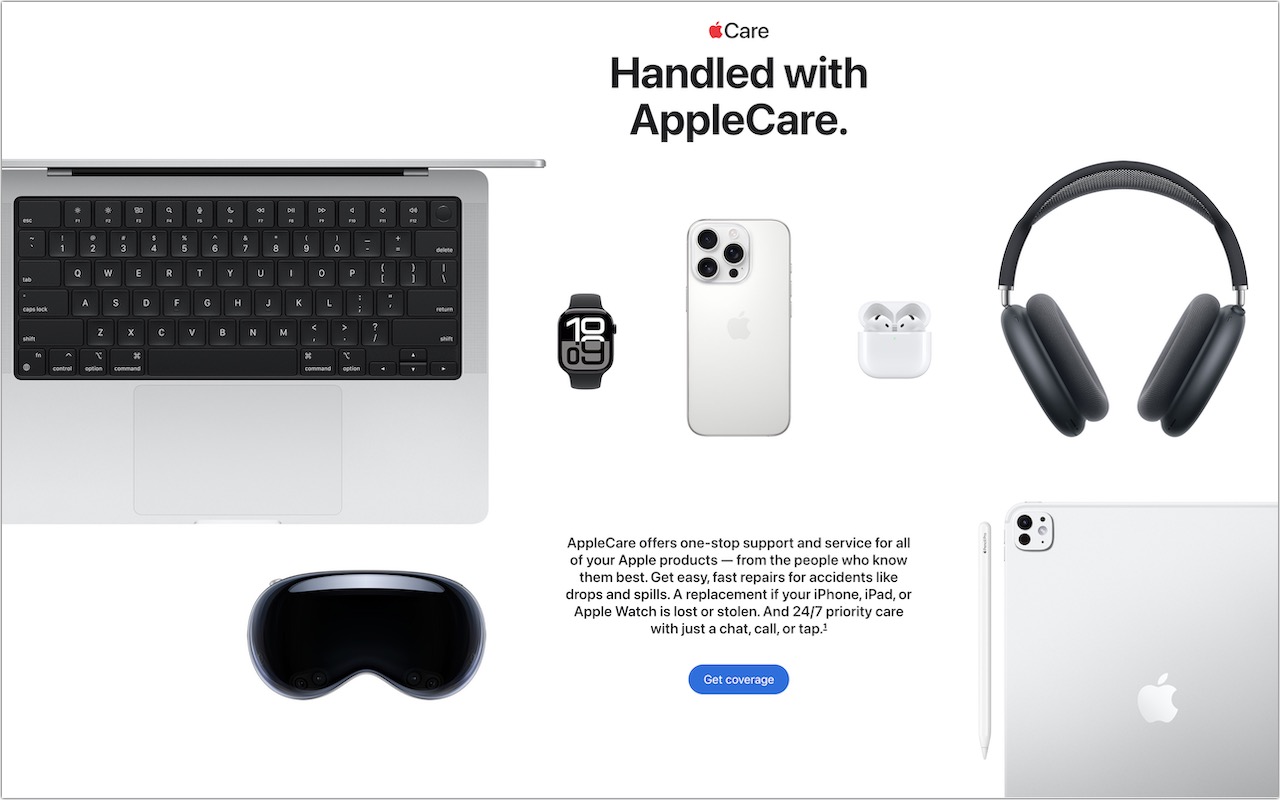
Both plans include unlimited accidental damage protection and battery replacements when capacity drops below 80%. Apple advertises its AppleCare+ and AppleCare One plans as including 24/7 priority support, but it’s worth noting that any customer can call Apple Support for help. Apple reserves the right to limit free phone-based assistance for the first 90 days after purchase to AppleCare subscribers, but in practice doesn’t limit support calls even after that.

Device-Specific Recommendations

As much as Apple would appreciate you paying extra for AppleCare+ or AppleCare One for every device you buy, it isn’t always the best financial choice. Here’s when AppleCare coverage is worth considering for different devices, roughly ordered by how important the coverage is:

  • iPhones: You should strongly consider AppleCare+ with Theft and Loss or AppleCare One. Phones are constantly mobile, easily dropped or lost, and expensive to replace. With coverage, screen or back glass repairs cost just $29, other repairs are $99, and a replacement will set you back only $149. But a protective case is still a good idea.
  • Mac laptops: We highly recommend coverage, especially for students. Laptops are frequently mobile, easily dropped or knocked off desks, and particularly vulnerable to damage when closing the screen. A single repair will almost certainly cost more than a year of coverage.
  • iPads: Consider coverage based on your model and how you use it. For an inexpensive base-level iPad, coverage may be unnecessary unless it’s for a child or paying for a repair would stretch your budget. For an iPad Air or iPad Pro, think about coverage based on how often you use it in situations where it could be dropped or lost.
  • Apple Watches: Coverage is typically unnecessary due to their exceptional durability and relatively low cost. Even with heavy use, a watch is difficult to damage and less likely to be lost than an iPhone since it’s attached to your wrist.
  • Desktop Macs and displays: In most cases, you can skip coverage altogether. These devices seldom move and have low failure rates.
  • AirPods: You can usually skip coverage. While you’ll probably drop them often, they’re pretty durable. More importantly, they’re relatively inexpensive to replace.
  • Apple TV and HomePod: Don’t bother covering them—they’re inexpensive to replace, stay in one spot, and rarely experience hardware failures.
  • Apple Vision Pro: Absolutely get AppleCare+ because the Vision Pro is so expensive, and you’ll be putting it on and taking it off regularly, making it easy to drop or knock off the couch.

When AppleCare One Makes Sense

If you own multiple devices, compare the cost of individual AppleCare+ plans against AppleCare One’s consolidated coverage. The $19.99 monthly fee for three devices could represent real savings, particularly if you have high-end devices. For example, individual AppleCare+ coverage for a 13-inch MacBook Pro ($9.99/month) and iPhone 16 Pro ($13.99/month) would total $23.98 per month, making AppleCare One’s $19.99 fee an attractive option, especially if you add a 13-inch iPad Air ($6.99/month) that you wouldn’t otherwise cover. In contrast, AppleCare One wouldn’t make sense if you had a 13-inch MacBook Air ($6.99/month) and an iPhone 16e ($9.99/month), which together would cost only $16.98 per month.

However, it’s not always straightforward. AppleCare One will cost $239.88 per year ($19.99 × 12). In the MacBook Pro and iPhone 16 Pro example, annual AppleCare+ plans would cost $239.98 ($99.99 + $139.99), essentially the same as AppleCare One. For the MacBook Air and iPhone 16e combination, annual payments would reduce the cost to $169.98 ($69.99 + $99.99) compared to the monthly total of $203.76 ($16.98 × 12), making AppleCare One’s $239.88 even less appealing.

Important AppleCare One Considerations

Before purchasing AppleCare coverage, keep these points in mind:

  • AppleCare One is a per-user plan for devices signed in to your Apple Account. You can’t add devices purchased for family members if they use them with their own Apple Accounts.
  • AppleCare One complains about Macs with multiple accounts; we hope Apple will address this problem soon.
  • All plans include service fees for repairs and replacements.
  • AppleCare One can cover devices up to 4 years old, although they may need to pass a diagnostic check. AppleCare+ plans can be added only within 60 days of the original purchase date.
  • AppleCare One is currently available only in the US, while individual AppleCare+ plans are available more broadly in other countries.

Remember that extended warranties generally benefit the companies offering them more than the customers buying them. Apple wouldn’t offer AppleCare+ or AppleCare One if it weren’t going to make money in the process. Nonetheless, AppleCare can provide valuable peace of mind, especially for mobile devices that face daily risks.

(Featured image by Apple)


Social Media: Wondering if AppleCare is worth it for your Apple devices? Get clear guidance on coverage options, including details about the new AppleCare One plan that could save you money.

Similar Posts

  • My sister and her partner are coming to visit this week so I hope the sun comes out. It has been sort of cool and rainy here for this week. It is hard to believe that we are already in the middle of January and the Iowa caucuses are only a couple of weeks away.

    I know you will join me in congratulating (or consoling) Emily for her most recent promotion. A frequent contributor to Kibbles & Bytes, Emily has done just about every job at Small Dog, starting out in the shipping department way back when, when the computers were heavy. Emily is now the General Manager of Small Dog Electronics to reflect her pivotal role at the company.

    Thank you for reading this issue of Kibbles & Bytes and for all of the support for Small Dog Electronics. We know it is you, our loyal customers, that sustain us and we appreciate you!

    Your Kibbles & Bytes Team,

    _Don, Dean, Scott & Emily_

  • The Most Profit Ever in a Single Quarter

    Apple posted record earnings and profit for the holiday quarter disappointing those analysts that predicted less than stellar results. Of course, the realistic guidance for the next quarter sent Apple stock plummeting while those same analysts maintain a price target that is $40-50 higher than the current price of the stock. Okay, so Apple’s profit and revenue were all time records for the company but the remarkable tidbit is that no public corporation ever has posted that much profit in a single quarter. Let’s see how Apple did that.

    First of all, Apple sold 74.8 million iPhones in the quarter. Not too shabby and that revenue is nearly 70% of Apple’s total. The average sales price (ASP) for the iPhone was up to $691 which also led to slightly higher gross margin. To put that is some perspective that is an average of 34,000 iPhones sold per hour 24/7 for 13 weeks.

    They finished the quarter with about $215 billion in cash which represents about $39/share. Macs sales were down a bit at 5.3 million units and the iPad continues to do moderate in sales with sales dropping year on year from 21.4 million units to 16.1 million units.

    Currency “headwinds” have caused some of these results to be muted. With the exceptionally strong dollar it is more difficult to export US goods and sales suffer a bit. The Euro and British Pound were down double digits and the Canadian and Australian dollars were down 20% or more. It gets worse. The Russian Ruble is down by 50% and Brazilian Real is down 40%. Apple estimated that if it were not for these global currency fluctuations that their revenue would have been over $80 billion representing an 8% increase. But despite those headwinds, Apple posted their best quarter ever.

    Other high points were service revenue which was the highest ever at over $6 billion. Wow, $6 billion in just iTunes, App store and a few other things. That is more revenue that quite a few well known companies and a 24% growth year over year. Other products which include the Apple TV, Beats and Apple Watch also were strong with $4.5 Billion in sales.

    In another milestone that just points to the success of the services side of Apple’s business Tim Cook announced that they now calculate that there are more than 1 billion Apple devices in use worldwide which is up 25% year over year. That is simply incredible considering that there are only 7.4 billion people on the planet!

    What sent Apple stock down was Apple’s realistic prediction that iPhones sales in their 2nd fiscal quarter would decline year over year by as much as 15-20%. Last year’s 2nd quarter was strong because of supply issues that moved some revenue from the 1st to 2nd quarter and the impact of the global currency situation has caused some price adjustments. Apple remains very bullish on the iPhone market and pointed to the fact that in China over 50% of the iPhones sold were to people buying their first iPhone. Apple pointed out that the growth of the middle class in China is unprecedented with the middle class comprising about 50 million people in 2010 and now it is projected to be $500,000,000 by 2020.

    Even if Apple sells “only” the 40-45 million iPhones in this quarter that would still be more revenue that most companies earn overall in a single quarter. To put this in perspective, Apple books more revenue at strong margins, than Amazon, Facebook, Google or Microsoft generate from all of their operations.

    All in all the financial results that Apple announced were an incredible testament to the quality and innovation of Apple products and of a company doing things right. Congratulations to the entire Apple team!

  • A Swinging Hot Spot in Paradise

    You are visiting Key West, accompanied by your trusty iPhone and MacBook Air. Suddenly there’s an emergency at work, and you need to get online with your Mac. You can pick up a cell signal with the iPhone, but there’s no Wi-Fi that isn’t locked up. Well, my first thought might be “oh well, I’m on vacation!” but you are dedicated and need to be online.

    Don’t worry! You can use your iPhone’s cellular data plan to create a personal Wi-Fi hotspot that lets your Mac access the Internet through your iPhone. Also called “tethering,” it’s fast, easy, and can be a life-saver when you just have to get online with a Mac or your Wi-Fi-only iPad. It supports up to 5 users, too, which means you can get your team online, too!

    Before we explain how to do set up a personal hotspot, note that most but not all cellular carriers allow tethering on existing plans. For some, you might have to pay more for tethering. Keep in mind that any data consumed by your Mac while tethered will count against your data allowance and may generate overage fees. Carriers with “unlimited” data, like T-Mobile and Sprint, generally throttle your bandwidth to slower speeds if you use too much data.

    Along those lines, if you use a file sharing service like Dropbox or Google Drive, or an Internet backup service like CrashPlan or Backblaze, turn them off before connecting. Particularly if they haven’t connected in a while, those services can transfer a lot of data quickly, which could result in a hefty overage charge or awkward data throttling for the rest of the month.

    With those warnings out of the way, follow these steps in iOS 9 to turn on Personal Hotspot:

    1. On your iPhone, if you’ve never enabled the feature before, go to Settings > Cellular > Personal Hotspot. Once you’ve turned Personal Hotspot on once, it moves up a level, so you can access it from Settings > Personal Hotspot.
    1. Tap on Wi-Fi Password and enter a password that’s at least 8 characters long and easy to type. It doesn’t need to be super secure because you can keep Personal Hotspot turned off unless you’re using it. But you do want a password so random people nearby can’t connect and use your data.
    1. Once you’ve entered a password, slide the Personal Hotspot switch.

    That’s it! The Personal Hotspot screen provides basic instructions for connecting to the iPhone via Wi-Fi, Bluetooth, and USB. Stick with Wi-Fi, since it’s the easiest and most reliable in most cases.

    • To connect to your new Personal Hot Spot on your Mac, click the Wi-Fi icon in the menu bar and choose your iPhone’s name.
    • On your iPad, go to Settings > Wi-Fi and choose your iPhone.
    • Enter your password when prompted, making sure to select Remember This Network. That way, you won’t even have to enter your password the next time.
    • The Mac or iPad then connects to your iPhone, showing a hotspot icon instead of the usual wave icon for the Wi-Fi menu.

    Could it get any simpler? When you’re done, the safest thing to do, to ensure you don’t accidentally end up using too much of your data allowance, is to turn off the Personal Hotspot switch in Settings > Personal Hotspot. Your Mac or iPad will automatically disconnect.

    Actually, it CAN be simpler! Your Mac can automatically use the personal hotspot on your iPhone to connect to the Internet when they’re within range of each other.

    Use Instant Hotspot on your iPhone (with iOS 8 or later) to provide internet access to your Mac computers and other iOS devices (with OS X Yosemite or iOS 8) that are in range and signed into iCloud using the same Apple ID. Instant Hotspot uses your iPhone — you don’t have to enter a password or even turn on Personal Hotspot.

    Make sure your iOS device and your Mac are signed into iCloud with the same Apple ID.

    On your Mac, click the Wi-Fi status icon in the menu bar, then choose your iPhone or iPad.

    After you connect to the iPhone or iPad Personal Hotspot, you can check the cellular signal strength and the battery status of the iPhone or iPad in the Wi-Fi status menu.

    When you’re not using using the hotspot, your devices automatically disconnect to save battery life.

    One more big advantage of Personal Hot Spots. When you are shopping for that new iPad, perhaps you don’t need the cellular model if you nearly always have your iPhone handy. That’s what I do. If I need internet access on my Wi-Fi iPad, I simply connect to my Hot Spot! Saves me the added cost of a cellular-enabled iPad and the monthly fees from the cell carrier!