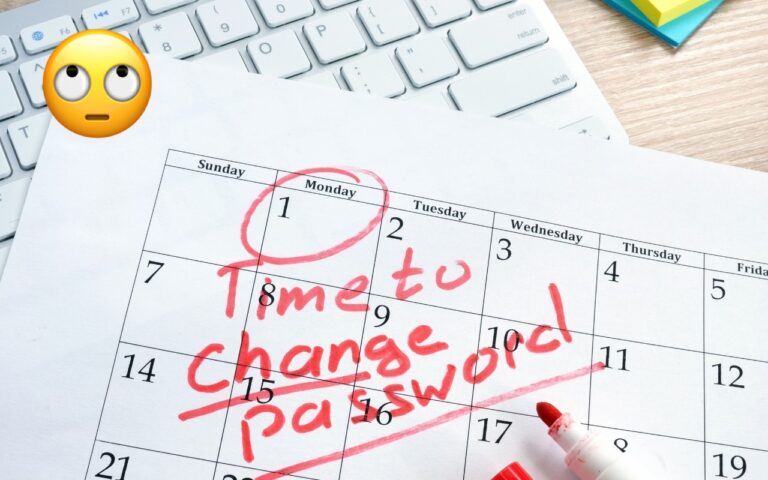
Keep Your IT Budget Working During a Slowdown
When business slows down, it’s tempting to reduce IT spending. But that approach often backfires, creating bigger problems—and larger bills—down the road.
Beyond the productive work you accomplish on your Macs, your technology infrastructure enables you to communicate with clients, send invoices, manage schedules, and get paid. A downturn is precisely when you need those systems working reliably, not when you should neglect them.
The smart approach isn’t to stop spending on IT. It’s to protect the essentials while trimming optional expenses. Let’s look at what’s critical and what’s not.
The Hidden Costs of Cutting Back
When IT spending gets cut, three things typically go wrong:
- Small problems become big problems: Deferring maintenance—putting off updates, delaying hardware replacements, and ignoring broken workflows—doesn’t save money, it just pushes the expense to a later date, when it will almost certainly cost more. Beyond the fact that prices only increase over time, emergency troubleshooting, rush purchases, and downtime during business hours always cost more than planned maintenance.
- Security risks persist: Attackers don’t slow down just because revenues have. When budgets tighten, businesses often cut the very things that stave off disasters: software updates, security monitoring, and tested backups. One phishing attack that leads to wire fraud, one malware infection that steals passwords, or one unpatched vulnerability can wipe out years of “savings.”
- Productivity losses add up quietly: When Wi-Fi is flaky, Macs are slow, and file sharing doesn’t work reliably, employees waste time waiting and working around problems. During a downturn, you typically have fewer people doing more work, which is the worst time to tolerate daily friction.
What to Protect First
Spending on some aspects of IT is more important than others. These are the services that keep your business running smoothly and help you recover when something goes wrong:
- IT support and consulting: We’re biased, of course, but we’ve seen what happens when clients go out on their own and then come back. Proactive support catches issues early, keeps your systems running, and ensures you have someone to call who already knows your setup when things break.
- Software subscriptions: Adobe Creative Cloud, Microsoft 365, accounting software, and similar subscriptions often seem cuttable. But letting subscriptions lapse means missing security updates and losing access to files in proprietary formats. It also means employees will spend time learning new tools rather than being productive with familiar ones. Before canceling, understand what you’ll lose.
- Backup services: Cloud backup services like Backblaze or CrashPlan may seem unnecessary if you have local backups, but they protect against burglaries, fires, or burst pipes that can destroy local backups.
- Networking equipment: Dodgy Wi-Fi access points and aging routers waste everyone’s time. If your team can’t reliably stay connected, nothing else matters. If you need to replace networking gear, choose quality products that will last for years.
- Hardware replacement budget: It’s tempting to squeeze another year out of aging Macs, but don’t keep them going beyond the point where they stop receiving security updates. User productivity will also decline as older Macs slow down and experience more issues.
Where to Cut Without Breaking Things
Many businesses have unnecessary costs hiding in plain sight. Here’s where to look:
- Unused software licenses: Audit what you’re paying for versus what employees actually use. Many companies have up to 30% of seats unused across various apps. Reclaim those seats, and establish a simple rule: every subscription needs an owner and a regular review.
- Duplicate tools: It’s surprisingly common for businesses to pay for multiple apps that do the same thing—multiple chat platforms, overlapping backup utilities, and so on. Pick one and consolidate.
- Vendor contracts up for renewal: Before agreements for Internet service, phone plans, hosting, or equipment leases auto-renew, check whether you still need the same service level. Many vendors will negotiate rather than lose a customer, and some plans can be downgraded to match actual usage.
- Projects that don’t solve real problems: Pause any “nice to have” work that isn’t about reducing costs, lowering risk, or helping you serve customers better: things like migrating to a new CRM, redesigning a website that’s working fine, or building custom tools when off-the-shelf options exist. A downturn forces prioritization—use it.
The goal isn’t to spend more on IT—it’s to spend smarter. Protect the services that keep you running, cut the ones that don’t, and avoid creating tomorrow’s emergency by skipping today’s maintenance. If you’re unsure where to cut and where to hold the line, we’re happy to help you sort through the options. A short conversation now can prevent an expensive surprise later.
(Featured image by iStock.com/Userba011d64_201)
Social Media: Freezing IT spending during a slowdown often leads to higher costs later. Here’s practical, real-world advice on reducing costs while protecting the services that keep your business running.