BlueAnt Mini Wireless

No, not some new invasive species, but rather some really cool wireless headphones! BlueAnt audio is one of our newest headphone lines that we have begun to carry here at Small Dog. The Pump Mini Wireless HD Audio Sports Buds have become my latest must have! These are lightweight, hold a great charge and come in several colors.

When I first saw these headphones I was a little skeptical. I actually hadn’t ventured into wireless earbuds before trying these headphones and had heard customer complaints in the stores about different varieties over the last year or so. The biggest issue that I had heard was comfort and how well they stayed in your ears, so I had no idea what I about to experience! I charged up the headphones and tested them out on some morning runs before work and was very pleased with them. I easily connected the headphones to my iPhone and enjoyed great sound out of them. They were comfortable and stayed in my ears easily. I was even able to take phone calls with them and those I was talking to could easily hear me. I also connected them to my Apple Watch and as you might guess, preferred this over carrying my iPhone with me.

I’ve begun using these earbuds in the office as well with my MacBook Air. I unfortunately have to wear glasses, so I find that many over the ear headphones (and I’ve used countless ones!) inevitably give me a headache from the pressure the headphones put on my glasses behind my ears. Contacts aren’t an option for me so I have found these headphones have begun to serve a truly universal role!
Similar Posts

  • Do you use iCloud for Safari?

    With all the news surrounding the government’s attempt to force Apple to write software that doesn’t exist to crack an iPhone, iCloud has been in the news, too! Do you use iCloud? Apple has some huge server farms to support this amazing technology and I thought it would be good to do a brief review of some of the features as they relate to Safari.

    iCloud has sort of settled to the back of my mind because it just does its thing in the background and serves up features that I take for granted. But this week, I ran into a dilemma that puzzled me for some time. I noticed that I had accidentally deleted one of my folders in my Safari favorites bar. These were important bookmarks and I needed them back. Well, like a good boy, I have a Time Machine backup and quickly went back in time and restored my Safari bookmarks from a time before I had deleted them. Good stuff, but when I went to look the next morning, the folder was gone again. This happened a few times with me going back in time to get the .plist file. Then I figured it out – I had Safari active in iCloud so my bookmarks were being synced in the cloud. So, every time I restored it, it would eventually be overwritten by iCloud. The solution? Really sort of simple, I turned off Safari in iCloud preferences and turned it back on, problem solved.

    Activating Safari in iCloud gives you some great tools. You can start browsing on your iPad and pick up seamlessly from your Mac or you iPhone. It syncs your bookmarks and tabs and if you also use iCloud Keychain it will remember all those passwords for the websites you visit. If you use the reading list function of Safari it will also keep those current across your devices.

    As with the other features of iCloud, the features only work if you are signed on with the same Apple ID on all of your devices. It won’t know that you are signed onto one AppleID with your Mac and another with your iPhone. Most common issues with iCloud come down to this simple issue. Apple has not made it easy to merge Apple IDs so at least for iCloud you should be consistently using the same Apple ID. Open the iCloud System Preference on your Mac and choose Safari to activate iCloud on your Mac or go to the iCloud Setting on your iPhone or iPad to activate.

    You can also access the Safari tabs that you have open on your Mac on your iPhone or iPad. It is a bit different looking on the iPhone or iPad. Open Safari on your iPhone or iPad and then tap the tabs icon. You will see all of your open Safari windows but if you scroll down at the bottom will be all the tabs open on your Mac and you can click on any of those to make it active.

  • Apple TV and Apple Watch

    This week I’ve been testing out some of the new features on the Apple TV and a bit on the new watchOS. You can now get an Apple Watch for $299.99. The release of watchOS 2.2 was a minor bump in improvements, including the ability to pair more than one Apple Watch to one iPhone, additional browsing options in Maps, improvements to tracking your pulse and a few other minor updates. Unlike past revisions and improvements to the watchOS this one has left me feeling a little underwhelmed. While the software updates weren’t particularly robust, I was excited to see that the Apple Watch now has even more watch bands to choose from. I’ve had my watch for about six months now and have noticed its getting a bit dingy, so now might be a good time to get another band! There are new sport band colors to choose from including a bold new yellow and a new woven nylon option. For those seeking a more traditional style band, the woven nylon might be just what you are looking for, this band features a standard watch buckle style clasp.

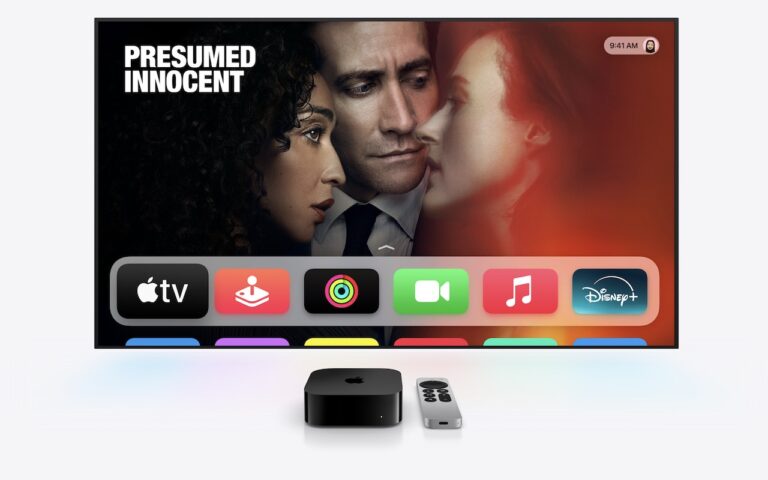
    Apple TV got some updates this week and just in time for the NCAA Championship. With the latest software release for Apple TV you can now get the latest NCAA games with an added feature of having two games display on your TV side by side! In addition to being able to watch the latest games, you now have approximately 5000 apps to choose from, including new workout apps. Siri now works better when searching for content, even in the App Store, and you can access your iCloud Photo library. Starting to feel like your apps are getting too cluttered? Easily create folders by dropping app icons onto of each other just like you do on your iPhone or iPad. Dictation, another added feature that can really speak up your search process. Rather than typing through letters one at a time when searching for something specific, you can now use dictation by selecting the Siri button in the search field. I will note, you do have to be in the specific search field, you can’t just use it from the home screen. My favorite updates, one of which works with both the Apple TV and the Apple watch, is the remote app. You can now use your Apple watch to navigate through the options on the Apple TV, a feature that might seem silly to some, but with a small and easily misplaced remote this is bound to be an incredibly valuable new feature. Think the watch is too small to use for a remote? Hook up your Apple bluetooth keyboard! That’s right, you can now use your standard sized keyboard as well.

    I should note, that some of these updates, like the NCAA games, do have additional fees. More and more of us are swaying away from traditional TV and with more options coming to the Apple TV and choosing your content, we are getting closer and closer to paying for only what we want.