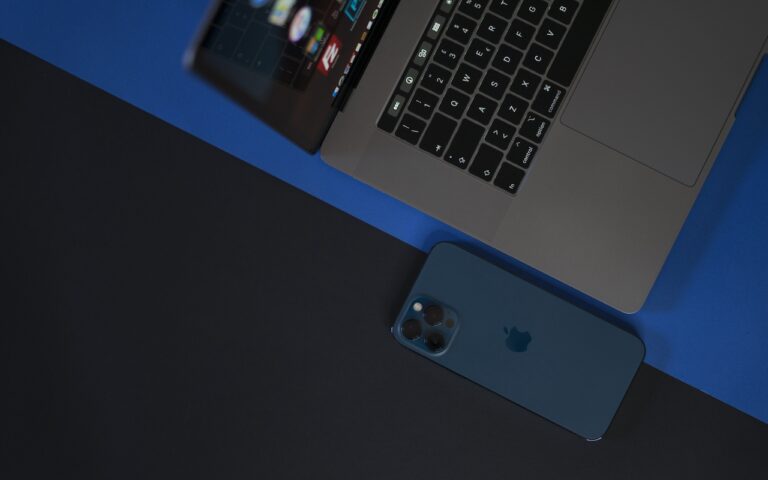
Do you use iCloud for Safari?

With all the news surrounding the government’s attempt to force Apple to write software that doesn’t exist to crack an iPhone, iCloud has been in the news, too! Do you use iCloud? Apple has some huge server farms to support this amazing technology and I thought it would be good to do a brief review of some of the features as they relate to Safari.

iCloud has sort of settled to the back of my mind because it just does its thing in the background and serves up features that I take for granted. But this week, I ran into a dilemma that puzzled me for some time. I noticed that I had accidentally deleted one of my folders in my Safari favorites bar. These were important bookmarks and I needed them back. Well, like a good boy, I have a Time Machine backup and quickly went back in time and restored my Safari bookmarks from a time before I had deleted them. Good stuff, but when I went to look the next morning, the folder was gone again. This happened a few times with me going back in time to get the .plist file. Then I figured it out – I had Safari active in iCloud so my bookmarks were being synced in the cloud. So, every time I restored it, it would eventually be overwritten by iCloud. The solution? Really sort of simple, I turned off Safari in iCloud preferences and turned it back on, problem solved.

Activating Safari in iCloud gives you some great tools. You can start browsing on your iPad and pick up seamlessly from your Mac or you iPhone. It syncs your bookmarks and tabs and if you also use iCloud Keychain it will remember all those passwords for the websites you visit. If you use the reading list function of Safari it will also keep those current across your devices.

As with the other features of iCloud, the features only work if you are signed on with the same Apple ID on all of your devices. It won’t know that you are signed onto one AppleID with your Mac and another with your iPhone. Most common issues with iCloud come down to this simple issue. Apple has not made it easy to merge Apple IDs so at least for iCloud you should be consistently using the same Apple ID. Open the iCloud System Preference on your Mac and choose Safari to activate iCloud on your Mac or go to the iCloud Setting on your iPhone or iPad to activate.

You can also access the Safari tabs that you have open on your Mac on your iPhone or iPad. It is a bit different looking on the iPhone or iPad. Open Safari on your iPhone or iPad and then tap the tabs icon. You will see all of your open Safari windows but if you scroll down at the bottom will be all the tabs open on your Mac and you can click on any of those to make it active.
Similar Posts

  • Expand your mind…er..text

    Speed Up Your Fingers with Text Expansion

    With all the advances in computing and communications, it’s amazing that–after nearly 150 years!–we still use the keyboard layout from the world’s first practical typewriter for entering text into our Macs, iPhones, and iPads. Sure there are some improving dictation solutions out there but typing is by far how we input text. But we have not gotten that much better as typists, nor do we enjoy typing more–if anything, we increasingly abbreviate to avoid typing, hence “LOL, BRB, etc.” Text messaging aside, wouldn’t it be nice to be able to type less without compromising meaning or making your text look like it was composed by a trained monkey? Thanks to text expansion features built into OS X and iOS, and extended with third-party utilities, you can.

    For basic text expansion capabilities in OS X, look in System Preferences > Keyboard > Text, and in iOS 9, go to Settings > General > Keyboard > Text Replacement. For both, you can enter a phrase, and a shortcut that expands into that phrase when typed and followed by a space or punctuation character. (Tip: If text expansion doesn’t work in a Mac app like Mail or Safari, make sure Edit > Substitutions > Text Replacement is selected.)

    If you’re signed into the same iCloud account on both your Mac and your iPhone, for instance, the text expansions sync between them automatically. So, you can type “smh” and tap the Space bar to get “Shaking my head!” typed out for you, regardless of what device you’re using. (Another tip: don’t create abbreviations that you will also want to type normally. It might seem like a good idea to use “np” for “No Problem,” but that will get in the way of talking about Nurse Practitioners.)

    With such a useful feature built into OS X and iOS, why would you want to spend money on a third-party utility, like “**TextExpander**”:https://smilesoftware.com/textexpander (Mac and iOS), “**Typinator**”:http://www.ergonis.com/products/typinator/ (Mac), or “**TypeIt4Me**”:http://www.ettoresoftware.com/products/typeit4me/. Unfortunately, OS X’s text expansion feature doesn’t work in all apps (it likely won’t work if the app lacks the Edit > Substitutions > Text Replacement menu command). The interface for creating new substitutions is cramped and hard to work with, you can’t configure the trigger characters that cause abbreviations to expand, and you can’t include text with styles, variable text like the date, or even graphics.

    That’s where text expansion utilities shine. They can include styled text and graphics in expansions, insert the current date and time, respect case when expanding abbreviations, include the contents of the clipboard in expanded text, automatically fix common typos, create fill-in-the-blanks snippets that you customize on each expansion, and much more.

    Here are some ideas for the kinds of things you might want to turn over to your computer for typing:
    Long or complex words or phrases, such as scientific names. Aedes aegypti, anyone?

    *Your address, phone number, and email address. One of my favorites is “@d” which inserts my email address. I get real tired of typing email address, phone numbers, etc. Text expansion speeds that up!

    *Boilerplate text for common email replies.

    *The current date and/or time.

    *Special characters, so blb could expand to the British pound symbol £.

    *Unix commands for Terminal, such as using ssh to log in to a remote computer.

    I am sure you can come up with dozens that might work for you and speed up your typing. So think about what bit of text you might want expand automatically and give text expansion a try today!

  • Emily's Favorite Mac Accessories

    I am the kind of gal that admittedly likes gadgets and accessories just because they are cool, I don’t even need to have a use for them to make me want one! If there is a new iPad case, a new speaker, a new product announcement from Apple, I want it. This has resulted in a vast collection over the years of all kinds of gadgets, gizmos and some stuff that I just hang onto for no good reason other than I might need it one day. Some things have been a bit of a fad, others have stood the test of time. Over the years I have found that I few items in my collection of gadgets that have either become invaluable or the kind of item that really stands the test of time.

    p{text-align: center;}. !http://blog.smalldog.com/images/4651.jpg!

    My first must have and favorite gadgets are portable bluetooth speakers, and I have had several over the years. The battery powered speakers from Skullcandy I had were one of my most favorite pocket sized speakers! It took up little room in my bag and I could have my music wherever I wanted. You never realize how much you miss having music wherever you go until you start to use these kinds of speakers and then suddenly don’t have them! I eventually outgrew my little Skullcandy speakers and upgraded to a larger but still portable Altec system. This speaker system went everywhere with us. In fact, it still travels with us in our camper even though it features a 30 pin connection for our phones. What I loved most about this set up was that it had a rechargeable battery, so unlike my little Skullcandy speakers I didn’t need to worry about carrying around spare AA batteries. It also allows me to use a 3.5mm headphone cable and an FM radio. I recently started to use the “**Outdoortech Turtle Shell**”:http://www.smalldog.com/product/85338/outdoor-tech-turtle-shell-2-0-rugged-wireless-boombox-electric-blue speakers to replace the old Skullcandy speakers for immediate portable sound, and as a huge bonus this speaker is bluetooth, something none of my previous portable units had. I will admit, I still haven’t found a better replacement for my aging Altec portable speaker as far as sound quality goes, but I will also admit finding a newer solution would require my having to let go!

    My second must-have gadget is an airport express base station. You might be surprised that it is not the Airport Extreme. Why do I love the “**airport express**”:http://www.smalldog.com/product/80932/apple-airport-express-base-station-802-11n-wi-fi so much? Well part of it might be a bit nostaglic. It was my first introduction into wireless speakers. How cool was it to plug in my Harmon Kardon speakers, simply tap my iPhone while sitting on the couch, and my speakers came to life like magic? But the great features don’t stop there. It’s a really powerful and inexpensive wireless router. For many, we don’t have huge areas we need to cover with wireless. Maybe it’s just a small apartment, or perhaps your house just isn’t that big. When I first started to use the airport express the one draw back was that the only ethernet port had to be designed (in most cases) for your internet modem, but in recent years Apple has added a second ethernet port allowing for more flexibility and versatility with this little gem.

    p{text-align: center;}. !http://blog.smalldog.com/images/4650.jpg!

    iPad and iPhone cases are another huge weakness of mine. I probably have no less then five cases for my phone and for my iPad. You could say I collected cases like some girls collect shoes! But on a serious note, this is a very important accessory for your iPhone or your iPad. Some folks prefer form fitting and minimal, others prefer a more rugged case. I have come to prefer several cases. However, I think cases that combine both slim form factor and serious protection are the “**Lifeproof**”:http://www.smalldog.com/wag900002119 cases. I have one for my phone and one for my iPad. What I love most of them is that they come off easily! I don’t always want a heavy duty case on my devices, but have found that many cases that offer greater levels of protection end up being very difficult to take off your device.

  • Advice for Good Office Ergonomics

    Let’s look at how to keep your body comfortable and healthy when you interact physically with your Mac. In a word: ergonomics. You’ll…