Tips for Setting Up a Comfortable and Effective Home Work Space
Vast numbers of people who previously reported for work at an office every day are now working from home due to the COVID-19 pandemic. That’s sensible, and if you’re included in that group, there was probably even a little thrill of “I get to work from home!” at first. But as those who have telecommuted for years know, it’s not as simple as settling down on the couch with your laptop. Here are a few tips.
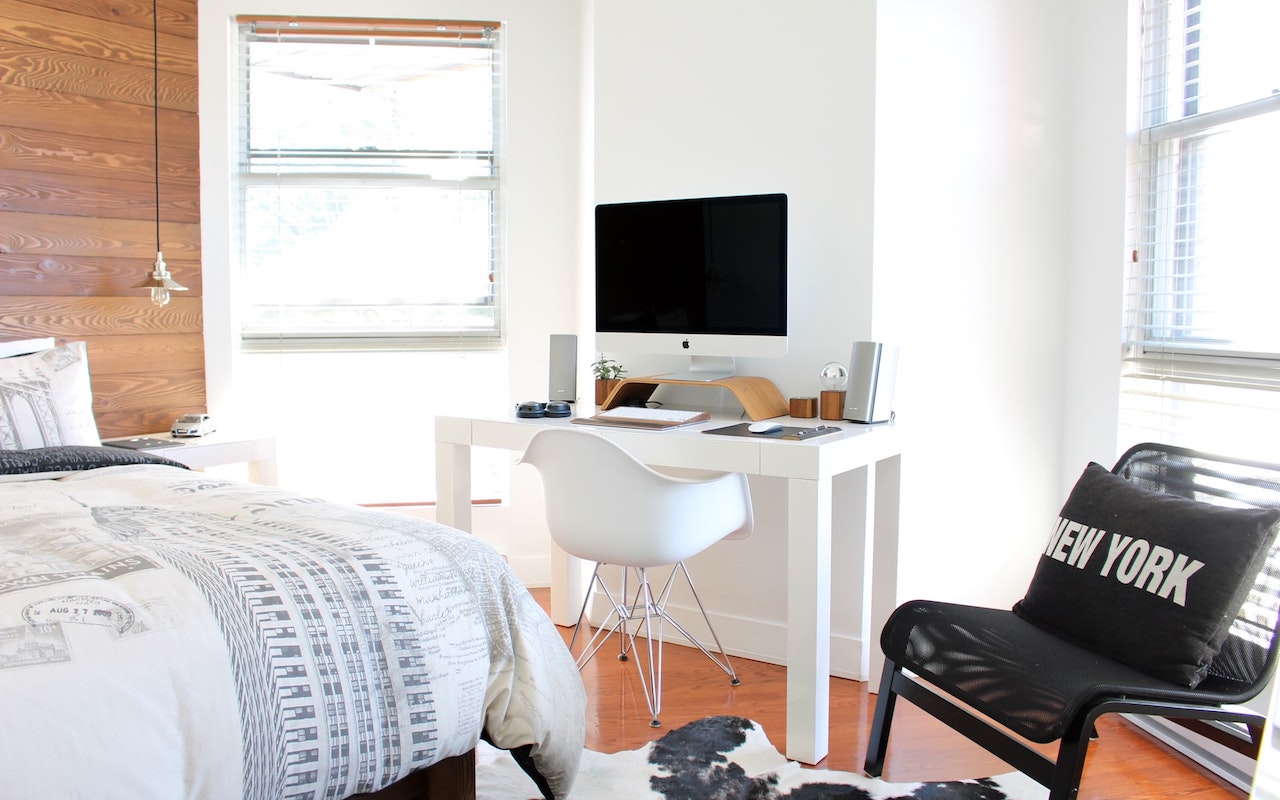
Make a Dedicated Work Space, If Possible
Particularly if you’re not home alone, you’ll want to create a space that’s dedicated to working. Otherwise, it’s difficult to focus on work instead of what’s happening in your home. A spare bedroom with a door is ideal, of course, because it lets you avoid the fridge, the TV, and your family, who may also be trying to work or do schoolwork at home.
But if you don’t have an extra room, or if you need to share it with your spouse and kids, think about ways you can create individual spaces, perhaps with bookcases or makeshift curtains.
Either way, your goal is to avoid seeing and hearing others. Your partner’s activities can be distracting, and listening to your kids discussing a school project will make focusing on your work all the harder. Sound isolation can be difficult to achieve in an open room, but that’s what earbuds are for. Those with noise-canceling capabilities, like the AirPods Pro, would be best.
Pay attention to lighting as well. Putting your monitor against a window probably won’t work well during the day, and overhead lighting can cause glare.
Set Up an Ergonomic Working Environment
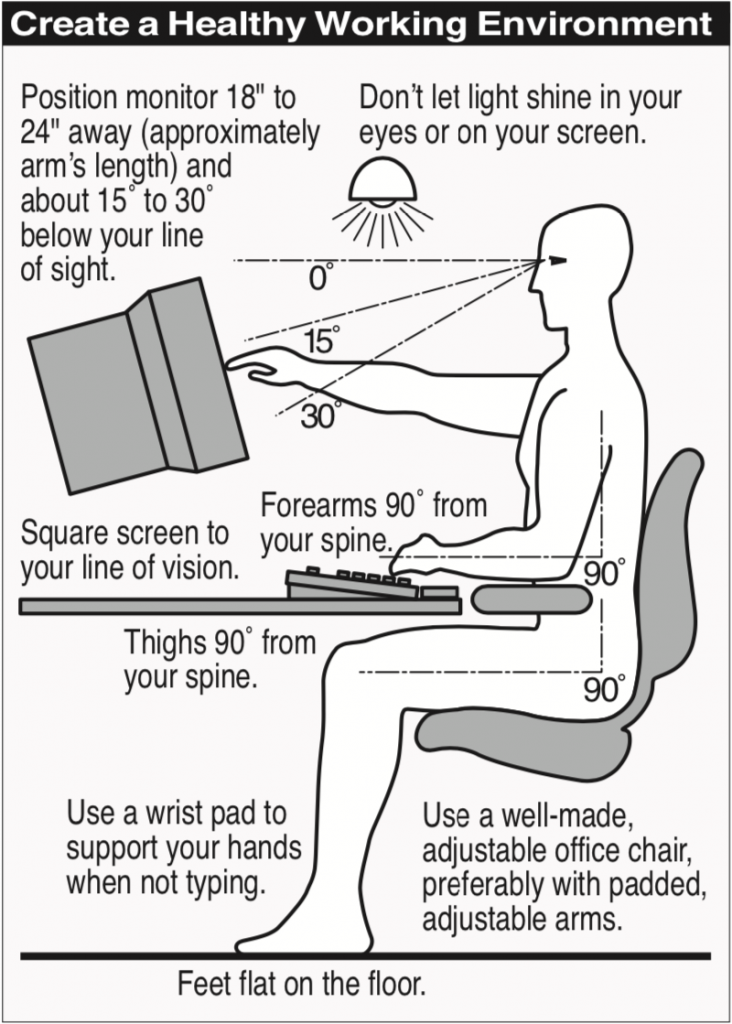 It’s unlikely that your home office furniture is equivalent to what you have at work, but if you’re going to be putting in full workdays at home, you need to pay attention to ergonomics.
Many tables are slightly too high to sit at comfortably with your feet flat, your hips at a 90-degree angle, and your hands floating comfortably above the keyboard, with your elbows at a 90-degree angle. Do what you can to achieve that position; if necessary, raise the chair and add a footstool.
Good, inexpensive chairs with height adjustments can be hard to find, though the IKEA Flintan is well-reviewed and only about $80. A small pillow can provide lumbar support if necessary. Try to make sure the arms, if present, are low—you should use them only when not typing.
It’s difficult to achieve good ergonomics while working on a laptop, or, even worse, an iPad because you’re almost always looking down too far. With a MacBook, you can achieve the ideal sightline either by attaching a large monitor that you can position at the right height or by raising the MacBook and using a separate keyboard and mouse or trackpad at the proper typing height.
Potentially Upgrade Your Internet Connection
Even beyond whatever apps you need to do your work, it’s likely that you’ll end up doing a fair amount of videoconferencing. You may need to increase the throughput of your Internet connection, and it’s important to remember that upload and download speeds are separate. You usually have much higher download speeds, so focus on the upload speed when evaluating your plan.
Apps vary in their bandwidth requirements, but you can consider a 1 megabit per second (Mbps) upload speed a safe minimum, with 3 Mbps being sufficient for nearly any video calls you’ll need to make. The download speed should be at least equivalent to the upload speed, but that will almost always be true.
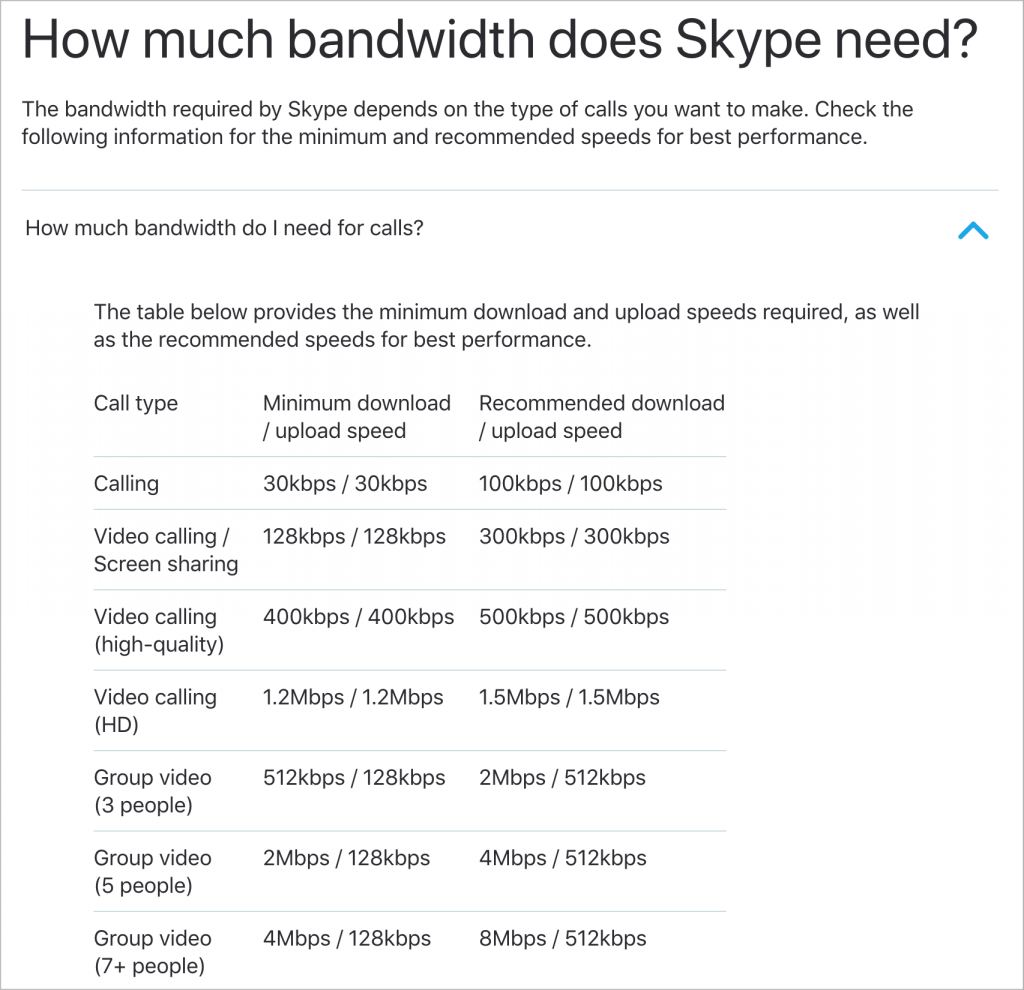
If your current connection isn’t fast enough, contact your Internet service provider. More throughput will usually cost more, but ideally, your ISP can just change some settings to upgrade you. In some cases, a new cable modem or similar network hardware may be necessary, and in the worst case, you may need a new cable from the street. Whatever you do, try to avoid any plan that comes with a bandwidth cap!
Don’t be afraid to compare prices if you have multiple providers, and even if you have sufficient bandwidth now, it may be worth calling to see if plan prices have dropped since you subscribed.
Upgrade Wi-Fi Hardware
Finally, if the only place in your home that you can work isn’t well served by your current Wi-Fi router, it might be time to upgrade. That’s particularly true if you’re working on old AirPort base stations from Apple.
For creating a Wi-Fi network that has the most coverage, look into mesh networking gear like Velop. The beauty of mesh networking is that you can add another router or beacon to extend the network without complicated setup.

That said, contact us before ripping your network apart, because on-site visits to fix problems may be difficult or impossible for a while.
(Featured image by Gabriel Beaudry on Unsplash)
Social Media: Working from home like the rest of us? Here’s our advice on setting up a comfortable and effective workspace.