How to Disable Inline Predictive Text Suggestions

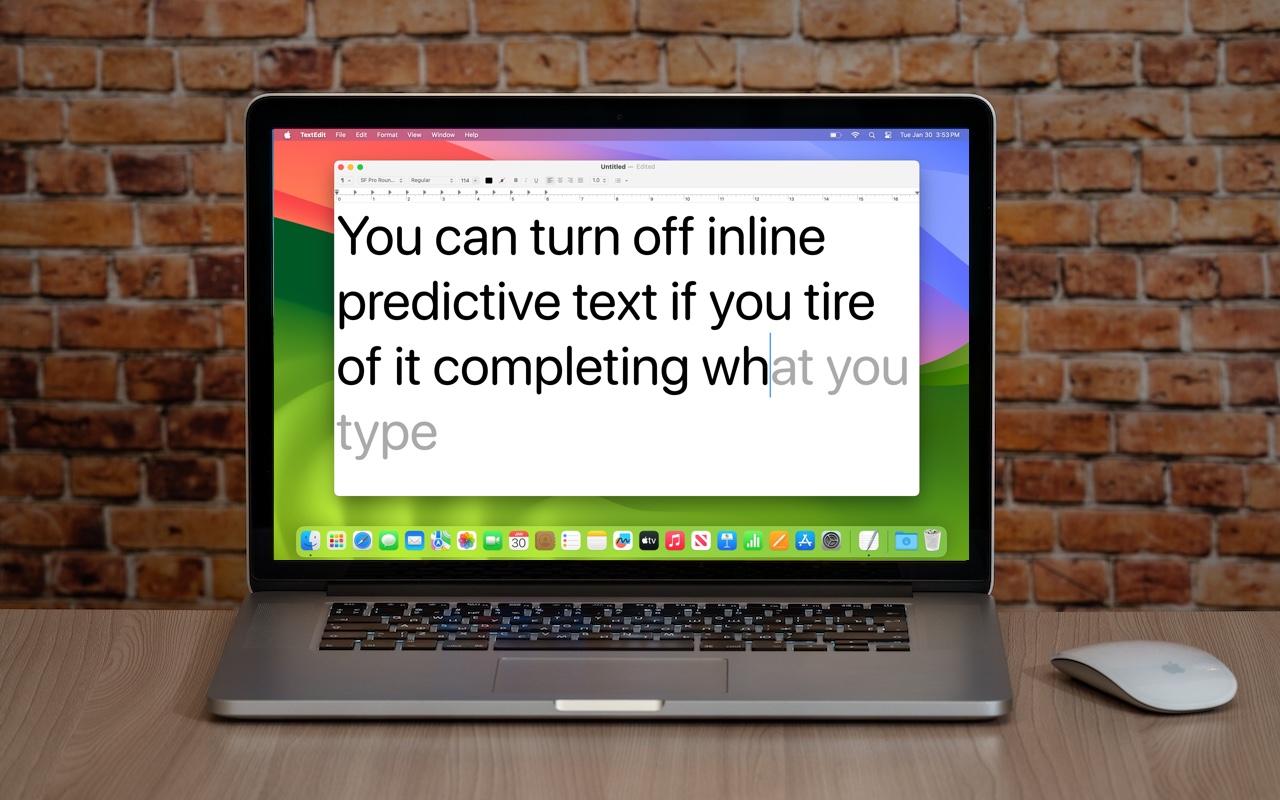
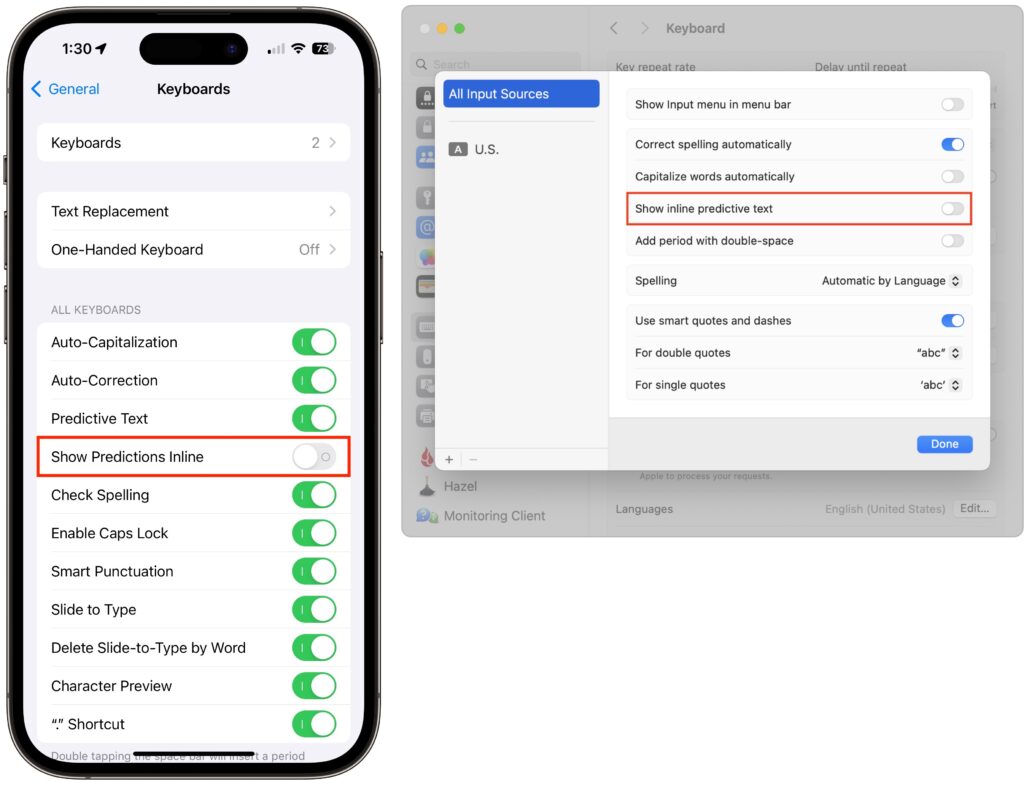
In a slight nod to the hype surrounding generative AI, Apple added inline text prediction capabilities to the iPhone, iPad, and Mac. They can be helpful, particularly on the iPhone and iPad, where it’s often much easier to tap the Space bar than to finish typing a word or sentence. But that’s less true on the Mac, where a fast typist can be slowed down or derailed by the suggestions, and some people dislike having an AI finish their thoughts. The feature is easily turned off. On the iPhone and iPad running at least iOS/iPadOS 17.2, go to Settings > General > Keyboard and switch off Show Predictions Inline. (Leave Predictive Text on to continue to get suggestions above the keyboard.) On the Mac running macOS 14.2 Sonoma or later, open System Settings > Keyboard, click Edit under the Text Input header, turn off “Show inline predictive text,” and click Done.
(Featured image based on an original by iStock.com/Armastas)


Social Media: If you’re not a fan of the new inline text predictions on your iPhone, iPad, or Mac, you can easily turn them off and get back to typing only the words you want to appear.

Similar Posts

  • Find Some Ham Amidst Your Email Spam

    Spam filters work pretty well—99% of the messages in your spam mailbox are probably spam. But it’s frustrating to miss an important message…

  • _Dear Friends,_

    Don’s making the voyage home this week from Key West back to the Green Mountains. He’s in for a bit of a shock when he gets back. Mother Nature seems to have gotten a bit confused this week. I mentioned in the fall that I was taking a new stance on winter and was going to embrace it this year and I truly did my best though we didn’t see much snow. But when we get a snow in late April, I choose to just ignore it. I didn’t bother to shovel off my deck and I left the hose to water my horses just thrown on the ground. In the end both these decisions only made my life harder. I had to lug water buckets for my horses as my hose was not only frozen to the ground, but frozen itself because I didn’t take the time to drain the water out of it. All the slush and snow I ignored on my deck was a sprained ankle waiting to happen and my screen door only opened halfway once everything froze back up. Well, let’s just hope this was finally the last of it and spring will finally show up for real. It always looks a little funny when the trees are starting to bud and there is still snow on the ground.

    The snow this week was a bit of a shock to many of us, and so was the latest financial report from Apple. For the first time in 13 years, Apple’s financial report showed lower than expected sales figures. iPhone sales showed their first decline since their release and iPad sales have been sluggish for several quarters now, but we’ll have more on this later in Kibbles.

    This week’s Kibbles & Bytes exclusive is perfect for the on-the-run Mom on your list or anyone who is on the go and trying to fit time in for themselves between home and the office. This week only, save $40 on this perfect on-the-run bundle. Get the OutDoor Tech Kodiak mini, the BlueAnt Pump Mini headphones and the Belkin Slim-Fit Plus armband for “**$99.97**.”:http://www.smalldog.com/wag900002212 This bundle is perfect for ensuring the mom who does it all can keep can keep her phone going to capture those special moments or squeeze in an important call during her workout.

  • Errata

    Last week a typo slipped by our proofers. Command+M is not open a new document but that command is Command+N. Sorry about that. To make up for it here are a couple more keyboard combinations you might find handy:

    **Command-Option-Esc** – If an app stops responding, you might need to force it to quit. You can do that with a right click on the app icon in the dock, but it’s even easier if you hit this keyboard shortcut. This will bring up the Force Quit dialog, which you can then use to make that non-responsive app quit. You might need to Command-Tab you way out of an active frozen app first, though, or use **Command+Shift+Option+Esc** to quit the currently active app.

    **Command-Option-P and R** – Here’s one that might challenge your fingers dexterity. Fortunately, you will hardly ever have to use it but it is used to reset your non-volatile random access memory (NVRAM). Information stored in NVRAM can include speaker volume, screen resolution, start-up disk selection and recent kernel panic information. If you are asked to reset your P-Ram or NVRAM here’s how you do it.

    1) Shut down your Mac
    2) Turn on your Mac
    3) Immediately after you hear the start up sound, hold down the command, option, P and R keys
    4) Hold those keys down until you hear the start up sound again and then release them.