Working Late on Your Mac? Turn on Night Shift to Help Your Sleep

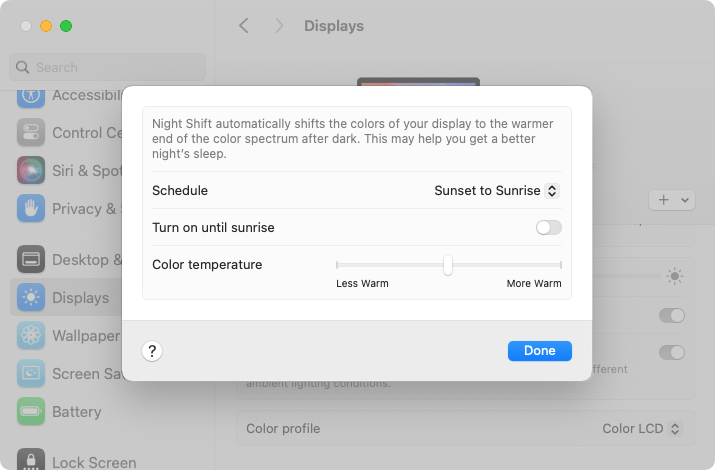
Research suggests that exposure to blue light fools your body into thinking it’s daytime, making it harder to fall asleep if you work late on a Mac with a bright white (which has a lot of blue light) screen. To help, a macOS feature called Night Shift subtly changes the colors of the screen as the sun sets to reduce the amount of blue light hitting your eyes. In essence, everything gets slightly warmer. To configure your Night Shift schedule—so it turns on and off automatically—go to System Settings > Displays > Night Shift. You can set any times, but Sunset to Sunrise adjusts for the sun’s movement in your location throughout the year. One warning: if you edit photos or videos, or work on graphics where specific colors matter, Night Shift’s color changes may be problematic.
(Featured image by iStock.com/PeopleImages)


Social Media: If you regularly work at your Mac late at night and have trouble falling asleep, consider turning on Night Shift to reduce your blue light exposure. By default, it makes the colors of your Mac warmer from sunset to sunrise.


Similar Posts

  • Advice for Good Office Ergonomics

    Let’s look at how to keep your body comfortable and healthy when you interact physically with your Mac. In a word: ergonomics. You’ll…

  • _Dear Friends,_

    I have become super aware of mosquitos with all the news about the Zika virus. For some reason biting insects just love me whether they are super tiny no-see-ums here in the Keys or slightly larger ones in Vermont they seem to be attracted to me. The first thing that I noticed about the mosquitos down here is that they are tiny compared to the ones that come out every year in Vermont. Seriously though, this Zika virus seems like a very serious health epidemic with the World Health Organization calling it a crisis. They have a pretty serious mosquito control program down here with guys that go door to door to look for standing water and spraying year around.

    Apple announced their holiday quarter financials and they beat the estimates on the street and posted the most revenue and profit ever for Apple and in a truly remarkable factoid, the most profit generated in a quarter by any public corporation, EVER. I will talk about the financial results below but let’s just say if Apple has reached a plateau it sure is a lofty one! Just to contrast that a bit against the other guys, Samsung reported a 40% decline in profits. They posted about a $15.8 billion profit for the entire year which Apple crushed in a single three month period!

    This week’s Kibbles & Bytes exclusive features the “**Apple Certified Reconditioned 21 inch iMac**.”:http://www.smalldog.com/wag900002135/special-apple-certified-reconditioned-21-5in-imac-2-7ghz-w-applecare-for-1099 This iMac is configured with a 2.7GHZ i5 processor 8GB of ram and a 1 TB hard drive. This model has the latest 802.11ac wireless protocol and comes with the same 1 year warranty as new iMacs. We are bundling it with Applecare so instead of a 1 year warranty you get 3 years and instead of 90 day days of free Apple technical support you get 3 years too. Kibbles & Bytes readers can purchase this special bundle for “**$1099!**”:http://www.smalldog.com/wag900002135/special-apple-certified-reconditioned-21-5in-imac-2-7ghz-w-applecare-for-1099 That’s the lowest price ever for a warrantied iMac with Applecare!

  • Errata

    Last week a typo slipped by our proofers. Command+M is not open a new document but that command is Command+N. Sorry about that. To make up for it here are a couple more keyboard combinations you might find handy:

    **Command-Option-Esc** – If an app stops responding, you might need to force it to quit. You can do that with a right click on the app icon in the dock, but it’s even easier if you hit this keyboard shortcut. This will bring up the Force Quit dialog, which you can then use to make that non-responsive app quit. You might need to Command-Tab you way out of an active frozen app first, though, or use **Command+Shift+Option+Esc** to quit the currently active app.

    **Command-Option-P and R** – Here’s one that might challenge your fingers dexterity. Fortunately, you will hardly ever have to use it but it is used to reset your non-volatile random access memory (NVRAM). Information stored in NVRAM can include speaker volume, screen resolution, start-up disk selection and recent kernel panic information. If you are asked to reset your P-Ram or NVRAM here’s how you do it.

    1) Shut down your Mac
    2) Turn on your Mac
    3) Immediately after you hear the start up sound, hold down the command, option, P and R keys
    4) Hold those keys down until you hear the start up sound again and then release them.