Understanding the Key Differences Between Personal and Managed Apple IDs
In the Apple world, the account that controls access to all your Apple-related online services is the Apple ID. Buying apps from the App Store, putting photos in iCloud Photos, and sharing data between iCloud-enabled apps—all these actions rely on your Apple ID. If you’re a regular Apple user, you have an Apple ID associated with your email address.
Most Apple users set up an Apple ID when they configure their first Apple device, and if you don’t have an email address that you want to use, you can create a free @icloud.com address during the process. (If you need to create a new Apple ID, you can do that at appleid.apple.com.)

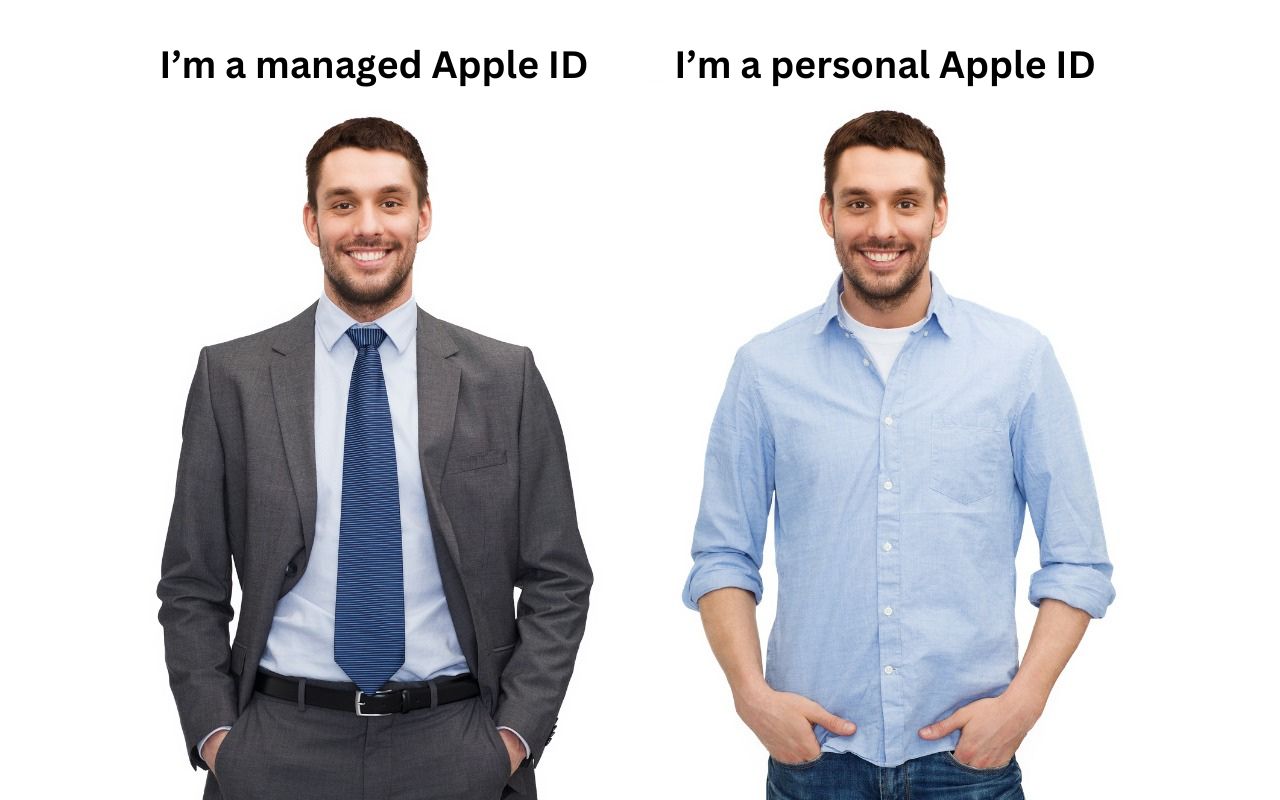
There are actually two types of Apple IDs: personal Apple IDs used by individual users and managed Apple IDs given to employees by businesses and other organizations. Managed Apple IDs are popular with companies that give devices to staff members and need to ensure compliance with various usage and security policies. Let’s look at how they differ:
- Creation, ownership, and control: Individuals set up personal Apple IDs on their own and maintain full ownership over the account and control over the device. Managed Apple IDs are set up by the organization, typically through Apple Business Manager, and the organization retains ownership and control for centralized management. That control is essential when an employee leaves. Otherwise, a company may be unable to reset a returned device and give it to another employee.
- Access to Apple services: Personal Apple IDs have full access to all Apple services and features. Managed Apple IDs have much more limited access to protect the organization from unauthorized purchases and insecure behavior. Users with managed Apple IDs can’t purchase anything from the App Store, iTunes Store, or Apple Books. Nor can they access Apple Arcade, Apple Fitness+, Apple Music, Apple Music radio, Apple News+, or Apple TV+. The Find My, Health, Home, Journal, and Wallet apps aren’t available or fully functional. Plus, Apple Pay, iCloud Family Sharing, iCloud Mail, and iCloud+ services like Private Relay, Hide My Email, and custom email domains are unavailable.
- Security and management: When a device relies on a personal Apple ID, that user is responsible for maintaining security and managing apps (which will belong to the user). That’s appropriate for individuals, but for companies that need to protect corporate information, managed Apple IDs allow the IT department to enhance security by requiring passcodes, enforcing password policies, setting role-based permissions, and separating work and personal data. On the management side, managed Apple IDs make it easier to reset devices, revoke access, comply with legal and privacy regulations, integrate with corporate identity systems, and centralize app licensing.
Though some organizations may prevent it, it is technically possible to use both types of Apple IDs on the same device. For instance, you could use a managed Apple ID on an employer-provided device along with a personal ID to access the App Store, Apple Music, Apple News+, and other Apple services. To do that on an iPhone, you’d go to Settings > Your Name > Media & Purchases and either sign in with your personal Apple ID or, if necessary, tap Sign Out and sign back in.
What’s the takeaway? There are three possibilities, depending on who owns the device and the employer’s security and management policies:
- Personal device not used for work: If you’re a regular user who has purchased your own device and you either don’t use it for work or your employer doesn’t care what you do, all you need is a single personal Apple ID. Although it’s possible to create multiple Apple IDs and use them for different purposes, it’s a recipe for confusion down the road.
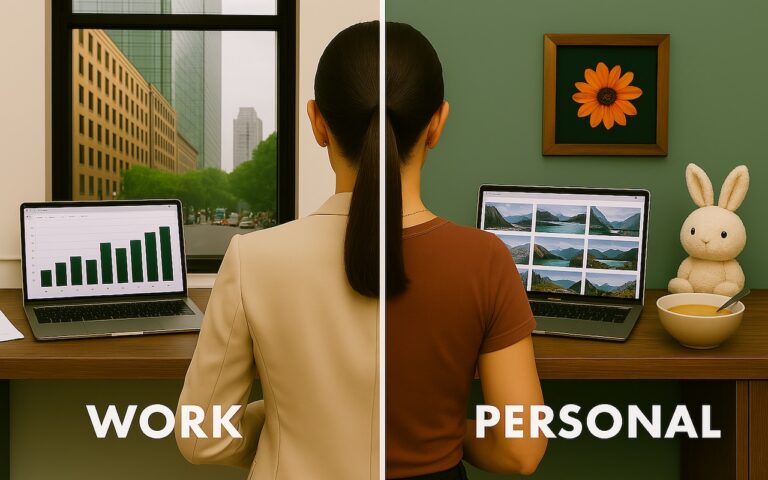
- Personal device used for work: If your employer has a BYOD (Bring Your Own Device) program that lets you use your own device with corporate resources, they will likely ask to use Apple’s User Enrollment to create a profile on the device that separates personal and work data and allows the use of both personal and managed Apple IDs. Although the IT department cannot access your personal data (emails, messages, photos, location, etc.), it can enforce security policies, install and configure work-related apps, and control corporate data on the device. Some people find the privacy implications of this approach troubling and opt for separate work and personal devices.
- Employer-provided device: If your employer provides a device for your use, they will likely require you to use a managed Apple ID on it. That prevents you from having to worry about security or management, but comes with some restrictions on what you can do. Talk to your IT department if you also want to use your personal Apple ID on the device.
Hopefully, we’ve clarified the situation surrounding personal and managed Apple IDs. Which makes the most sense in any given situation depends on a wide range of variables, so contact us if you need to talk through the possibilities as either an employee or employer.
(Featured image based on an original by iStock.com/dolgachov)
Social Media: There are actually two types of Apple IDs: personal and managed. Regular users have personal Apple IDs; those who use employer-provided devices are often required to use managed Apple IDs. Learn more about both.