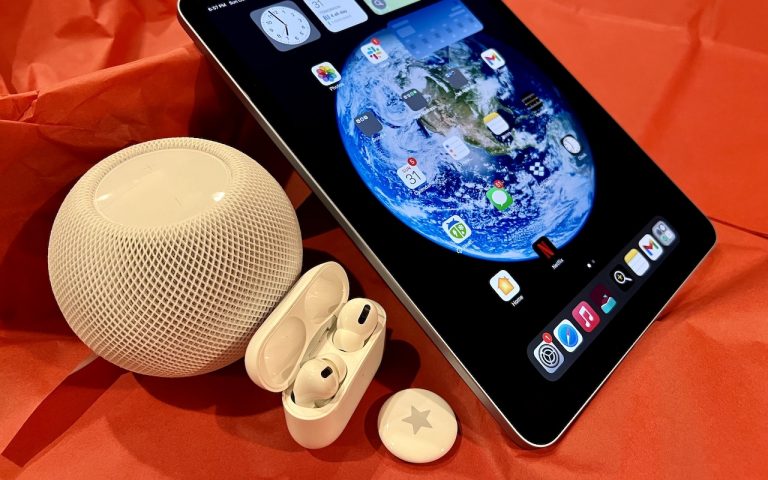
Keep Your Apple Devices Cool in the Summer Heat

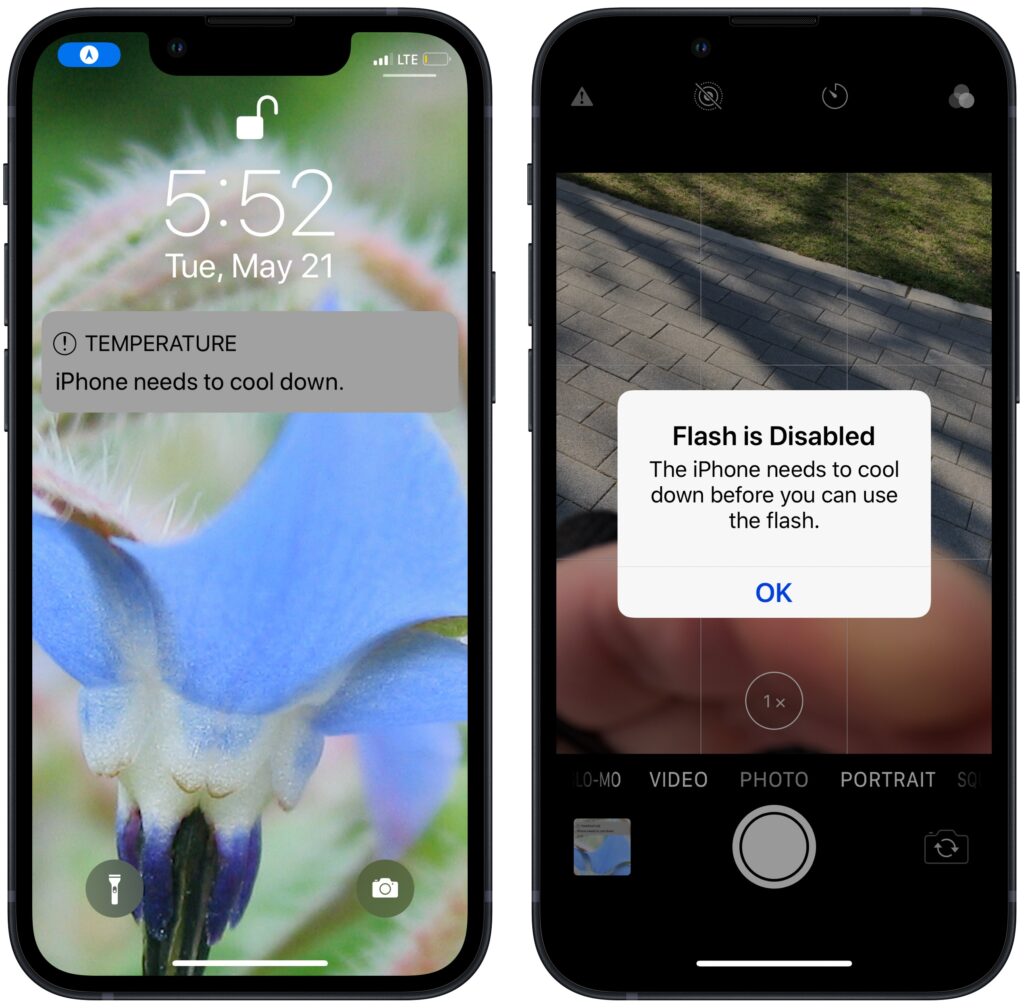
June 2023 was the hottest month on record for the planet, at least until July 2023. Among the many ill effects of such heat are what it does to iPhones, iPads, Macs, Apple Watches, and other digital devices. Excessive heat shortens the overall lifespan of lithium-ion batteries and increases the likelihood of both transient errors and hardware failures—iPhones warn you when they’re getting too hot because of these issues. Apple recommends using nearly all its devices in conditions no hotter than 95ºF/35ºC and storing them in locations that don’t exceed 113ºF/45ºC. (The exception is the adventurous Apple Watch Ultra, which can be worn in temperatures up to 130ºF/55ºC.) The most common place to avoid is a car parked in the sunshine on a hot day, which can easily exceed 130ºF within an hour and rise from there. So don’t leave your iPhone in the car during an afternoon at the beach!
(Featured image by iStock.com/Jorge Garcia Argazkiak)


Social Media: As many parts of the world struggle with record heat waves, remember that excessive heat—operating temperatures over 95ºF/35ºC—is harmful to portable electronic devices like the iPhone, iPad, and Apple Watch. Keep your digital friends cool!

Similar Posts

  • Never Paste Unknown Text into Terminal!

    Here’s a new scam to watch for. A client reported running across a suspicious website masquerading as a human verification test. Instead of…

  • iOS 26 Can AutoFill Credit Card Details

    Sadly, not all websites and apps support Apple Pay, so we’ve become accustomed to manually entering our credit card information into fields, like…

  • Do you use iCloud for Safari?

    With all the news surrounding the government’s attempt to force Apple to write software that doesn’t exist to crack an iPhone, iCloud has been in the news, too! Do you use iCloud? Apple has some huge server farms to support this amazing technology and I thought it would be good to do a brief review of some of the features as they relate to Safari.

    iCloud has sort of settled to the back of my mind because it just does its thing in the background and serves up features that I take for granted. But this week, I ran into a dilemma that puzzled me for some time. I noticed that I had accidentally deleted one of my folders in my Safari favorites bar. These were important bookmarks and I needed them back. Well, like a good boy, I have a Time Machine backup and quickly went back in time and restored my Safari bookmarks from a time before I had deleted them. Good stuff, but when I went to look the next morning, the folder was gone again. This happened a few times with me going back in time to get the .plist file. Then I figured it out – I had Safari active in iCloud so my bookmarks were being synced in the cloud. So, every time I restored it, it would eventually be overwritten by iCloud. The solution? Really sort of simple, I turned off Safari in iCloud preferences and turned it back on, problem solved.

    Activating Safari in iCloud gives you some great tools. You can start browsing on your iPad and pick up seamlessly from your Mac or you iPhone. It syncs your bookmarks and tabs and if you also use iCloud Keychain it will remember all those passwords for the websites you visit. If you use the reading list function of Safari it will also keep those current across your devices.

    As with the other features of iCloud, the features only work if you are signed on with the same Apple ID on all of your devices. It won’t know that you are signed onto one AppleID with your Mac and another with your iPhone. Most common issues with iCloud come down to this simple issue. Apple has not made it easy to merge Apple IDs so at least for iCloud you should be consistently using the same Apple ID. Open the iCloud System Preference on your Mac and choose Safari to activate iCloud on your Mac or go to the iCloud Setting on your iPhone or iPad to activate.

    You can also access the Safari tabs that you have open on your Mac on your iPhone or iPad. It is a bit different looking on the iPhone or iPad. Open Safari on your iPhone or iPad and then tap the tabs icon. You will see all of your open Safari windows but if you scroll down at the bottom will be all the tabs open on your Mac and you can click on any of those to make it active.

  • Setting Up and Managing iCloud+ Storage

    Apple’s online iCloud storage underpins many of the company’s services, including iCloud Photos, iCloud Drive, iCloud Backup (for iPhones and iPads), iCloud Mail,…