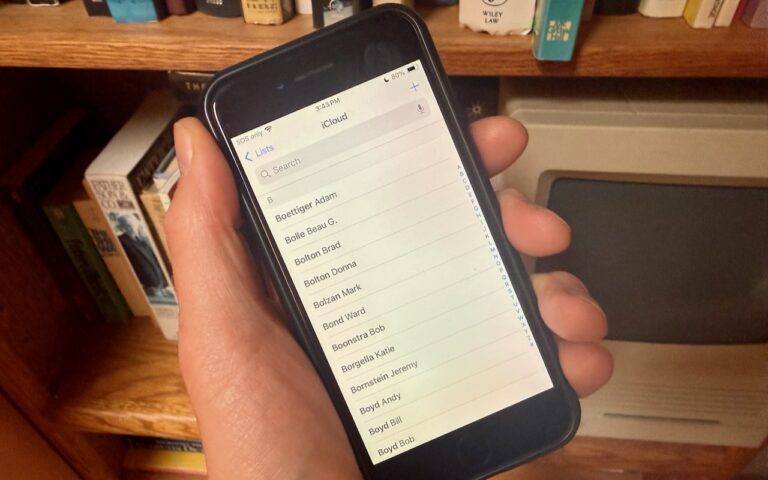
Remember the Magnifier App When You Need to Read Tiny Text

Trying to make out a tiny serial number or some fine print you can barely read can be frustrating. Years ago, Apple added a magnifier mode to its accessibility options and turned the feature into a standalone app in iOS 14. You can find the Magnifier app in the Utilities folder in your App Library (swipe left on the Home Screen until you get there), open it by voice (“Hey Siri, open Magnifier.”), and add it to Control Center (Settings > Control Center). Its special camera viewfinder is zoomed automatically, but you can change the zoom level with the slider and tap the flashlight icon to add illumination—more controls can be added by tapping the gear icon. Tap the round shutter button to freeze the image (tap it again to resume). Double-tap the viewfinder to hide all the controls, and double-tap again to bring them back.

(Featured image based on an original by iStock.com/serggn)

Social Media: The built-in Magnifier app on the iPhone and iPad is a godsend when trying to make out a tiny serial number or anything else that’s too small to read easily.
Similar Posts

  • A Swinging Hot Spot in Paradise

    You are visiting Key West, accompanied by your trusty iPhone and MacBook Air. Suddenly there’s an emergency at work, and you need to get online with your Mac. You can pick up a cell signal with the iPhone, but there’s no Wi-Fi that isn’t locked up. Well, my first thought might be “oh well, I’m on vacation!” but you are dedicated and need to be online.

    Don’t worry! You can use your iPhone’s cellular data plan to create a personal Wi-Fi hotspot that lets your Mac access the Internet through your iPhone. Also called “tethering,” it’s fast, easy, and can be a life-saver when you just have to get online with a Mac or your Wi-Fi-only iPad. It supports up to 5 users, too, which means you can get your team online, too!

    Before we explain how to do set up a personal hotspot, note that most but not all cellular carriers allow tethering on existing plans. For some, you might have to pay more for tethering. Keep in mind that any data consumed by your Mac while tethered will count against your data allowance and may generate overage fees. Carriers with “unlimited” data, like T-Mobile and Sprint, generally throttle your bandwidth to slower speeds if you use too much data.

    Along those lines, if you use a file sharing service like Dropbox or Google Drive, or an Internet backup service like CrashPlan or Backblaze, turn them off before connecting. Particularly if they haven’t connected in a while, those services can transfer a lot of data quickly, which could result in a hefty overage charge or awkward data throttling for the rest of the month.

    With those warnings out of the way, follow these steps in iOS 9 to turn on Personal Hotspot:

    1. On your iPhone, if you’ve never enabled the feature before, go to Settings > Cellular > Personal Hotspot. Once you’ve turned Personal Hotspot on once, it moves up a level, so you can access it from Settings > Personal Hotspot.
    1. Tap on Wi-Fi Password and enter a password that’s at least 8 characters long and easy to type. It doesn’t need to be super secure because you can keep Personal Hotspot turned off unless you’re using it. But you do want a password so random people nearby can’t connect and use your data.
    1. Once you’ve entered a password, slide the Personal Hotspot switch.

    That’s it! The Personal Hotspot screen provides basic instructions for connecting to the iPhone via Wi-Fi, Bluetooth, and USB. Stick with Wi-Fi, since it’s the easiest and most reliable in most cases.

    • To connect to your new Personal Hot Spot on your Mac, click the Wi-Fi icon in the menu bar and choose your iPhone’s name.
    • On your iPad, go to Settings > Wi-Fi and choose your iPhone.
    • Enter your password when prompted, making sure to select Remember This Network. That way, you won’t even have to enter your password the next time.
    • The Mac or iPad then connects to your iPhone, showing a hotspot icon instead of the usual wave icon for the Wi-Fi menu.

    Could it get any simpler? When you’re done, the safest thing to do, to ensure you don’t accidentally end up using too much of your data allowance, is to turn off the Personal Hotspot switch in Settings > Personal Hotspot. Your Mac or iPad will automatically disconnect.

    Actually, it CAN be simpler! Your Mac can automatically use the personal hotspot on your iPhone to connect to the Internet when they’re within range of each other.

    Use Instant Hotspot on your iPhone (with iOS 8 or later) to provide internet access to your Mac computers and other iOS devices (with OS X Yosemite or iOS 8) that are in range and signed into iCloud using the same Apple ID. Instant Hotspot uses your iPhone — you don’t have to enter a password or even turn on Personal Hotspot.

    Make sure your iOS device and your Mac are signed into iCloud with the same Apple ID.

    On your Mac, click the Wi-Fi status icon in the menu bar, then choose your iPhone or iPad.

    After you connect to the iPhone or iPad Personal Hotspot, you can check the cellular signal strength and the battery status of the iPhone or iPad in the Wi-Fi status menu.

    When you’re not using using the hotspot, your devices automatically disconnect to save battery life.

    One more big advantage of Personal Hot Spots. When you are shopping for that new iPad, perhaps you don’t need the cellular model if you nearly always have your iPhone handy. That’s what I do. If I need internet access on my Wi-Fi iPad, I simply connect to my Hot Spot! Saves me the added cost of a cellular-enabled iPad and the monthly fees from the cell carrier!

  • Errata

    Last week a typo slipped by our proofers. Command+M is not open a new document but that command is Command+N. Sorry about that. To make up for it here are a couple more keyboard combinations you might find handy:

    **Command-Option-Esc** – If an app stops responding, you might need to force it to quit. You can do that with a right click on the app icon in the dock, but it’s even easier if you hit this keyboard shortcut. This will bring up the Force Quit dialog, which you can then use to make that non-responsive app quit. You might need to Command-Tab you way out of an active frozen app first, though, or use **Command+Shift+Option+Esc** to quit the currently active app.

    **Command-Option-P and R** – Here’s one that might challenge your fingers dexterity. Fortunately, you will hardly ever have to use it but it is used to reset your non-volatile random access memory (NVRAM). Information stored in NVRAM can include speaker volume, screen resolution, start-up disk selection and recent kernel panic information. If you are asked to reset your P-Ram or NVRAM here’s how you do it.

    1) Shut down your Mac
    2) Turn on your Mac
    3) Immediately after you hear the start up sound, hold down the command, option, P and R keys
    4) Hold those keys down until you hear the start up sound again and then release them.