At WWDC, Apple Unveils Apple Intelligence and Previews New OS Features

Apple’s Worldwide Developer Conference keynote was a lightning-fast (even in the full 1:44-long video—or try the 3-minute recap) look at what Apple is bringing to the software side of the Apple experience in the next year. Although some past keynotes have introduced hardware like new Macs and the Vision Pro, this year’s keynote stuck to new operating system features before previewing a suite of AI features collected under the umbrella term “Apple Intelligence.”

Apple previewed a boatload of new features and listed even more on its website. We’ll focus on those we think will make the biggest splash in your Apple experience, but we recommend that you scroll through Apple’s pages for each operating system to see more of what’s coming. Those are linked below, along with basic hardware requirements so you can see if your devices will be eligible to upgrade (not all features will be available on all devices):

  • macOS 15 Sequoia: iMac Pro from 2017, MacBook Pro and Mac mini from 2018 and later, iMac and Mac Pro from 2019 and later, MacBook Air from 2020 and later, and Mac Studio from 2022 and later
  • iOS 18: Second-generation iPhone SE, iPhone XR, and later (same as iOS 17)
  • iPadOS 18: Seventh-generation iPad and later, fifth-generation iPad mini and later, third-generation iPad Air and later (including M2 models), first-generation 11-inch iPad Pro and later, and third-generation 12.9-inch iPad Pro and later, and all M4 iPad Pro models
  • watchOS 11: Second-generation Apple Watch SE, Apple Watch Series 6 and later, and Apple Watch Ultra and later
  • tvOS 18: Apple TV HD (with fewer features), Apple TV 4K
  • visionOS 2: All Vision Pro headsets

Here are a handful of new features we think Apple users will find most interesting. Then we’ll look at Apple Intelligence.

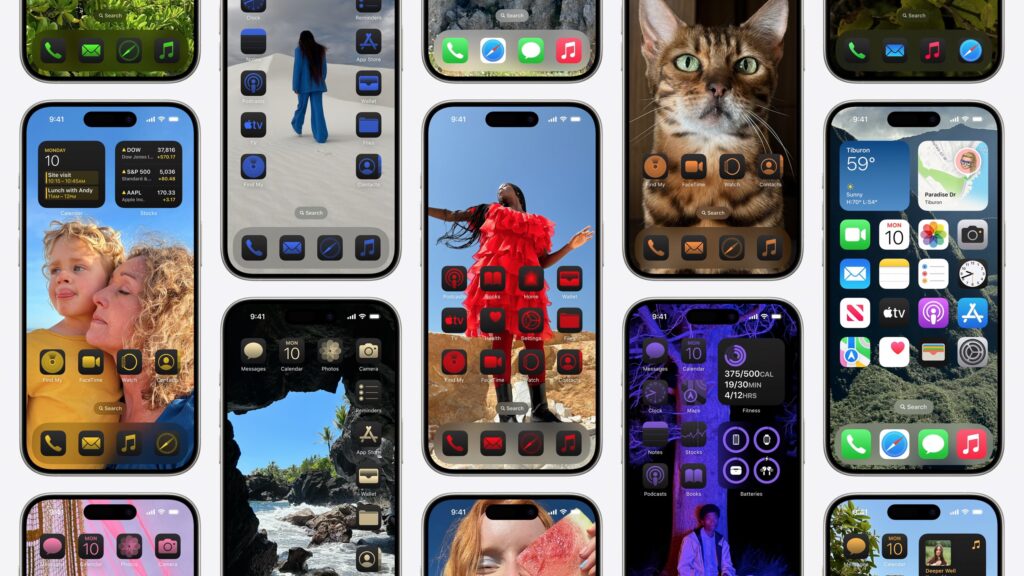
Personalize Your iPhone and iPad Home Screen

iOS 18 and iPadOS 18 introduce significantly enhanced Home Screen customization options aimed at letting your creativity shine through. You can leave blank spaces between icons and arrange icons and widgets however you like. Additionally, you can change the size of icons and widgets and apply color tints.
Screenshot

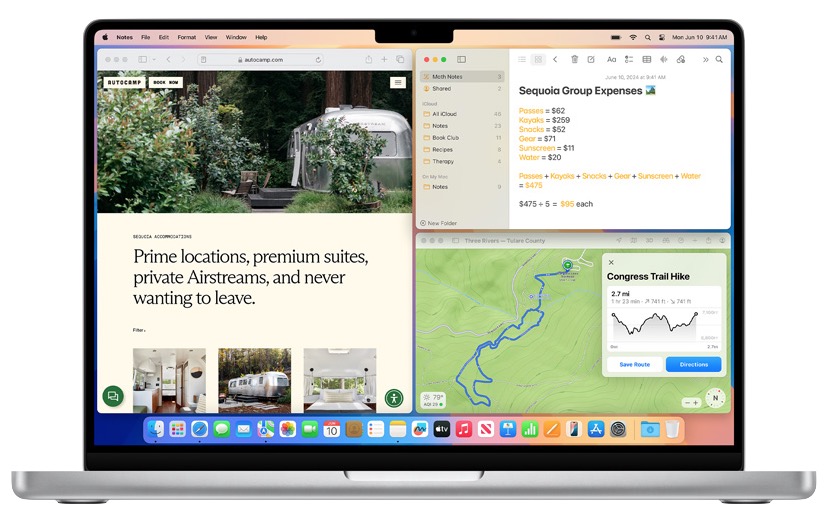
Tile Windows Automatically in Sequoia

macOS has long had a subtle window alignment effect that makes it easy to line up windows, but in macOS 15 Sequoia, when you drag a window to the side of the screen, macOS suggests a tiled position on your desktop, intelligently sizing it for the window’s content. Window tiling makes it easy to put windows side-by-side and fill the screen without wasting space. Keyboard jockeys will appreciate new keyboard shortcuts for window tiling as well. (If you don’t want to wait for Sequoia, numerous utilities offer similar features now, including  Amethyst, BetterTouchTool, Magnet, Moom, Rectangle, and Yabai.)
Notes and Phone Gain Audio Recording and Transcription

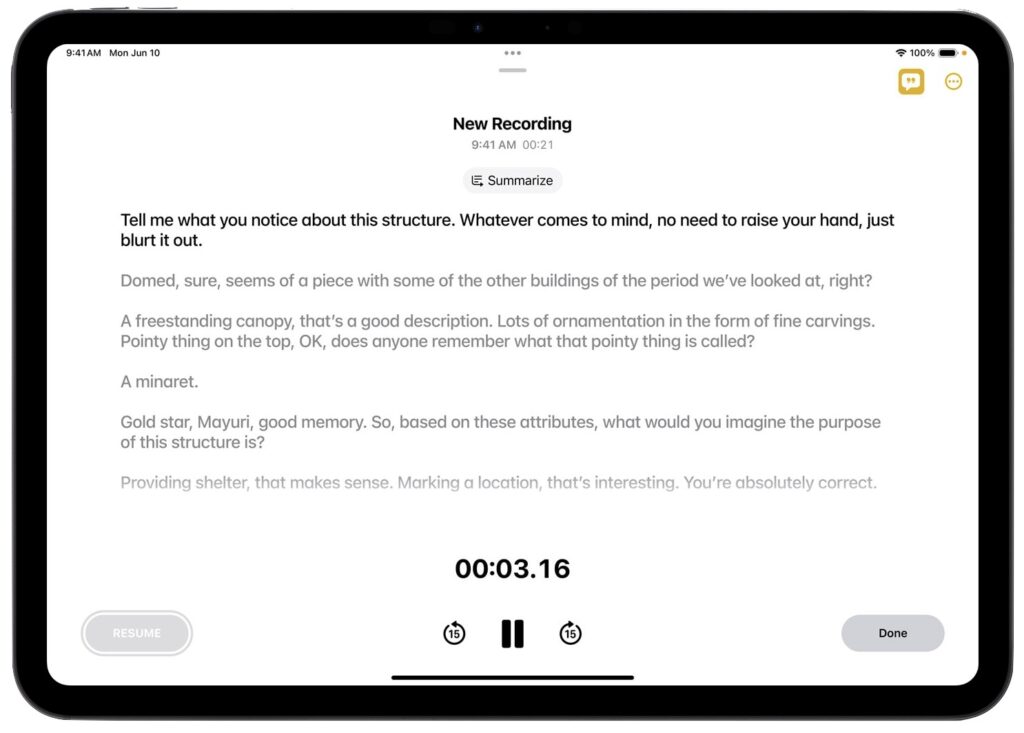
If you find yourself wanting to revisit what was said in a lecture, appointment, or phone call, a pair of upcoming features can boost your recall. The Notes app on all platforms will record audio and create live transcriptions, allowing you to pay attention during a talk rather than furiously taking notes. Plus, the Phone app in iOS 18 will let you record and transcribe a live call—when you start recording, participants are automatically notified so everyone knows it’s happening.
Mirror Your iPhone on Your Mac

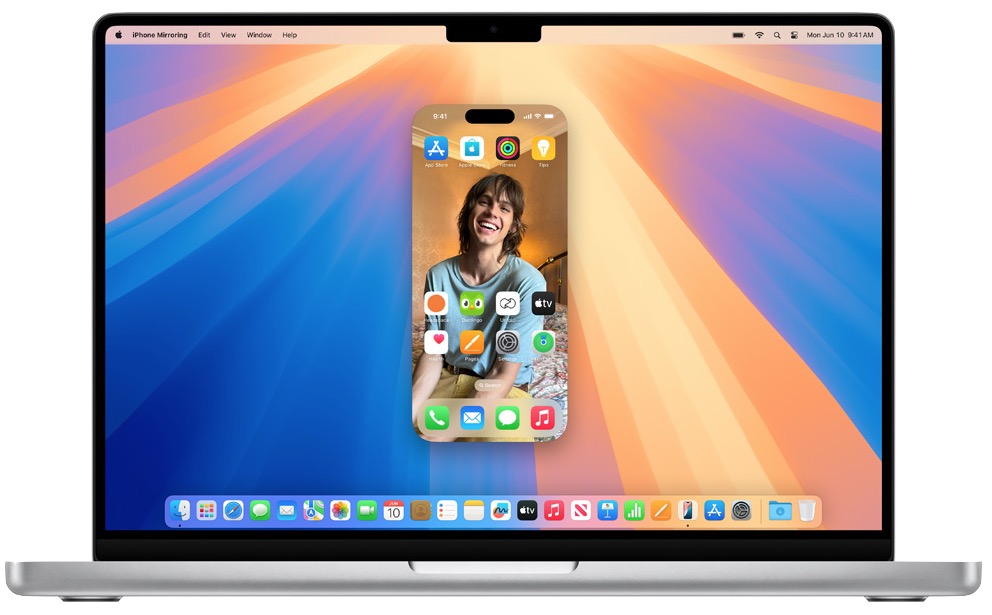
If you frequently pull out your iPhone while working on your Mac, you’ll appreciate Sequoia’s new iPhone mirroring feature. It lets you use your Mac’s pointing device and keyboard to interact with all your iPhone apps in a window on your Mac while the iPhone remains locked or in StandBy. Audio from the iPhone plays through your Mac, and you can share data between devices with drag and drop. A related Continuity feature displays iPhone notifications on your Mac—when mirroring your iPhone, clicking those notifications opens the associated iPhone app.
Passwords Breaks Free of Settings

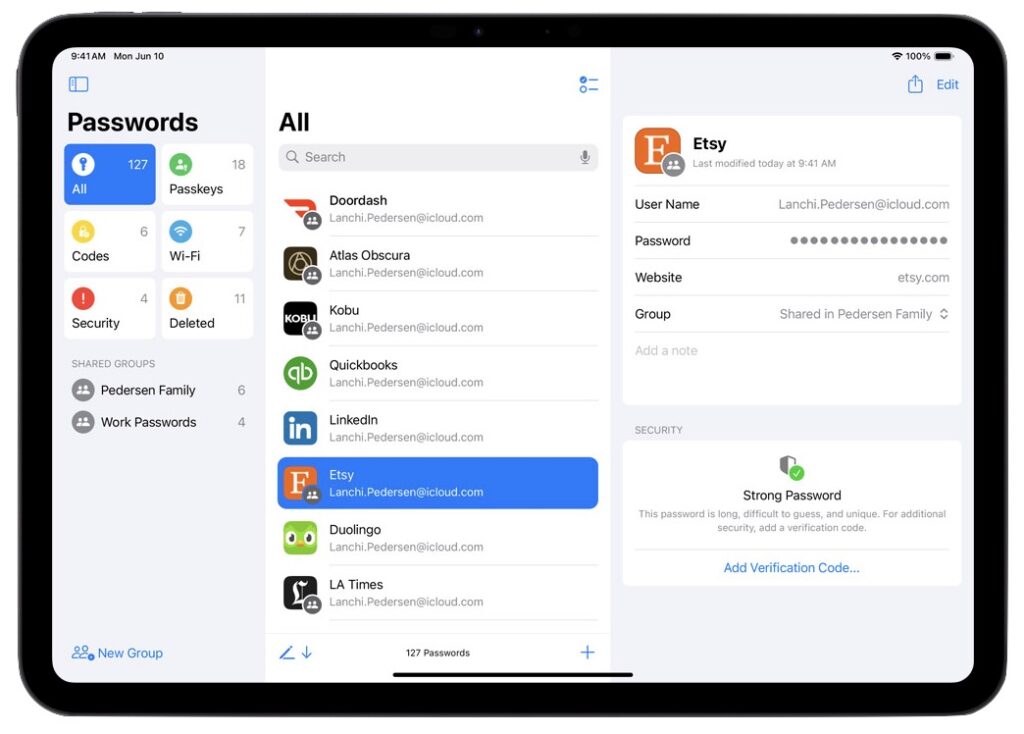
At long last, Apple has given us a dedicated Passwords app in Sequoia, iOS 18, iPadOS 18, and visionOS 2. The company’s password management features have become quite good over the past few years, but they are awkward to access in Settings on the iPhone and iPad and System Settings on the Mac. We don’t anticipate significant feature changes beyond the addition of categories, but the Passwords app should make managing your logins even easier. Passwords still won’t fully match up to the likes of 1Password, but you won’t go wrong with Apple’s built-in solution. Remember that if you use a Web browser other than Safari, you’ll need the iCloud Passwords extension we’ve mentioned previously. You can also share your passwords with a Windows PC using iCloud for Windows.
Five More Welcome Features

For more reasons to upgrade once these new operating systems are out and stable, consider the following additional features:

  • Customize Control Center: iOS 18 and iPadOS 18 feature a thoroughly revamped Control Center, accessible with a continuous swipe down on the Home Screen. You can create custom groups of controls—some from third-party apps—with resizing and mixing options.
  • iPad Calculator app and Math Notes: Not only does the iPad finally get a Calculator app, but it also introduces Math Notes. You handwrite an equation with an Apple Pencil, and when you write an equals sign, Calculator solves the equation. Math Notes works with keyboards, too, and you can also find it in the Notes app.
  • Lock and hide iPhone apps: New privacy features in iOS 18 and iPadOS 18 let you lock apps with Face ID or Touch ID so the friend who’s scrolling through your vacation photos can’t also read your journal. You can also move apps to a hidden folder in the App Library that can’t be opened without biometric authentication.
  • More tapbacks: In Messages, when you want to use a tapback to acknowledge a message without typing out a reply, you’ll be able to use any emoji or sticker, or a new AI-powered Genmoji.
  • Vitals app collects overnight data: When you wear your Apple Watch to sleep, a new Vitals app in watchOS 11 collects and displays your overnight health metrics on your wrist, including heart rate, respiratory rate, temperature, blood oxygen, and sleep duration. It might help you rest up to fight off that cold that’s going around.

Apple usually releases its new operating systems in September or October; we’ll write more about them as we get closer. Generally speaking, it’s OK to upgrade to everything but macOS shortly after release; with macOS, we recommend caution to ensure your existing apps and workflows won’t be impacted.

Apple Intelligence

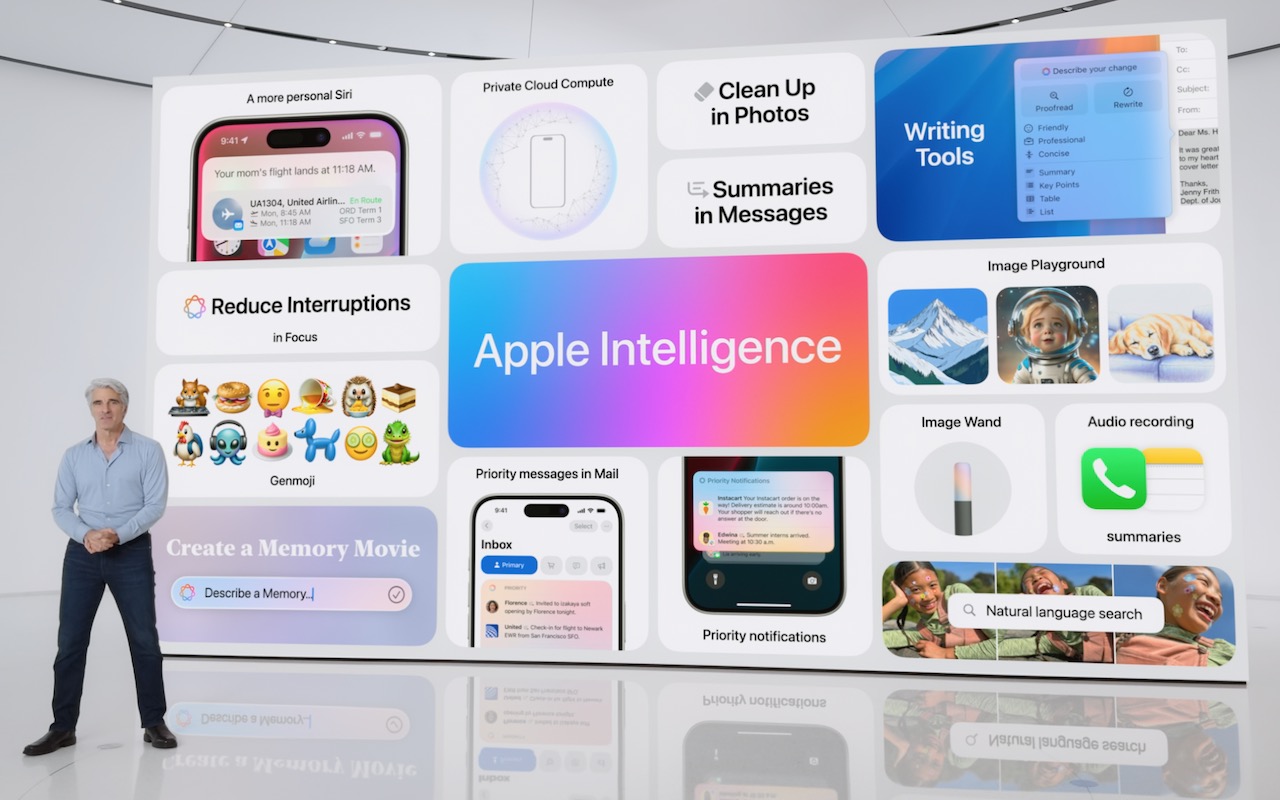
Apple devoted a large chunk of the keynote to introducing Apple Intelligence, a collection of AI-powered features coming to the Apple ecosystem over the next year. These features will enable your iPhone, iPad, and Mac to understand language and create both text and images, plus take actions aimed at simplifying your interactions with apps. What sets Apple Intelligence apart from AI efforts from other companies is its focus on—and understanding of—your personal context. Apple Intelligence will know about your contacts, schedule, email, messages, photos, and much more.
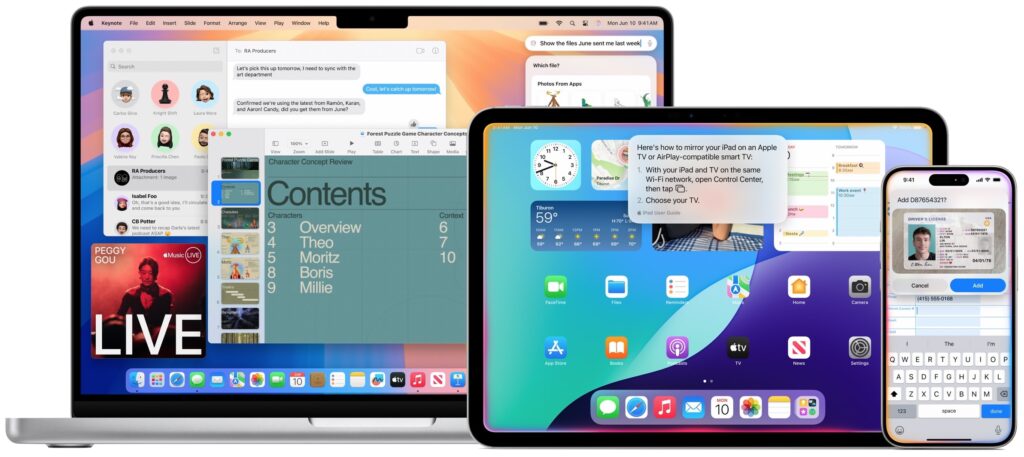
The most significant use of Apple Intelligence will come with Siri, which will let us speak more naturally and understand what we mean if we make mistakes. We’ve trained ourselves to say only things Siri is likely to be able to handle, but that won’t be necessary when Siri gains Apple Intelligence capabilities. You’ll be able to search for photos of your child holding a fishing rod, for instance, or ask Siri to find something when you can’t remember if it was in Mail or Messages. Siri will also gain context awareness, so you can ask what the weather will be like at the beach tomorrow, and if the response is good enough, have it schedule a trip there. Siri will even know a lot more about your Apple devices and can help you use them. For the most part, though, Siri won’t have global knowledge. If Siri can’t answer your query directly, it will offer to send it to ChatGPT for free.
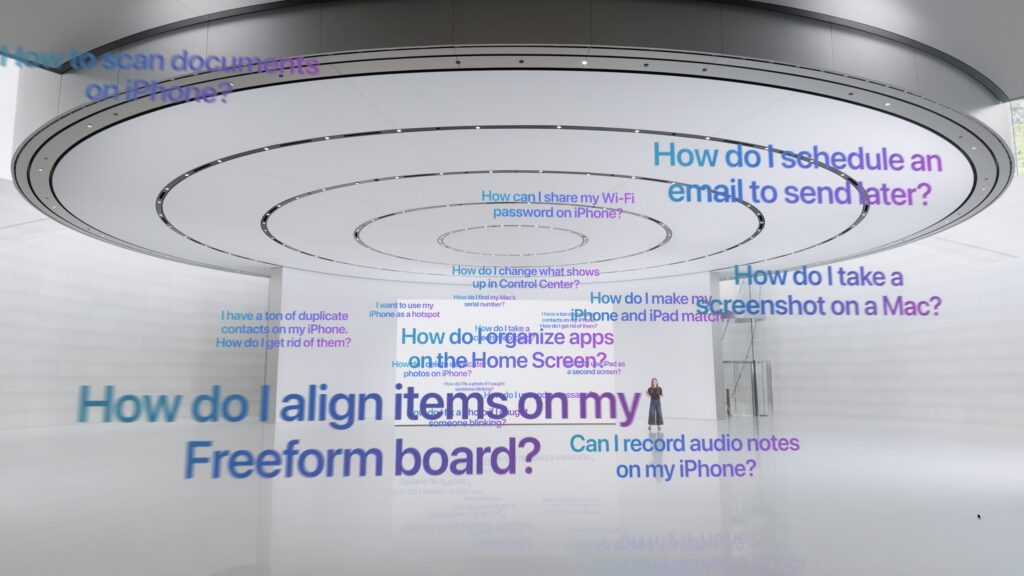
Apple Intelligence also includes writing tools, but unlike ChatGPT, it’s not aimed at creating text from scratch. Instead, it can rewrite text you’ve written to help you fine-tune the wording or adjust the tone to be more appropriate. It can also proofread text, helping you with grammar, word choice, and sentence structure (if you need this now, check out Grammarly). Even when Apple Intelligence does create text, such as the Smart Reply feature coming to Mail, it asks you questions to guide its response.

Text summarization powered by Apple Intelligence shows up repeatedly. In Notes, you’ll be able to summarize a transcription. If you save a long article to Safari’s Reader, it can provide a table of contents and summary. In Mail, instead of the first few sentences appearing in the message list, you’ll get a short summary. Apple Intelligence can even prioritize and summarize notifications.

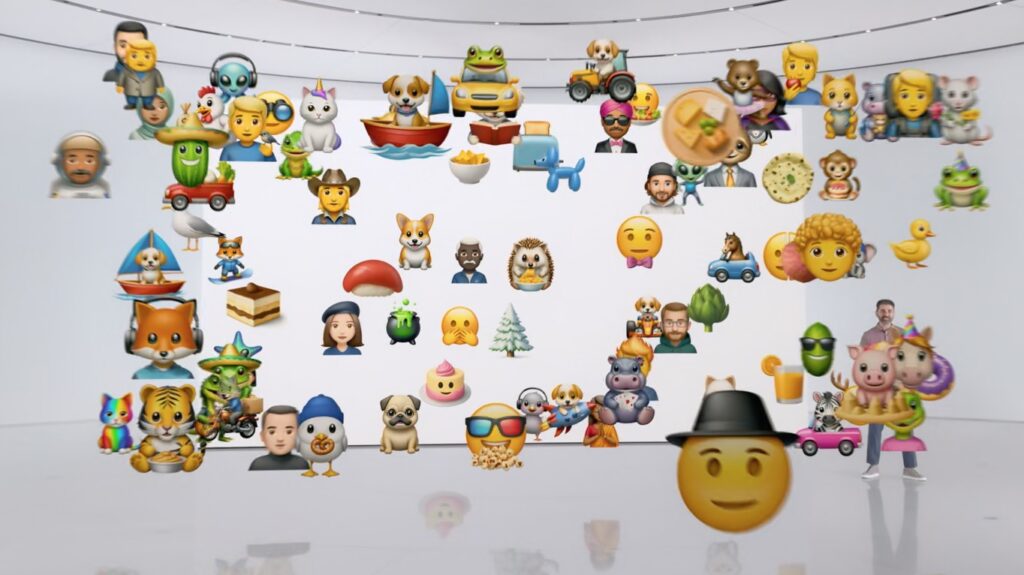
Unsurprisingly, Apple Intelligence lets you create and edit images, but it’s a far cry from the AI artbots that let you create photo-realistic images. Instead, Apple Intelligence lets you create custom emoji, called Genmoji, which let you express yourself graphically in ways that standard emoji can’t support. Image Playground lets you create images for inclusion in conversations and documents, but it limits you to three styles: Sketch, Illustration, and Paint. Apple doesn’t want anyone making deepfakes with Apple Intelligence. A new Image Wand feature in Notes even turns your rough sketches into polished images.
Apple took great pains to emphasize the privacy aspects of Apple Intelligence. Most Apple Intelligence tasks will take place entirely on your device, hence the need for powerful Apple silicon chips with their Neural Engines and Secure Enclaves. Some tasks require more processing power; to handle those, Apple has developed a highly secure system called Private Cloud Compute. It relies on Apple silicon servers, transfers only the data necessary to the task, and stores nothing.

Apple Intelligence features will start arriving in the fall and continue to roll out in feature-release updates over the next 6–8 months. They will run only on the iPhone 15 Pro, iPhone 15 Pro Max, and iPads and Macs with M1 or later chips. Intel-based Macs and less-powerful iPads and iPhones need not apply. Apple Intelligence will also require Siri and the device language to be set to US English in the early releases, with other languages to follow.

Overall, Apple appears to have put a great deal of thought and effort into integrating AI into the Apple experience in focused, helpful ways that offer new capabilities while preserving user privacy. We won’t know how well these features will work until they ship, but we look forward to seeing how they can improve interactions with our Apple devices.

(Featured image by Apple)

Social Media: At yesterday’s Worldwide Developer Conference, Apple announced a treasure trove of new features in its upcoming operating system upgrades, including practical, everyday improvements and impressive AI-based capabilities.
Similar Posts

  • New Urbanears Active Headphones

    So by now, it might be clear that I am a bit of a headphone junkie. I’ve come to the conclusion that I can collect and use headphones like I do bags and purses! In my world I can never have enough, so I jumped on the opportunity this week to test our the new “**Hellas**”:http://www.smalldog.com/wag900002177 and “**Reimers**”:http://www.smalldog.com/wag900002181 from Urbanears.

    The Hellas are an over the ear bluetooth headphone. It took a few minutes to get them paired with my computer. My only complaint about these headphones is that I found the touch-less buttons to be a bit clunky to use. The sleek design means you can’t physically see the buttons, so it take some practice and time to learn where the buttons are. However, there are a ton of other features with these headphones that make them extremely appealing. They are incredibly lightweight, comfortable to wear and they have good sound to them. I think my favorite feature about these is that the fabric on the headband and the earpieces are machine washable. You can actually wash the fabric and return your headphones to new condition. As I just started to use these the other day I have not actually tried to wash the fabric, but as more and more people are working out with over the ear headphones this is a huge selling point. Another hidden feature is that there is a built in microphone, so if you are using these with your iPhone, you can take calls without having to remove your headphones.

    Also part of the active line are the Reimers. They deliver on fit and comfort while providing some great sound! I am impressed with how far ear buds have come over the years. What’s interesting about these headphones is that while they are in the active category, they are actually a wired set of headphones. However, Urbanears added several great features to ensure these headphones can stand up to the intensity of any workout. They have two clips for securing them to your clothing and they feature reflective cabling to light up during early morning or late evening runs. They use a new earlock technology that ensures they stay in during your workout, so no more fears of them falling out during sit-ups, push-ups and the like. I admit I am just a runner, so some of the more intense workouts I’ve not tried these, but judging by how well they stayed in for runs I am confident in saying they will stay put! Last but not least, they feature standard iOS controls we have all grown to expect out of headphones.

  • A Swinging Hot Spot in Paradise

    You are visiting Key West, accompanied by your trusty iPhone and MacBook Air. Suddenly there’s an emergency at work, and you need to get online with your Mac. You can pick up a cell signal with the iPhone, but there’s no Wi-Fi that isn’t locked up. Well, my first thought might be “oh well, I’m on vacation!” but you are dedicated and need to be online.

    Don’t worry! You can use your iPhone’s cellular data plan to create a personal Wi-Fi hotspot that lets your Mac access the Internet through your iPhone. Also called “tethering,” it’s fast, easy, and can be a life-saver when you just have to get online with a Mac or your Wi-Fi-only iPad. It supports up to 5 users, too, which means you can get your team online, too!

    Before we explain how to do set up a personal hotspot, note that most but not all cellular carriers allow tethering on existing plans. For some, you might have to pay more for tethering. Keep in mind that any data consumed by your Mac while tethered will count against your data allowance and may generate overage fees. Carriers with “unlimited” data, like T-Mobile and Sprint, generally throttle your bandwidth to slower speeds if you use too much data.

    Along those lines, if you use a file sharing service like Dropbox or Google Drive, or an Internet backup service like CrashPlan or Backblaze, turn them off before connecting. Particularly if they haven’t connected in a while, those services can transfer a lot of data quickly, which could result in a hefty overage charge or awkward data throttling for the rest of the month.

    With those warnings out of the way, follow these steps in iOS 9 to turn on Personal Hotspot:

    1. On your iPhone, if you’ve never enabled the feature before, go to Settings > Cellular > Personal Hotspot. Once you’ve turned Personal Hotspot on once, it moves up a level, so you can access it from Settings > Personal Hotspot.
    1. Tap on Wi-Fi Password and enter a password that’s at least 8 characters long and easy to type. It doesn’t need to be super secure because you can keep Personal Hotspot turned off unless you’re using it. But you do want a password so random people nearby can’t connect and use your data.
    1. Once you’ve entered a password, slide the Personal Hotspot switch.

    That’s it! The Personal Hotspot screen provides basic instructions for connecting to the iPhone via Wi-Fi, Bluetooth, and USB. Stick with Wi-Fi, since it’s the easiest and most reliable in most cases.

    • To connect to your new Personal Hot Spot on your Mac, click the Wi-Fi icon in the menu bar and choose your iPhone’s name.
    • On your iPad, go to Settings > Wi-Fi and choose your iPhone.
    • Enter your password when prompted, making sure to select Remember This Network. That way, you won’t even have to enter your password the next time.
    • The Mac or iPad then connects to your iPhone, showing a hotspot icon instead of the usual wave icon for the Wi-Fi menu.

    Could it get any simpler? When you’re done, the safest thing to do, to ensure you don’t accidentally end up using too much of your data allowance, is to turn off the Personal Hotspot switch in Settings > Personal Hotspot. Your Mac or iPad will automatically disconnect.

    Actually, it CAN be simpler! Your Mac can automatically use the personal hotspot on your iPhone to connect to the Internet when they’re within range of each other.

    Use Instant Hotspot on your iPhone (with iOS 8 or later) to provide internet access to your Mac computers and other iOS devices (with OS X Yosemite or iOS 8) that are in range and signed into iCloud using the same Apple ID. Instant Hotspot uses your iPhone — you don’t have to enter a password or even turn on Personal Hotspot.

    Make sure your iOS device and your Mac are signed into iCloud with the same Apple ID.

    On your Mac, click the Wi-Fi status icon in the menu bar, then choose your iPhone or iPad.

    After you connect to the iPhone or iPad Personal Hotspot, you can check the cellular signal strength and the battery status of the iPhone or iPad in the Wi-Fi status menu.

    When you’re not using using the hotspot, your devices automatically disconnect to save battery life.

    One more big advantage of Personal Hot Spots. When you are shopping for that new iPad, perhaps you don’t need the cellular model if you nearly always have your iPhone handy. That’s what I do. If I need internet access on my Wi-Fi iPad, I simply connect to my Hot Spot! Saves me the added cost of a cellular-enabled iPad and the monthly fees from the cell carrier!

  • Emily's Favorite Mac Accessories

    I am the kind of gal that admittedly likes gadgets and accessories just because they are cool, I don’t even need to have a use for them to make me want one! If there is a new iPad case, a new speaker, a new product announcement from Apple, I want it. This has resulted in a vast collection over the years of all kinds of gadgets, gizmos and some stuff that I just hang onto for no good reason other than I might need it one day. Some things have been a bit of a fad, others have stood the test of time. Over the years I have found that I few items in my collection of gadgets that have either become invaluable or the kind of item that really stands the test of time.

    p{text-align: center;}. !http://blog.smalldog.com/images/4651.jpg!

    My first must have and favorite gadgets are portable bluetooth speakers, and I have had several over the years. The battery powered speakers from Skullcandy I had were one of my most favorite pocket sized speakers! It took up little room in my bag and I could have my music wherever I wanted. You never realize how much you miss having music wherever you go until you start to use these kinds of speakers and then suddenly don’t have them! I eventually outgrew my little Skullcandy speakers and upgraded to a larger but still portable Altec system. This speaker system went everywhere with us. In fact, it still travels with us in our camper even though it features a 30 pin connection for our phones. What I loved most about this set up was that it had a rechargeable battery, so unlike my little Skullcandy speakers I didn’t need to worry about carrying around spare AA batteries. It also allows me to use a 3.5mm headphone cable and an FM radio. I recently started to use the “**Outdoortech Turtle Shell**”:http://www.smalldog.com/product/85338/outdoor-tech-turtle-shell-2-0-rugged-wireless-boombox-electric-blue speakers to replace the old Skullcandy speakers for immediate portable sound, and as a huge bonus this speaker is bluetooth, something none of my previous portable units had. I will admit, I still haven’t found a better replacement for my aging Altec portable speaker as far as sound quality goes, but I will also admit finding a newer solution would require my having to let go!

    My second must-have gadget is an airport express base station. You might be surprised that it is not the Airport Extreme. Why do I love the “**airport express**”:http://www.smalldog.com/product/80932/apple-airport-express-base-station-802-11n-wi-fi so much? Well part of it might be a bit nostaglic. It was my first introduction into wireless speakers. How cool was it to plug in my Harmon Kardon speakers, simply tap my iPhone while sitting on the couch, and my speakers came to life like magic? But the great features don’t stop there. It’s a really powerful and inexpensive wireless router. For many, we don’t have huge areas we need to cover with wireless. Maybe it’s just a small apartment, or perhaps your house just isn’t that big. When I first started to use the airport express the one draw back was that the only ethernet port had to be designed (in most cases) for your internet modem, but in recent years Apple has added a second ethernet port allowing for more flexibility and versatility with this little gem.

    p{text-align: center;}. !http://blog.smalldog.com/images/4650.jpg!

    iPad and iPhone cases are another huge weakness of mine. I probably have no less then five cases for my phone and for my iPad. You could say I collected cases like some girls collect shoes! But on a serious note, this is a very important accessory for your iPhone or your iPad. Some folks prefer form fitting and minimal, others prefer a more rugged case. I have come to prefer several cases. However, I think cases that combine both slim form factor and serious protection are the “**Lifeproof**”:http://www.smalldog.com/wag900002119 cases. I have one for my phone and one for my iPad. What I love most of them is that they come off easily! I don’t always want a heavy duty case on my devices, but have found that many cases that offer greater levels of protection end up being very difficult to take off your device.

  • Businesses, Don’t Overlook Email Backup

    Cloud-based email services such as Google Workspace and Microsoft 365 dominate the market for organizational email for good reason. Dealing with the constant…