Make Apple Devices Easier for Family to Access with Secondary Biometrics

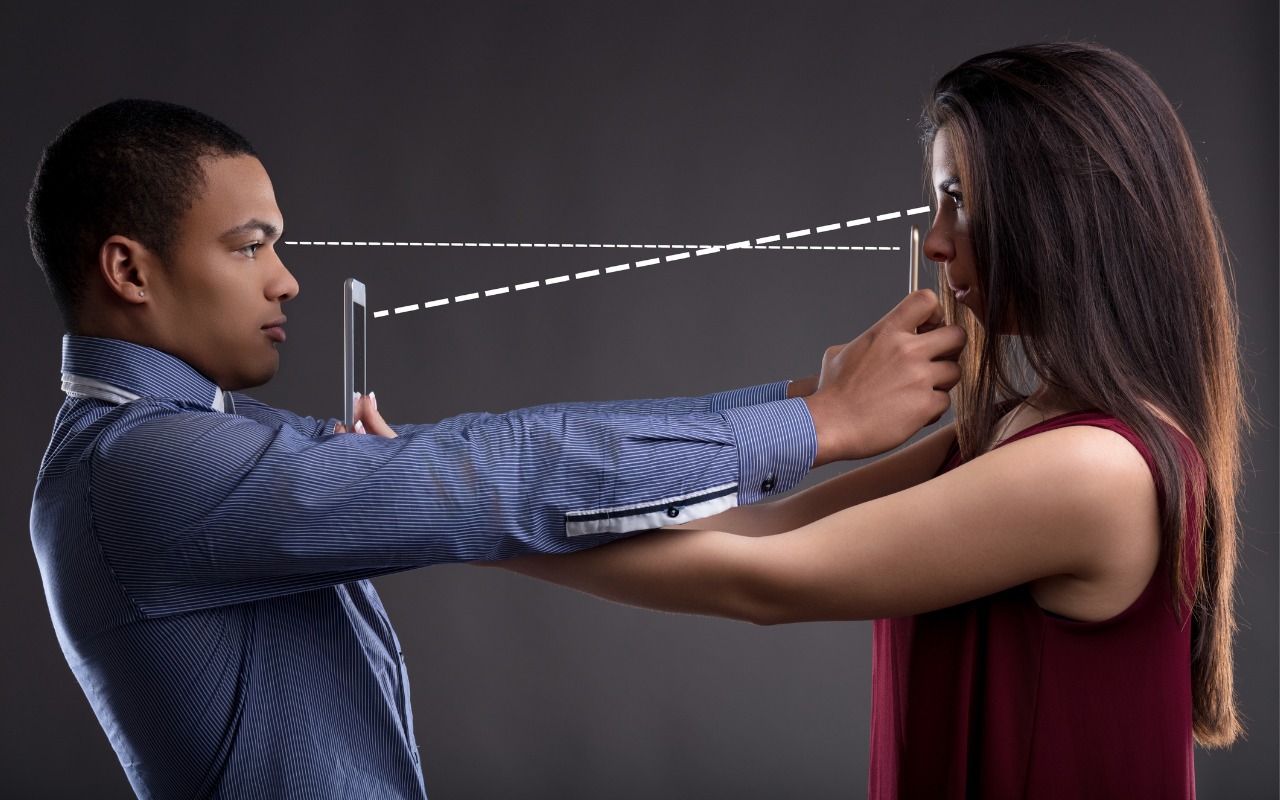
It’s only safe to share your iPhone, iPad, and Mac passcodes and passwords with people you trust completely, which typically includes family members whom you would trust with your healthcare and bank accounts. If those people also use your devices regularly, you can simplify their access by adding their fingerprint to Touch ID or their face to Face ID. Touch ID allows you to add up to five fingerprints, while Face ID provides an option for a second face. Both can be easily set up in Settings > Face/Touch ID & Passcode (iPhone and iPad) and System Settings > Touch ID & Password (Mac).

Screenshot

(Featured image by iStock.com/Giulio Fornasar)


Social Media: Make accessing your iPhone, iPad, and Mac easier for trusted family members by setting them up so they can use Touch ID or Face ID.

Similar Posts

  • Get yourself some Dux

    What is a Dux you ask? Dux is a really great product line from STM and one that we are really excited to begin carrying here at Small Dog. This product line up has cases for your iPad and your computer and for the last week or so I have been testing out the Dux case for Macbook Air.

    My first impression is that it gives my computer a sharp new look. I feel as though my computer is highlighted more in this case. It features a primarily clear case and then a border that comes in an assortment of colors. The one I am using is black and it really looks sharp and sleek on the computer.

    I will be the first to admit that I am not a huge fan of hardshell cases for computers. They do add weight to your computer and they can be hard to put on and take off. However, this case did stand out to me as soon as I saw it and I immediately asked for a sample so that I could test it out. It’s the reinforced border that caught my eye. The plastic is slightly different from that of the clear case and really gives you a feeling of protection for your computer.

    Customers ask me all the time why someone might want a hard shell case, it’s a combination of accessorizing and protection. Hard shell cases are great for those who might like to sticker their computers. You can sticker all you want on a removable case and not damage your computer. For people who bring their computers everywhere it’s a great way to protect them from the dings and scratches that can happen just by pulling your computer in and out, especially those whom might fly a lot. One piece of advice I will give users of hardshell cases is that you still need to remove them! The idea and concept of hard shell cases is to provide added protection to your computer, to keep it looking like new under the case. However, if you don’t remove the case from time to time and clean the case and computer from dust and debris your computer will still get scratches. I have seen countless computers get just as scratched up with these kinds of cases than those without and the cause is always the same: dirt build up. This particular case comes on and off much easier than some others on the market making my recommended occasional cleanings much easier to perform. After all you’ve probably purchased a hard shell case to keep your computer looking new.

    Overall I am very happy with this case, but the biggest test is yet to come. I am flying to Arizona next week for an event with one of our vendors, and I’ll be keeping this case on my computer for my travels. The real test will be if I notice the added weight while making my way through airports, so far I haven’t really noticed the increased weight in my daily travels.

    P.S. Hadley, even if it means burpees and laps in an airport terminal I plan to maintain my lead in our competition. It’s ON!

  • Keep Your Passwords!

    You have a password for the online banking, one for your Apple ID, one to log into your retirement amount. Your password for your bank has to have have at least one numeric number, but can’t start with a number and it can’t have any more than two of the same characters found in your username. Your retirement account must include at least 3 numbers and one special character but they can’t be consecutive.

    Does this sound familiar? In the perfect world we would only need one password, but unfortunately for security purposes and as hackers get better at what they do password strength has become critical and part of our everyday lives. The hassle with this is that most sites have their own sets of rules for password strength leaving many of us to peck away at our keyboards or devices in a sometimes endless game of “remember how you manipulated your favorite password 16 different ways and can’t remember if your banking site used the password with the capitalization or the one with the ampersand”.

    p{text-align: center;}. !http://blog.smalldog.com/images/4644.jpg!

    For a very long time I will admit my method of keeping track of my usernames and passwords was the stickies program on my Mac, much to the dismay of our IT manager! While stickies are easily accessed they are not secure and I do not recommend this method. Where you should keep them is in your keychain. You can access your keychain through applications and then utilities. Once you are in your keychain you can manually add preferred sites, accounts and passwords you wish to store. Another huge benefit is secure notes. Secure notes allow you store additional confidential information. Keychain is safe and secure because in order to view any of the passwords stored there you need to enter your administrator password. Within keychain you can make sure to safely and securely keep your passwords, and when you forget if you needed that capitalization or ampersand in your password you can simply open keychain and enter into the search field the website for which you need to confirm the password.

    Now what if you don’t have a mac? The loss of passwords, and most often your Apple ID password is a huge concern with users of iOS devices only. Luckily there is an easy solution for that, iCloud and “iCloud keychain.”:https://support.apple.com/en-us/HT204085 Simply go to settings, iCloud and then select keychain. Your iOS device will begin to store your logins and websites. Additionally you can add specific websites and passwords manually to your phone or iPad under **safari** and then selecting **passwords**. This is also where you would look if you can’t remember login information.

    Recording safely your logins and passwords is an often overlooked step, especially when users of iOS devices accidentally have the device damaged or lost. Saving your passwords safely and using iCloud keychain can avert your being logged out of accounts.