Combat Smart TV Privacy Abuses with an Apple TV
If you own a smart TV or are shopping for a new one, you should be aware of a troubling trend: modern TVs have evolved from simple screens into sophisticated surveillance devices. You can protect your privacy by using an Apple TV as your streaming device rather than relying on built-in smart TV features.

If you have an older non-smart TV that meets your needs, you’re in luck—an Apple TV provides streaming capabilities while avoiding the privacy concerns that plague modern TVs. For everyone else, here’s what you need to know about how TV manufacturers are monetizing your viewing habits and how an Apple TV protects you.
Data Mining: How TV Makers Profit from Your Viewing Habits
Arguably, the longevity of large-screen TVs has contributed to this trend. In the past, TV manufacturers focused on selling as many TVs as possible. Consumers see less need to upgrade when a modern 55-inch TV offers little beyond what a 15-year-old TV of the same size can provide. Sure, it might be a bit brighter, have better color accuracy, or provide higher refresh rates, but for most people watching streaming video in a dark room, such changes aren’t very noticeable.
In response, TV manufacturers have lowered prices to boost sales and turned to alternative revenue streams, including collecting and selling viewer data and displaying ads. Data can be sold to companies like Nielsen, a data and marketing measurement firm, and leveraged to provide advertisers with targeted audiences. Smart TV ad revenue is estimated to reach $46 billion worldwide this year, up 20% after another 20% increase in 2024. These ads appear on the smart TV’s home screen and in free, ad-supported streaming channels.
TV manufacturers track viewing habits using a technology called automatic content recognition (ACR). Software loaded on the smart TV captures frame-by-frame screenshots of content, creates a fingerprint for each frame, and then matches the fingerprint against an online database to determine what you’re watching. It works with all types of viewing, from standard TV to gaming. Since that data is tied to your specific household, companies can create audience segments and either use it for their own advertising or sell it to third parties. One analyst suggests you’re worth about $20 per year.
Wait, it gets worse! Many smart TVs feature microphones to enable voice commands, and some also include cameras to support video calling capabilities. Manufacturers can use captured audio and video to monitor viewer engagement—are you actually watching the show, or is it just playing in the background? That data also feeds into the profile that the TV manufacturers maintain about you.
If all this feels creepy to you, you’re not alone. Most annoyingly, apart from the opportunity to buy a cheap TV, there’s essentially no ongoing benefit to you in having your viewing habits packaged and resold. At most, you might get to ignore slightly more targeted ads.
Protect Your Viewing Privacy with an Apple TV
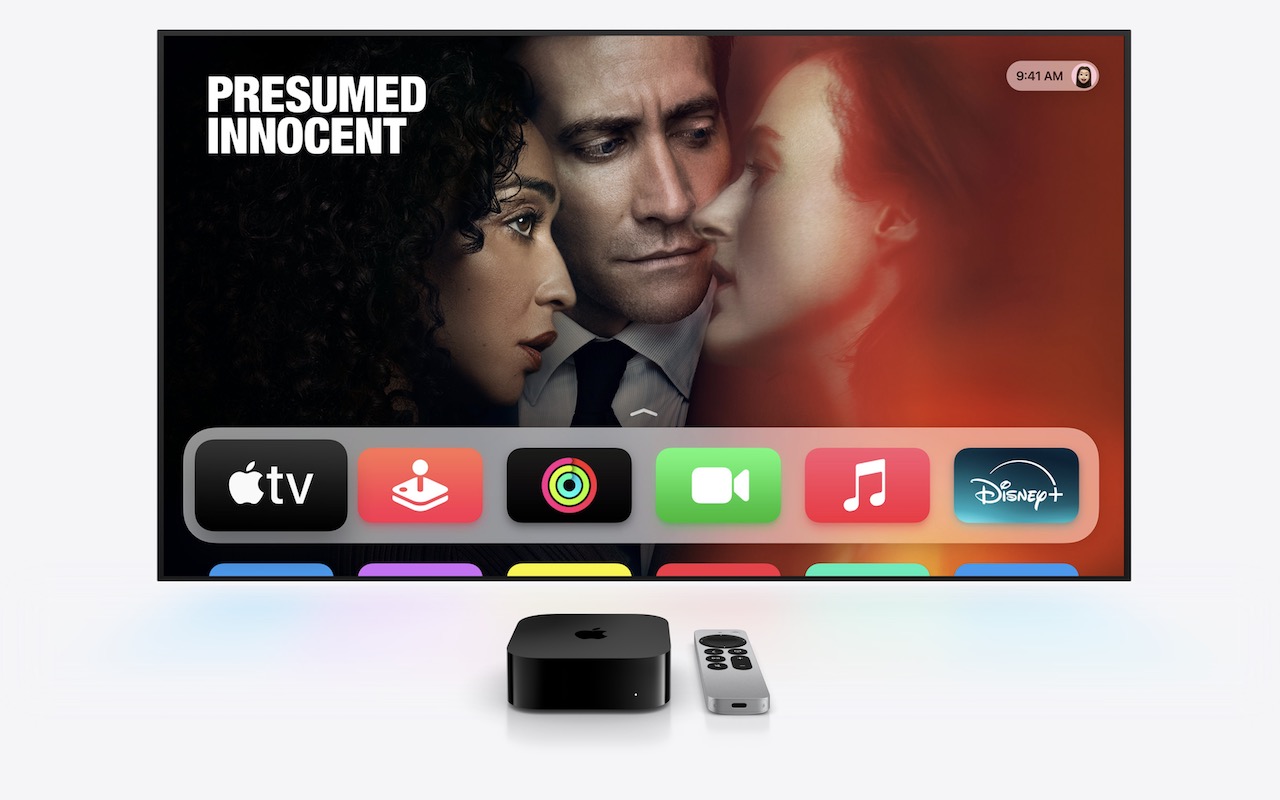
If you currently have a smart TV or are looking to replace an older TV, there’s an easy solution: use an Apple TV instead of the smart TV’s built-in apps or a similarly problematic media streaming box from the likes of Amazon, Google, and Roku. Although Apple isn’t perfect when it comes to privacy, the Apple TV provides a complete streaming solution that doesn’t share your viewing data with advertisers and data brokers. Here’s how:
- No ACR tracking: Apple has confirmed that the Apple TV doesn’t use ACR at all.
- No built-in advertising: Unlike Roku OS and Samsung’s webOS, the Apple TV doesn’t display ads on the home screen or in the screensaver.
- Privacy-first setup process: During setup, you’re given the opportunity to disable Siri, location services, and analytics.
- Limited data collection: Even when you do allow Apple to collect data, it’s done in ways that guarantee anonymity and used only in aggregate. No personal information is ever shared with Apple.
- Strong third-party app tracking controls: tvOS apps must ask for permission to track you, just like iOS apps. You can (and should) always reject such requests or prevent them from asking at all by going to Settings > Privacy > Tracking > Allow Apps to Request to Track.
Even with an Apple TV, you’ll need to take a few additional steps to protect your privacy since smart TVs can still track content playing through HDMI connections:
- Disable ACR tracking: Turn off ACR in your TV’s settings to prevent it from analyzing what you’re watching. This setting can be tricky to find since TV manufacturers deliberately make it difficult and use different names. Consumer Reports provides instructions for many TV models and streaming media devices.
- Consider blocking Internet access: For maximum privacy, you can prevent your TV from connecting to your Wi-Fi network and accessing the Internet, though this comes with trade-offs. While it ensures that no data leaves your TV, you’ll miss out on bug fixes, security updates, and certain features like picture calibration. You may also encounter connection error messages, and some TVs require occasional Internet connectivity for validation purposes. You may have to connect periodically to keep it working.
By turning off ACR, disconnecting the smart TV from the Internet, and using an Apple TV instead of a smart TV’s built-in apps or other streaming devices, you can enjoy your favorite shows without feeling like you’re being watched.
(Featured image by Apple)
Social Media: While you’re watching TV, your smart TV is watching you. Find out how manufacturers track your viewing habits and learn simple steps to protect your privacy with an Apple TV.