Get the Focus Right
As you know I am an amateur photographer and lately have been playing around with super macro images. I got a 5X Macro lens from Zhong Yi Optics https://zyoptics.net/product/mitakon-creator-25-85mm-f-2-8-1-5x-super-macro/ and have been struggling getting extreme close-up images in focus. So that got me thinking about focus and the Apple Focus system setting.
Focus is a feature in macOS that helps you stay productive (or undisturbed) by controlling when and how notifications appear. Think of it as asuper Do Not Disturb mode. Instead of silencing everything, Focus lets you choose which notifications, apps, or people can still reach you while blocking the rest.
This is useful if you are concentrating on say getting a macro image in focus or that big project and don’t want constant bings with notifications. Or perhaps you are in a meeting or just relaxing or staying to reach the next critical level in that game you are playing.
How Focus Works
- Predefined Focus ModesmacOS includes common Focus types like:
- Do Not Disturb – blocks almost all notifications.
- Work – lets through only work-related apps/people.
- Personal – filters out work apps while letting friends/family through.
- Sleep – silences everything except emergencies.
- Custom Focus ModesYou can create your own (e.g., “Writing,” “Photo Editing,” or “Gaming”) and decide:
- Which apps are allowed to send alerts.
- Which people can reach you (calls, messages, etc.).
- Whether status is shared across Messages/FaceTime (“Don’t notify Don right now”).
- Automation & SchedulingFocus can turn on automatically based on:
- Time (e.g., Work focus from 9–5).
- Location (e.g., “Gym” focus when you arrive at the gym).
- App usage (e.g., “Writing” focus when you open Pages or Scrivener).
- Sync Across DevicesIf you have an iPhone, iPad, or Apple Watch, turning on a Focus on one device activates it across all Apple devices logged into your Apple ID.
Here’s how you set up Focus on your Mac:
Step One: Open Focus
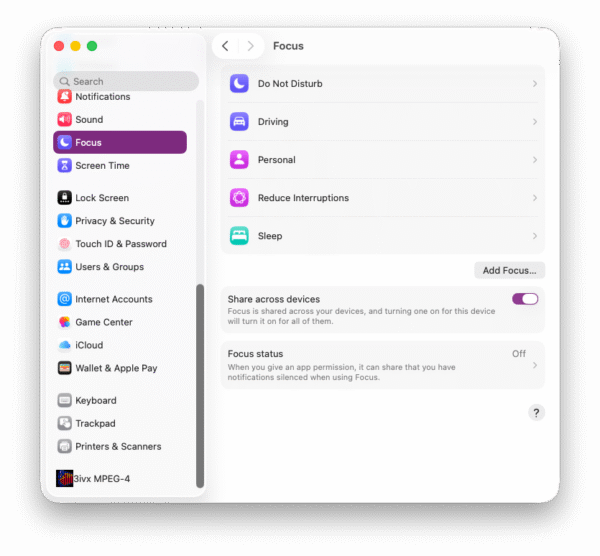
- On your Mac, click the Apple Menu (top-left corner).
- Select System Settings (or System Preferences on older macOS).
- In the sidebar, scroll down and click Focus.
Step 2: Choose an Option
You’ll see options like:
- Do Not Disturb
- Personal
- Work
- Sleep
👉 Click one to customize, or hit the + button to create a brand-new Focus (like “Writing” or “Gaming”).
Step 3: Who can bother you?
Inside each Focus:
- Click Allowed Notifications From.
- Choose People → Add contacts you want to allow (e.g., family, coworkers).
- Choose Apps → Add apps you still want to send alerts (e.g., Calendar or Messages).
Everything else gets silenced while Focus is on.
Step 4: Automate It
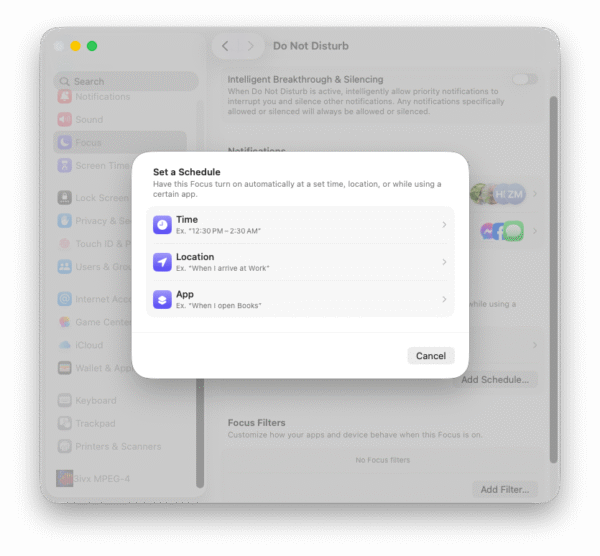
Scroll down to Set a Schedule to make Focus turn on automatically:
- Time – e.g., “Work Focus” from 9 AM to 5 PM.
- Location – e.g., “Gym Focus” whenever you’re at the gym.
- App – e.g., “Writing Focus” whenever Pages or Word is open.
Step 5: Sync
Toggle Share Across Devices if you want the same Focus settings to activate on your iPhone, iPad, and Apple Watch.
Step 6: Quick Focus on/off
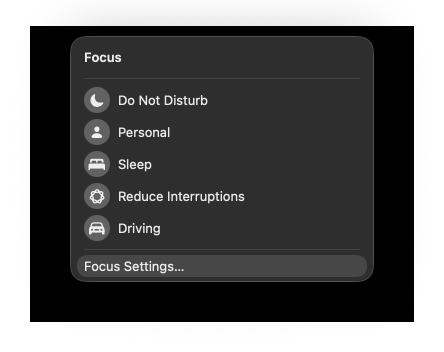
- Click the Control Center icon (two switches, top-right menu bar).
- Select Focus → Choose the one you want.
- It will stay on until you turn it off (or until your schedule ends).
Focus is a great tool that can help you get the focus right and concentrate without disturbances. Check it out!