New Features in iOS 26.1

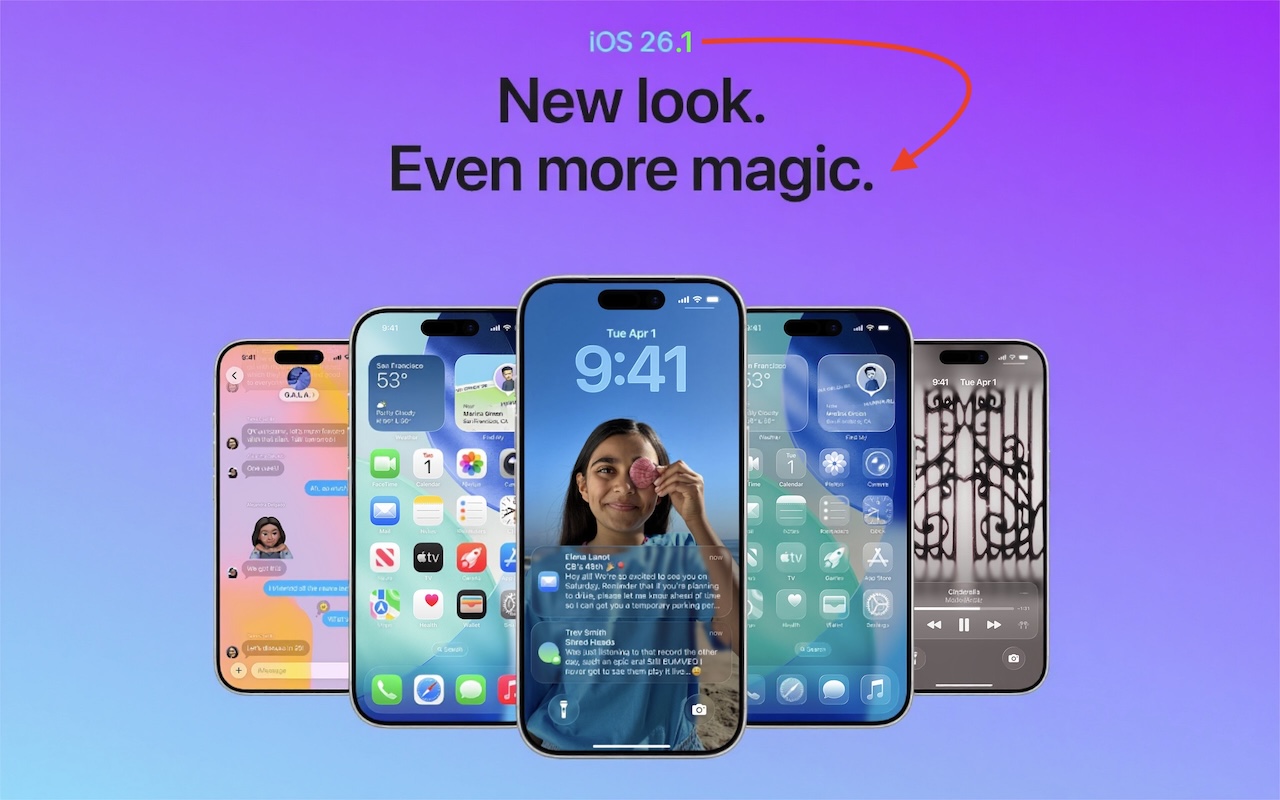
The first feature update to iOS 26 is now available—go to Settings > General > Software Update to install iOS 26.1. It doesn’t introduce any game-changers, but there are a few new options and tweaks worth knowing about.

Tinted Option for Liquid Glass

For many people, Liquid Glass’s aggressive transparency can make some interface elements, especially notifications, difficult to read. Until now, your best bet for improving readability was to turn on Settings > Accessibility > Display & Text Size > Reduce Transparency. In iOS 26.1, Apple bowed to user feedback and added a new Tinted view in Settings > Display & Brightness > Liquid Glass, which adds a subtle tint and increases the opacity of many Liquid Glass interface elements. In the screenshot below, the left image uses the default Liquid Glass Clear view, the middle one uses the Tinted view, and the right one uses Clear with Reduce Transparency. You can decide which you like best.

Disable Lock Screen Camera Swipe

For many years, a fast way to get to the Camera app has been to swipe left on the Lock Screen. With new iPhones featuring the Camera Control button for quick access to the Camera app, Apple has given us the option to disable the Lock Screen left swipe. If you find yourself accidentally opening the Camera app from the Lock Screen, you can now prevent that from happening by turning off Settings > Camera > Lock Screen Swipe to Open Camera.

Background Security Improvements

Several years ago, Apple introduced Rapid Security Responses, focused security updates that aimed to reduce update hesitancy with small downloads, automatic installation, and easy reversal. For unknown reasons, Apple used them only a couple of times before reverting to traditional operating system updates. Now, Rapid Security Responses seem to have returned under a new name: Background Security Improvements. They’re enabled by default in Settings > Privacy & Security > Background Security Improvements > Automatically Install. If you prefer to approve these updates in advance, you can turn that off. (A similar setting is available for macOS 26.1.)

Slide to Stop Alarms and Timers

In iOS 26, Apple increased the size of the buttons that appear when alarms or timers go off, but the large Stop button was easy to hit when you meant to tap Snooze (for alarms) or Repeat (for timers). Apple made that mistake much less likely in iOS 26.1 by requiring you to slide the on‑screen control to stop the alarm or timer.

Swipe Between Songs in Music

Sure, you could just tap a song in the album or playlist you’re viewing, but iOS 26.1 adds a subtle way to move to the next or previous track: swipe left (next) or right (previous) on the MiniPlayer at the bottom of the screen.

More Languages for Live Translation

iOS 26 introduced Live Translation with the AirPods 4 with Active Noise Cancellation, AirPods Pro 2, and AirPods Pro 3. Initially, it supported English (US and UK), French, German, Portuguese (Brazil), and Spanish (Spain). In iOS 26.1, Apple added Chinese (Mandarin, simplified and traditional), Italian, Japanese, and Korean. To avoid delays in getting new languages when you are out and about, download the languages you expect to need ahead of time, when you have a fast Internet connection. Go to Settings > Bluetooth and tap the ⓘ next to your AirPods. Scroll to and tap Languages, then select the desired language. For actual use, open the Translate app, tap Live, and select the two languages you want to translate between.

There are a few other tweaks that most people won’t notice, such as support for the new AutoMix transitions between songs in Music when playing over AirPlay, better FaceTime audio quality in low-bandwidth conditions, manual logging of workouts in the Fitness app, and improvements when recording audio with external USB mics.

If you’re already running iOS 26, we recommend updating to iOS 26.1—the changes (and numerous security fixes) are worthwhile. If you haven’t upgraded from iOS 18 yet, now’s a fine time to make the jump.

(Featured image based on an original by Apple)


Social Media: Struggling with Liquid Glass transparency or accidental camera launches? iOS 26.1 addresses both and adds a safer slide‑to‑stop alarm control, swiping to switch songs in Music, Background Security Improvements, and more Live Translation languages.
Similar Posts

  • Back up for the Holidays

    The Holidays are here and I am sure many of your are busy making memories, thinking about others and capturing as many picture-perfect moments that you can. While you’re busy bustling around, are you taking the time to think about these memories? What would happen if you couldn’t go back and look up those moments? Perhaps now is the time to think about a gift for yourself and taking the time to ensure that all of the perfect moments you are capturing on video and in pictures are being safely stored on your computer.

    I know we talk about this all the time, but it’s surprising how many of us out there keep putting this important step of backing up to the side! The Holidays are the time with some of the best memories, and so many of us are capturing once in a lifetime moments. The last thing anyone wants is to have something happen to those photos. There are so many options for backing up your computer and your important files it can be a little overwhelming. There is iCloud, cloud-based storage solutions from countless companies, traditional external hard drives for back up and more! My preferred backup solutions are a combination of cloud backup and physical hard drives. It might seem a little redundant, but better to be safe than sorry when it comes to important documents and memories.

    For me, iCloud and an external hard drive are my preferred options for backing up. I use my iCloud account to keep my daily life in order, contacts and calendars most importantly. I also use iCloud for storing some of my most important memories and files, select baby photos of my kids and some important documents. The kind of things that should the worst case happen and I lost my computer or drives due to theft or fire I still have copies in the cloud. My preference for my backups is using Time Machine and my “**Seagate**”:http://www.smalldog.com/product/85305/seagate-backup-plus-slim-portable-drive-usb-3-0-2tb-blue hard drives. I keep a different drive for each of my computers and perform fairly regular backups, I am not perfect, so sometimes they are not as regular as I would like. But utilizing these drives allows me to ensure that I have entire backups of my files and data readily available. Before I started to use iCloud I would also have back ups drives of my Time Machine back up, yes, I was and am that paranoid about loosing photos of my kids. I still have a small 20gb drive that contains my oldest daughter’s first year of photos, even though I know all the photos are on my computer and backed up I still won’t delete that drive.

    In the last year we have seen a rise in alternative cloud storage and mobile storage solutions. Many companies like “*Seagate*”:http://www.smalldog.com/category/?mmfg%5B0%5D=Seagate and “*LaCie*”:http://www.smalldog.com/category/?mmfg%5B0%5D=LaCie have portable drives that allow users to access information wirelessly while on the go. This is a great solution for families with large media libraries for movies. The “**Lacie Fuel**”:http://www.smalldog.com/product/85520/lacie-fuel-wireless-battery-powered-mobile-hd-wifi-usb-3-0-1tb is great for just this. Have a long road trip? Load up the drive and the family can access the files from their iPhones or iPads quickly and easily without taking up storage on their devices. Another and perhaps more practical solution is the “**Seagate Personal Cloud**”:http://www.smalldog.com/wag900002041/mac-the-halls-save-20-on-seagate-personal-cloud-home-media-storage-3tb. This drive allows you to back up everything on your computer and access it from anywhere! No need to carry that back up drive along with you, and with tons of storage options little worry about not having enough space. So this holiday season remember, backing up is just as important as capturing those memories.

  • Next week I will be on the road so it will be fun to see how Emily handles the Apple quarterly results that are going to be announced on Tuesday. I guess I’d better write that up in my hotel room from the road.

    Last year, most of our plants suffered while we were gone. Between the lack of water and the chickens we had to do a lot of work to get them back. I installed a nice drip irrigation system this year but we will still have chicken invasions. For those of you that don’t know, Key West protects wild chickens and they are everywhere. That must be why Grace loves Key West so much!

    Thank you so much for reading this issue of Kibbles & Bytes!

    Your Kibbles & Bytes Team,

    _Don, Emily, Hadley & Amy_