How Does the New MacBook Neo Compare to the MacBook Air?
Apple has unveiled the MacBook Neo, a new entry-level laptop. With pricing starting at $599, a whopping $500 less than the MacBook Air, the MacBook Neo is positioned as an affordable computing option, particularly for families buying devices for K–12 students.

Despite its low price, the MacBook Neo is a Mac, so it works like any other modern Mac, complete with support for Apple Intelligence. A key question is how it compares to the MacBook Air, which Apple just updated with the M5 processor. Unsurprisingly, Apple made numerous compromises to hit the lower price point compared to the $1,099 13-inch MacBook Air. Those compromises may or may not make a difference for your intended usage.
Comparing the Specs
Let’s run through the MacBook Neo’s specs and see how it matches up to the MacBook Air:
- A18 Pro chip: One of the main places Apple cut costs is by relying on an A18 Pro chip with 6 CPU cores and 5 GPU cores, previously used in 2024’s iPhone 16 Pro models. This is the first time Apple has used an iPhone-class chip in a Mac. For everyday tasks in a single app, performance is nearly comparable to the MacBook Air’s M5, which has 10 CPU cores and 8 or 10 GPU cores. However, the MacBook Neo will be significantly slower for multi-threaded tasks such as video editing, code compilation, or heavy multitasking.
- 8 GB unified memory: Another notable difference is that the MacBook Neo has only 8 GB of unified memory, whereas the MacBook Air starts at 16 GB and can be configured with 24 GB or 32 GB. Being limited to 8 GB means the MacBook Neo will struggle with memory-intensive tasks or running many apps at once, but that isn’t likely to be an issue with everyday Web browsing, email, and messaging.
- 256 GB or 512 GB storage: The base MacBook Neo has only 256 GB of storage, which may fill up quickly with photos, videos, and games. For $100 more, you can get 512 GB. In comparison, the MacBook Air starts with 512 GB and can be configured with 1 TB, 2 TB, or 4 TB. You can always buy an external SSD to offload little-used data.
- 13.0-inch Liquid Retina display: The display is another significant difference. The MacBook Neo has a 13.0-inch display that shows slightly less content on screen than the MacBook Air’s 13.6-inch display—imagine losing about a half-inch of space vertically and horizontally. The MacBook Neo also lacks True Tone, which adjusts the display for ambient light conditions, and supports only sRGB color rather than Wide color (P3), so colors will be slightly less vibrant when viewing photos or videos, though this will be unnoticeable in most apps.
- 1080p FaceTime camera: The MacBook Neo’s webcam is several years behind the current 12-megapixel Center Stage camera that debuted with the M4 MacBook Air in 2025. It’s fine, but it is noticeably lower quality and lacks the Center Stage feature that keeps you in the frame as you move around. The MacBook Air’s camera also supports Desk View, which shows items underneath it, but that’s not a commonly used feature.
- Two USB-C ports: Connectivity is another place where the MacBook Neo makes compromises. It offers two USB-C ports, but only the left one supports USB 3 at 10 gigabits per second; the right one supports only USB 2 at 480 megabits per second. You can use the left one for an external drive or a single 4K display; the right one is primarily useful for a keyboard, mouse, or printer. The MacBook Air, in comparison, has two 40 gigabits-per-second Thunderbolt 4 ports and supports up to two 6K displays. The MacBook Neo has to use one of its ports to charge, since it lacks the MagSafe charging port found on the MacBook Air.

- Magic Keyboard: The $599 MacBook Neo has the same Magic Keyboard as the MacBook Air, but lacks keyboard backlighting for typing in the dark and Touch ID for authentication and Apple Pay support. Moving to the $699 model gets you Touch ID along with 512 GB of storage. All MacBook Air models have Touch ID, which is a convenience.
- Multi-Touch Trackpad: The MacBook Neo uses Apple’s much older Multi-Touch trackpad with a physical click mechanism rather than pressure sensors and haptic click simulation in the MacBook Air’s Force Touch trackpad. Few people will miss Force Touch features like pressing deeply on a file in the Finder to open it in Quick Look.
- Dual mics, dual speakers: For audio input and output, the MacBook Neo relies on a dual-mic array and a dual-speaker sound system. It will undoubtedly be fine, but it doesn’t match up to the MacBook Air’s three-mic array and four-speaker sound system. Both have 3.5 mm headphone jacks, or you can just use AirPods.
- Wi-Fi 6E and Bluetooth 6: Although the MacBook Air has slightly newer Wi-Fi 7 support (both have Bluetooth 6), no one in the MacBook Neo’s target audience will notice the difference with Wi-Fi 6E. Few people have Wi-Fi 7 base stations yet anyway.
- Battery life: Apple rates the MacBook Neo at 16 hours of video streaming and 11 hours of “wireless web” use, which qualifies it for “all-day” battery life. It’s respectable and probably sufficient for most situations, but well below the MacBook Air’s 18 and 15 hours on those benchmarks.
- Size and weight: In terms of raw numbers, the MacBook Neo is slightly narrower and shallower than the MacBook Air—about a quarter of an inch— but essentially the same thickness (about half an inch) and weight (2.7 pounds). You wouldn’t notice the difference.
Who Should Consider the MacBook Neo
Apple is clearly aiming the MacBook Neo at specific audiences. Anyone working with a lot of apps at once, doing photo or video editing, playing high-end games, or using a bunch of peripherals will be better suited with the additional processing power, memory, and connectivity of the MacBook Air. And those with even more intensive workflows will gravitate to the MacBook Pro line.
But the MacBook Neo is meant to be a small, cute, and inexpensive laptop. It’s entirely adequate for the kind of schoolwork that most K–12 students do: educational apps, online lessons, writing assignments, creating presentations, and conducting research. Its aluminum enclosure will withstand the rigors of daily student use, and the battery life should be sufficient for a full school day.
It would also be appropriate for budget-conscious adults with minimal computing needs. Many people do little more than browse the Web, check email, stream video, and use basic productivity apps. Those who spend most of their time in a handful of bundled Apple apps don’t need the performance of the MacBook Air.
However, we can’t recommend the MacBook Neo for most college students. Although it could handle basic word processing, Web browsing, and video streaming, college students can’t predict what they may need to do during their time in school, and it’s easy to imagine them needing to edit video, do data analysis, or work with 3D graphics. Plus, the limited port selection may be problematic for students needing to connect to external displays, storage drives, and other peripherals.
Although the same concerns apply to creative and business professionals, the MacBook Neo may be an economical travel laptop for someone who does most of their real work on a Mac mini or Mac Studio at the office. For keeping up with email, managing travel details on websites, and giving presentations, it should be more than sufficient and cheaper than most iPads with keyboards.
Pricing and Availability
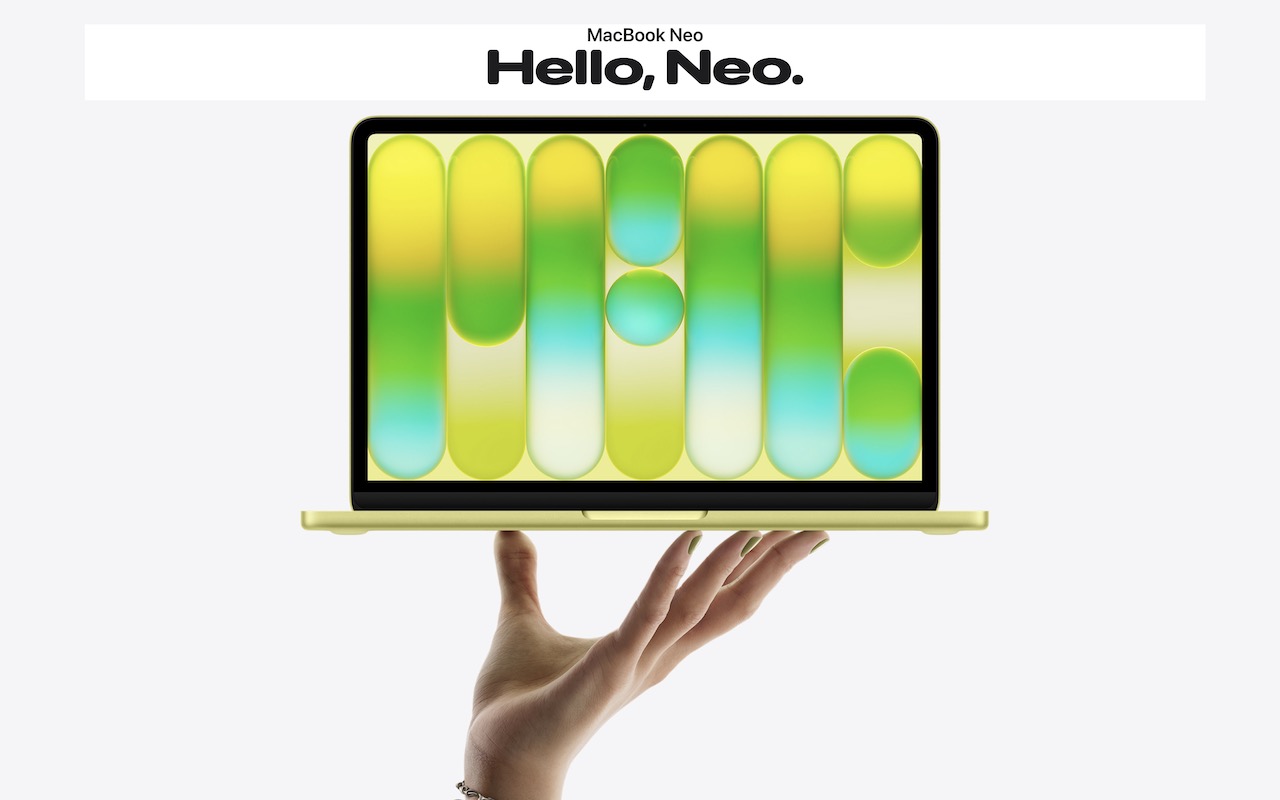
The MacBook Neo costs $599 for the 256 GB model with Magic Keyboard (no Touch ID) or $699 for the 512 GB model with Touch ID. For the education market, pricing starts at $499. Both configurations are limited to 8 GB unified memory, and there are no other build-to-order options. It comes in four colors—silver, blush, citrus, and indigo—with color-coordinated keyboards.
(Featured image by Apple)
Social Media: Apple’s new $599 MacBook Neo offers an affordable entry into the Mac ecosystem, but its compromises mean it’s best suited for K–12 students and users with basic computing needs. Here’s how it compares to the MacBook Air.