Be Careful When Offloading iPhone Apps

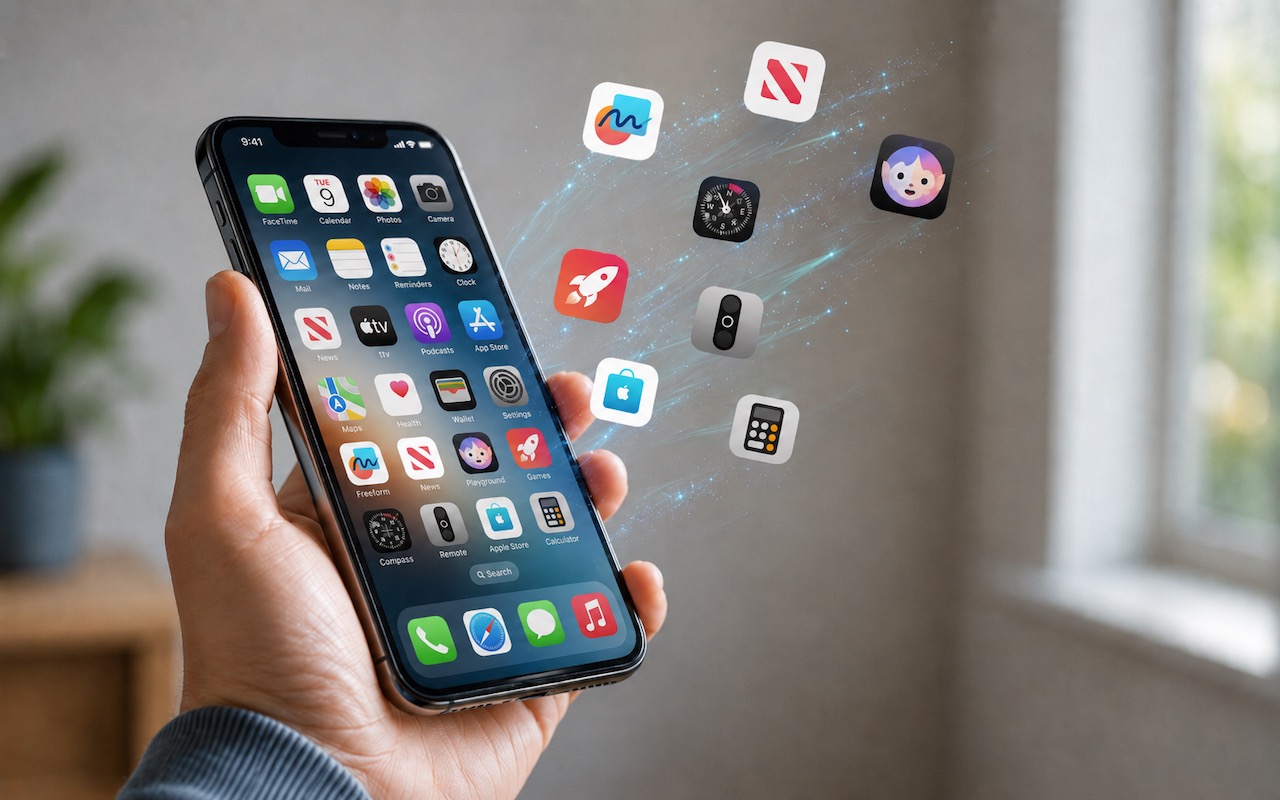
Automatic offloading of seldom-used apps can be a good strategy for recovering space on an iPhone whose storage is almost full, and iOS can do this for you in Settings > Apps > App Store > Offload Unused Apps. When you open an app that was offloaded, iOS will re-download it from the App Store so you can use it—assuming you have Internet access. But what if you have little or no connectivity when you need an offloaded app? For instance, if you have a New York State Parks Empire Pass, you might find yourself unable to use it if the necessary NY State Parks Explorer app has been offloaded and connectivity is weak at the park. We can also imagine app offloading causing problems if you need to use a local transit app after an international flight but haven’t yet arranged local cellular service. If you’re concerned about this possibility, disable Offload Unused Apps and make sure to download any that have been offloaded already.

(Featured image generated by Adam Engst with ChatGPT)


Social Media: Automatic offloading of unused apps saves iPhone storage, but it’s inconvenient if you need an app that has been offloaded and there’s no connectivity to redownload it. Plan ahead!

Similar Posts

  • Back up for the Holidays

    The Holidays are here and I am sure many of your are busy making memories, thinking about others and capturing as many picture-perfect moments that you can. While you’re busy bustling around, are you taking the time to think about these memories? What would happen if you couldn’t go back and look up those moments? Perhaps now is the time to think about a gift for yourself and taking the time to ensure that all of the perfect moments you are capturing on video and in pictures are being safely stored on your computer.

    I know we talk about this all the time, but it’s surprising how many of us out there keep putting this important step of backing up to the side! The Holidays are the time with some of the best memories, and so many of us are capturing once in a lifetime moments. The last thing anyone wants is to have something happen to those photos. There are so many options for backing up your computer and your important files it can be a little overwhelming. There is iCloud, cloud-based storage solutions from countless companies, traditional external hard drives for back up and more! My preferred backup solutions are a combination of cloud backup and physical hard drives. It might seem a little redundant, but better to be safe than sorry when it comes to important documents and memories.

    For me, iCloud and an external hard drive are my preferred options for backing up. I use my iCloud account to keep my daily life in order, contacts and calendars most importantly. I also use iCloud for storing some of my most important memories and files, select baby photos of my kids and some important documents. The kind of things that should the worst case happen and I lost my computer or drives due to theft or fire I still have copies in the cloud. My preference for my backups is using Time Machine and my “**Seagate**”:http://www.smalldog.com/product/85305/seagate-backup-plus-slim-portable-drive-usb-3-0-2tb-blue hard drives. I keep a different drive for each of my computers and perform fairly regular backups, I am not perfect, so sometimes they are not as regular as I would like. But utilizing these drives allows me to ensure that I have entire backups of my files and data readily available. Before I started to use iCloud I would also have back ups drives of my Time Machine back up, yes, I was and am that paranoid about loosing photos of my kids. I still have a small 20gb drive that contains my oldest daughter’s first year of photos, even though I know all the photos are on my computer and backed up I still won’t delete that drive.

    In the last year we have seen a rise in alternative cloud storage and mobile storage solutions. Many companies like “*Seagate*”:http://www.smalldog.com/category/?mmfg%5B0%5D=Seagate and “*LaCie*”:http://www.smalldog.com/category/?mmfg%5B0%5D=LaCie have portable drives that allow users to access information wirelessly while on the go. This is a great solution for families with large media libraries for movies. The “**Lacie Fuel**”:http://www.smalldog.com/product/85520/lacie-fuel-wireless-battery-powered-mobile-hd-wifi-usb-3-0-1tb is great for just this. Have a long road trip? Load up the drive and the family can access the files from their iPhones or iPads quickly and easily without taking up storage on their devices. Another and perhaps more practical solution is the “**Seagate Personal Cloud**”:http://www.smalldog.com/wag900002041/mac-the-halls-save-20-on-seagate-personal-cloud-home-media-storage-3tb. This drive allows you to back up everything on your computer and access it from anywhere! No need to carry that back up drive along with you, and with tons of storage options little worry about not having enough space. So this holiday season remember, backing up is just as important as capturing those memories.