Want to Password-Protect a PDF? Follow These Best Practices
We periodically field questions about password-protecting a PDF to prevent the wrong people from reading it. Lawyers want to ensure that drafts of legal documents don’t fall into the wrong hands, financial advisers want to keep confidential financial information private, and authors want to prevent their writing from being shared broadly on the Internet. Others don’t worry so much about a document being read but want to ensure that it can’t be changed or printed.
PDF provides options for password-protecting documents for just these reasons, and you can add such protection to your PDFs in both Apple’s Preview and Adobe Acrobat. We’ll explain how to do that, but before we do, we want to share some best practices to increase the likelihood that your PDFs will remain protected as you wish.
Also, if you’re looking for a comprehensive solution to protecting lots of documents for a wide variety of situations, you’d be better off investigating document digital rights management systems along the lines of LockLizard and Vitrium.
Best Practices for Password-Protecting PDFs
There’s no such thing as perfect security, especially when you want to share information with others rather than just keeping it as your own secret. But you can increase the security of shared documents with these best practices.
- Use strong passwords: All PDF passwords should be longer than 12 characters and include uppercase and lowercase letters, numbers, and punctuation, without using dictionary words or well-known number/letter substitutions. A plethora of online PDF unlocking tools can remove weak passwords, and passwords should be strong enough to withstand brute force and dictionary attacks from a determined attacker who could bring significant computing resources to bear.
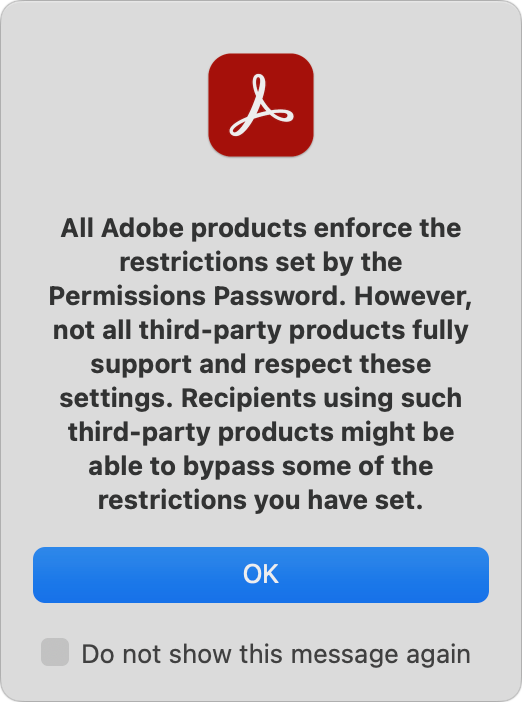 Focus on Document Open passwords: PDFs can have two passwords: the Document Open password that users must enter to open the document and a Permissions password that restricts actions like editing, printing, and copying. Even if you mainly want to restrict actions, it’s worth setting a Document Open password because the Permissions password’s restrictions can be bypassed by third-party utilities or by screenshots and Live Text.
- Share passwords out of band: When sharing a protected PDF with someone, send them the password via a different communications channel. So, if you email the PDF, give them the password via Messages or a voice call. That way, if an attacker gains access to the PDF, they won’t also have the password sitting next to it.
- Educate recipients: When you share a user password with someone else, they can give it to anyone they want and, depending on how you set things up, remove the protection from the document. In short, your document security is only as strong as your recipients want it to be, so make sure to communicate your wishes to them.
- Watermark documents: Along those lines, it may be worth adding a header/footer or watermark that identifies the document as Confidential or Draft to clarify why it shouldn’t be shared.
- Avoid online tools: Numerous websites offer PDF utility functions, such as adding passwords, watermarking, merging and splitting, conversion, and more. There’s no harm in using them with documents you don’t care about, but if you’re concerned enough to password-protect a PDF, don’t upload it to a website with unknown security and document retention policies.
- Clear metadata: Passwords protect PDF content, but not necessarily metadata that might include the author’s name, employer, and keywords.
- Use Adobe Acrobat: Apple’s Preview is a decent PDF app and offers basic password-protection capabilities, but for more protection capabilities and options, use the full-featured Adobe Acrobat. Preview is OK for those who need to protect an occasional PDF, but Acrobat is a better choice if protecting PDFs is essential for your situation.
Password-Protect a PDF Using Preview
It’s easy to add password protection to a PDF with Preview. Apple recommends a slightly fussier approach that involves setting the permissions during an export, although we didn’t find that it made any difference. Apple is likely trying to get you to make a copy so you don’t password-protect your original, but it’s easier to duplicate the file in the Finder first with File > Duplicate. Here’s the simple method:
- With a copy of a PDF open in Preview, choose File > Edit Permissions to display the permissions dialog.
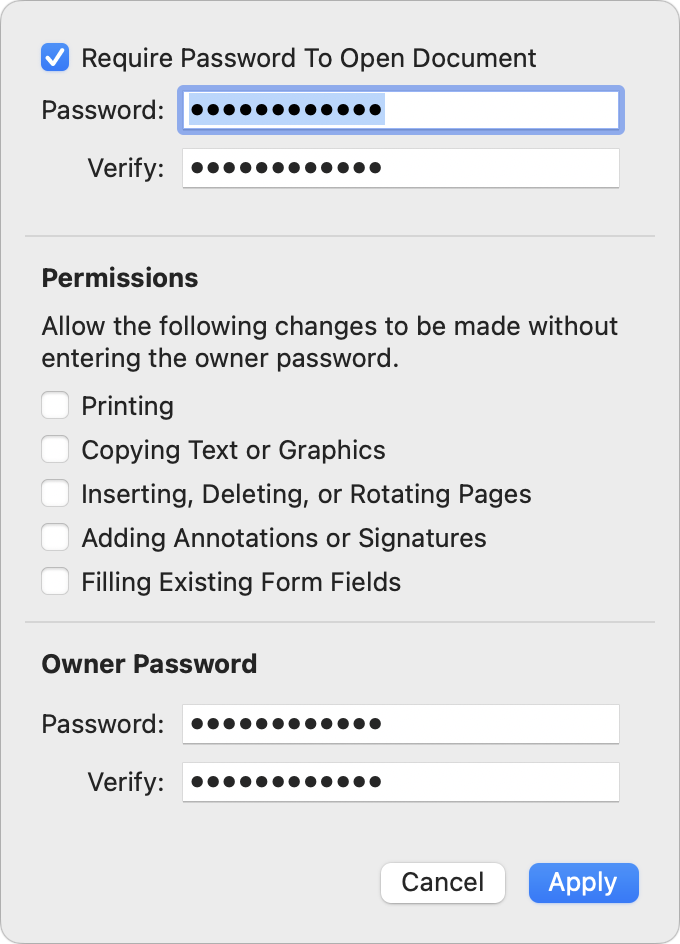
- Select Require Password To Open Document, and enter the desired Document Open password twice.
- Deselect desired checkboxes in the Permissions section to restrict those activities.
- Enter the Owner (Permissions) password twice at the bottom of the dialog. It should be different from the Document Open password. Either will open the document, but only the Owner (Permissions) password will allow the document to be printed, copied, or edited as per those checkboxes.
- Click Apply and save the document.
Password-Protect a PDF Using Adobe Acrobat
Adobe has extensive instructions on password-protecting PDFs using Acrobat in different scenarios, but the basics are still simple.
- With a copy of a PDF open in Acrobat, choose File > Protect Using Password to open the password dialog.
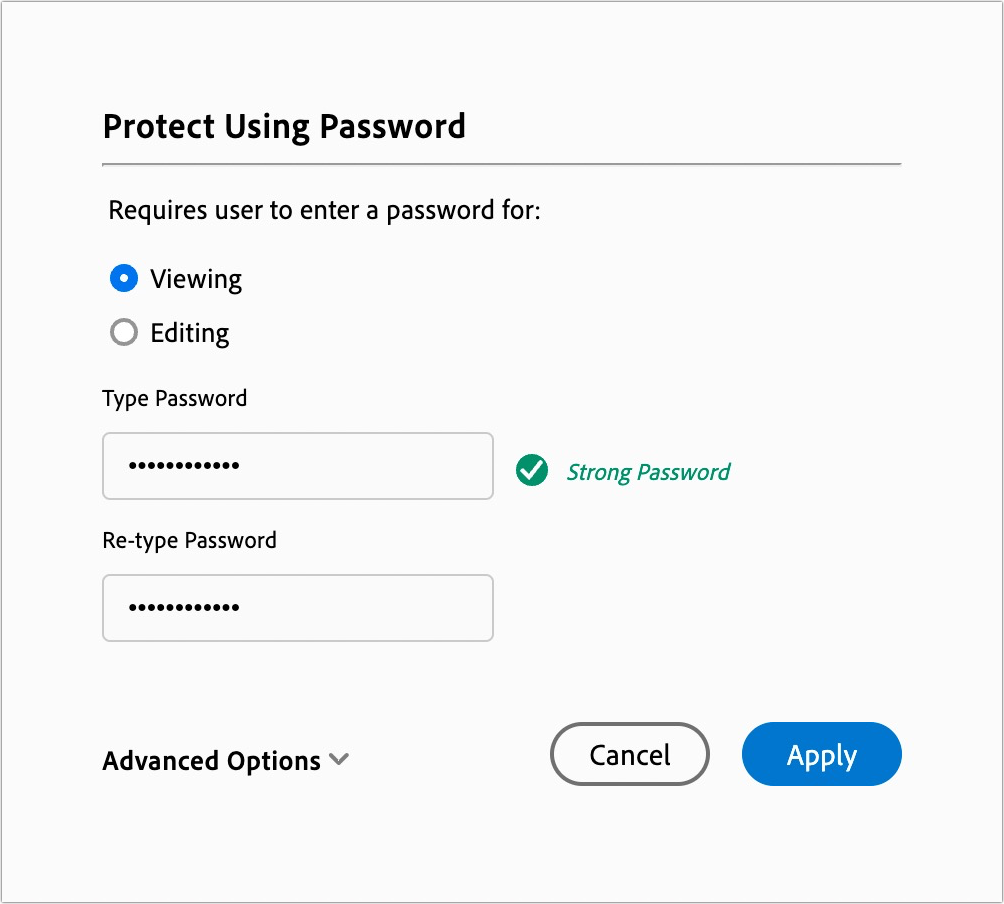
- Select Viewing to add a Document Open password or Editing to add a Permissions password.
- Enter the password, and retype it to confirm it.
- Click Apply and save the document.
For a simple Document Open password, you’re all done, but if you want to set specific printing, editing, and copying restrictions, follow these steps:
- Choose Edit > Protection > Security Properties to open the Document Properties dialog with the Security tab selected.
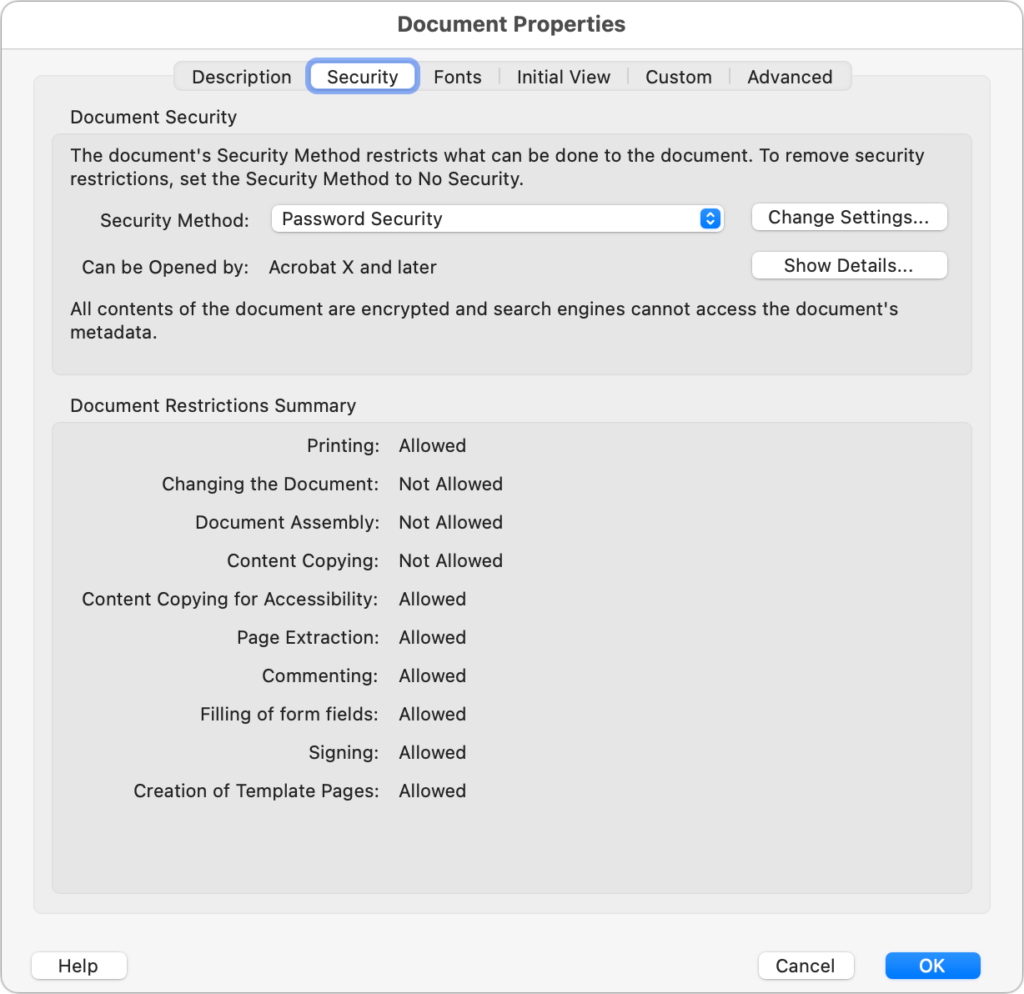
- Next to Security Method (which should be set to Password Security), click Change Settings to open the Password Security – Settings dialog.
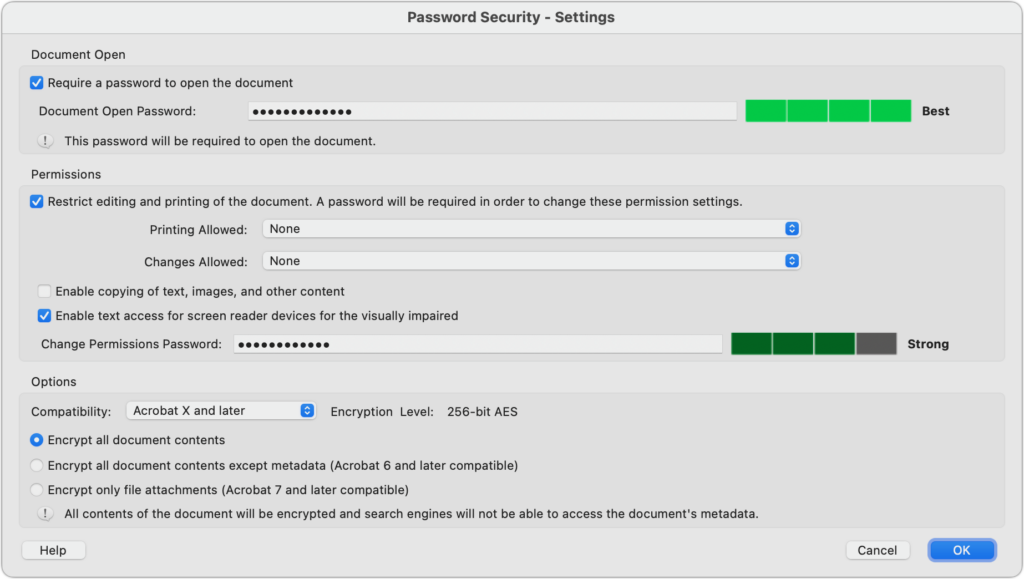
- In the Permissions section, select the desired options to restrict printing, editing, and copying text in various ways.
- Click OK and, when prompted, confirm the passwords you’ve entered.
- Dismiss the Document Properties dialog and save the document.
Password-protecting a PDF can be helpful when you want to ensure a PDF containing sensitive information can’t be viewed or edited by the wrong people. Make sure to use strong passwords since weak passwords are so easily removed!
(Featured image based on an original by iStock.com/Thitichaya Yajampa)
Social Media: If you have a PDF with confidential information that you want to share, you can set a password to restrict opening, printing, or editing. We have instructions for Preview and Adobe Acrobat, plus advice on ensuring your document stays secure.