Combat Smart TV Privacy Abuses with an Apple TV

If you own a smart TV or are shopping for a new one, you should be aware of a troubling trend: modern TVs have evolved from simple screens into sophisticated surveillance devices. You can protect your privacy by using an Apple TV as your streaming device rather than relying on built-in smart TV features.

If you have an older non-smart TV that meets your needs, you’re in luck—an Apple TV provides streaming capabilities while avoiding the privacy concerns that plague modern TVs. For everyone else, here’s what you need to know about how TV manufacturers are monetizing your viewing habits and how an Apple TV protects you.

Data Mining: How TV Makers Profit from Your Viewing Habits

Arguably, the longevity of large-screen TVs has contributed to this trend. In the past, TV manufacturers focused on selling as many TVs as possible. Consumers see less need to upgrade when a modern 55-inch TV offers little beyond what a 15-year-old TV of the same size can provide. Sure, it might be a bit brighter, have better color accuracy, or provide higher refresh rates, but for most people watching streaming video in a dark room, such changes aren’t very noticeable.

In response, TV manufacturers have lowered prices to boost sales and turned to alternative revenue streams, including collecting and selling viewer data and displaying ads. Data can be sold to companies like Nielsen, a data and marketing measurement firm, and leveraged to provide advertisers with targeted audiences. Smart TV ad revenue is estimated to reach $46 billion worldwide this year, up 20% after another 20% increase in 2024. These ads appear on the smart TV’s home screen and in free, ad-supported streaming channels.

TV manufacturers track viewing habits using a technology called automatic content recognition (ACR). Software loaded on the smart TV captures frame-by-frame screenshots of content, creates a fingerprint for each frame, and then matches the fingerprint against an online database to determine what you’re watching. It works with all types of viewing, from standard TV to gaming. Since that data is tied to your specific household, companies can create audience segments and either use it for their own advertising or sell it to third parties. One analyst suggests you’re worth about $20 per year.

Wait, it gets worse! Many smart TVs feature microphones to enable voice commands, and some also include cameras to support video calling capabilities. Manufacturers can use captured audio and video to monitor viewer engagement—are you actually watching the show, or is it just playing in the background? That data also feeds into the profile that the TV manufacturers maintain about you.

If all this feels creepy to you, you’re not alone. Most annoyingly, apart from the opportunity to buy a cheap TV, there’s essentially no ongoing benefit to you in having your viewing habits packaged and resold. At most, you might get to ignore slightly more targeted ads.

Protect Your Viewing Privacy with an Apple TV

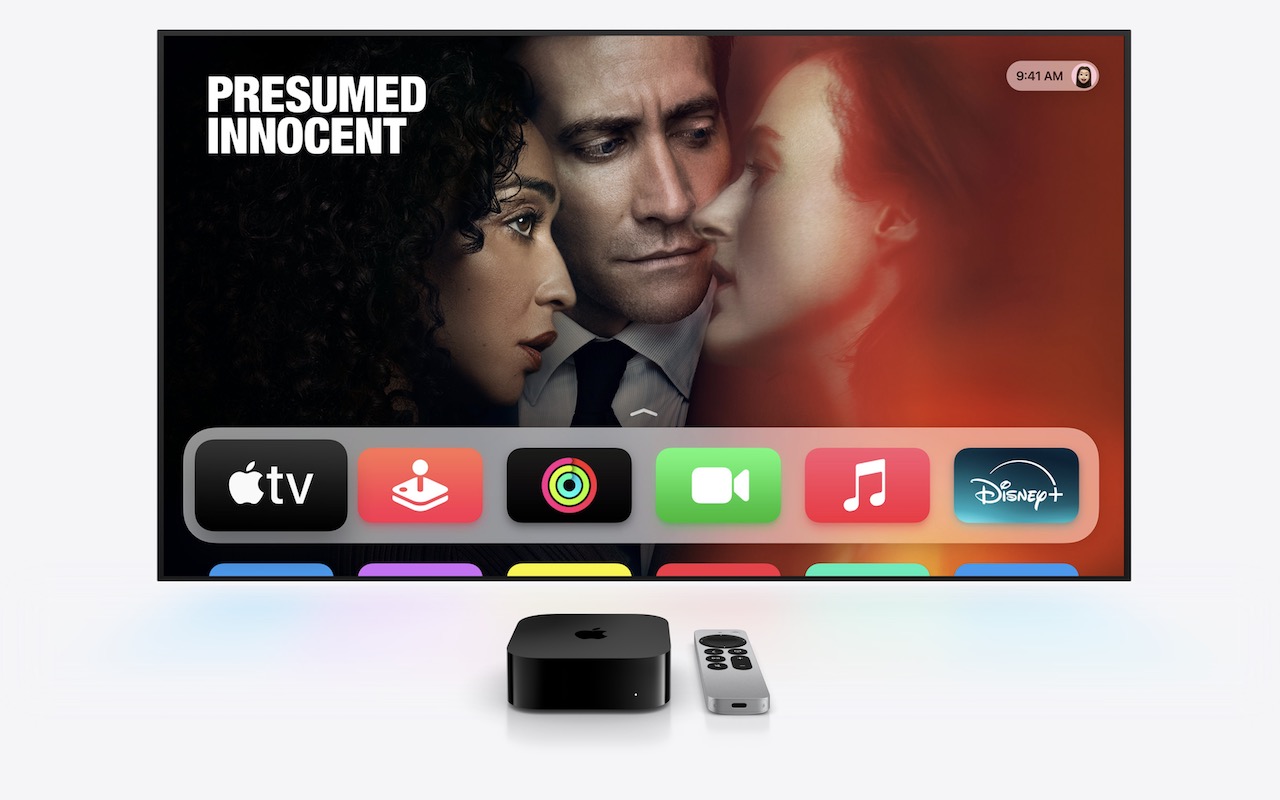
If you currently have a smart TV or are looking to replace an older TV, there’s an easy solution: use an Apple TV instead of the smart TV’s built-in apps or a similarly problematic media streaming box from the likes of Amazon, Google, and Roku. Although Apple isn’t perfect when it comes to privacy, the Apple TV provides a complete streaming solution that doesn’t share your viewing data with advertisers and data brokers. Here’s how:

  • No ACR tracking: Apple has confirmed that the Apple TV doesn’t use ACR at all.
  • No built-in advertising: Unlike Roku OS and Samsung’s webOS, the Apple TV doesn’t display ads on the home screen or in the screensaver.
  • Privacy-first setup process: During setup, you’re given the opportunity to disable Siri, location services, and analytics.
  • Limited data collection: Even when you do allow Apple to collect data, it’s done in ways that guarantee anonymity and used only in aggregate. No personal information is ever shared with Apple.
  • Strong third-party app tracking controls: tvOS apps must ask for permission to track you, just like iOS apps. You can (and should) always reject such requests or prevent them from asking at all by going to Settings > Privacy > Tracking > Allow Apps to Request to Track.

Even with an Apple TV, you’ll need to take a few additional steps to protect your privacy since smart TVs can still track content playing through HDMI connections:

  • Disable ACR tracking: Turn off ACR in your TV’s settings to prevent it from analyzing what you’re watching. This setting can be tricky to find since TV manufacturers deliberately make it difficult and use different names. Consumer Reports provides instructions for many TV models and streaming media devices.
  • Consider blocking Internet access: For maximum privacy, you can prevent your TV from connecting to your Wi-Fi network and accessing the Internet, though this comes with trade-offs. While it ensures that no data leaves your TV, you’ll miss out on bug fixes, security updates, and certain features like picture calibration. You may also encounter connection error messages, and some TVs require occasional Internet connectivity for validation purposes. You may have to connect periodically to keep it working.

By turning off ACR, disconnecting the smart TV from the Internet, and using an Apple TV instead of a smart TV’s built-in apps or other streaming devices, you can enjoy your favorite shows without feeling like you’re being watched.

(Featured image by Apple)


Social Media: While you’re watching TV, your smart TV is watching you. Find out how manufacturers track your viewing habits and learn simple steps to protect your privacy with an Apple TV.

Similar Posts

  • _Dear Friends,_

    Baseball season is almost upon us as spring training wraps up and the real games begin next week. The hopes for the Chicago Cubs have never been higher with a great line-up and pitching. Could this be our year? To help matters along, Apple and MLB announced this week that they have struck a multi-year deal to supply 12.9 inch iPad Pros with special STM team-logoed cases and a custom app called MLB Dugout. This app will help managers see performance statistics, check videos from games and analyze how pitchers and hitters are likely to perform against each other.

    Baseball has become a game of statistics and until this deal laptops, iPads and iPhones were banned from dugouts. That ban is gone as iPad Pros will replace the notebooks and photographs in big binders. Each team’s data will be downloaded to the iPads before the games. I can see this really speeding up the research about how to play a certain batter or what kind of stuff a pitcher has. Cubs manager, Joe Maddon, is not so sure “This might sound nuts to you, bit it might slow down the process. If there’s that moment that permits time to look up something, it might be OK, but I think thats where the piece of paper has it all over the computer–in that moment.” Well, Joe you are a hell of a manager but I’ll put the iPad Pro up against your binder any day! Fortunately, MLB didn’t ban paper so Joe is all set.

    I have talked many times about being a socially responsible business but this week we saw the power for good that businesses can use. While not yet successful in overturning the North Carolina law that legalizes discrimination against LGBT people, business pressure stopped a similar law in Georgia and the list of businesses lining up for repeal in NC is impressive. It was business that turned the tide when civil unions were first introduced in Vermont and it can be business again that dope-slaps some sense into these backwards legislatures, too.

    This week’s Kibbles & Bytes exclusive features the iPad mini 4 in Space Gray. This 64GB model features Wi-Fi and Cellular and comes with the AppleCare+ protection plan that increases the hardware warranty from 1 to 2 years, technical support from 90-days to 2-years and provides for accidental damage coverage. This is the latest iPad mini that features the Retina display. With 64GB of ram and cellular capability you will never be out of touch. Normally, this bundle is $730 but this week exclusively for Kibbles & Bytes readers you get the “**iPad mini 4 64GB Wi-Fi and Cellular with AppleCare+ for $50 off**”:http://www.smalldog.com/wag900002186 at “**$679.99!**”:http://www.smalldog.com/wag900002186/

  • Adjust AirPods Options in the Settings App

    If you sometimes have trouble configuring your AirPods, here’s the trick. The AirPods settings screen is available only when the AirPods are connected…

  • Grace has tired of riding the little Vespa scooter so we are selling it. I bought an almost antique Victory cruiser so we both have bikes down here. I am going to Jasper, GA to pick it up this weekend and riding it back through the back roads of Georgia. It should be a nice little break.

    I am going to miss Johnny Dread and the reggae show down here but I am sure Grace will be there. It is hard to believe that we are heading into March already. My granddaughter, Gracie, is a Feb 29 baby so she is celebrating her 4th birthday as a 12-year old. My other granddaughter, Khadija, was off this week visiting colleges in the Boston area. Sure makes me feel old. I remember announcing Khadija’s birth here in Kibbles with the line “just call me gramps” and they still do!

    Thank you for reading this issue of Kibbles & Bytes!

    Your Kibbles & Bytes Team,

    _Don, Emily, Morgan & Hadley_

  • A Swinging Hot Spot in Paradise

    You are visiting Key West, accompanied by your trusty iPhone and MacBook Air. Suddenly there’s an emergency at work, and you need to get online with your Mac. You can pick up a cell signal with the iPhone, but there’s no Wi-Fi that isn’t locked up. Well, my first thought might be “oh well, I’m on vacation!” but you are dedicated and need to be online.

    Don’t worry! You can use your iPhone’s cellular data plan to create a personal Wi-Fi hotspot that lets your Mac access the Internet through your iPhone. Also called “tethering,” it’s fast, easy, and can be a life-saver when you just have to get online with a Mac or your Wi-Fi-only iPad. It supports up to 5 users, too, which means you can get your team online, too!

    Before we explain how to do set up a personal hotspot, note that most but not all cellular carriers allow tethering on existing plans. For some, you might have to pay more for tethering. Keep in mind that any data consumed by your Mac while tethered will count against your data allowance and may generate overage fees. Carriers with “unlimited” data, like T-Mobile and Sprint, generally throttle your bandwidth to slower speeds if you use too much data.

    Along those lines, if you use a file sharing service like Dropbox or Google Drive, or an Internet backup service like CrashPlan or Backblaze, turn them off before connecting. Particularly if they haven’t connected in a while, those services can transfer a lot of data quickly, which could result in a hefty overage charge or awkward data throttling for the rest of the month.

    With those warnings out of the way, follow these steps in iOS 9 to turn on Personal Hotspot:

    1. On your iPhone, if you’ve never enabled the feature before, go to Settings > Cellular > Personal Hotspot. Once you’ve turned Personal Hotspot on once, it moves up a level, so you can access it from Settings > Personal Hotspot.
    1. Tap on Wi-Fi Password and enter a password that’s at least 8 characters long and easy to type. It doesn’t need to be super secure because you can keep Personal Hotspot turned off unless you’re using it. But you do want a password so random people nearby can’t connect and use your data.
    1. Once you’ve entered a password, slide the Personal Hotspot switch.

    That’s it! The Personal Hotspot screen provides basic instructions for connecting to the iPhone via Wi-Fi, Bluetooth, and USB. Stick with Wi-Fi, since it’s the easiest and most reliable in most cases.

    • To connect to your new Personal Hot Spot on your Mac, click the Wi-Fi icon in the menu bar and choose your iPhone’s name.
    • On your iPad, go to Settings > Wi-Fi and choose your iPhone.
    • Enter your password when prompted, making sure to select Remember This Network. That way, you won’t even have to enter your password the next time.
    • The Mac or iPad then connects to your iPhone, showing a hotspot icon instead of the usual wave icon for the Wi-Fi menu.

    Could it get any simpler? When you’re done, the safest thing to do, to ensure you don’t accidentally end up using too much of your data allowance, is to turn off the Personal Hotspot switch in Settings > Personal Hotspot. Your Mac or iPad will automatically disconnect.

    Actually, it CAN be simpler! Your Mac can automatically use the personal hotspot on your iPhone to connect to the Internet when they’re within range of each other.

    Use Instant Hotspot on your iPhone (with iOS 8 or later) to provide internet access to your Mac computers and other iOS devices (with OS X Yosemite or iOS 8) that are in range and signed into iCloud using the same Apple ID. Instant Hotspot uses your iPhone — you don’t have to enter a password or even turn on Personal Hotspot.

    Make sure your iOS device and your Mac are signed into iCloud with the same Apple ID.

    On your Mac, click the Wi-Fi status icon in the menu bar, then choose your iPhone or iPad.

    After you connect to the iPhone or iPad Personal Hotspot, you can check the cellular signal strength and the battery status of the iPhone or iPad in the Wi-Fi status menu.

    When you’re not using using the hotspot, your devices automatically disconnect to save battery life.

    One more big advantage of Personal Hot Spots. When you are shopping for that new iPad, perhaps you don’t need the cellular model if you nearly always have your iPhone handy. That’s what I do. If I need internet access on my Wi-Fi iPad, I simply connect to my Hot Spot! Saves me the added cost of a cellular-enabled iPad and the monthly fees from the cell carrier!