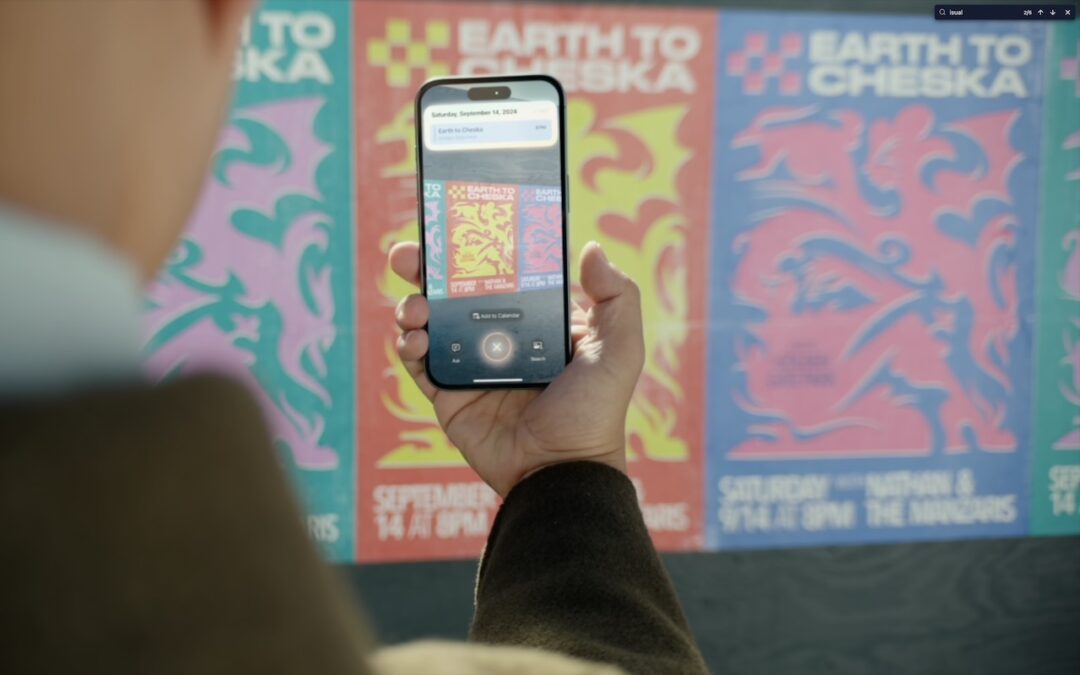
Visual-Intelligence-poster-photo

Make the Most of Visual Intelligence on the iPhone

The “visual intelligence” aspect of Apple Intelligence leverages the artificial intelligence capabilities of your iPhone to make what you see through the iPhone’s camera or on its screen interactive and actionable in ways that weren’t previously possible. It’s one of the most useful aspects of Apple Intelligence.

Triggering Visual Intelligence

We offer numerous examples of visual intelligence’s superpowers later in this article, but first, let’s make sure you know how to activate its two modes: camera mode and screenshot mode. Use camera mode to learn more about the world around you; use screenshot mode for help with something on your iPhone’s screen. Here’s how to trigger each mode:

  • Camera mode: Press and hold the Camera Control button on all iPhone 16 models (except the iPhone 16e), all iPhone 17 models, and the iPhone Air. Press the Camera Control again or tap the shutter button to lock the image for visual intelligence. On the iPhone 15 Pro, iPhone 15 Pro Max, and iPhone 16e, which support Apple Intelligence but lack the Camera Control, use the Action button, a Lock Screen button, or a Control Center button.
  • Screenshot mode: Simultaneously press the side button and volume up button to display an interactive preview of what was on the screen.

Visual intelligence analyzes the content of your image and provides relevant action buttons based on what it detects. While the Ask and Search options are always available, other buttons appear contextually depending on the content.

  • Ask: Tapping the Ask button lets you pose a question about the image to ChatGPT. (But we’ve found that Apple won’t pass on health-related questions or queries with certain types of sensitive data.)
  • Search: Tapping the search button conducts a Google Image search for similar items. It may also display tabs for search results from other apps, such as Etsy or eBay.
  • Recognized objects: When visual intelligence identifies an object, such as a specific plant or animal, it displays a button that brings up more details.
  • Text: When it detects blocks of text, visual intelligence provides buttons to summarize the text, read it aloud, or translate it.
  • Dates: If it detects a date in text, visual intelligence displays an Add to Calendar button.
  • Contact info: When details like email addresses or phone numbers appear in the image, visual intelligence can help you call or message the number, or send email.
  • Addresses: When it identifies a physical address in text, visual intelligence displays a button that opens the address in Maps.
  • URLs: This works in the virtual world as well—a URL embedded in an image prompts visual intelligence to display a button that opens the website in Safari.
  • Businesses and locations: When you capture an image of a business or other location that’s known in Maps, visual intelligence can show hours, menus, reviews, and more.

Real-World Uses for Visual Intelligence

It can be challenging to think of uses for visual intelligence at first, simply because it’s a new way of engaging with the world around you and what you see on your iPhone. We’re used to taking pictures of event flyers we want to attend, doing Google searches for things we see, asking questions of chatbots, and using specialized apps to identify plants and animals—visual intelligence can do all that and more. Here are a few practical ways to use visual intelligence today:

  • Create calendar events: Create calendar events from posters, flyers, invitations, or Web pages. When you point the camera at a poster or take a screenshot of an event page, an Add to Calendar button allows you to create an event directly from the on-screen details.
  • Find business information: Point the camera at a business to retrieve details such as hours, menu/services, phone number, and website. It’s the same information you’ll find in Maps, but it’s easier to pull up using visual intelligence.
  • Search for products: Shopping for something? Once you find an example of what you like—such as this mid-century modern sofa—take a screenshot, circle the picture with your finger, and browse the search results for similar items.
  • Summarize and read text aloud: When you’re faced with a large amount of text, especially if the font size is difficult to read, visual intelligence can provide a summary or even read it aloud. The option to have text read aloud can be particularly helpful for those with low vision.
  • Translate text: iOS offers multiple ways to translate text in unfamiliar languages, including the Translate app, but visual intelligence is often the fastest way to get a quick translation of a sign or placard.
  • Quick object identification: We’ve all wondered what some plant or animal is—using visual intelligence, you can point your camera at it to find out quickly. Just tap the name that appears to get more details.
  • Research questions: Sometimes, you know what you’re looking at but have questions about it. Instead of starting a new search, you can use visual intelligence, tap the Ask button, and pose your question to ChatGPT. Tap the response to ask a follow-up question. If you connect Apple Intelligence to your ChatGPT account in Settings > Apple Intelligence & Siri > ChatGPT, your conversations will be saved in ChatGPT, where you can review and continue the discussion.
  • Manipulate real-world data: Anything that can be photographed or captured in a screenshot can be used as data for other manipulations. For example, you could take a picture of a bookshelf and ask for a list of all the titles, or take a screenshot of a recipe and request the calorie count per serving.

How does visual intelligence compare to apps like ChatGPT, Claude, Gemini, and others? It outdoes them in two ways but falls short in one. Thanks to its deep integration with iOS and the iPhone’s Camera Control, it’s easier to activate visual intelligence than any other app. It also transfers data more effectively to other apps, such as sending URLs to Safari, phone numbers to Phone or Messages, addresses to Maps, and more. However, chatbot apps—which can also analyze photos and screenshots—are more conversational, offer more detailed information, and are willing to discuss potentially sensitive topics that Apple won’t touch, such as health and politics. We use visual intelligence for straightforward tasks, but for more complex situations, we often turn to a chatbot app instead.

(Featured image by Apple)


Social Media: With its visual intelligence feature, Apple Intelligence brings superpowers to your iPhone’s camera and screen. Just point and hold to identify objects, translate text, create calendar events, and get answers about anything you see.

Similar Posts

  • Hey Siri, What Can You Do?

    So, I am a little embarrassed to admit it but I bought an Amazon Echo to check out how Alexa compares with Siri. I’m a gadget guy so we will see if we find it useful and if not, I am sure I can find it a home on eBay. I use Siri more and more these days. My most common uses are asking her to settle trivia disputes with Grace or setting the timer for 5 minutes. But there is a lot more that Siri can do!

    Make Relationships with Siri
    When you speak Siri commands, you can refer to people by relationship, rather than name. So, if you want to call your father, you can say “call my father” instead of saying “call Bruce Leibowitz.” But to do this, you need to introduce Siri to your family. First, make sure you have a “card” in the Contacts app for yourself, and then go into Settings > Mail, Contacts, Calendars, scroll down to find and tap My Info, and select your card. Next, make sure you have a contact card for your father, and then tell Siri, “Bruce Leibowitz is my father.” Or, if Siri doesn’t hear you correctly, open Contacts, edit your card (not your father’s!), scroll down, tap “add related name,” tap the default relationship to pick “father,” tap the info “i” icon, select your father’s card, and tap Done.

    You can even use Siri to remember other types of relationships. Artie used to bring manure from his uncle’s farm for my garden and ended up with the nickname, “the spreader”. If I tell Siri “Art Hendrickson is my spreader” I can now just say “text my spreader…” and Siri knows who I am talking about. This works for nicknames but also for lawyers, accountants, doctors or any nickname you want to tell Siri about.

    Take a Picture
    Instead of fumbling to launch the Camera app on your iPhone you can just say “take a picture” and Siri will automatically open the Camera app and you can snap away.

    Siri Converts
    Need to know how many millimeters are in 4 inches? Just ask Siri and you will find that there are 101.6 mm in 4 inches. This works for currency exchange rates, too. Ask Siri how many Euros are equal to $100US you will find that 87.73 Euros is the exchange rate today. Siri has some other strong calculation features too. You can ask Siri how many calories there are in that fish sandwich or to calculate a 20% tip on your restaurant bill. You can ask her to solve math problems involving fractions and other math functions that will be faster than opening the calculator app and punching in the numbers.

    Settling Up
    Okay you can use Siri to look up baseball stats or other information to settle a dispute but what if you are at loggerheads and just want to get a random answer and don’t have a coin to flip. You can ask Siri to “roll the dice”, “flip a coin” or pick a random number.

    Name that Tune
    Siri is integrated with Shazam to help you figure out what song is playing. Just ask her “what song is playing?” and she will listen and let you know and probably try to sell you the song, too!

    Find that Photo
    Siri can search your photo library for you. I know how frustrating it is if your are like me and have literally thousands of photos. You can say something like “find that photo from Daytona Beach from last March” and Siri will launch Photos and take you right to any photos taken at that place and time.

    Siri Takes You Out
    Siri can make your restaurant reservations for you, too! Tell Siri “make a restaurant reservation for four at 7PM” and she will respond with available restaurants nearby and if you have the Open Table app installed can make the reservation for you or give you the phone number to call.

    Are We There Yet?
    If you are using your iPhone for navigation you can just say “ETA” and Siri will let you know how much longer you are gonna be on the road.

    Leave Me Alone
    Siri can do a lot for you but sometimes you just want alone time. You can tell Siri to turn on “do not disturb” and you will not be bothered. Or tell her to “turn on airplane mode” and she will turn off Wi-Fi and cellular signals.

  • Apple's Not The Only Game In Town

    I have the pleasure of being able to not only work behind the scenes here at Small Dog, but also on the front line with our customers. This past week while working in our “**Rutland, VT store**”:http://www.smalldog.com/rutland I had two customer interactions that brought an interesting subject light when talking about iPads. We have seen over the last two years or so there has been a slight drop in the number of iPads sales in comparison to when they first hit the market back in in April of 2010 and a lot has changed since then. There are more tablets out there than ever before including ones that run Android, Windows, Kindle and more.

    The draw away from Apple for some customers is that in many cases the same Apps and functions you can do on an iPad can be done on a another device and for less money. It’s easy to be persuaded by these draws and overlook some some other key aspects. What makes Apple stand apart is often pushed aside temporarily when comparing these products. With Apple everything is designed to work together. iCloud can sync all your information across multiples devices, from your iPad to iPhone to your computer. “**Handoff**”:https://support.apple.com/kb/PH18754?locale=en_US allows you to start a project on your iPad and then with a quick tab, pick up that project on your computer. Wanting to show your friends the pictures from your weekend trip to the mountains? With photo stream it doesn’t matter what Apple device you’ve picked up, your photos will be there. Have a great home video of your child or grandchild and just have to show everyone who came to Friday night dinner? No problem. With the Apple TV you can airplay that video and save yourself from passing your phone around the room for everyone to see. Another benefit? Apple devices last a long time! I have been using the original iPad mini for four years now and each week I interact with customers who are also using iPads that are two or three years old with no issues.

    In addition to all the integration, we’ve seen price drops for the iPads over the last several years as well. No longer do you need to spend $500 or more for an iPad. You can get an “**iPad Mini 2**”:http://www.smalldog.com/product/84491/ipad-mini-2-16gb-space-gray starting at **$269** and “**iPad Air**”:http://www.smalldog.com/product/86240/ipad-air-16gb-wi-fi-silver for **$399**. So the next time your considering tablet options, take a few moments to consider that while Apple isn’t the only game in town anymore, it’s still the leader of the pack!