Sidestep MacBook Optimized Battery Charging When Necessary
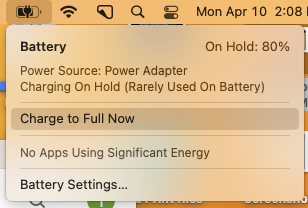
Have you ever run into a situation where the battery icon in your menu bar is stuck at 80% even though your Mac has been plugged in for hours? Luckily, there are several easy workarounds, but first, let us explain what’s going on.
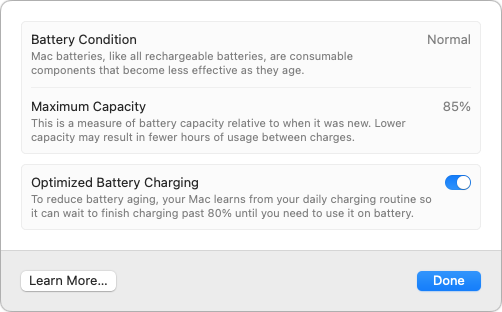
In the past few years, Apple has added optimized battery charging features to many of its battery-powered products, including the iPhone, the Apple Watch, and the MacBook Air and MacBook Pro. In all cases, Apple’s goal is to increase the lifespan of your devices’ lithium-ion batteries by reducing the amount of time they spend fully charged.
With the iPhone and Apple Watch, Apple achieves this by learning your charging patterns and delaying charging past 80% in certain situations. The optimized charging algorithm then charges the device to full just before you’re likely to unplug it. For most people, that probably happens overnight, so the device is ready in the morning.
With the MacBooks, the background is slightly different. Many people use their MacBooks at desks, often connected to large displays, so they spend a lot of time plugged into power. In the past, that would keep the battery fully charged and generate heat, both of which shorten the lifespan of lithium-ion batteries. So once again, Apple’s optimized battery charging technology tries to hold the battery at 80% and charges it to full only when it thinks you’ll need to use it away from the desk. If you seldom take it anywhere, it could be held at 80% most of the time.
That works best when you have a regular schedule, but it’s easy to end up in a situation where you need to grab your MacBook and head out—such as for an overnight trip—where you won’t be able to recharge easily. If the optimized battery charging algorithm wasn’t expecting that, you could find yourself with a battery that’s only at 80% to start, significantly reducing your battery life.
There are three ways to work around this problem, depending on how troublesome it is for you:
- Resume charging: If the optimized battery charging algorithm has paused charging at 80% but you want to leave with a full charge, click the battery icon in the menu bar and choose Charge to Full Now. That will take some time, so make sure you initiate the final charging early enough. This workaround is most helpful if you only occasionally need a full charge.
- Disable optimized battery charging temporarily: Let’s say you’re on that overnight trip and need to be sure that your MacBook is fully charged for your 6 AM flight home. To ensure you don’t wake up to a partially full battery, you can temporarily disable optimized battery charging. In macOS 13 Ventura, choose System Settings > Battery, click the ⓘ next to Battery Health, turn off the Optimized Battery Charging switch, and click Turn Off Until Tomorrow in the dialog that appears.
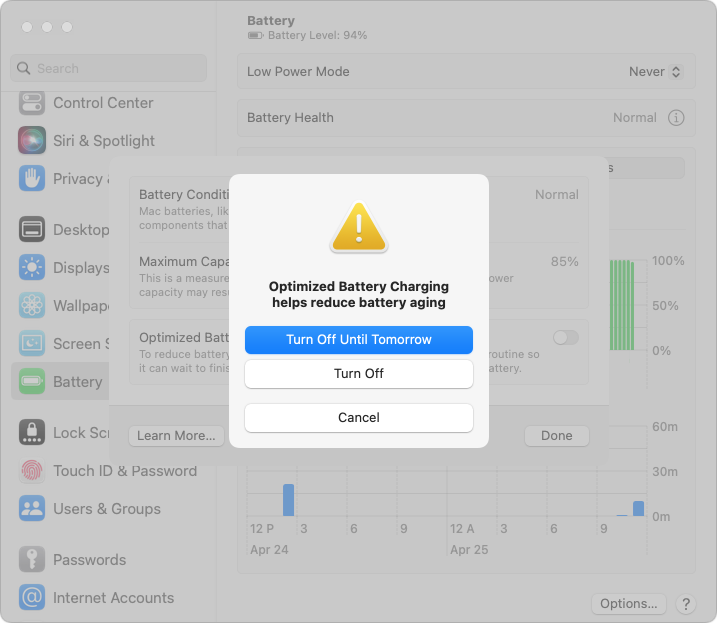
In macOS 12 Monterey and earlier, choose System Preferences > Battery, deselect Optimized Battery Charging, and click Turn Off Until Tomorrow. - Disable optimized battery charging permanently: Some people have unpredictable schedules. While the optimized battery charging algorithm may simply throw up its hands and allow your battery to charge fully at all times, if you find yourself continually fighting it, follow the steps above and click Turn Off to disable it permanently. Be aware that this may reduce the overall lifespan of your battery.
If all this seems fussy, it’s because Apple was criticized some years ago when it introduced optimized battery charging for the iPhone without informing users, some of whom were upset by the seemingly unpredictable charging behavior. Apple now makes the controls accessible to users, which is good but adds complexity.
Although we recommend leaving optimized battery charging enabled in most situations, there are times when it’s reasonable to turn it off to ensure you have as much power as possible for the upcoming work session.
(Featured image by iStock.com/Konev Timur)
Social Media: Has your MacBook’s battery ever been stuck at 80% when you would prefer to have a full charge? We explain what’s happening and how to work around Apple’s optimized battery charging features.